EnglishDeutsch
 logo
Brands
  1. Home
  2. •
  3. Brands
  4. •
  5. Brother
  6. •
  7. Printer
  8. •
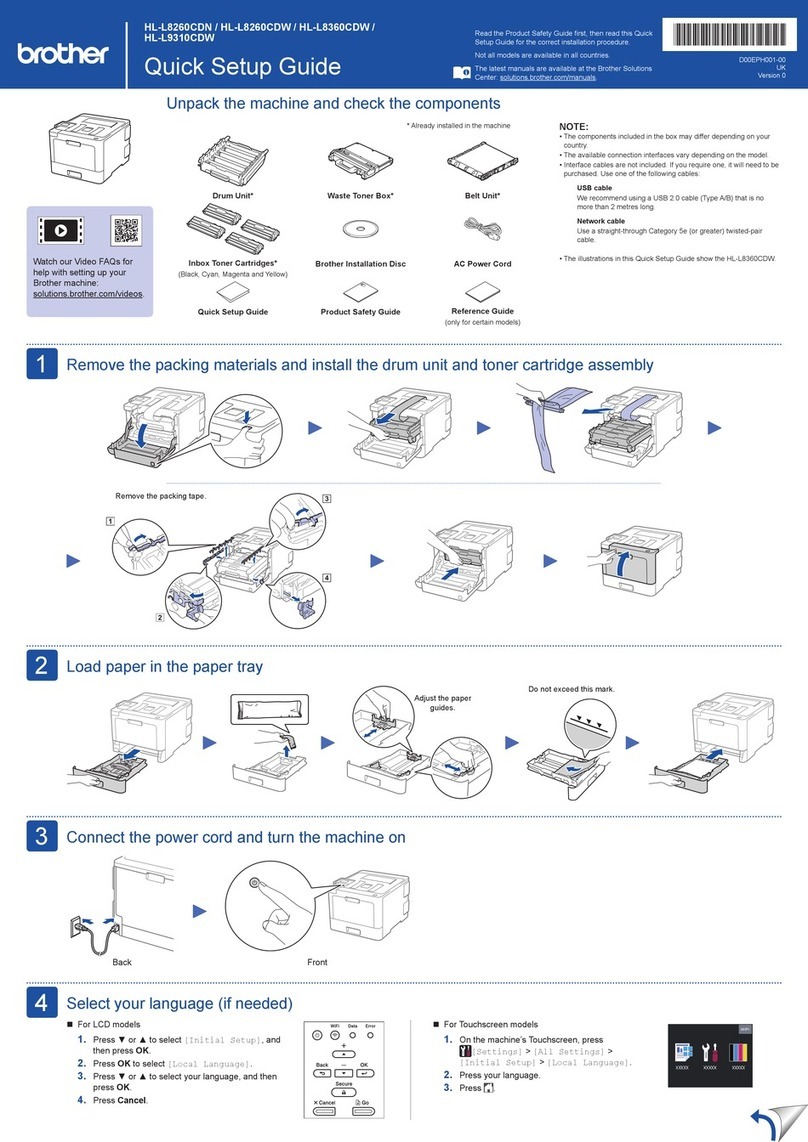
  9. Brother DCP-J1100DW User manual

Brother DCP-J1100DW User manual

Other manuals for DCP-J1100DW

5

This manual suits for next models

1

Other Brother Printer manuals

Brother HL-5340D User manual

Brother

Brother HL-5340D User manual

Brother HL 760 - B/W Laser Printer User manual

Brother

Brother HL 760 - B/W Laser Printer User manual

Brother WL-660 Series User manual

Brother

Brother WL-660 Series User manual

Brother PT 1000 - P-Touch 1000 B/W Thermal Transfer... Parts list manual

Brother

Brother PT 1000 - P-Touch 1000 B/W Thermal Transfer... Parts list manual

Brother MFC-J6910DW Operating and maintenance manual

Brother

Brother MFC-J6910DW Operating and maintenance manual

Brother HL-3160CDW User manual

Brother

Brother HL-3160CDW User manual

Brother TC-32B User manual

Brother

Brother TC-32B User manual

Brother HL-2070N User manual

Brother

Brother HL-2070N User manual

Brother HL-6050 User manual

Brother

Brother HL-6050 User manual

Brother HL-L8250CDN User manual

Brother

Brother HL-L8250CDN User manual

Brother HL-8050N User manual

Brother

Brother HL-8050N User manual

Brother GTX Product information sheet

Brother

Brother GTX Product information sheet

Brother DCP-9040CN User manual

Brother

Brother DCP-9040CN User manual

Brother HL-2150N User manual

Brother

Brother HL-2150N User manual

Brother HL-L5000D User manual

Brother

Brother HL-L5000D User manual

Brother MFC490CW - Color Inkjet - All-in-One Setup guide

Brother

Brother MFC490CW - Color Inkjet - All-in-One Setup guide

Brother GTX600 User manual

Brother

Brother GTX600 User manual

Brother HL-L2464DW User manual

Brother

Brother HL-L2464DW User manual

Brother HL-L8260CDN User manual

Brother

Brother HL-L8260CDN User manual

Brother HL-5040 User manual

Brother

Brother HL-5040 User manual

Brother Pocket Jet PJ-763MFi Operation instructions

Brother

Brother Pocket Jet PJ-763MFi Operation instructions

Brother HL-6050 User manual

Brother

Brother HL-6050 User manual

Brother HL-5130 User manual

Brother

Brother HL-5130 User manual

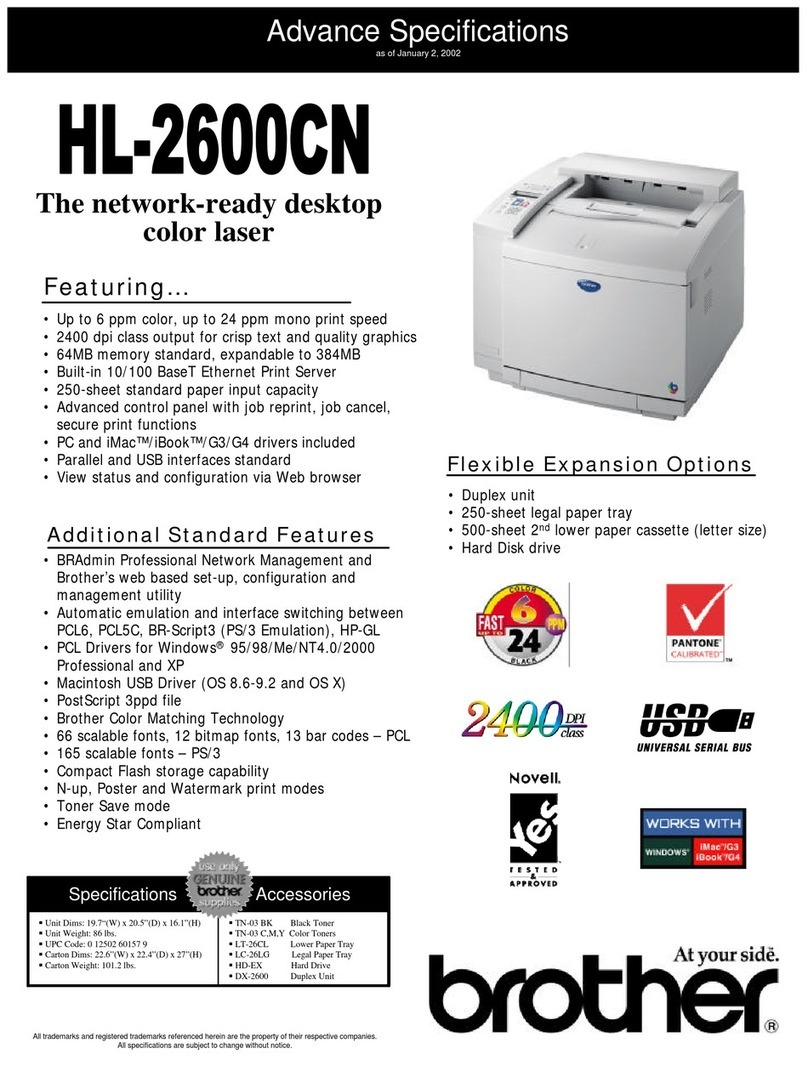
Brother 2600CN - HL Color Laser Printer User manual

Brother

Brother 2600CN - HL Color Laser Printer User manual

Popular Printer manuals by other brands

Lexmark 1400 Series null

Lexmark

Lexmark 1400 Series null

Canon i70 Series quick start guide

Canon

Canon i70 Series quick start guide

Evolis Elypso user guide

Evolis

Evolis Elypso user guide

Kyocera FS-9530DN specification

Kyocera

Kyocera FS-9530DN specification

Canon LASER SHOT LBP-1210 Specifications

Canon

Canon LASER SHOT LBP-1210 Specifications

Samsung BIXOLON SRP-350plusF user manual

Samsung

Samsung BIXOLON SRP-350plusF user manual

Canon PIXMA PRO-1 Series Getting started

Canon

Canon PIXMA PRO-1 Series Getting started

Canon PIXMA G3560 Online manual

Canon

Canon PIXMA G3560 Online manual

Dell Color Laser Printer 2130cn user guide

Dell

Dell Color Laser Printer 2130cn user guide

Tektronix Phaser 840 user guide

Tektronix

Tektronix Phaser 840 user guide

Fuji Xerox DocuPrint P375 dw reference guide

Fuji Xerox

Fuji Xerox DocuPrint P375 dw reference guide

WOOSIM PORTI-S30 Operator's manual

WOOSIM

WOOSIM PORTI-S30 Operator's manual

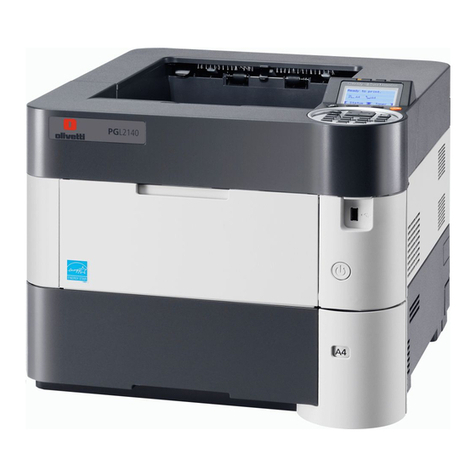
Olivetti PG L2140 Operation guide

Olivetti

Olivetti PG L2140 Operation guide

Konica Minolta bizhub 224e user guide

Konica Minolta

Konica Minolta bizhub 224e user guide

Canon LBP113w Getting started

Canon

Canon LBP113w Getting started

Xerox DocuColor 5000 Getting started

Xerox

Xerox DocuColor 5000 Getting started

Canon PRO-500 Series Online manual

Canon

Canon PRO-500 Series Online manual

Epson ET-7750 Programming guide

Epson

Epson ET-7750 Programming guide

https://manuals.online logo
https://manuals.online logoBrands
  • About & Mission
  • Contact us
  • Privacy Policy
  • Terms and Conditions

Copyright 2026 Manuals.Online. All Rights Reserved.

Secure Network Access
Your machine’s default password is initpass. We
recommend you change it to protect your machine
from unauthorised access.
NOTE
• The Reference Guide for these models is available on the
enclosed installation disc.
• Most of the illustrations in this Quick Setup Guide show the
MFC-J1300DW.
• Save all packing materials and the box in case you must ship your
machine.
• You must purchase the correct interface cable for the
interface you want to use.
USB cable
We recommend using a USB 2.0 cable (Type A/B) that is no more
than 2 metres long.
Ethernet (Network) cable (MFC-J1300DW only)
Use a straight-through Category 5 (or greater) twisted-pair cable
for 10BASE-T or 100BASE-TX Fast Ethernet Network.
2Load paper in the paper tray
For more information about paper handling and sizes, see the Reference Guide.
1Unpack the machine and check the components
The components included in the box may differ depending on your country.
Remove the protective tape or film covering the machine.
Follow the touchscreen
instructions to unpack and install
the ink cartridges. Close the ink
cartridge cover. The machine will
prepare the ink tube system for
printing.
NOTE
Thersttimeyouinstallasetofink
cartridges the machine will use an
amountofinktolltheinkdelivery
tubes for high quality printouts. This
process will only happen once.

Open the ink cartridge cover.
After turning the machine on, you may need to set your country or language (depending on
your machine).
If required, follow the touchscreen instructions.
NOTE
You can adjust the control panel angle to read the
touchscreen more easily.
Quick Setup Guide
DCP-J1100DW / MFC-J1300DW
Read the Product Safety Guide first, then read this Quick Setup Guide
for the correct installation procedure.
3Connect the power cord
5Install the inbox ink cartridges
4Select your country or language
(Initial setup only)
D011R6001-00
UK
Version 0
Inbox Ink Cartridges*
• Black
• Yellow
• Cyan
• Magenta
*
Inbox ink cartridges contain the
following yield of replacement
High Yield cartridges:
- Black: approx. 90% yield
- Others: approx. 80% yield
uu
Reference Guide: Supply
Specications
Quick Setup Guide
Product Safety Guide
Power Cord
Brother Installation Disc
1. Press [Settings] > [All Settings] >
[Initial Setup] > [Local Language].
2. Press your language.
3. Press .
8Select your language
(if needed and only for
certain models)
9Connect the telephone line cord
(MFC model only)
If you are not using your machine as a fax, go to 10 .
For more information on using the fax feature, see the Online User’s Guide.
The latest manuals are available at the Brother Solutions Center:
support.brother.com/manuals
Watch our FAQ videos for help
with setting up your Brother
machine.
support.brother.com/videos
6Set the date and time
Follow the touchscreen instructions to set the date and time.
Quickly shake just the black
ink cartridge horizontally
15 times as shown, before
inserting it into the machine.
Open the output paper tray
cover a. Fan the paper well and load it in the tray.
Close the output paper tray cover, and
then slowly push the tray completely
into the machine.
Adjust the paper guides.
NOTE
Pull out the paper support a, and unfold
thepapersupportapbso that the
printed pages do not fall.
When the machine has finished the initial cleaning
process, follow the touchscreen instructions to
configure the machine’s settings.
• Set Brother LCD Message defaults
• Check print quality
• Print the installation sheet
7Machine settings

1
2
([DPSOHIRU8.
(Example for UK)
© 2018 Brother Industries, Ltd. All rights reserved.For FAQs, Troubleshooting, and to download software and manuals, visit support.brother.com. For product specifications, see the Online User’s Guide.
10 Select a device to connect to your machine
11 Connect your computer
12 Alternative wireless setup
13 Print or scan using your mobile device
Your mobile device must be connected to the same wireless network as your Brother machine.
D011R6001-00
Put the installation disc into your CD/DVD drive, or
download the Full Driver & Software Package at:
For Windows®: support.brother.com/windows
For Mac: support.brother.com/mac
If you are using a recently released operating
system on your computer, visit the above websites
for updated driver and software information.
Follow the on-screen instructions and prompts.
For Windows®:
If the Brother screen does not appear
automatically, go to Computer (My
Computer/This PC). Double-click the CD/
DVD-ROM icon, and then double-click
start.exe.
For Mac:
For full driver functionality, we recommend
choosing the CUPS driver when adding a
printer.
If you cannot find this information, ask your network
administrator or wireless access point/router manufacturer.
If setup is not successful, restart
your Brother machine and your
wireless access point/router, and
repeat 12 .
Find your SSID (Network Name) and Network Key (Password) on your
wireless access point/router and write them in the table provided below.
Select the SSID (Network Name) for
your access point/router and enter the
Network Key (Password).
When the wireless setup is
successful, the touchscreen displays
[Connected].
Go to 11 to install software.
Go to 13 to install apps.
SSID (Network Name)
Network Key (Password)
Computer Mobile Device
Go to 11 and follow the instructions. Go to 12 and follow the instructions.
For Computer
For Mobile Device
Finished
Can’t Connect? Check the following:
Brother regularly updates firmware to add features and apply bug fixes.
To check for the latest firmware, visit support.brother.com/up4.
Even if you do not have a wireless access point/router, you can connect
your device and your machine directly. For additional wireless network
support, go to support.brother.com/wireless-support.
Brother SupportCenter is a mobile app that provides the latest
support information for your Brother product.
Visit the App Store or Google Play™ to download.
Wireless network
Wired network
(MFC-J1300DW only)
USB connection
Restart your wireless access point/router
(if possible). If still not successful, go to 12 .
Disconnect the cable. If still not successful, visit support.brother.com
for FAQs and Troubleshooting.
Restart your machine and computer,
and then go to 11 .
Go to your machine, and
press > [S et u p
Wizard] > [Ye s].
AirPrint is available for all supported iOS devices including
iPhone, iPad, and iPod touch. You do not need to download
any software to use AirPrint. For more information, see the
Online User’s Guide.
Download and install the Mopria®Print Service app from
Google Play™ using your Android™ device.
Additional Wireless Support: support.brother.com/wireless-support
Download
Optional apps
You can print from and scan to your mobile device using various apps.
For instructions, see the Online User’s Guide.
SSID: XXXXXXX
Network key: XXXX
Download and install our free application Brother iPrint&Scan
from a mobile application store, such as the App Store, Google
Play™ or Microsoft®Store using your mobile device.
For Wired Network Connection* and USB
Connection:
Locate the correct port (based on the
cable you are using) inside the machine
as shown.
*MFC-J1300DW only