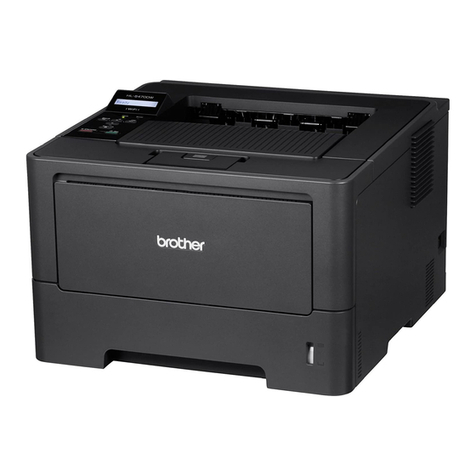
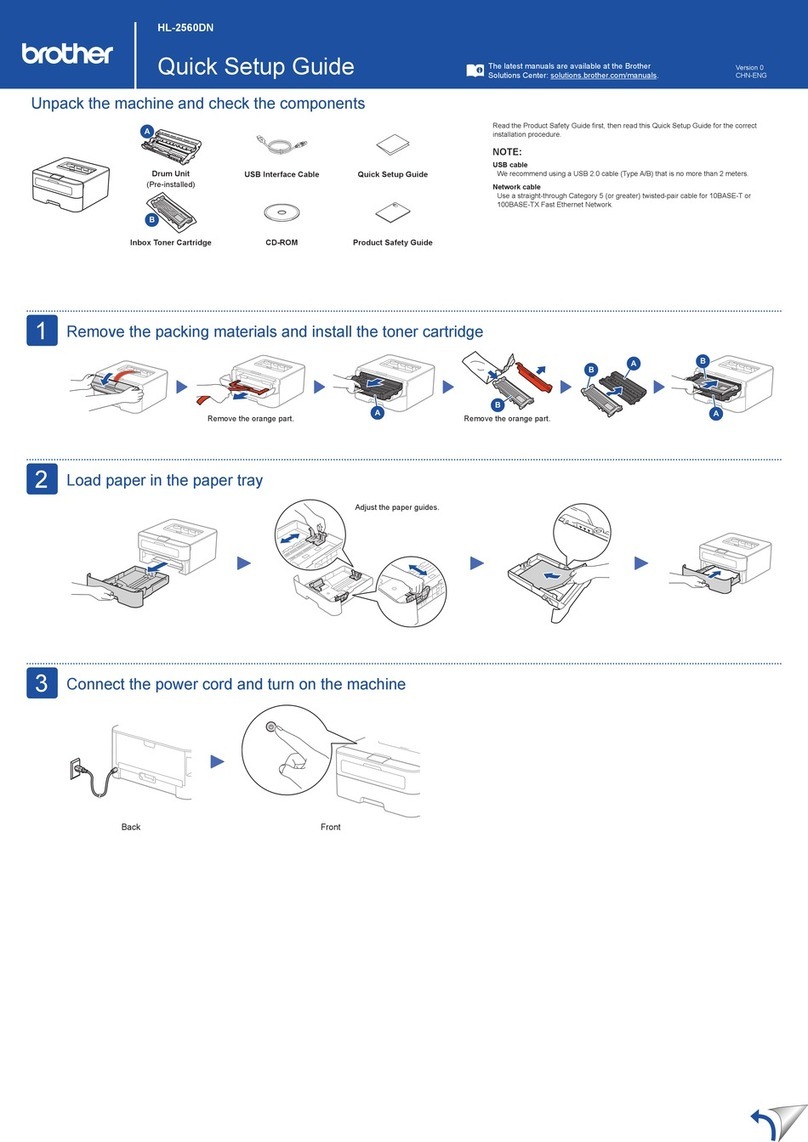
Printer driver and Utilities
For Windows® users only
HL-1650/1670N
Send confidential documents from your Windows applications in secure print
mode.Confidential documents are only printed by entering your PIN number on
the printer Control panel.
For more information, see Chapter 3 of the printer User’s Guide(on the CD-
ROM) or go to http://solutions.brother.com
If you plan to use the Secure Printing feature, we recommend adding additional RAM
and increasing the RAM size setting of the printer. For details, see Chapter 4 of the
User’s Guide.
N in 1
Poster Printing
Use the Multipage option to compress pages of text into single sheets of paper.
From 2 to 25 pages can be compressed into a single page.
Select Poster Print mode to enlarge single sheets
of paper to up to 25 times their original size.
Use less toner and save money on your running costs by enabling the “Toner Save” option.
A Task Bar based application to access commonly used driver features.
Right-click the icon (with
the right mouse button)
to see the current main
printer settings.
Change the settings by
moving the cursor to the
menu you want to change.
You can make the Quick Print Setup icon appear or disappear from the task tray by using the settings in the printer driver Properties tab.
Go to http://solutions.brother.com for more information.
Your personal, on-line, 24 hour a day, 7 days a week support line. Animated movies appear on your desktop when a printer error
occurs.View the animation to learn and understand how to solve the problem. Go to http://solutions.brother.com for more
information on this unique feature.
To use the Interactive Help, select "Yes" in the confirmation dialog displayed at the last step of installing the printer driver.You can
install the Intereactive Help.
For Parallel Cable and USB Cable Users:
When a printer error occurs, the Status
Monitor icon appears on the task tray if
Status Monitor is enabled in the printer
driver.
Right-click (or double-click) the Status
Monitor icon and select Interactive Help and
watch a video for the reported problem.
For Network Users:
A short cut icon appears on the desktop after you
have installed the printer driver.
When an Error message appears on the printer
LCD, double-click the matching shortcut icon on
the desktop.
Select the error message that appeared on the
printer control panel LCD.
Watch a video that demonstrates relevant
information for the reported problem.
When you use Brother LPR Peer to Peer printing software, the Status Monitor icon appears on the task tray when an error occurs.
Anyone sharing a common e-mail address who requires their mail to be printed automatically can
benefit from the use of the Automatic E-mail Printing software.This software downloads and prints
E-mail automatically and can be tailored to receive mail and print mail at set intervals or at selected
times.
This software is a utility for managing your Brother network enabled printers, which runs on Windows® 95/98/Me,Windows® 2000 and Windows NT®
4.0.The BRAdmin Professional software provides sophisticated network and printer management capabilities for Brother products. By identifying
potential problems before they are noticed and by addressing important IT requirements such as streamlined printer configuration, mass configuration
and enterprise-wide upgrades, the BRAdmin Professional software plays an important role in Printer network management.
Use the Brother storage manager software to manage fonts and macros (electronic forms) stored in the printer memory. For more information, see
the Storage Manager Guide on the CD-ROM or go to the Brother solutions web site at http://solutions.brother.com
Save on communications costs using the IPP protocol or Brother’s BIP software to send print jobs from your Windows PC over the Internet directly to
a Brother network ready printer.
For more information, see Chapter 5 of the Network User’s Guide or go to the Brother Solutions web site at http://solutions.brother.com
Note
Note
Note
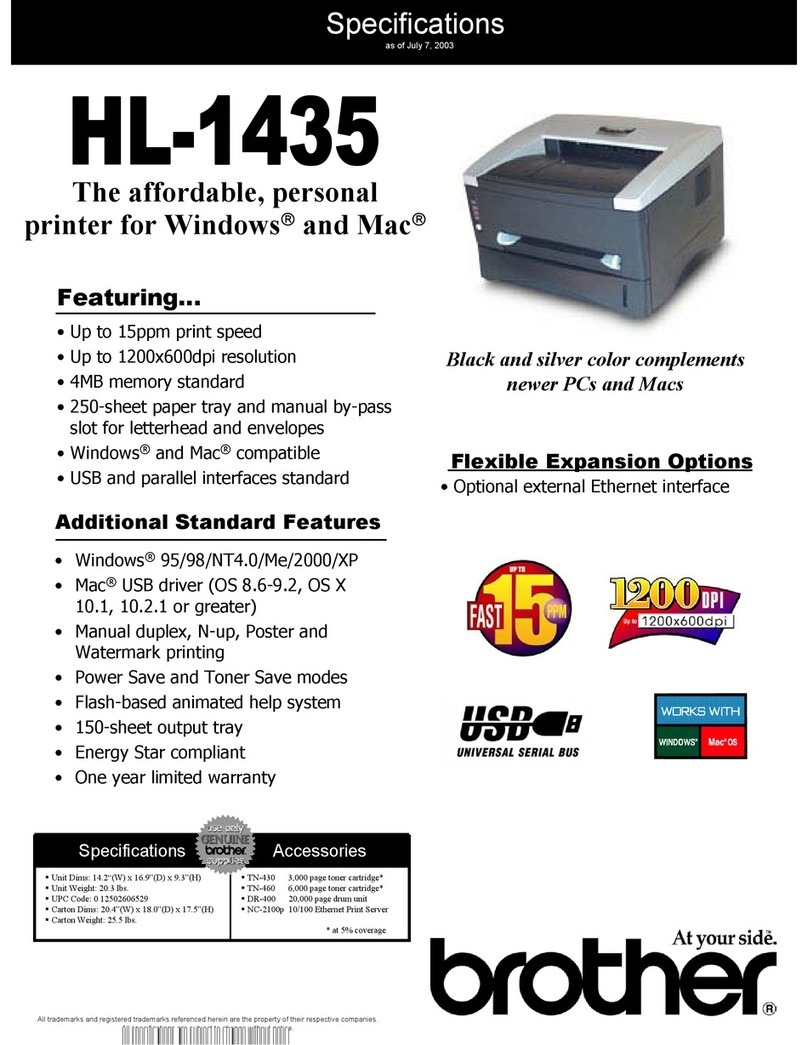
This printer is supplied with an internal duplex unit as standard.
Duplex Printing enables you to print on both sides of pages, easily creating professional
documentation and reducing paper usage.
This feature accommodates the following paper sizes:
A4/Letter/Legal.
For more information refer to the printer User’s Guide
(on the CD-ROM)
Note
$
Watermark your documents using pre-defined messages.
You can also create your own watermarks using text or bitmap
images.
2
1
1
2
1
2
$
$
For Administrator Only
©2000 Brother Industries, Ltd.Windows® and Windows® NT are registered trademarks of Microsoft Corporation in the U.S.and other countries. Macintosh and iMac are registered trademarks of Apple Computer, Inc.
All other brand and product names are trademarks or registered trademarks of their respective holders.
ON
SALE
CONFIDENTAL
Reprint
Data
Go
Back
Set
Connect directly to the Brother Solutions Center (http://solutions.brother.com) Web site for up to date information on
printer drivers, user guides, white papers and other documentation available for your Brother printer.
Utilities
There is a substantial amount of utility software support for users and administrators.
Printer driver function
The Brother Printer Driver lets you access printer features in a simple to use, intuitive manner and features a host of useful features that enhance
productivity and ensure you get the most from your printer.
For the latest driver and to find the best solution for your problem or question, access the Brother Solutions Center directly from the driver or go to
http://solutions.brother.com
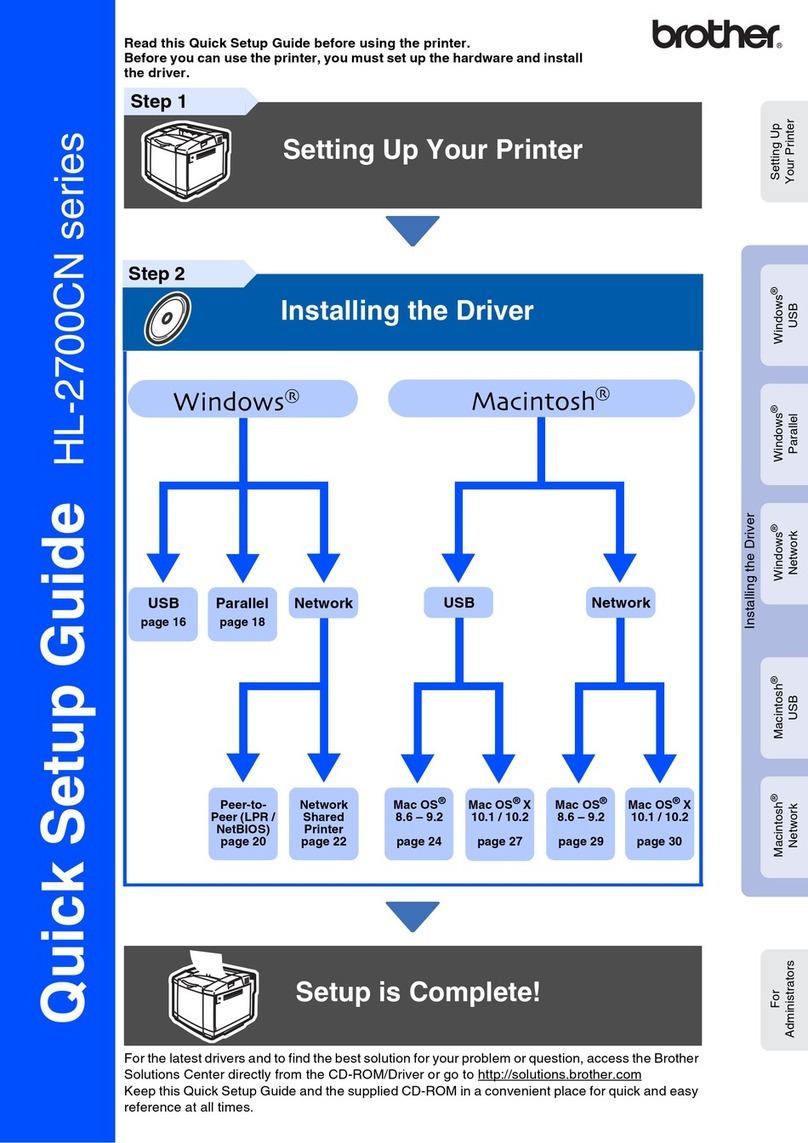
This document provides an introduction to the printer driver functions and utilities. The printer driver and utilities are available on the
CD-ROM that was supplied with your printer.
cost saving help you
Printed in China LJ5404001 administrator utilityprofessional
$
$