EnglishDeutsch
 logo
Brands
  1. Home
  2. •
  3. Brands
  4. •
  5. Brother
  6. •
  7. Printer
  8. •
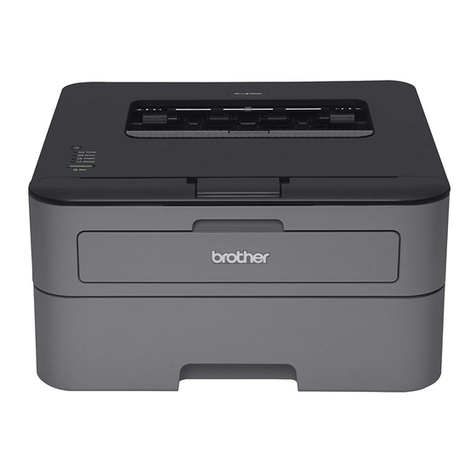
  9. Brother HL-L5000D User manual

Brother HL-L5000D User manual

Other manuals for HL-L5000D

4

This manual suits for next models

10

Other Brother Printer manuals

Brother MPrint MW-140BT User manual

Brother

Brother MPrint MW-140BT User manual

Brother HL-3450CN Series User manual

Brother

Brother HL-3450CN Series User manual

Brother HL-1020 User manual

Brother

Brother HL-1020 User manual

Brother HL 1270N - B/W Laser Printer Installation instructions

Brother

Brother HL 1270N - B/W Laser Printer Installation instructions

Brother DCP-J132W User manual

Brother

Brother DCP-J132W User manual

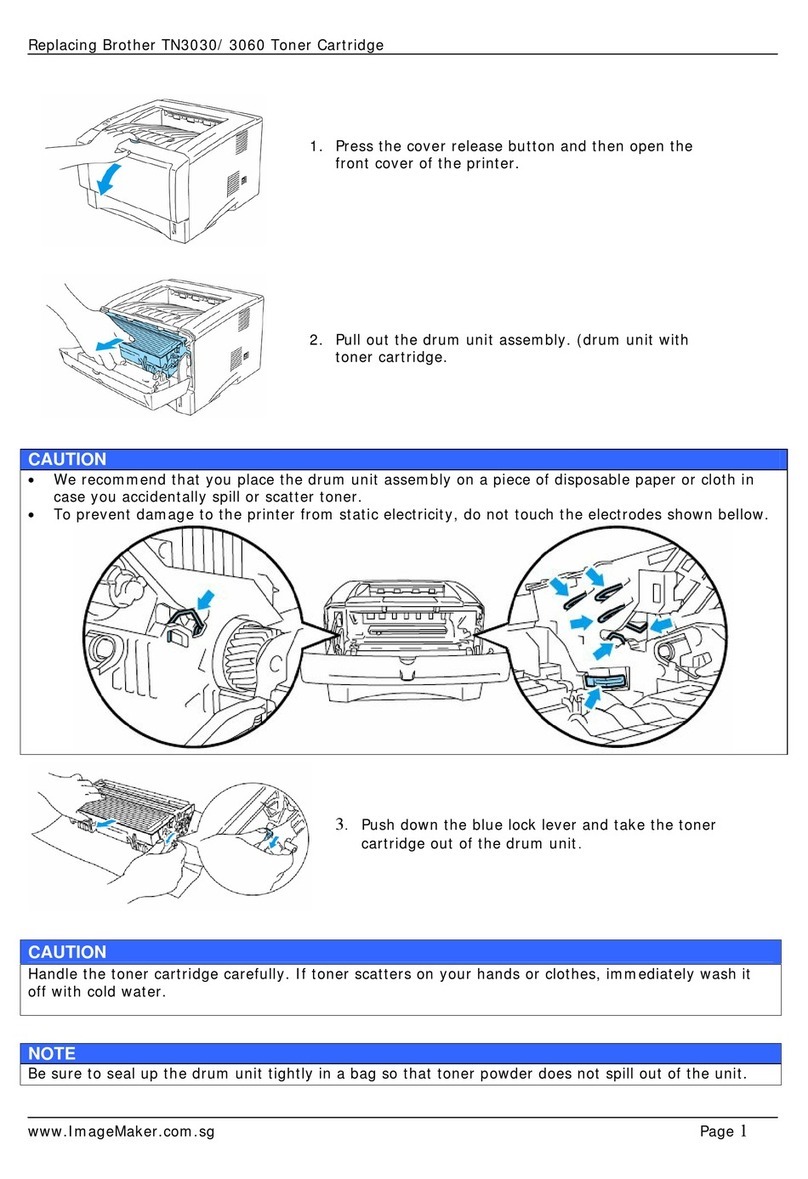
Brother TN3030 User manual

Brother

Brother TN3030 User manual

Brother HL-4150CDN User manual

Brother

Brother HL-4150CDN User manual

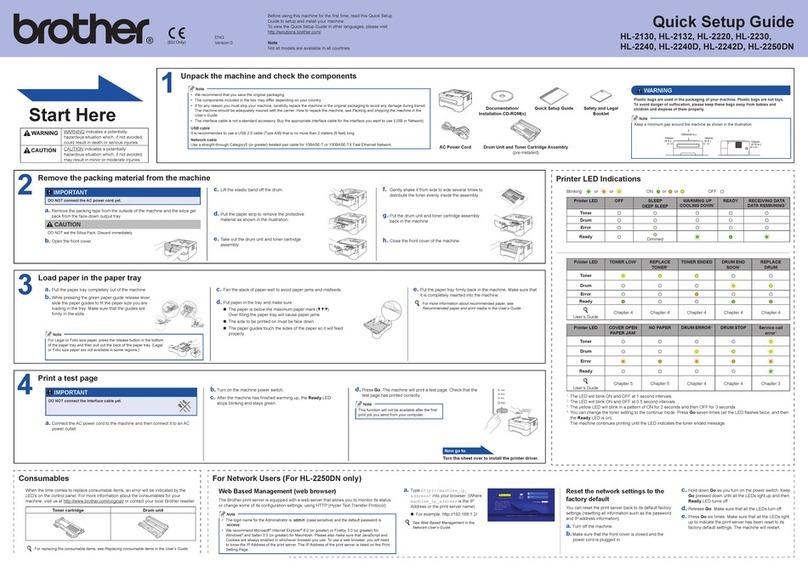
Brother HL-2220 User manual

Brother

Brother HL-2220 User manual

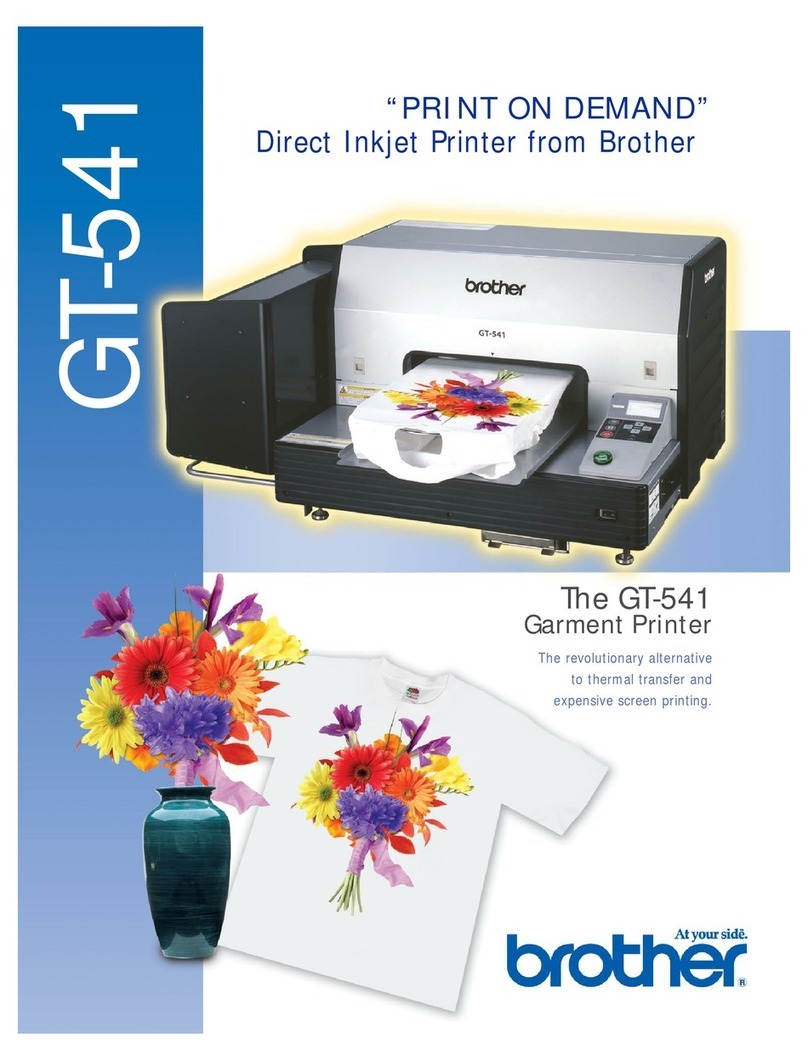
Brother GT-541 User manual

Brother

Brother GT-541 User manual

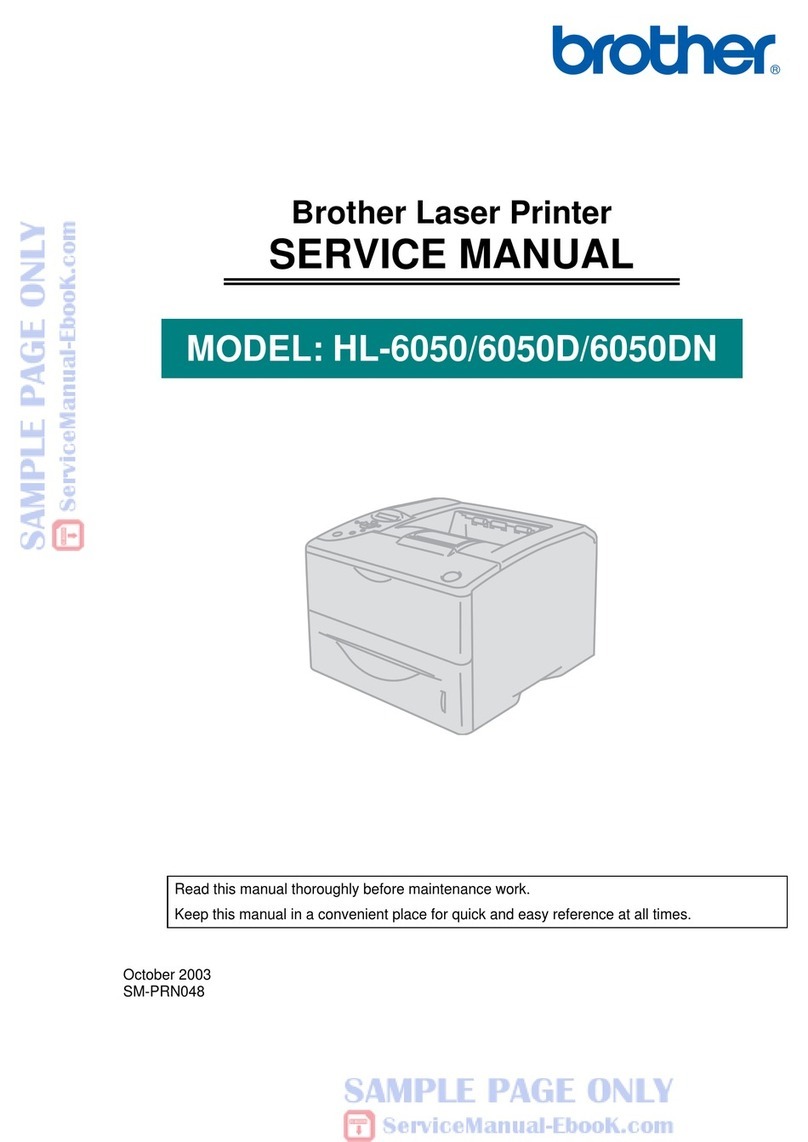
Brother HL-6050 User manual

Brother

Brother HL-6050 User manual

Brother MFC 1780 - B/W Inkjet Printer Specification sheet

Brother

Brother MFC 1780 - B/W Inkjet Printer Specification sheet

Brother DCP-L2520D User manual

Brother

Brother DCP-L2520D User manual

Brother RJ-4250WB User manual

Brother

Brother RJ-4250WB User manual

Brother HL-L2340DW User manual

Brother

Brother HL-L2340DW User manual

Brother HL-5240 User manual

Brother

Brother HL-5240 User manual

Brother HL-L3210CW User manual

Brother

Brother HL-L3210CW User manual

Brother HL-6050 User manual

Brother

Brother HL-6050 User manual

Brother 2700CN - HL Color Laser Printer Quick start guide

Brother

Brother 2700CN - HL Color Laser Printer Quick start guide

Brother HL-2400C Series User manual

Brother

Brother HL-2400C Series User manual

Brother HL-2400C Series User manual

Brother

Brother HL-2400C Series User manual

Brother DCP-L5510DN User manual

Brother

Brother DCP-L5510DN User manual

Brother MFC-J985DW Specification sheet

Brother

Brother MFC-J985DW Specification sheet

Brother P-Touch QL-500 User manual

Brother

Brother P-Touch QL-500 User manual

Brother HL-L2300D User manual

Brother

Brother HL-L2300D User manual

Popular Printer manuals by other brands

Lexmark 1400 Series null

Lexmark

Lexmark 1400 Series null

Canon i70 Series quick start guide

Canon

Canon i70 Series quick start guide

Evolis Elypso user guide

Evolis

Evolis Elypso user guide

Kyocera FS-9530DN specification

Kyocera

Kyocera FS-9530DN specification

Canon LASER SHOT LBP-1210 Specifications

Canon

Canon LASER SHOT LBP-1210 Specifications

Samsung BIXOLON SRP-350plusF user manual

Samsung

Samsung BIXOLON SRP-350plusF user manual

Canon PIXMA PRO-1 Series Getting started

Canon

Canon PIXMA PRO-1 Series Getting started

Canon PIXMA G3560 Online manual

Canon

Canon PIXMA G3560 Online manual

Dell Color Laser Printer 2130cn user guide

Dell

Dell Color Laser Printer 2130cn user guide

Tektronix Phaser 840 user guide

Tektronix

Tektronix Phaser 840 user guide

Fuji Xerox DocuPrint P375 dw reference guide

Fuji Xerox

Fuji Xerox DocuPrint P375 dw reference guide

WOOSIM PORTI-S30 Operator's manual

WOOSIM

WOOSIM PORTI-S30 Operator's manual

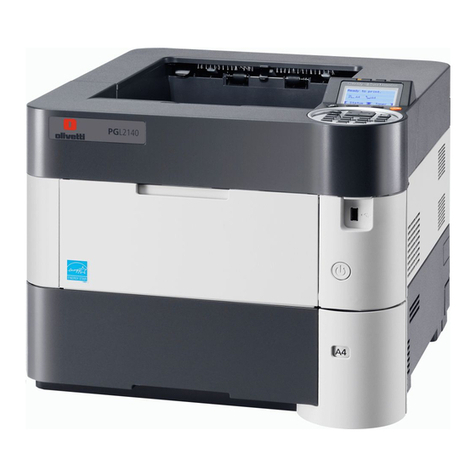
Olivetti PG L2140 Operation guide

Olivetti

Olivetti PG L2140 Operation guide

Konica Minolta bizhub 224e user guide

Konica Minolta

Konica Minolta bizhub 224e user guide

Canon LBP113w Getting started

Canon

Canon LBP113w Getting started

Xerox DocuColor 5000 Getting started

Xerox

Xerox DocuColor 5000 Getting started

Canon PRO-500 Series Online manual

Canon

Canon PRO-500 Series Online manual

Epson ET-7750 Programming guide

Epson

Epson ET-7750 Programming guide

https://manuals.online logo
https://manuals.online logoBrands
  • About & Mission
  • Contact us
  • Privacy Policy
  • Terms and Conditions

Copyright 2026 Manuals.Online. All Rights Reserved.

Unpack the machine and check the components
NOTE:
• The available connection interfaces vary depending on the model.
• You must purchase the correct interface cable for the interface you
want to use.
USB cable
We recommend using a USB 2.0 cable (Type A/B) that is no
more than 2 metres long.
Network cable
(For HL‑L5100DN(T) / HL‑L5200DW(T) / HL‑L6200DW /
HL‑L6250DN / HL‑L6300DW(T) / HL‑L6400DW(T))
Use a straight‑through Category 5 (or greater) twisted‑pair cable.
Parallel cable
(For HL‑L5000D)
Use the parallel cable provided with the machine. If the parallel
cable is not provided with the machine in your country or region,
please contact Brother customer service or your local Brother
dealer to purchase the optional parallel cable (PC‑5000).
• The illustrations in this Quick Setup Guide show the HL‑L5200DW
and the HL‑L6400DW.
Remove the packing materials and install the drum unit and toner cartridge assembly
Load paper in the paper tray
Connect the power cord and turn the machine on
Select your language (if needed)
Drum Unit and Toner
Cartridge Assembly
(pre‑installed in models
HL‑L5000D /
HL‑L5100DN(T) /
HL‑L5200DW(T) /
HL‑L6200DW /
HL‑L6300DW(T) /
HL‑L6400DW (For Oceania))
Drum Unit
(pre‑installed in models
HL‑L6250DN /
HL‑L6400DW (Except for Oceania) /
HL‑L6400DWT)
Inbox Toner Cartridge
(models HL‑L6250DN /
HL‑L6400DW (Except for Oceania) /
HL‑L6400DWT)
Installation CD‑ROM AC Power Cord
Quick Setup Guide Product Safety Guide Reference Guide
(only for certain models)
For LCD models
3
4
2
1
Adjust the paper
guides.
Back Front
HL‑L5000D / HL‑L5100DN(T) / HL‑L5200DW(T) / HL‑L6200DW / HL‑L6300DW(T) / HL‑L6400DW (For Oceania)
Remove the orange part.Discard the silica gel pack.
For Touchscreen models
1. Press ▼ or ▲ to select [General Setup], and
then press OK.
2. Press OK to select [Local Language].
3. Press ▼ or ▲ to select your language, and then
press OK.
4. Press Cancel.
1. On the machine’s Touchscreen, press
[Settings] > [General Setup] >
[Local Language].
2. Press your language.
3. Press .
Remove the orange part.
HL‑L6250DN / HL‑L6400DW (Except for Oceania) / HL‑L6400DWT
Remove the orange part.
Quick Setup Guide
HL‑L5000D / HL‑L5100DN / HL‑L5100DNT / HL‑L5200DW /
HL‑L5200DWT / HL‑L6200DW / HL‑L6250DN / HL‑L6300DW /
HL‑L6300DWT / HL‑L6400DW / HL‑L6400DWT
Read the Product Safety Guide first, then read this Quick
Setup Guide for the correct installation procedure.
Not all models are available in all countries.
The latest manuals are available at the Brother Solutions
Center: solutions.brother.com/manuals.
Watch our Video FAQs for
help with setting up your
Brother machine:
solutions.brother.com/videos.
D004S9001‑01
UK
Version A
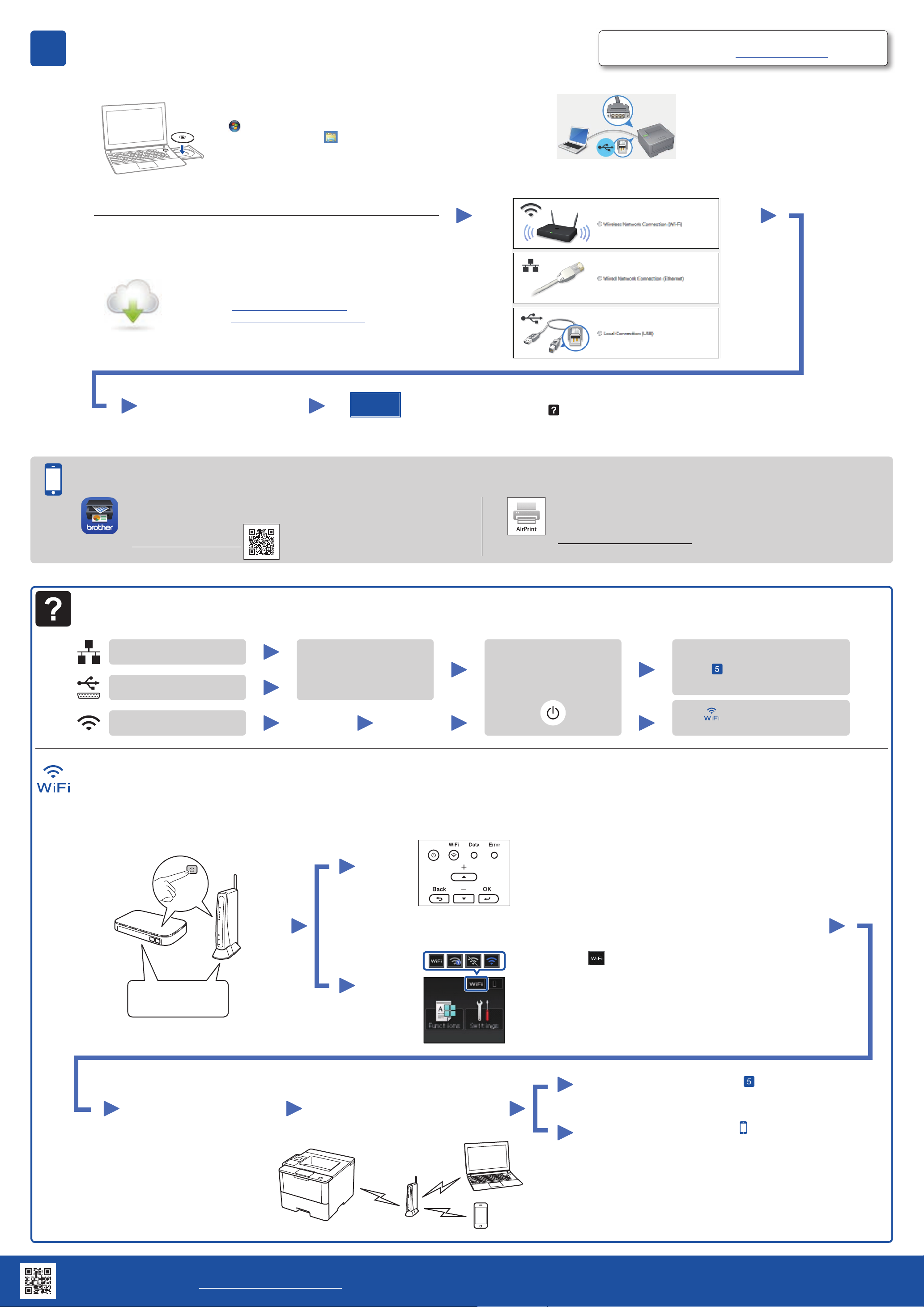
Connect your machine and install software
Macintosh/Windows®computer without CD‑ROM drive
Download the full driver and software package from the
Brother Solutions Center.
(Macintosh) solutions.brother.com/mac
(Windows®) solutions.brother.com/windows
Finish
5
Print using your mobile device (not available for HL‑L5000D)
Follow the on‑screen instructions
to continue installation.
NOTE:
If connection is unsuccessful, see Cannot set up
your machine? below.
Download “Brother iPrint&Scan” to start using your machine with mobile
devices.
solutions.brother.com/ips
NOTE:
If the Brother screen does not appear automatically, click
(Start) > Computer (My Computer).
(For Windows®8: click the (File Explorer) icon on
the taskbar, and then go to Computer (This PC).)
Double‑click the CD‑ROM icon, and then double‑click
start.exe.
Windows®computer with CD‑ROM drive For HL‑L5000D
For other models
AirPrint is available for OS X and iOS users.
For more information, see the AirPrint Guide on your model’s Manuals
web page.
solutions.brother.com/manuals
Cannot set up your machine?
Wired network
USB/Parallel
Wireless network
Disconnect the cable. Restart your machine,
computer and/or mobile
device.
Repeat .
Go to Alternate wireless
configuration method (Setup Wizard).
1. Restart your wireless access point/router.
Alternate wireless configuration method (Setup Wizard)
a. Press ▲ or ▼ to select the [Network] option, and
then press OK.
b. Press ▲ or ▼ to select the [WLAN] option, and
then press OK.
c. Press ▲ or ▼ to select the [Setup Wizard]
option, and then press OK.
d. When [WLAN Enable?] appears, press ▲ to
select [On].
4. Select the SSID.
To use with your computer uu Step Connect your
machine and install software
3. Connect your machine to your wireless network.
For Touchscreen models
> [Setup Wizard] > [Yes].
The LCD displays [Connected].
For LCD models
SSID: XXXXXXX
Network key: XXXX
To use with your mobile device uu Print using your
mobile device (not available for HL‑L5000D)
2. Find the SSID and Network key.
5. Enter the Network key.
NOTE:
For information on how to enter text,
see the printed Reference Guide.
Choose your Connection Type:
Brother regularly updates firmware to add features and fix identified problems.
To check for the latest firmware, visit solutions.brother.com/up1.
Brother support website http://support.brother.com