CAREL S.p.A.
Via dell’Industria, 11 - 35020 Brugine - Padova (Italy)
Tel. (+39) 0499716611 – Fax (+39) 0499716600
CAREL si riserva la possibilità di apportare modifiche o cambiamenti ai propri prodotti senza alcun preavviso.
CAREL reserves the right to modify the features of its products without prior notice.
+050003875 rel. 1.0 - 08.03.2005
Nota: i parametri richiamabili con il tasto “Pushbutton” non possono essere modificati e non devono essere confusi con quelli modificabili da utente.
Per una completa descrizione di tutti i parametri impostabili si rimanda al manuale per l’utente che trovate nel sito www.ksa.carel.com sezione
“Download/Support/SoftwareUtilities”, dove si potranno anche scaricare aggiornamenti software.
Web server
Il Web server integrato in pCOWeb è “thttpd”, è conforme alle specifiche HTTP 1.1 e permette di visualizzare pagine HTML direttamente sul
vostro browser Internet. Una applicazione client può quindi controllare e monitorare da remoto il controllore pCO* su cui la scheda pCOWeb
è installata.
Le pagine HTML possono essere facilmente realizzate e scaricate in pCOWeb dall’utente finale utilizzando un qualsiasi client FTP. Si possono
utilizzare programmi di ampia diffusione sia per creare le proprie pagine HTML (es. Macromedia® DreamWeaver™ o Microsoft® FrontPage™)
sia per scaricarle sul pCOWeb (es. SmartFTP™ (www.smartftp.com)).
Accesso al sistema operativo tramite autenticazione
È possibile accedere al sistema tramite terminale telnet o via FTP. Ad ogni accesso viene richiesto di autenticarsi con nome utente e password.
Gli utenti registrati sono i seguenti:
nome utente descrizione password di factory permessi
root amministratore del sistema operativo froot nessuna limitazione
httpadmin amministratore web fhttpadmin accesso alla directory http in lettura/scrittura; ogni altra
directory solo in lettura.
carel usato da pCO* controller fcarel accesso solo ai servizi pCO*
guest guest fguest
Le password possono essere modificate tramite l’accesso alla pagina dell’amministratore. Nota: le password richiamabili con il tasto
“Pushbutton” non verranno modificate e non devono essere confuse con quelle modificabili da utente. Da questa pagina è inoltre possibile
impostare restrizioni di accesso a ciascuna delle varie directory presenti nell’albero http.
Collegandosi quindi via FTP e autenticandosi come amministratore web nel seguente modo:
- username= httpadmin;
- password= fhttpadmin (nota “f” come “factory” come prima lettera).
si avrà accesso al file system utente di pCOWeb. Le pagine personalizzate vanno inserite nella seguente cartella: /usr/local/root/flash/http.
IMPORTANTE. Le pagine scaricate nel pCOWeb devono avere i corretti proprietari e permessi per poter essere visualizzate con un browser,
impostare in modo corretto tali attributi via FTP risulta difficoltoso, per questo è disponibile la funzione di “auto-settaggio degli attributi”
all’interno delle pagine dell’amministratore e per attivarla è sufficiente cliccare sul link “Adjust HTML pages attributes”, si consiglia di farlo ogni
volta che si modifica una o più pagine HTML.
Script CGI
È possibile realizzare script cgi con il linguaggio bash o con linguaggi compilati. Essi devono avere estensione .cgi e devono risiedere nella
cartella http/usr-cgi. Come le pagine html, anche questi files devono avere correttamente settati proprietari e permessi. IMPORTANTE: si consiglia
di cliccare sul link “Adjust HTML pages attributes” ogni volta che si modifica uno o più script .cgi.
SNMP
pCOWeb è in grado di comunicare utilizzando il protocollo SNMP (v1 & v2c). Si comporta quindi da gateway tra il protocollo proprietario CAREL
e SNMP. Le informazioni disponibili via SNMP sono tutte quelle inviate in supervisione dall’applicativo caricato sul pCO*.
I files MIB per pCOWeb relativi agli applicativi standard per pCO* si possono richiedere a CAREL, quelli relativi ad applicativi non CAREL
possono essere realizzati dal cliente partendo ad esempio da quelli relativi agli applicativi standard CAREL.
pCOWeb gestisce alcune trap standard e permette di definire una trap per ciascuna variabile digitale del pCO*.
L’impostazione dei parametri relativi alla gestione del protocollo SNMP si effettua attraverso le pagine di configurazione di Amministratore (vedi
Accesso alla Configurazione Utente).
BACnet
pCOWeb è in grado di comunicare utilizzando il protocollo BACnet sui media Ethernet: - ISO8802-2 over 8802-3; - BACnet/IP.
pCOWeb si comporta quindi da gateway tra il protocollo proprietario CAREL e BACnet. Le informazioni trasferite sono tutte quelle inviate in
supervisione dall’applicativo caricato sul pCO*.
L’impostazione dei parametri relativi alla gestione del protocollo BACnet si effettua attraverso le pagine di configurazione di Amministratore (vedi
Accesso alla Configurazione Utente).
Caratteristiche generali
Condizioni di funzionamento: 0T55 °C, 20/80% U.R. non condensante;
Condizioni di immagazzinamento: -20T70 °C, 20/80% U.R. non condensante;
Grado di inquinamento ambientale: normale;
Interfaccia Ethernet: connettore RJ45 per Ethernet 10BaseT; utilizzare un cavo schermato classe 5, max 100 m.
Protocolli gestiti: HTTP, FTP, SNMP v1, v2c, DHCP, DNS, BACnet Ethernet ISO8802-2/8802-3, BACnet/IP (Addenda A/Annex J).
Memoria: 16MB RAM, 8 MB Flash (3MB disponibili per pagine web e dati utente).
CPU: ARM7 TDMI@74MHz clock
Sistema operativo: LINUX 2.4.21.
AVVERTENZE
Precauzioni nel maneggiare la scheda.
I danneggiamenti elettrici che si verificano sui componenti elettronici avvengono quasi sempre a causa delle scariche elettrostatiche indotte
dall’operatore. È quindi necessario prendere adeguati accorgimenti per queste categorie di componenti, ed in particolare:
• prima di maneggiare qualsiasi componente elettronico o scheda, toccare una messa a terra (evitare il contatto con un componente non è
sufficiente in quanto una scarica di 10.000 V, tensione molto facile da raggiungere con l’elettricità statica, innesca un arco di circa 1 cm);
• i materiali devono rimanere per quanto possibile all’interno delle loro confezioni originali. Se necessario, prelevare la scheda da una confezione
e trasferire il prodotto in un imballo antistatico senza toccare con le mani i lati della scheda su cui sono montati i componenti elettronici;
• evitare nel modo più assoluto di utilizzare sacchetti in plastica, polistirolo o spugne non antistatiche;
• evitare nel modo più assoluto il passaggio diretto tra operatori (per evitare fenomeni di induzione elettrostatica e conseguenti scariche).
Nota: Tutti i marchi registrati sono proprietà dei rispettivi titolari.
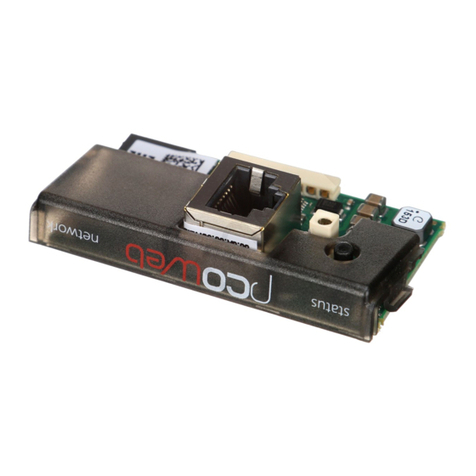
Interfaccia utente / User Interface
MAC address
Ethernet LED
Status LED
Pushbutton
Fig. 4
Il LED Status riassume lo stato della comunicazione con il controllore e mostra anche alcuni
stati della scheda (Fig. 5).
• Sequenza di avvio: all’accensione o dopo un riavvio del software il LED esegue la
seguente sequenza:
- spento;
- dopo 2 s dall’avvio: rapido lampeggio rosso-verde;
- dopo 5 s dall’avvio: verde fisso;
- dopo 62 s dall’avvio (scheda a regime): lampeggiante (colore lampeggio: vedi “stato
della comunicazione con pCO*”).
• Stato della comunicazione con pCO*: a regime il LED lampeggia per indicare la qualità
della comunicazione con pCO*:
- rapido verde-buio: comunicazione con pCO* ok (pCO* ON-LINE);
- lento rosso-buio: comunicazione con pCO* non stabilita (pCO* OFF-LINE);
- verde/rosso: rileva errori o temporanea mancanza di risposta da pCO*.
Il LED Ethernet (Fig. 5) mostra lo stato della comunicazione con la rete Ethernet, assume
i seguenti stati:
- verde: comunicazione ok, lampeggiante verde durante lo scambio di dati;
- rosso: comunicazione non stabilita (cavo interrotto, problemi all’altro capo del cavo).
Nota: il colore rosso di questo LED non dipende dalla corretta impostazione dei parametri
di comunicazione di pCOWeb, ma solo da problemi di connessione elettrica o di non
rilevamento dei segnali di collegamento alla rete, quest’ultimo caso potrebbe essere dovuto
al dispositivo all’altro capo del cavo che potrebbe essere spento o non collegato.
Tasto Pushbutton (Fig. 5), la cui pressione svolge la funzione di Riavvio del software o di
Utilizzo parametri di fabbrica (“factory bootswitch parameters”).
Note: the parameters recalled with the “Pushbutton” cannot be modified and must not be confused with the values that are modifiable by the
user.For a complete description of all the parameters that can be set, refer to the user manual, available at www.ksa.carel.com, “Download/
Support/Software Utilities” section, which also has software upgrades to be downloaded.
Web server
The web server included in the pCOWeb is “thttpd”, compliant with the HTTP 1.1 specifications, and is used to display HTML pages directly
on the Internet browser. A client application can thus control and monitor the pCO* controller that the pCOWeb board is installed on, from
a remote location.
The HTML pages can be easily created and downloaded to the pCOWeb by the end user with any FTP client. Common programs can be
used to create the custom HTML pages (e.g. Macromedia® DreamWeaver™ or Microsoft® FrontPage™) and download them to the
pCOWeb (e.g. SmartFTP™ (www.smartftp.com)).
Accessing the operating system by authentication
The system can be accessed via a telnet terminal or via FTP. Authentication with user name and password is required for each access. The
following users are registered:
user name description default password allowed
root administrator of the operating system froot no limitation
httpadmin web administrator fhttpadmin read/write access to the http directory; read-only to
the other directories.
carel used by pCO* controller fcarel access only to the pCO* services
guest guest fguest
The password can be modified by accessing the administrator page. Note: the password recalled with the “Pushbutton” function will not
be modified and must not be confused with the passwords that are modifiable by the user. This page can also be used to set the access
restrictions for each of the various directories in the http tree.
Consequently, connecting via FTP and logging in as the web administrator, as follows:
- username= httpadmin;
- password= fhttpadmin (note “f” as in “factory” as the first letter).
will access the pCOWeb user file system. The customised pages should be saved in the following directory: /usr/local/root/flash/http.
IMPORTANT. The pages downloaded to the pCOWeb must have the correct properties and be able to be displayed with a browser; setting
these attributes correctly via FTP is quite difficult, and consequently the “auto-set attributes” function is available in the administrator pages.
To activate this function, simply click the “Adjust HTML pages attributes” link; it is recommended to do this whenever modifying one or more
HTML pages.
CGI script
CGI scripts can be written in bash language or compiled languages. These must have the .cgi extension and must reside in the http/usr-cgi
directory. As for the HTML pages, these files must also have the properties correctly set and enabled. IMPORTANT: it is recommended to click
on the “Adjust HTML pages attributes” link whenever modifying one or more .cgi scripts.
SNMP
pCOWeb is able to communicate using the SNMP protocol (v1 & v2c). It therefore acts as a gateway between the CAREL proprietary protocol
and SNMP. The information available via SNMP relates to all the data sent to the supervisors by the application loaded on the pCO*.
The MIB files for the pCOWeb corresponding to the standard pCO* applications can be requested from CAREL, while those corre-
sponding to non-CAREL applications can be developed by the customer based, for example, on those corresponding to the standard
CAREL applications.
pCOWeb manages some standard traps and allows a trap to be defined for each digital variable on the pCO*.
The parameters relating to the management of the SNMP protocol can be set using the administrator configuration pages (see Accessing the
user configuration).
BACnet
pCOWeb is able to communicate using the BACnet protocol over Ethernet: - ISO8802-2 over 8802-3; - BACnet/IP.
pCOWeb thus acts a gateway between the CAREL proprietary protocol and BACnet. The information transferred involves all the data sent to
the supervisor by the application loaded on the pCO*.
The parameters relating to the management of the BACnet protocol are set using the administrator configuration pages (see Accessing the
user configuration).
General characteristics
Operating conditions: 0T55 °C, 20/80 % RH non-condensing;
Storage conditions: -20T70 °C, 20/80 % RH non-condensing;
Degree of environmental pollution: normal;
Ethernet interface: RJ45 connector for Ethernet 10BaseT; use a class 5 shielded cable, max 100 m.
Protocols managed: HTTP, FTP, SNMP v1, v2c, DHCP, DNS, BACnet Ethernet ISO8802-2/8802-3, BACnet/IP (Addenda A/Annex J).
Memory: 16 MB RAM, 8 MB Flash (3 MB available for web pages and user data).
CPU: ARM7 TDMI@74 MHz clock
Operating system: LINUX 2.4.21.
WARNINGS
Precautions when handling the board.
The electrical damage that occurs to electronic components is almost always due to electrostatic discharges caused by the operator.
Consequently, suitable precautions must be taken when handling these components, in particular:
• before handling any electronic component or board, touch an earthed object (avoiding contact with a component is not sufficient, as a
10,000 V discharge, a voltage that can easily be reached by static electricity, creates an arc of around 1 cm);
• the materials must remain as long as possible inside their original packages. If necessary, remove the board from the packing and then
place the product in antistatic packaging without touching the sides of the board containing the electronic components;
• always avoid using plastic, polystyrene or non-antistatic materials;
• always avoid passing the board between operators (to avoid the phenomena of electrostatic induction and consequent discharges).
Note: All registered brands are the property of their respective owners.
The Status LED shows the status of communication with the controller, as well as the
status of the board (Fig. 5).
• Starting sequence: on power-up or after restarting the software, the LED performs the
following sequences:
- off;
- 2 s after starting: quick red-green flash;
- 5 s after starting: green steady;
- 62 s after starting (board operating): flashing (colour: see “status of communication
with the pCO*”).
• Status of communication with the pCO*: in stable operation, the LED flashes to indicate
the quality of communication with the pCO*:
- fast green-dark: communication with pCO* ok (pCO* ON-LINE);
- slow red-dark: communication with pCO* not established (pCO* OFF-LINE);
- green/red: temporary errors, lack of response from pCO*.
The Ethernet LED (Fig. 5) shows the status of communication with the Ethernet network,
with the following possibilities:
- green: communication ok, flashing green when exchanging data;
- red: communication not established (cable broken, problems at the other end of the
cable).
Note: the fact that this LED may be red does not depend on the correct setting of the
pCOWeb communication parameters, but only on electrical problems or the failure to read
to the network connection signals; the latter case may be due to the device at the other end
of the cable, which may be off or disconnected.
Pushbutton (Fig. 5); pressing this restarts the software or loads the manufacturer
parameters (“factory bootswitch parameters”).