6
Connect both devices via the cable that comes with each trainer unit. Plug both
ends of the cable in the earphone socket of both devices. Both devices are
automatically synchronized and the trainer will now only get the feedback from
the student’s device.
After the training session, disconnect the cable and switch both devices off.
This will automatically end the student and trainer mode.
9: Signal and vibration free mode
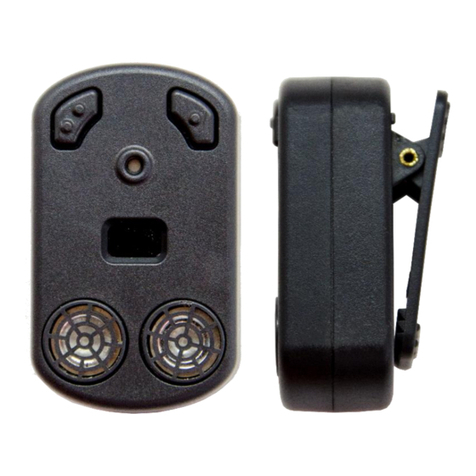
Depending on the mode (Normal or Escape Mode), Ray will recognize
obstacles within a range of distance from 1.7 to 2.5 meter. If there are no
obstacles within this diameter, Ray will nevertheless emit short vibrations or
signals. To avoid this constant announcement you can change Ray into the so
called signal and vibration free mode.
To change the device into this mode, proceed as described above (chapter 7.
Trainer mode). To do this, switch the device on and press and hold both keys.
Keep both keys pressed, until you hear the melody of a German folk song
followed by one vibration. Keep both keys pressed until you then hear a
Beethoven jingle followed by two vibrations. Still keep both keys pressed, until
you hear a Star-Wars jingle followed by three vibrations. Release both keys
and you will hear a short beep tone to confirm the new setting.
The device is now set to the signal and vibration free mode, which means that
no vibrations or signals will be emitted if an obstacle is not within the range of
the chosen mode (e.g. 2.5 m for the normal mode, 1.7 m for the escape mode).
Ray will keep this setting even when switched off. When you remove the
batteries the mode will change back to the original mode.
Caution: If you are not sure which mode is set on your
device, just switch it off and on again. If you hear a short
jingle followed by vibrations and a single beep after switching
the device on again, you know, your device is set to the
signal and vibration free mode.