manuals.online logo
Brands
  1. Home
  2. •
  3. Brands
  4. •
  5. Cassida
  6. •
  7. Banknote Counter
  8. •
  9. Cassida PRO Series User manual

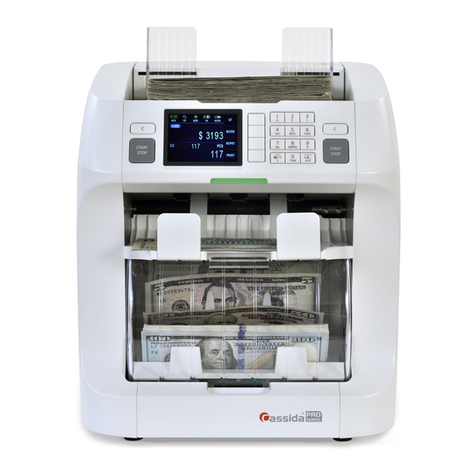
Cassida PRO Series User manual

Other manuals for PRO Series

3

This manual suits for next models

1

Other Cassida Banknote Counter manuals

Cassida Apollo User manual

Cassida

Cassida Apollo User manual

Cassida PRO Series User manual

Cassida

Cassida PRO Series User manual

Cassida PRO Series User manual

Cassida

Cassida PRO Series User manual

Cassida PRO Series User manual

Cassida

Cassida PRO Series User manual

Popular Banknote Counter manuals by other brands

Steren BILL-100 instruction manual

Steren

Steren BILL-100 instruction manual

BellCon BellCount S515 user manual

BellCon

BellCon BellCount S515 user manual

Orbit Research iBill quick start guide

Orbit Research

Orbit Research iBill quick start guide

Ribao BC-40 user manual

Ribao

Ribao BC-40 user manual

MBO Systems ProNote 100 quick start

MBO Systems

MBO Systems ProNote 100 quick start

Safescan 2265 user manual

Safescan

Safescan 2265 user manual

Ribao BC-30 user manual

Ribao

Ribao BC-30 user manual

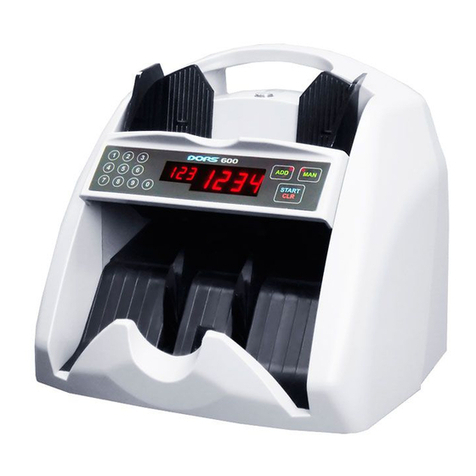
Dors 600 user manual

Dors

Dors 600 user manual

Safescan 2865-S user manual

Safescan

Safescan 2865-S user manual

MUNBYN IMC01 user manual

MUNBYN

MUNBYN IMC01 user manual

Money Controls ARDAC WACS-2 Specification and Adjustment Manual

Money Controls

Money Controls ARDAC WACS-2 Specification and Adjustment Manual

Royal Sovereign RBC-600 owner's manual

Royal Sovereign

Royal Sovereign RBC-600 owner's manual

Clas Ohlson BJ-140 quick start guide

Clas Ohlson

Clas Ohlson BJ-140 quick start guide

CPI CashCode SLB-1043 user guide

CPI

CPI CashCode SLB-1043 user guide

CashTester BC 241 user manual

CashTester

CashTester BC 241 user manual

Dors 820 Service maintenance manual

Dors

Dors 820 Service maintenance manual

Safescan 2465-S Quick installation guide

Safescan

Safescan 2465-S Quick installation guide

Duramaxx 10020088 manual

Duramaxx

Duramaxx 10020088 manual

manuals.online logo
manuals.online logoBrands
  • About & Mission
  • Contact us
  • Privacy Policy
  • Terms and Conditions

Copyright 2025 Manuals.Online. All Rights Reserved.

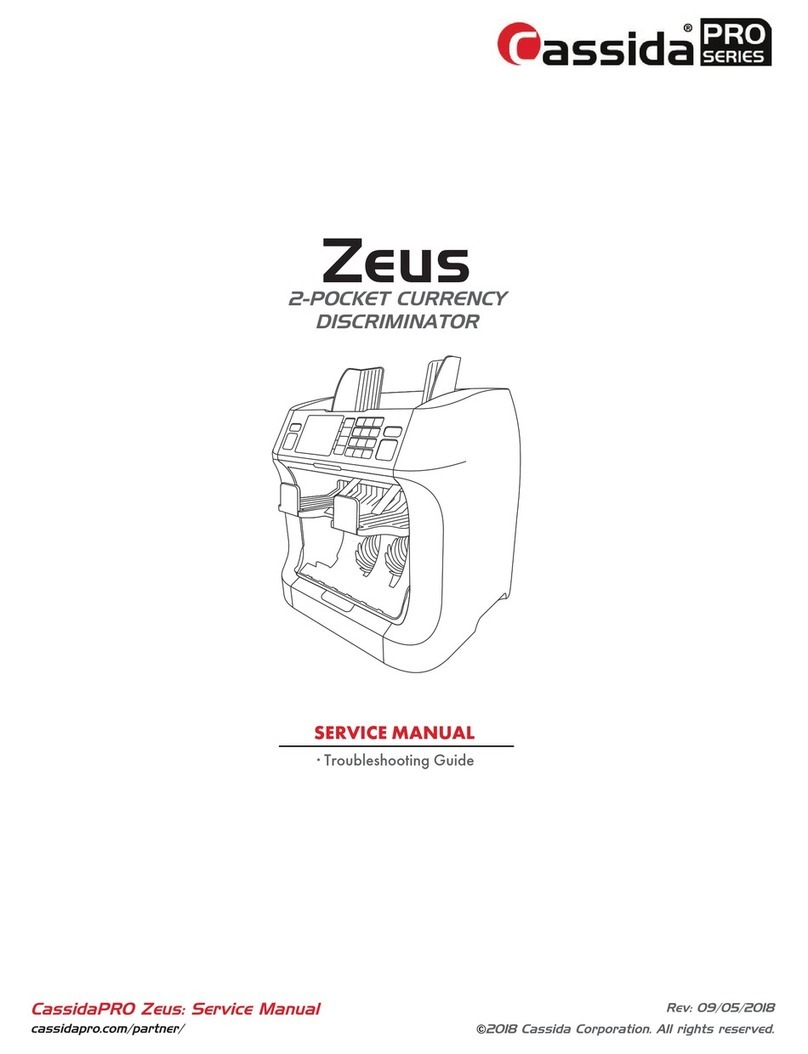
Zeus 2-Pocket Currency Discriminator
Troubleshoong Guide
®
2
CONFIDENTIAL
ZEUS TROUBLESHOOTING GUIDE
TABLE OF CONTENTS
PS sensor errors 2
Read errors 5
ID errors 8
ReStartRecognitionAPP error 12
EMERGENCY error in software update 14
Note: This Troubleshooting guide is excerpted from the Zeus Service Manual.
This service manual is confidential and exclusively for the use of Cassida Pro Series partners and their technicians and should not be shared with
outside sources. No part of this document can be reproduce in whole or in part without written permission from Cassida Corporation.
© 2016 Cassida Corporation. All rights reserved. Revision date: 6/16/2016
3
CONFIDENTIAL
PS Sensor Problem (Updated 4/28/2016)
Symptom and Reason
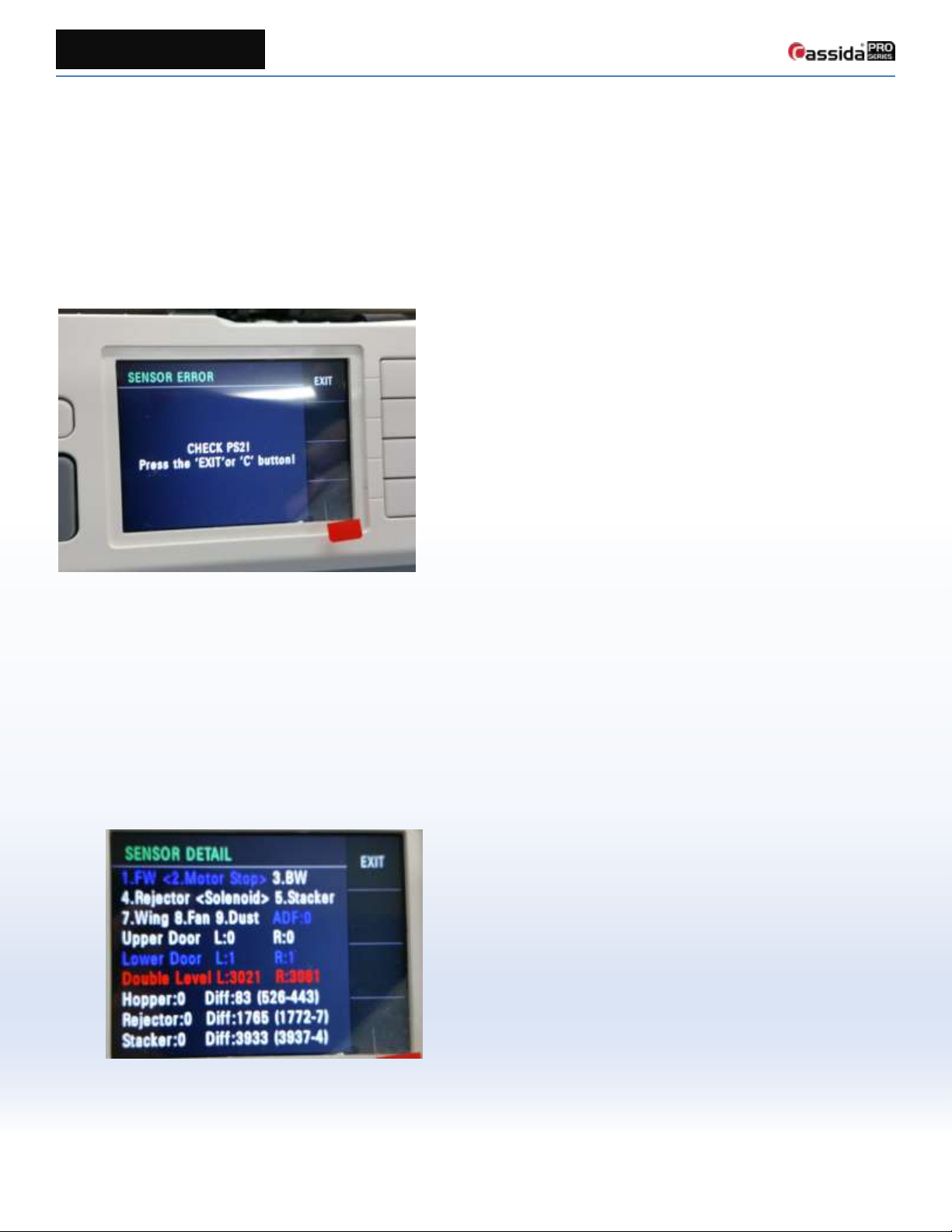
“CHECK PS1”or “CHECK PS2”is displayed after power on.
This error can be caused by PS1 and PS2 sensor problem.
[Fig. 1]
Causes and Solution
To debug what part exactly failed, we recommend to test by following order.
1. Check the sensors in test menu
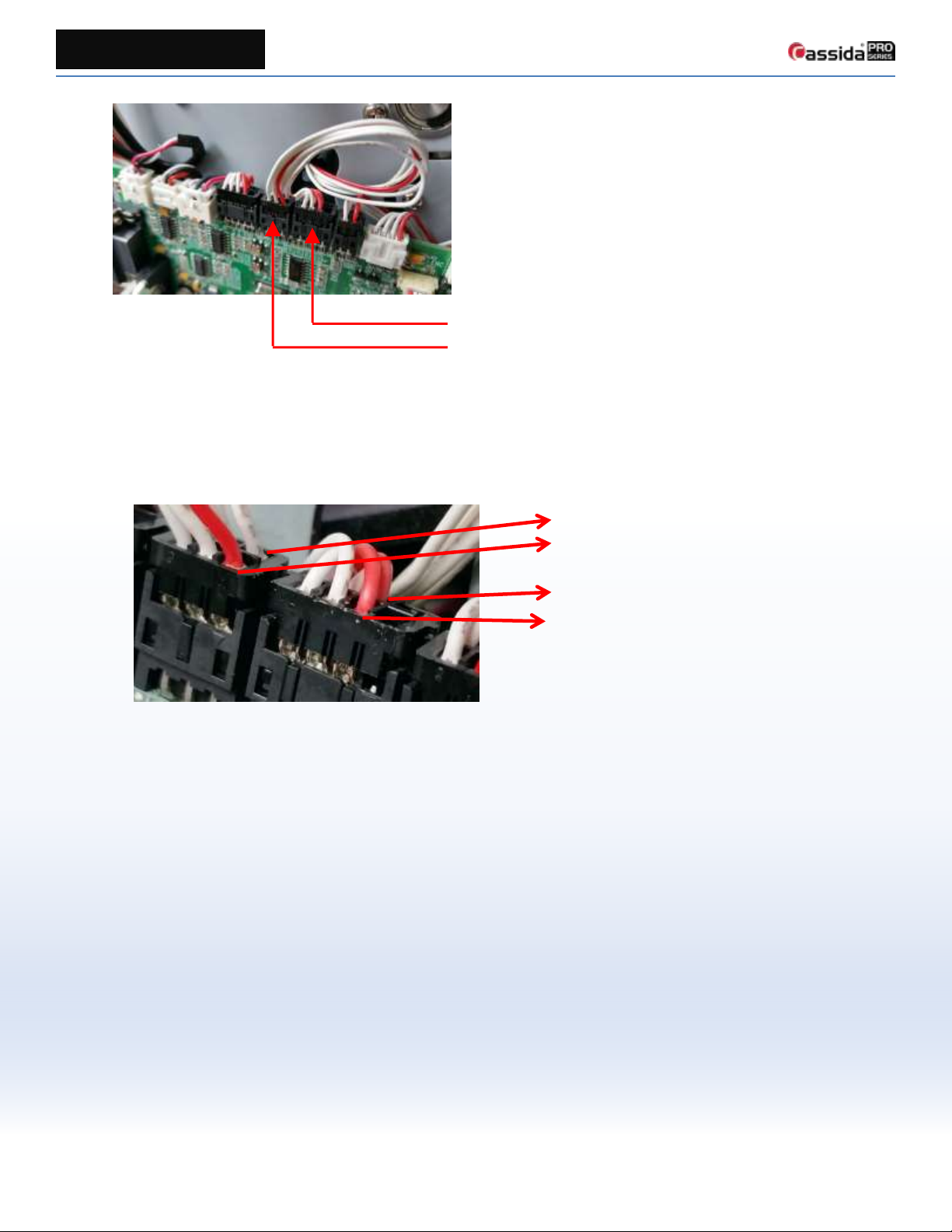
• Go into test menu -> [1] -> [7] (Sensor Detail)
• Check ‘Upper Door’(PS1) and ‘Lower Door’(PS2)
• ‘1’means the door is open. If all the doors are closed but the level is ‘1’, then the sensor is not working.
[Fig. 2]
2. Check level of the sensors
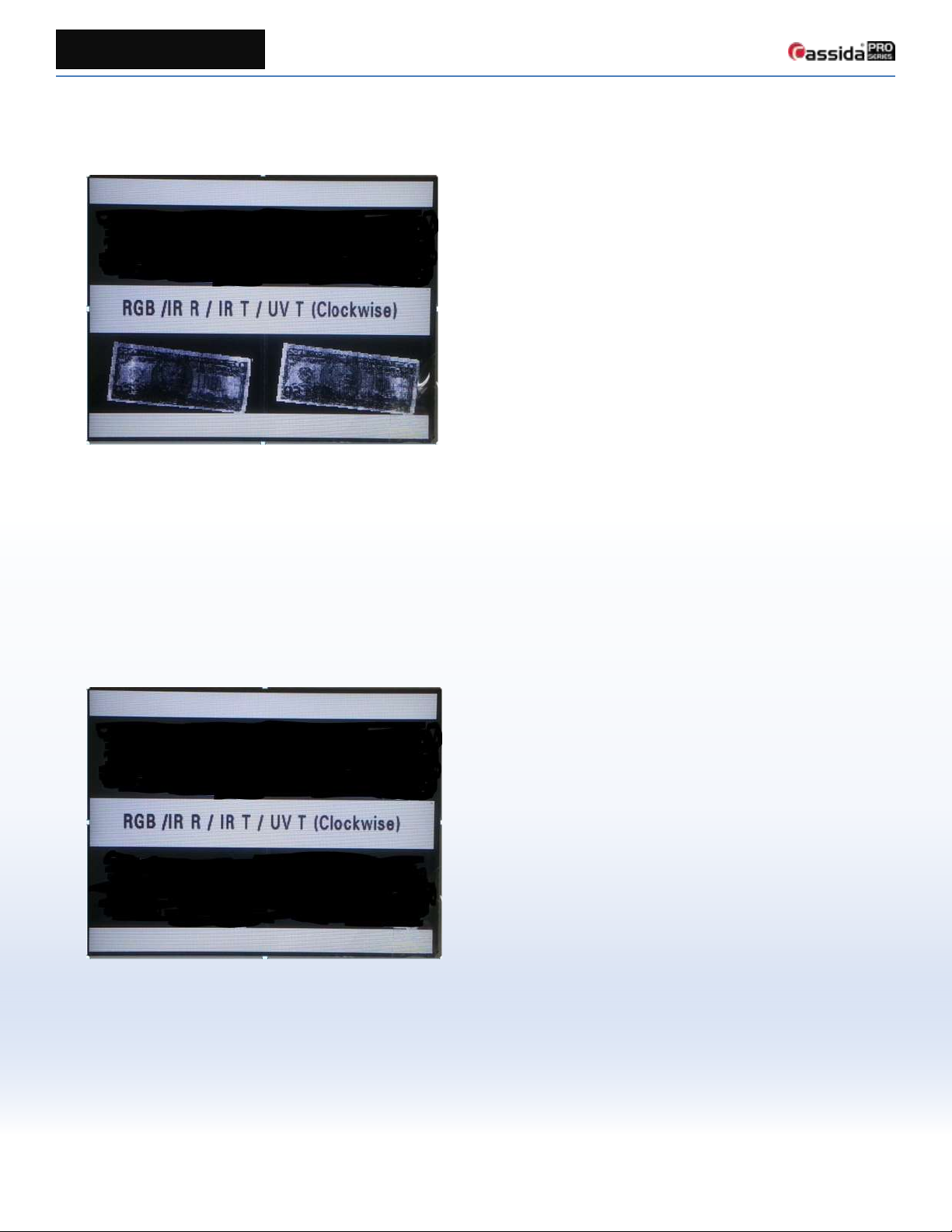
• Confirm the harness is properly connected.
4
CONFIDENTIAL
[Fig. 3]
3. Check the sensor level
• In ‘Sensor Detail’menu, press [1] key to run the main motor and if the main motor starts running, then
press [2] key to stop
• Check the voltage level of the PS1 or/and PS2 sensor with DVM.
Please refer to the points in Fig. 4.
[Fig. 4]
• Normal level
Door open: < 1V (typically < 0.5V)
Door closed: > 4.0V (typically 4.5~4.8V)
• Abnormal level
Door open: >2.7V
Door closed: <3.2V
In this case, check for dust on the surface of the sensor assembly or between cap and sensor surface and
clean the sensor. Check the level again.If the level is still out of normal level, replace the sensor referring to:
Zeus Service Manual: page 24, Section 3.1 PBA replacement
4. If sensor levels are correct, replace the PBA_MECHA Board.
PS2 Connector
PS1 Connector
PS2 R
PS2 L
PS1 R
PS1 L
5
CONFIDENTIAL
READ ERROR problem (Updated 3/17/2016)
Symptom and Reason
All bills are rejected as READ ERROR.
Worn bills can be rejected as READ ERROR, but if all notes are rejected as READ ERROR, it means that the system failed
to get the image of notes from the scanner (CIS sensor).
Causes and Solution
1. Bad LED Bar
This problem is related to the CIS sensor, LED bar (UV backlight) and Main board.
If the LED bar (UV backlight) is defective, then it is likely to reject all the notes as “IR SUSPECT”. [Fig. 1] shows
the scanner output when the LED bar is defective. IR T and UV T images are all black.
[Fig. 1]
To debug exactly which part failed, we recommend testing in the following order. The entire procedure should be
done in power off condition:
2. Check the harness between CIS and MAIN board
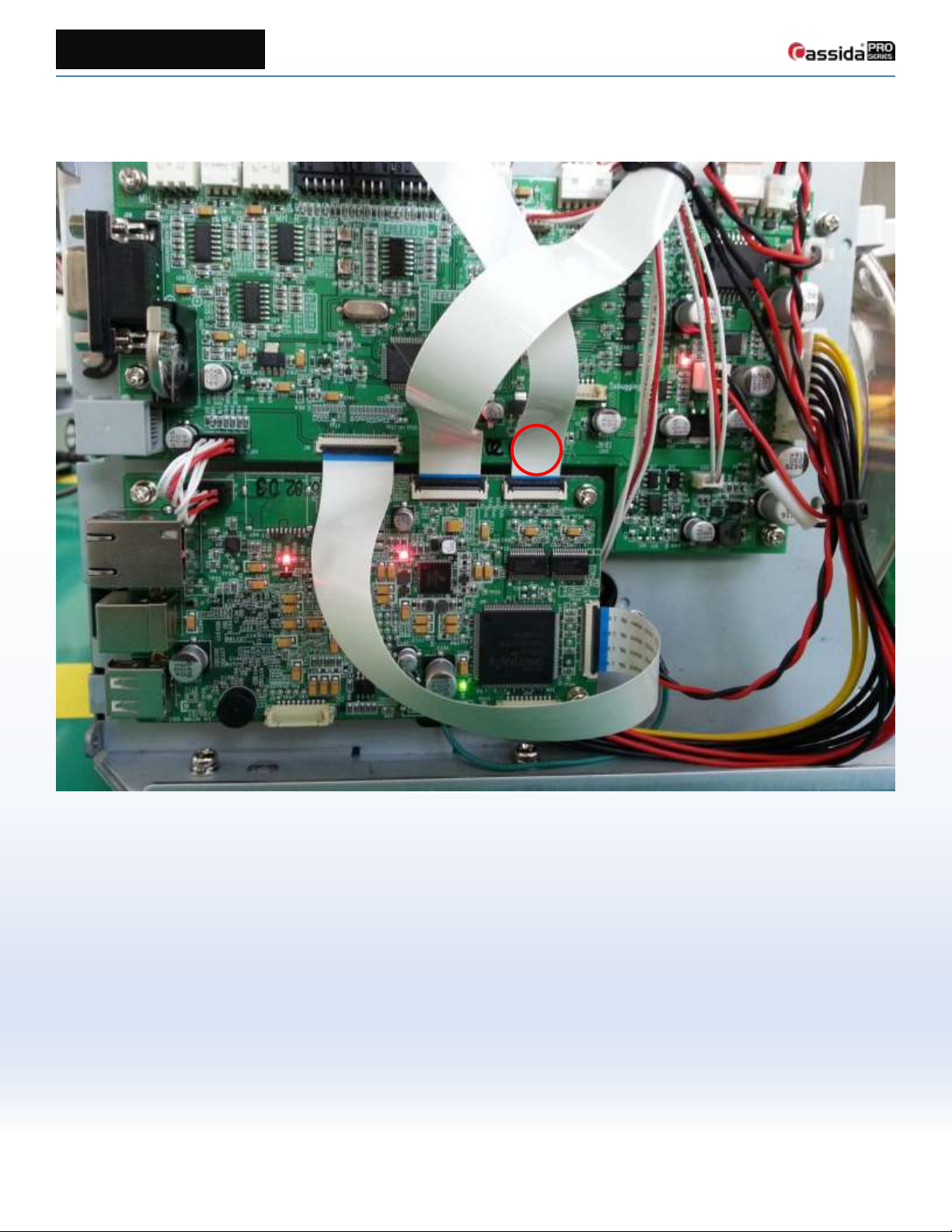
A bad connection can cause this problem. Take out the harness, marked 1 in [Fig. 5], from the connector and
reinsert it. Check the images in the test menu -> [1] -> [5] (Scanning quality) -> [4] (Scanned image). If all the
images are correctly received from the CIS sensor as in [Fig. 2], then test the machine with additional bills.
[Fig. 2]

6
CONFIDENTIAL
3. Check the image
If step #1 does not work, then in test menu -> [1] -> [5] -> [4] (Scanned Image), count a bill and check the image.
If the image looks like [Fig. 3], the CIS should be replaced.
[Fig. 3]
If the image looks like [Fig. 4], the CIS or MAIN board is defective. (We assume the LED bar is working without
any problem). To identify the defective part, turn off the power and connect a new CIS to the MAIN board. Place
the CIS on a table or flat surface with a bill between the CIS and the table. Turn on the power and go into the
test menu again (Test menu -> [1] -> [5] -> [4]). Count a bill. The machine reads an image from the new CIS on
the table rather than the CIS in the machine. If the image looks like [Fig. 1] but with some strange but not all
black image of RGB and IR R then it means the MAIN board is OK. You should replace the CIS which is currently
installed in the machine. Otherwise if the image looks like [Fig. 4], you should replace the MAIN board.
[Fig. 4]
7
CONFIDENTIAL
4. After replacement
If you replace CIS or Main board, you should calibrate CIS sensor in test menu. Please refer to section 3-2 Adjustment after
PBA replacement / 2. PBA_MAIN on page 33.
[Fig. 5]
1
8
CONFIDENTIAL
ID ERROR by IR light source problem (Updated 3/17/2016)
Symptom and Reason
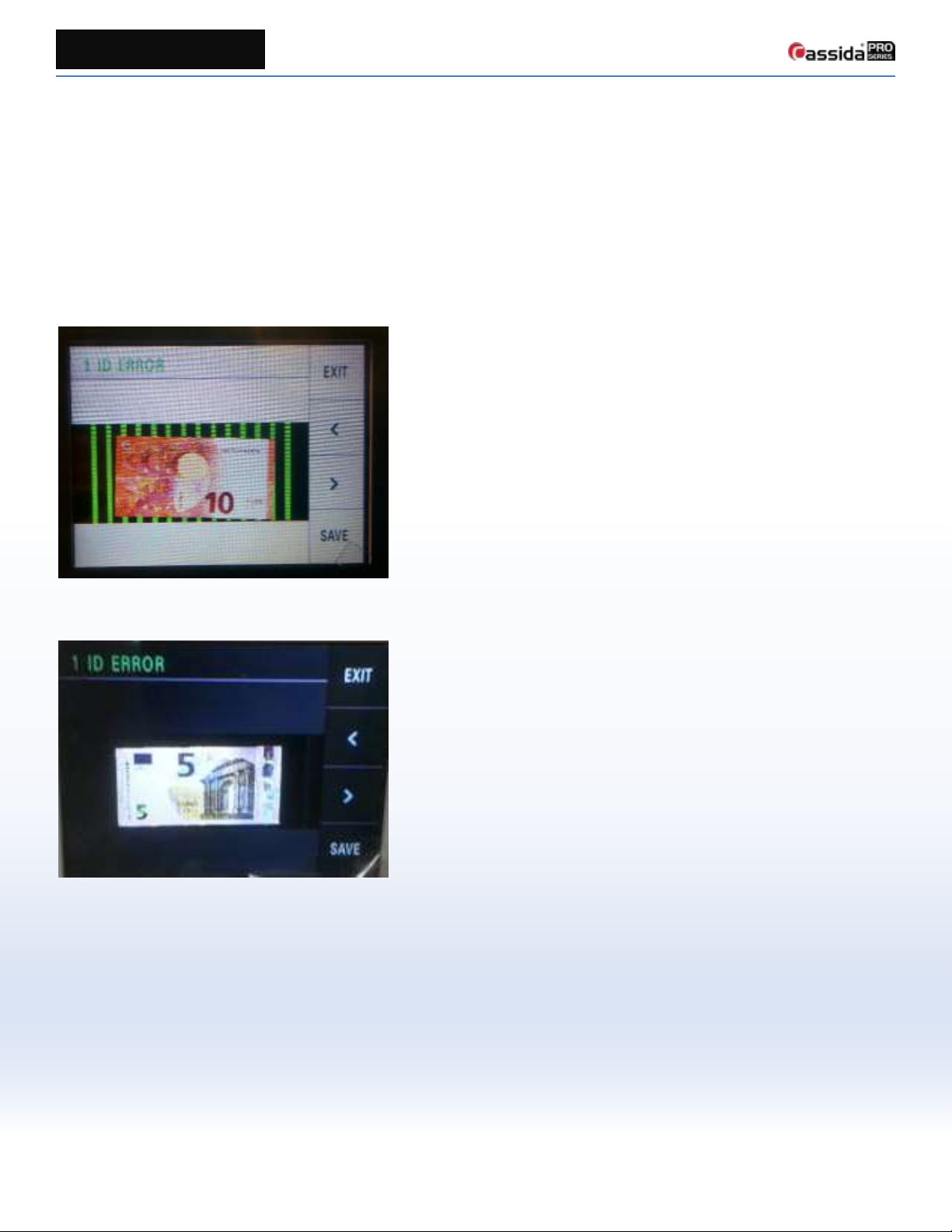
If there is something wrong with the IR light source, it can cause ID ERROR bill rejection. If you compare the two pictures
below, the first one has green lines in the background. It was caused by bad IR illumination. You can see these pictures in
reject detail view -> press [IMG] button.
Also, if you try to calibrate CIS(T) in the test menu, the calibration will probably fail.
Bad
Normal
9
CONFIDENTIAL
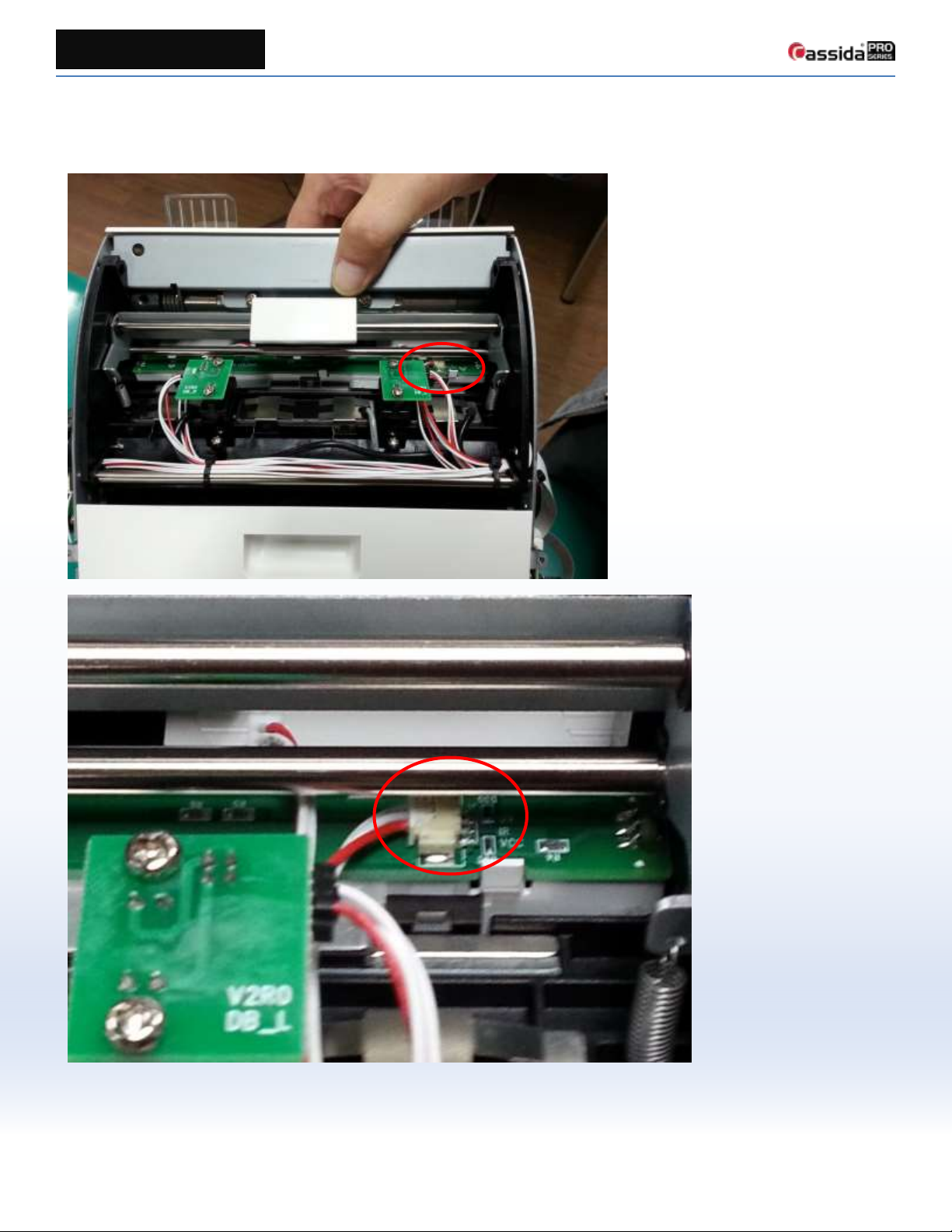
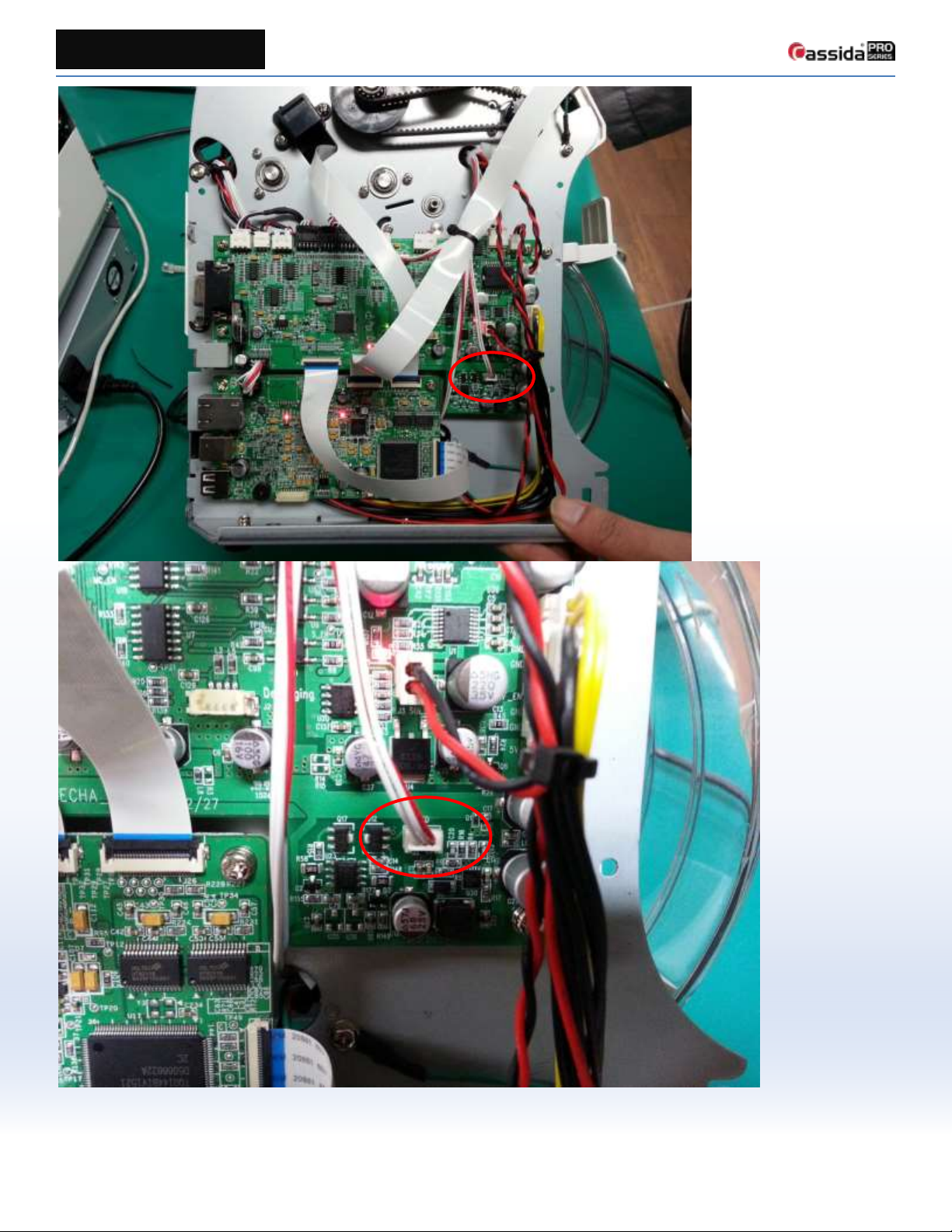
Causes and Solution
Check the harness between the UV light source and Mecha PBA.
10
CONFIDENTIAL