manuals.online logo
Brands
  1. Home
  2. •
  3. Brands
  4. •
  5. Codesoft
  6. •
  7. Barcode Reader
  8. •
  9. Codesoft CS6 Series User manual

Codesoft CS6 Series User manual

Other Codesoft Barcode Reader manuals

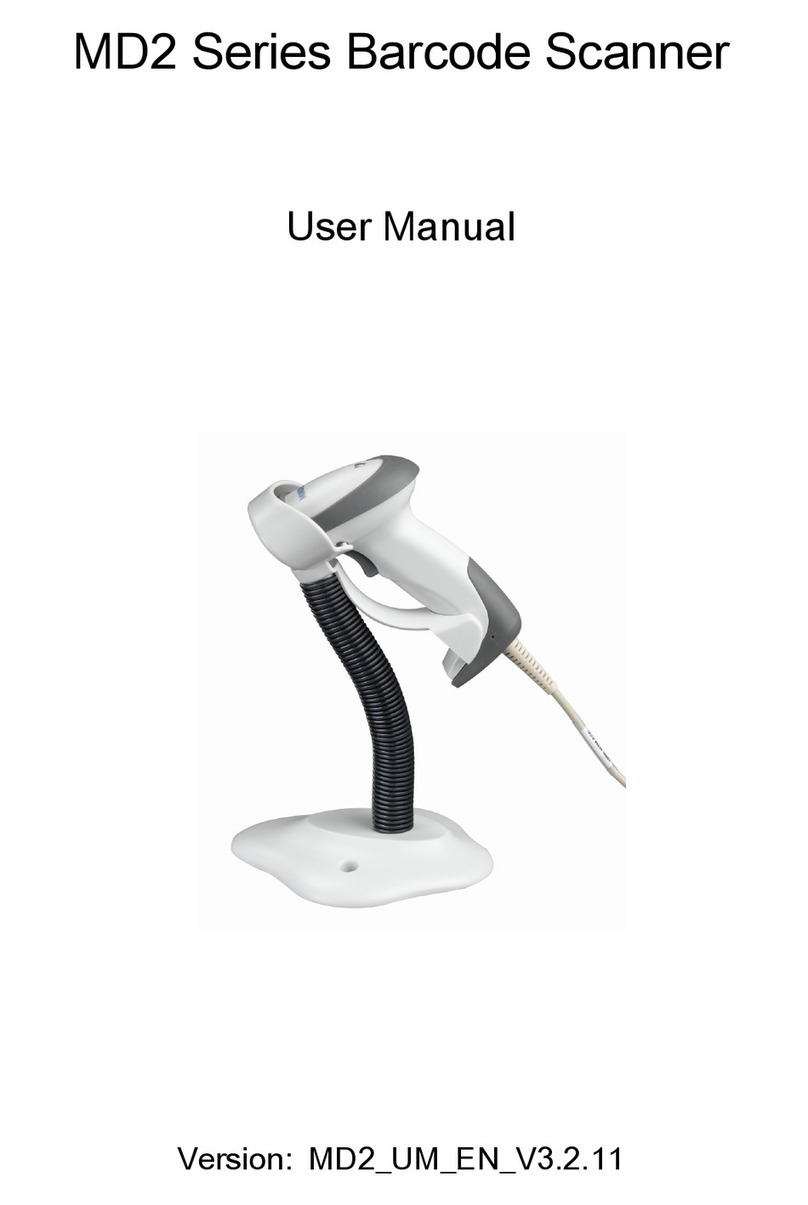
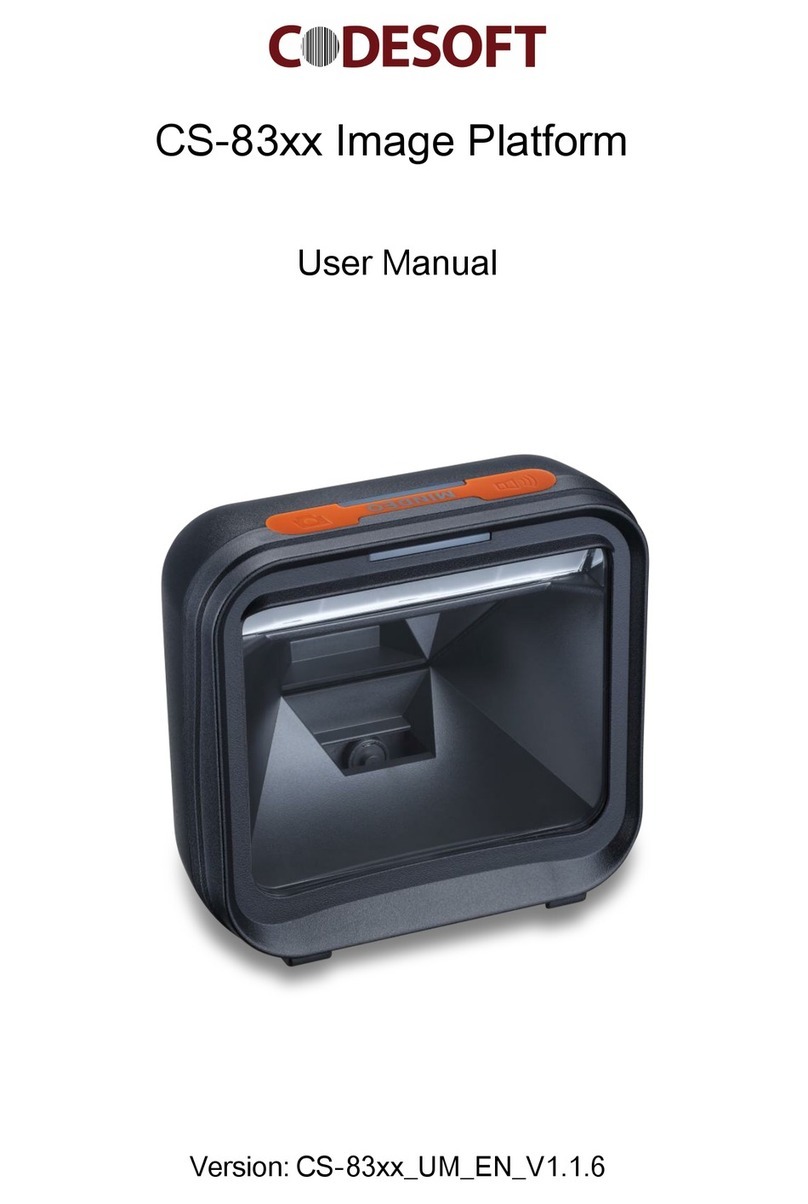
Codesoft MD2 Series User manual

Codesoft

Codesoft MD2 Series User manual

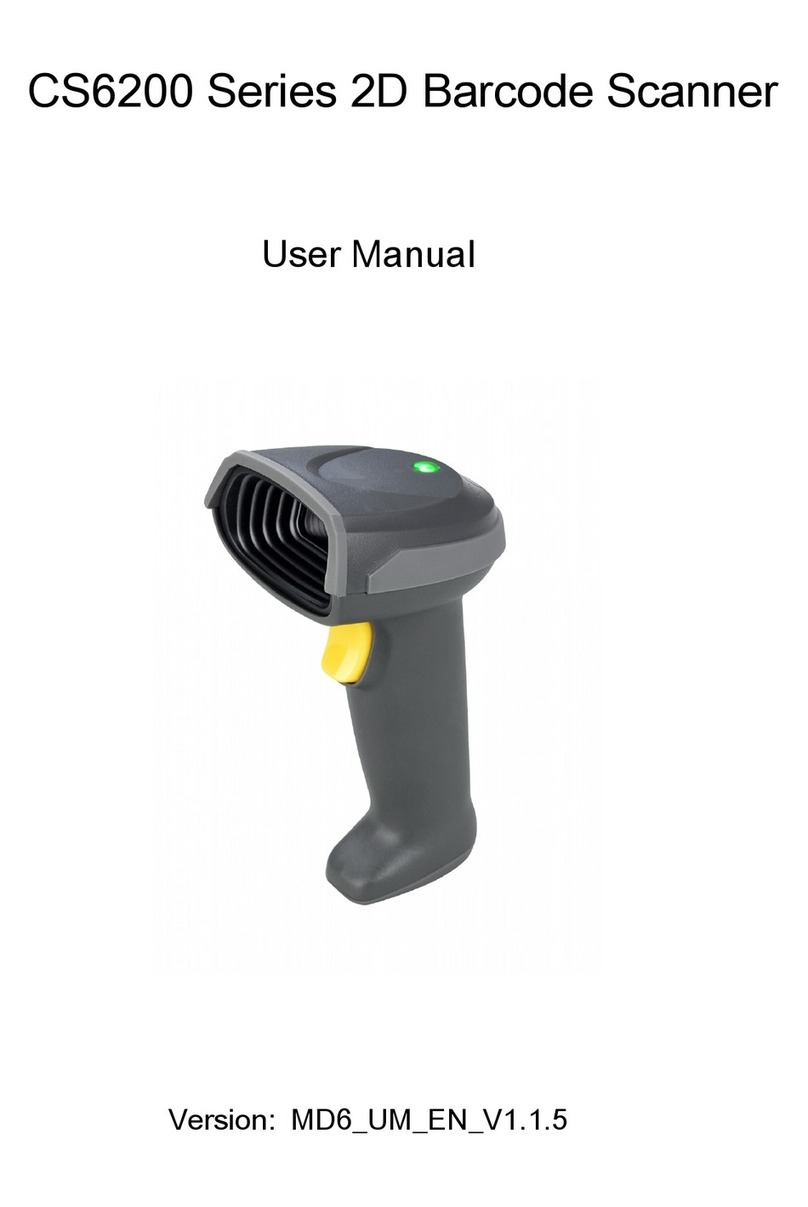
Codesoft CS6 Series User manual

Codesoft

Codesoft CS6 Series User manual

Codesoft CS-200AT User manual

Codesoft

Codesoft CS-200AT User manual

Codesoft CS6000 User manual

Codesoft

Codesoft CS6000 User manual

Codesoft CS6200 Series User manual

Codesoft

Codesoft CS6200 Series User manual

Codesoft MD2 Series User manual

Codesoft

Codesoft MD2 Series User manual

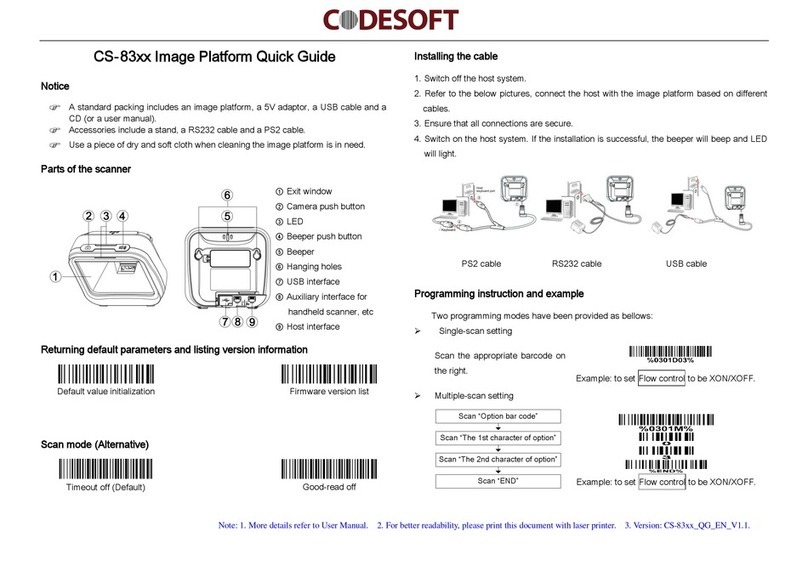
Codesoft CS-83 Series User manual

Codesoft

Codesoft CS-83 Series User manual

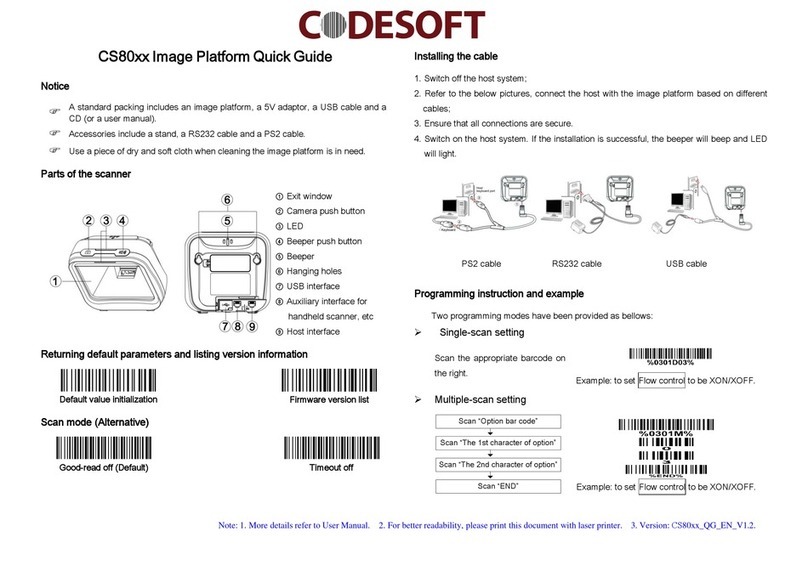
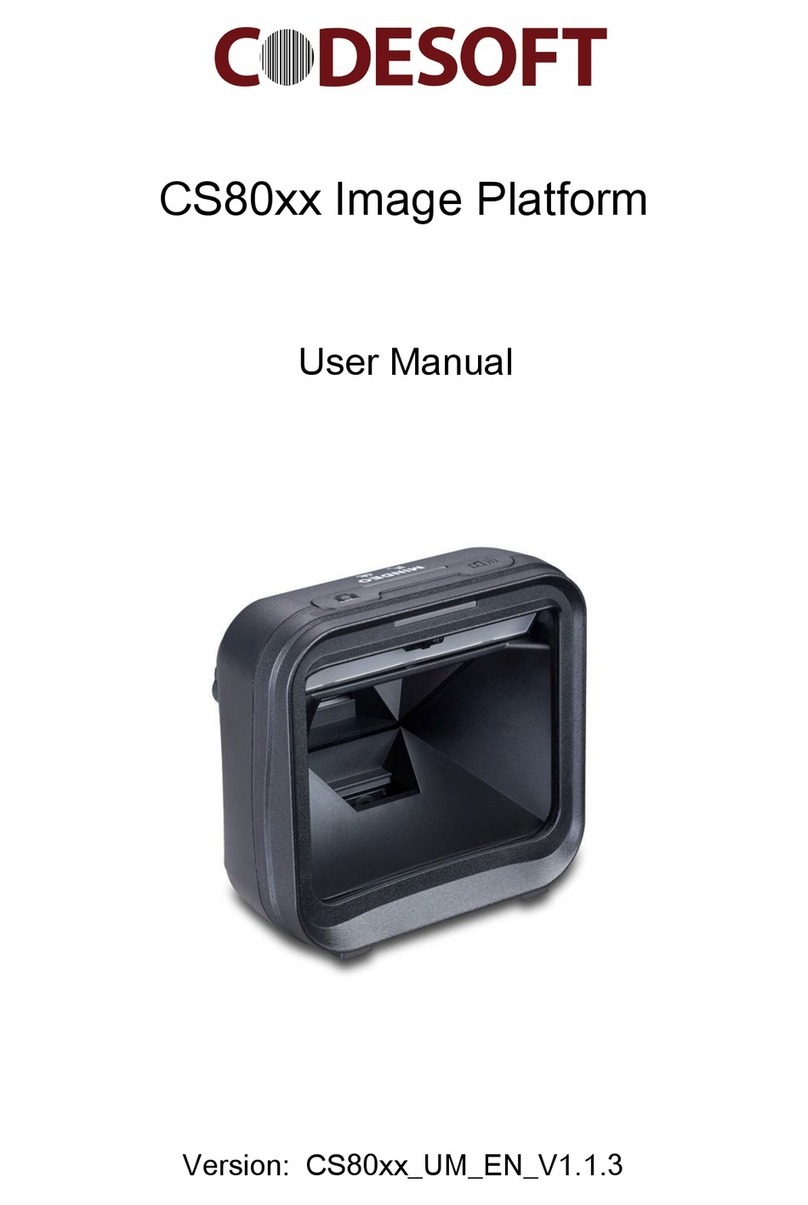
Codesoft Image Platform CS80 Series User manual

Codesoft

Codesoft Image Platform CS80 Series User manual

Codesoft CS-83 Series User manual

Codesoft

Codesoft CS-83 Series User manual

Codesoft Image Platform CS80 Series User manual

Codesoft

Codesoft Image Platform CS80 Series User manual

Popular Barcode Reader manuals by other brands

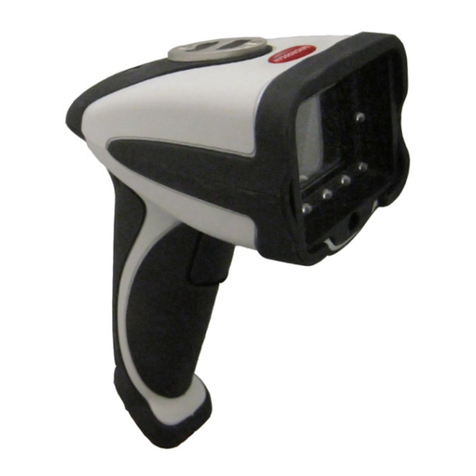
Microscan HS-2D user manual

Microscan

Microscan HS-2D user manual

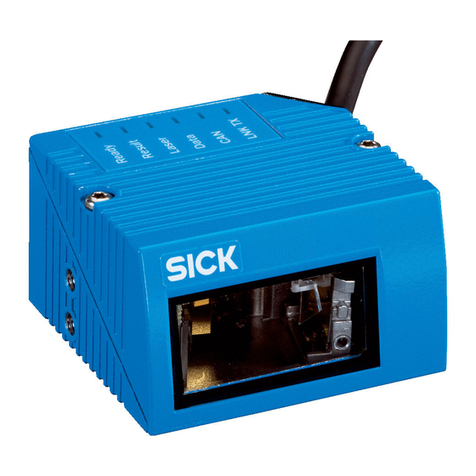
SICK CLV62x Online help

SICK

SICK CLV62x Online help

Datalogic Gryphon GBT4200 Quick reference guide

Datalogic

Datalogic Gryphon GBT4200 Quick reference guide

WaveMark SmartWand SW1500 manual

WaveMark

WaveMark SmartWand SW1500 manual

Zebex Z-3191BT Quick connection guide

Zebex

Zebex Z-3191BT Quick connection guide

RTscan RT211 Integration guide

RTscan

RTscan RT211 Integration guide

Motorola SYMBOL DS6707 Product reference guide

Motorola

Motorola SYMBOL DS6707 Product reference guide

Godex BP300 user manual

Godex

Godex BP300 user manual

Godex RT800i Series user manual

Godex

Godex RT800i Series user manual

Generalscan X Series quick start guide

Generalscan

Generalscan X Series quick start guide

POSMicro Datalogic PowerScan D7100 manual

POSMicro

POSMicro Datalogic PowerScan D7100 manual

NCR RealPOS user guide

NCR

NCR RealPOS user guide

Motorola SE3300 Integration guide

Motorola

Motorola SE3300 Integration guide

Nordson CBC 5100 manual

Nordson

Nordson CBC 5100 manual

Motorola Symbol LS3008 Product reference guide

Motorola

Motorola Symbol LS3008 Product reference guide

Meec tools OBD-II / VAG operating instructions

Meec tools

Meec tools OBD-II / VAG operating instructions

SICK CLP 100 operating instructions

SICK

SICK CLP 100 operating instructions

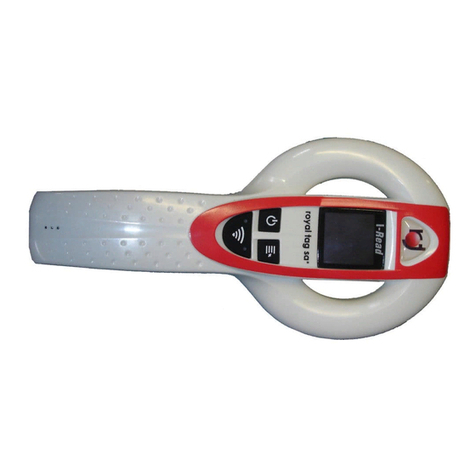
Royal Tag SA I-Read user manual

Royal Tag SA

Royal Tag SA I-Read user manual

manuals.online logo
manuals.online logoBrands
  • About & Mission
  • Contact us
  • Privacy Policy
  • Terms and Conditions

Copyright 2025 Manuals.Online. All Rights Reserved.

Note: 1. More details refer to User Manual. 2. For better readability, please print this document with laser printer. 3. Version: 6600QGENV1.3.
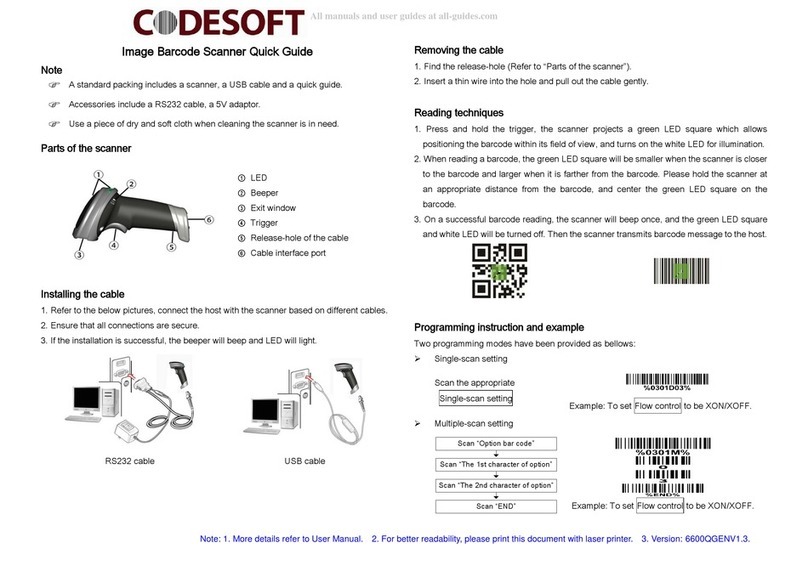
Image Barcode Scanner Quick Guide
Note
Parts of the scanner
①LED
②Beeper
③Exit window
④Trigger
⑤Release-hole of the cable
⑥Cable interface port
Installing the cable
1. Refer to the below pictures, connect the host with the scanner based on different cables.
2. Ensure that all connections are secure.
3. If the installation is successful, the beeper will beep and LED will light.
RS232 cable USB cable
Removing the cable
1. Find the release-hole (Refer to “Parts of the scanner”).
2. Insert a thin wire into the hole and pull out the cable gently.
Reading techniques
1. Press and hold the trigger, the scanner projects a green LED square which allows
positioning the barcode within its field of view, and turns on the white LED for illumination.
2. When reading a barcode, the green LED square will be smaller when the scanner is closer
to the barcode and larger when it is farther from the barcode. Please hold the scanner at
an appropriate distance from the barcode, and center the green LED square on the
barcode.
3. On a successful barcode reading, the scanner will beep once, and the green LED square
and white LED will be turned off. Then the scanner transmits barcode message to the host.
Programming instruction and example
Two programming modes have been provided as bellows:
Single-scan setting
Scan the appropriate
Single-scan setting
Example: To set Flow control to be XON/XOFF.
Multiple-scan setting
Scan “Option bar code”
Scan “The 1st character of option”
Scan “The 2nd character of option”
Scan “END”
Example: To set Flow control to be XON/XOFF.
A standard packing includes a scanner, a USB cable and a quick guide.
Accessories include a RS232 cable, a 5V adaptor.
Use a piece of dry and soft cloth when cleaning the scanner is in need.

Note: 1. More details refer to User Manual. 2. For better readability, please print this document with laser printer. 3. Version: 6600QGENV1.3.
Return default parameters and version information
Default value initialization
Firmware version list
Scanning mode
Good-read off
Momentary*
Auto-detection
Beeper indication
Disable
Enable*
Volume of beeper
Low
Middle
High*
Assembling the stand
Note: The stand is an accessory.