PRODUCT MANUALPRODUCT MANUAL 1716 GETTING STARTED WITH RECORDING AND PLAYBACK UTRACK 24 FILE FORMATS
Since the read/write speed of a freshly formatted USB hard drive is a consistent and known
quantity that never changes (unlike a USB ash drive), you can be condent that the real recording
will occur exactly as the test recording did.
12.3. Starting a Recording
The uTrack 24 defaults to the following settings for a recording:
• 24 tracks
• 24-bit
• 48 kHz
To change any of the above settings, navigate to the RECORDING menu. See section “uTrack 24
System Menus” for more details.
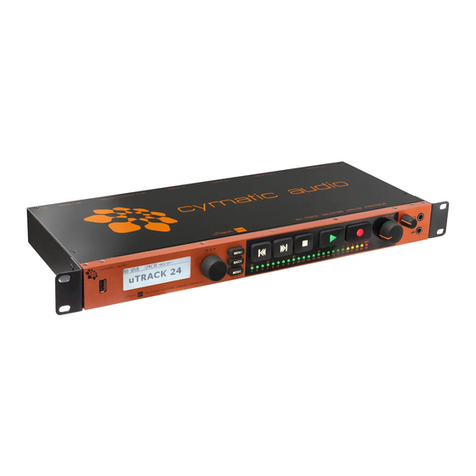
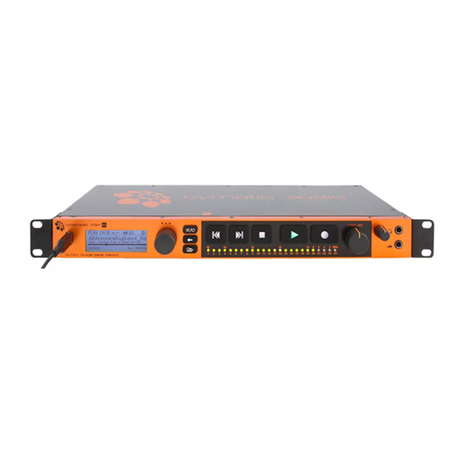
To begin a recording, simply press the front panel RECORD button. The uTrack 24 will immediately
begin writing the audio from its internal buffers to the attached USB drive. The screen will switch
to the RECORD screen. For the rst two seconds, the number of active recording channels
are displayed on the screen and the corresponding channel LEDs will blink. The screen then
continues with showing the recording time.
When the uTrack 24 is neither playing back nor in playlist-mode, it will automatically operate
in “pre-recording” mode. This means that it will constantly buffer a minimum of 2.7 seconds
(depending on the number of recorded channels, sample rate and resolution) of the incoming
audio signal and write this audio data to the recorded le once have pressed the record button.
12.4. 24-Channel Input Metering
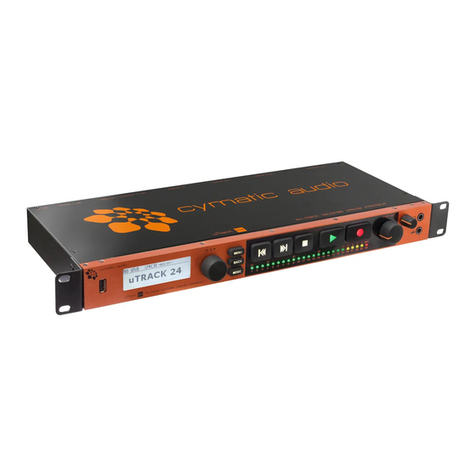
The front panel of the uTrack 24 contains 24 separate LEDs; each one serves as an individual
3-segment input level meter for the corresponding record channel.
This allows you to monitor the incoming signal level for each track, and adjust the output level of
the signal source accordingly.
12.5. Adding Markers
During recording the uTrack24 allows you to add up to 99 “markers” per take. Markers are
locational references that help you remember different spots in the recording (song 1, song 2,
verse, chorus, etc.)
To add a new marker while a recording is taking place, press the PLAY button. A new marker will
be created and the “Markers” eld on the screen will increment by one digit.
If supported by your DAW, these markers will be visible in the DAW session after you have
imported your les. The markers can also be used to split your recordings at the marker points
when using the WavTool to copy the recording from your USB device.
12.6. Gapless Recording
Pressing the RECORD button while recording creates a new take without losing a sample. The
recording parameters of the new take are the same as the previous take. Further, these tracks
can be played back gaplessly inside a playlist.
12 .7. Playing Back Audio
To playback a take you have just recorded, simply press the front panel PLAY button.
To navigate to a different take on the attached USB drive, you can either:
• Use the skip back and skip forward buttons, or the rotary encoder, to navigate among the
available different takes
• Press the BROWSE button, use the encoder to navigate to the folder that contains the audio
data and then select the specic take you wish to load for playback
12.8. Looping Playback between In and Out Points
The uTrack 24 can create a playback loop by setting a “mark-in” and “mark-out” point when
playing back a take. These are separate from the markers described above, and are not stored
with the multitrack take.
To set a mark in and mark out point:
• Press the PLAY button to begin playback
• Press the MENU/LOOP button to call up the loop points overlay on the display
• Rotate the encoder to change the mark-in point, then press the encoder to choose it.
• Rotate the encoder to change the mark-out point, then press the encoder to choose it.
Selecting the mark-out point starts the playback loop between the two points.
• To cancel the playback loop and clear the mark-in / mark-out points, press the BACK button.
Looping between the mark-in and mark-out points is useful when playing back a take for a virtual
sound check. When the FOH engineer reaches a section in the sound check they wish to work
on extra carefully, they can quickly set in and out points, then loop between them. The looped
playback audio will allow them to concentrate on dialing in the live mix for that section perfectly.
13. UTRACK 24 FILE FORMATS
The uTrack24 is specically designed for continuous capturing of audio over longer periods
of time. When recording, the uTrack24 stores data from multiple input channels into a single
multichannel wave le. Many audio editing programs (“DAWs”) can only handle a maximum le
size of 2GB . Since the length of your recording may often exceed the 2GB le size, the uTrack 24
incorporates an intelligent system for le-splitting: every time your recording reaches the critical
size of 2 GB, the uTrack 24 will automatically create a new multichannel wave le (“Chunk”). This
is done in a “gapless” fashion without losing a single sample of your recording. All the chunks are
stored in the current recording folder
The above process also allows you to record without limits in time or le size. The only limiting
factor would be your storage space (for instance, a 500 GB USB drive allows you to do a 70-hour
non-stop recording in CD quality).
When playing back a take, the uTrack 24 seamlessly transitions playback from the end of one
“chunk” of multichannel le to the beginning of the next one. The multiple chunks inside a take
are played back exactly the same as one long linear recording.
In order to easily import these multi-channel .wav les, Cymatic Audio offers a free download of
its WavTool and Playlist Editor application, which perform two functions:
• Convert uTrack multi-track wave les into separate mono wave les
• Automatically join together the separate chunks into a single linear le
uTrack 24 audio to DAW
Record on uTrack 24
connected hard drive.
Copy (with automatic conversion) to
computer hard drive, using the WavTool
or Playlist Editor
Drag and drop files into DAW