manuals.online logo
Brands
  1. Home
  2. •
  3. Brands
  4. •
  5. Dell
  6. •
  7. Accessories
  8. •
  9. Dell Latitude L400 Advanced Port Replicator User manual

Dell Latitude L400 Advanced Port Replicator User manual

Other Dell Accessories manuals

Dell Power Companion PW7015MC User manual

Dell

Dell Power Companion PW7015MC User manual

Dell PowerApp .cache 100 User manual

Dell

Dell PowerApp .cache 100 User manual

Dell Active Pen PN557W User manual

Dell

Dell Active Pen PN557W User manual

Dell PW7015L User manual

Dell

Dell PW7015L User manual

Dell C3504 Manual

Dell

Dell C3504 Manual

Dell PW7018LC User manual

Dell

Dell PW7018LC User manual

Dell Active Pen PN556W User manual

Dell

Dell Active Pen PN556W User manual

Dell Premium Active Pen User manual

Dell

Dell Premium Active Pen User manual

Dell Active Pen 5000 Series User manual

Dell

Dell Active Pen 5000 Series User manual

Dell DJ MP3 User manual

Dell

Dell DJ MP3 User manual

Dell Active Pen User manual

Dell

Dell Active Pen User manual

Dell Premier PN7522W User manual

Dell

Dell Premier PN7522W User manual

Dell PH45W17-BA User manual

Dell

Dell PH45W17-BA User manual

Dell 2700R User manual

Dell

Dell 2700R User manual

Dell PowerVault 114T 2U Instruction sheet

Dell

Dell PowerVault 114T 2U Instruction sheet

Dell PowerVault 114T 2U User manual

Dell

Dell PowerVault 114T 2U User manual

Dell 53P6J User manual

Dell

Dell 53P6J User manual

Popular Accessories manuals by other brands

Quincy lab 140AE-1 operating manual

Quincy lab

Quincy lab 140AE-1 operating manual

HomePro ZIR000 user manual

HomePro

HomePro ZIR000 user manual

DOL 20SCR Technical user guide

DOL

DOL 20SCR Technical user guide

RAB Smart Task installation manual

RAB

RAB Smart Task installation manual

Kemppi KMS 300 quick guide

Kemppi

Kemppi KMS 300 quick guide

Stearns 57,500 Series Installation and service instructions

Stearns

Stearns 57,500 Series Installation and service instructions

iGuzzini TWILIGHT COPENAGHEN manual

iGuzzini

iGuzzini TWILIGHT COPENAGHEN manual

Adelaide Annexe & Canvas Avan Deluxe installation guide

Adelaide Annexe & Canvas

Adelaide Annexe & Canvas Avan Deluxe installation guide

OHAUS 5000 instruction manual

OHAUS

OHAUS 5000 instruction manual

HOME8 WLS1300 quick start guide

HOME8

HOME8 WLS1300 quick start guide

MAXBOTIX MaxSonar quick start guide

MAXBOTIX

MAXBOTIX MaxSonar quick start guide

ioSmart iSmart56 Installation and user guide

ioSmart

ioSmart iSmart56 Installation and user guide

Focusrite Scarlett 18i8 user guide

Focusrite

Focusrite Scarlett 18i8 user guide

Velleman ED38105 user manual

Velleman

Velleman ED38105 user manual

JumpSport SkyBounce user manual

JumpSport

JumpSport SkyBounce user manual

Prima-Temp PRIYA Instructions for use

Prima-Temp

Prima-Temp PRIYA Instructions for use

Tefcold BC85I-BC85I W user manual

Tefcold

Tefcold BC85I-BC85I W user manual

Vaisala WMS302 user guide

Vaisala

Vaisala WMS302 user guide

manuals.online logo
manuals.online logoBrands
  • About & Mission
  • Contact us
  • Privacy Policy
  • Terms and Conditions

Copyright 2025 Manuals.Online. All Rights Reserved.

Model PRS
www.dell.com
support.dell.com
Dell

Latitude

L400 Advanced Port Replicator
USER’S GUIDE

4C796A00fc.fm Page 3 Friday, December 15, 2000 2:59 PM
4C796A00fc.fm Page 4 Friday, December 15, 2000 2:59 PM




 !

Throughout this guide, blocks of text may be accompanied by an icon and printed in
bold type or in italic type. These blocks are notes, notices, and cautions, and they are
used as follows:
NOTE: A NOTE indicates important information that helps you make better use of
your computer system.


  

Information in this document is subject to change without notice.
©1999–2001 Dell Computer Corporation. All rights reserved.
Reproduction in any manner whatsoever without the written permission of Dell Computer Corpo-
ration is strictly forbidden.
Trademarks used in this text: Dell, the DELL logo, Latitude, and DellWare are trademarks of Dell
Computer Corporation.
Other trademarks and trade names may be used in this document to refer to either the entities
claiming the marks and names or their products. Dell disclaims any proprietary interest in trade-
marks and trade names other than its own.
December 2000 P/N 4C796 Rev. A00
 !
G:\FrameMaker\DELL\sndmm244\en\4C796A00en.fm
support.dell.com Dell Latitude L400 Advanced Port Replicator User’s Guide 1-1


The Dell Latitude L400 Advanced Port Replicator (APR) integrates your Dell Latitude
L400 computer quickly and easily into a desktop environment. Use the instructions in
this document to attach external devices to the APR and to connect your computer to
the APR.

Use the following safety guidelines to help protect your APR from potential damage
and to help ensure your own personal safety:
• Do not attempt to service the APR yourself. Always follow installation instruc-
tions closely.
• Be sure that nothing rests on your AC adapter’s power cable and that the cable is
not located where it can be tripped over or stepped on.
• Place the AC adapter in a ventilated area, such as a desk top or on the floor, when
powering the APR. Do not cover the AC adapter with papers or other items that
will reduce cooling. Do not use the AC adapter inside a carrying case.
• Do not use your APR in a wet environment, for example, near a bathtub, sink, or
swimming pool or in a wet basement.
• Do not push objects into air vents or openings of your APR. Doing so can cause
fire or electric shock by shorting out interior components.
• Use only the AC adapter that is approved for use with this APR as indicated in
this document. Use of another type of AC adapter may risk fire or explosion.
• Before you connect the APR to a power source, ensure that the voltage rating of
the AC adapter matches that of the available power source:
— 115 volts (V)/60 hertz (Hz) in most of North and South America and some Far
Eastern countries such as South Korea and Taiwan
— 100 V/50 Hz in eastern Japan and 100 V/60 Hz in western Japan
— 230 V/50 Hz in most of Europe, the Middle East and the Far East

1-2 Dell Latitude L400 Advanced Port Replicator User’s Guide
G:\FrameMaker\DELL\sndmm244\en\4C796A00e
G:\FrameMaker\DELL\sndmm244\en\4C796A00en.fm
• To help prevent electric shock, plug the AC adapter and peripheral power cables
into properly grounded power sources. These cables are equipped with
three-prong plugs to help ensure proper grounding. Do not use adapter plugs or
remove the grounding prong from a cable. If you must use an extension cable,
use a three-wire cable with properly grounded plugs.
• If you use an extension cable with your AC adapter, ensure that the total ampere
rating of the products plugged into the extension cable does not exceed the
ampere rating of the extension cable.
• To remove power from the APR, turn off the computer and disconnect the AC
adapter from the electrical outlet.
• If your computer includes an integrated or optional (PC Card) modem, the cable
used with the modem should be manufactured with a minimum wire size of 26
American wire gauge (AWG) and an FCC-compliant RJ-11 modular plug.
• Disconnect the modem cable during an electrical storm to avoid the remote risk
of electric shock from lightning via the telephone line.
• To help avoid the potential hazard of electric shock, do not connect or disconnect
any cables or perform maintenance or reconfiguration of this product during an
electrical storm.
• When setting up the APR for work, place it on a level surface.
• Protect your APR from environmental hazards such as dirt, dust, food, liquids,
temperature extremes, and overexposure to sunlight.
• When you move your APR between environments with very different tempera-
ture or humidity ranges, condensation may form on or within the computer. To
avoid damaging the APR, allow sufficient time for the moisture to evaporate
before using the computer.
 
! 
!"#
$
• When you disconnect a cable, pull on its connector or on its strain-relief loop, not
on the cable itself. As you pull out the connector, keep it evenly aligned to avoid
bending any connector pins. Also, before you connect a cable make sure both
connectors are correctly oriented and aligned.
• Handle the APR with care.
• Before you clean your APR, shut down the computer and disconnect it from the
APR. Then unplug the APR from its power source.
• Clean your APR with a soft cloth dampened with water rather than with liquid or
aerosol cleaners.


support.dell.com Dell Latitude L400 Advanced Port Replicator User’s Guide 1-3
G:\FrameMaker\DELL\sndmm244\en\4C796A00en.fm
• If your APR or computer gets wet or is damaged, follow the procedures
described in “Troubleshooting Your Computer,”in the User’s Guide. If, after fol-
lowing these procedures, you confirm that your APR or computer is not operating
properly, contact Dell. (See “Getting Help,”in the User’s Guide for the appropri-
ate telephone number.)

The input/output (I/O) connectors on the back of the APR duplicate the primary con-
nectors on the back and side of your computer. Table 1-1 shows the icons for each of
the connectors on the back of the APR and indicates the type of external device(s)
that can be attached to each connector.

The AC adapter that came with the APR connects to the
AC adapter connector.
A serial device, such as a serial mouse, connects to the
serial connector.
A microphone connects to the microphone connector.
A speaker or headphones connect to the line-out
connector.
A network interface cable connects to the NIC connector.
A USB device, such as a USB mouse, connects to the
USB connector.
An external phone line connects to the modem connector.
An external monitor connects to the monitor connector.
A parallel device, such as a printer, connects to the parallel
connector.
An external Personal System/2 (PS/2)-compatible mouse
connects to the PS/2 mouse connector.
An external PS/2-compatible keyboard or external numeric
keypad connects to the PS/2 keyboard connector.
An external CD-ROM, DVD-ROM, CD-RW, Zip 250, or dis-
kette drive connects to the external media bay connector.
 
1-4 Dell Latitude L400 Advanced Port Replicator User’s Guide
G:\FrameMaker\DELL\sndmm244\en\4C796A00e
G:\FrameMaker\DELL\sndmm244\en\4C796A00en.fm
Use the following instructions to attach external devices to the APR.
%&' #
!( !#)$*+
# "!+ +!
 $
1. Refer to Figure 1-1 to attach external devices to the appropriate connectors on the
back of the APR.
NOTES: If the cable connector from the external device has thumbscrews, be
sure to tighten them to ensure a proper connection.
To connect the computer to a small computer system interface (SCSI) device, you
must attach a SCSI PC Card to your computer. See “PC Cards”in your online Dell
Latitude L400 User’s Guide for information about using PC Cards.

,$
For detailed information on using external devices with your computer, see
“Using External Devices”in your online User’s Guide.

2. Connect the external devices to their power sources, if applicable.
PS/2 mouse connector keyboard connector
USB connector
serial connector
parallel connector
monitor connector
network connector
microphone connector
AC adapter connector
headphone/speakers connector
modem connector
external media bay

support.dell.com Dell Latitude L400 Advanced Port Replicator User’s Guide 1-5
G:\FrameMaker\DELL\sndmm244\en\4C796A00en.fm

Use the following instructions to connect your computer to the APR.
1. Save all your work, and exit all application programs.
2. Shut down the computer.
3. If you have not already done so, connect the AC adapter to the connector on the
APR (see Figure 1-1), and plug the AC power cable into an AC power source.
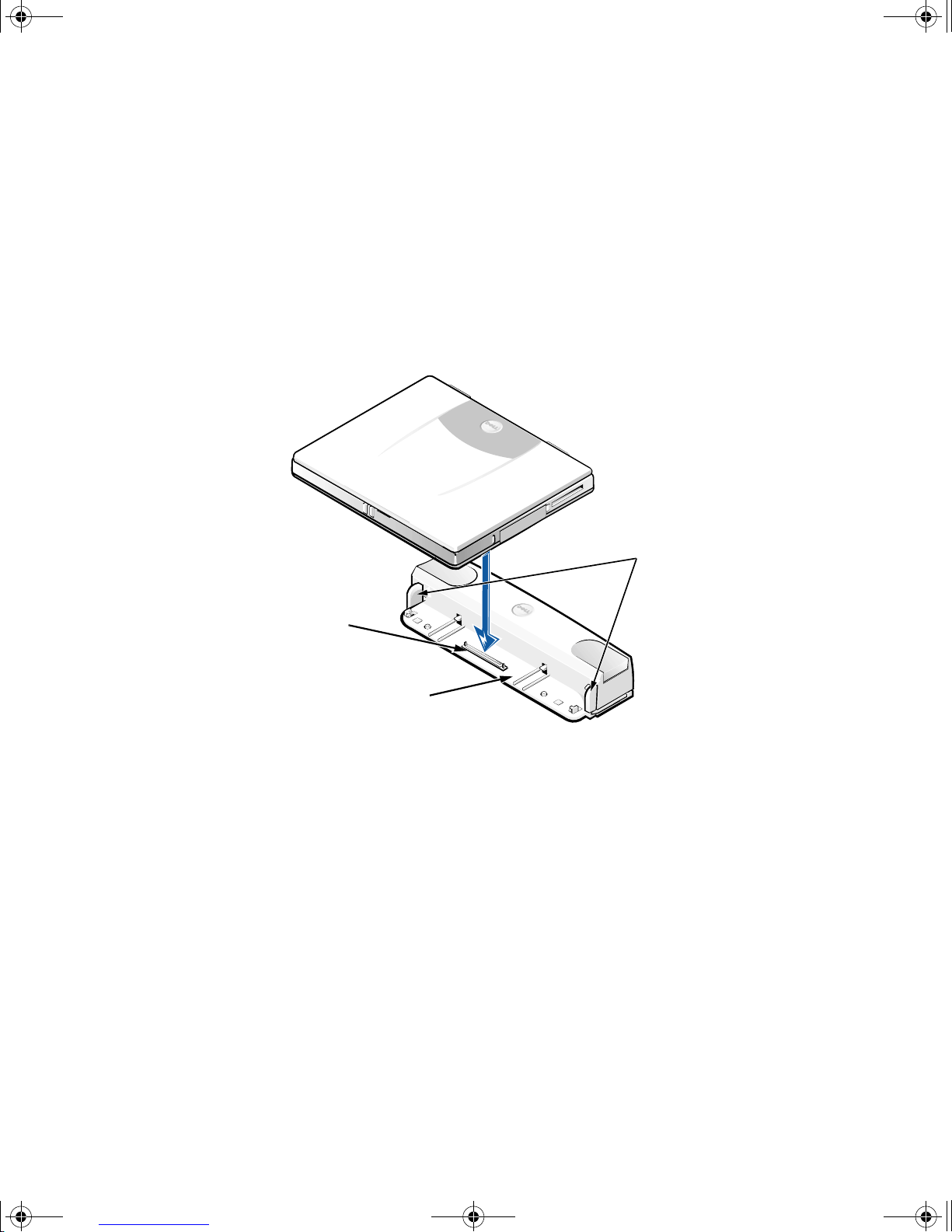
4. Place the back of the computer over the APR platform, aligning the sides of the
computer between the platform wings (see Figure 1-2).

5. Carefully lower the computer onto the APR platform, as shown in Figure 1-2, until
the APR and computer docking connectors engage.
When you feel or hear a click, the computer is latched to the APR and the docking
connectors are fully engaged.
-! 
+" +
#+ +  
$
6. Turn on the computer.
APR docking
connector
platform wings
APR platform

1-6 Dell Latitude L400 Advanced Port Replicator User’s Guide
G:\FrameMaker\DELL\sndmm244\en\4C796A00e
G:\FrameMaker\DELL\sndmm244\en\4C796A00en.fm

Use the following procedure to disconnect the computer from the APR:
1. Save all your work, and exit all application programs.
2. Shut down the computer.
3. At the same time, press down on the left and right release buttons on the top of
the replicator, as shown in Figure 1-3, to undock the computer.
4. Lift the computer up and away from the APR.
 
release buttons
