manuals.online logo
Brands
  1. Home
  2. •
  3. Brands
  4. •
  5. Dell
  6. •
  7. Cell Phone
  8. •
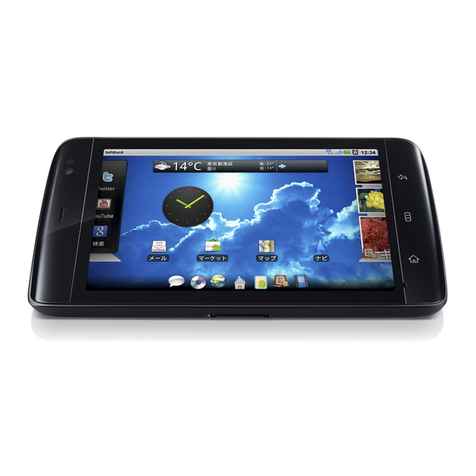
  9. Dell Streak User manual

Dell Streak User manual

Other manuals for Streak

7

Other Dell Cell Phone manuals
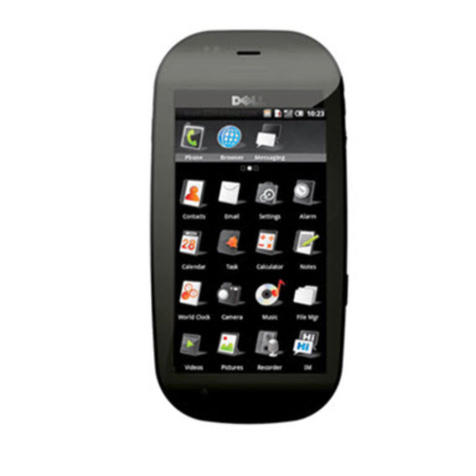
Dell MINI 3T1 User manual

Dell

Dell MINI 3T1 User manual

Dell Aero User manual

Dell

Dell Aero User manual

Dell Venue 7 3000 SERIES User manual

Dell

Dell Venue 7 3000 SERIES User manual

Dell Aero User manual

Dell

Dell Aero User manual

Dell DSS 1510 User manual

Dell

Dell DSS 1510 User manual

Dell Venue 7 User manual

Dell

Dell Venue 7 User manual

Dell Mobile Mini 3iW User manual

Dell

Dell Mobile Mini 3iW User manual

Dell Streak SoftBank 001DL User manual

Dell

Dell Streak SoftBank 001DL User manual

Dell Aero Assembly instructions

Dell

Dell Aero Assembly instructions

Dell Venue Pro User manual

Dell

Dell Venue Pro User manual

Dell XCD35 User manual

Dell

Dell XCD35 User manual

Dell Venue Pro User manual

Dell

Dell Venue Pro User manual

Dell Mini 3ix User manual

Dell

Dell Mini 3ix User manual

Dell Mobile Beacon User manual

Dell

Dell Mobile Beacon User manual

Dell Mobile Beacon User manual

Dell

Dell Mobile Beacon User manual

Dell Streak Pro GS01 User manual

Dell

Dell Streak Pro GS01 User manual

Dell Mini 3ix User manual

Dell

Dell Mini 3ix User manual

Dell Aero User manual

Dell

Dell Aero User manual

Dell MINI 3T1 User manual

Dell

Dell MINI 3T1 User manual

Dell Lightning User manual

Dell

Dell Lightning User manual

Dell MINI 3i User manual

Dell

Dell MINI 3i User manual

Dell Venue User manual

Dell

Dell Venue User manual
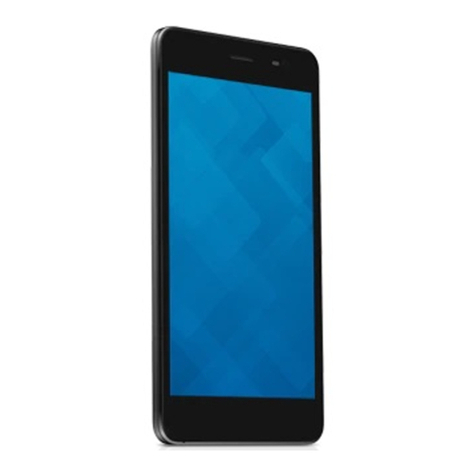
Dell Venue User manual

Dell

Dell Venue User manual

Dell MINI 3i User manual

Dell

Dell MINI 3i User manual

Popular Cell Phone manuals by other brands

Nokia 6700 classic user guide

Nokia

Nokia 6700 classic user guide

LG L34C user guide

LG

LG L34C user guide

Ericsson T60d manual

Ericsson

Ericsson T60d manual

Zte Score M user manual

Zte

Zte Score M user manual

Sony Xperia Z1 Compact Startup guide

Sony

Sony Xperia Z1 Compact Startup guide

AT AT-Q5 user manual

AT

AT AT-Q5 user manual

Vingtor ACM-M-A-V2 Installation/configuration

Vingtor

Vingtor ACM-M-A-V2 Installation/configuration

Olitech EasyFlip 2 Quick setup guide

Olitech

Olitech EasyFlip 2 Quick setup guide

Zte Atrium Z793C user manual

Zte

Zte Atrium Z793C user manual

Alcatel IDEAL manual

Alcatel

Alcatel IDEAL manual

Zte BLADE A520 quick start guide

Zte

Zte BLADE A520 quick start guide

switel M222 user manual

switel

switel M222 user manual

LG LG-P503 user guide

LG

LG LG-P503 user guide

LG F2410 user guide

LG

LG F2410 user guide

Argom E500 manual

Argom

Argom E500 manual

Hisense U30 user manual

Hisense

Hisense U30 user manual

Argom Tech E401 user manual

Argom Tech

Argom Tech E401 user manual

Nokia 3595 - Cell Phone - GSM Manual Del Usuario

Nokia

Nokia 3595 - Cell Phone - GSM Manual Del Usuario

manuals.online logo
manuals.online logoBrands
  • About & Mission
  • Contact us
  • Privacy Policy
  • Terms and Conditions

Copyright 2025 Manuals.Online. All Rights Reserved.

Dell™Streak
Quick Start Guide
快速入门指南
快速啟動指南
________________
Information in this document is subject to change without notice.
© 2010 Dell Inc. All rights reserved.
Dell and the DELL logo are trademarks of Dell Inc.
June 2010 P/N WD01R Rev. A00
________________
本说明文件中的信息如有更改,恕不另行通知。
© 2010 Dell Inc. 版权所有,翻印必究。
Dell 和DELL 徽标是 Dell Inc. 的商标。
2010 年6 月P/N WD01R Rev. A00
________________
本文件中的內容若有更改恕不另行通知。
© 2010 Dell Inc. 版權所有,翻印必究。
Dell 及DELL 徽標均為 Dell Inc. 的商標。
2010 年6 月P/N WD01R Rev. A00
Getting Started | 使用入门 | 開始使用
Remove the back cover
卸下背面盖 |卸下後面板
Insert the SIM card
插入 SIM 卡|插入 SIM 卡
Insert the battery
插入电池 |插入電池
Getting Started | 使用入门 | 開始使用
Insert the microSD card
插入 microSD 卡|插入 microSD 卡
Replace the back cover
装回背面盖 |裝回後面板
Charge the battery
为电池充电 |電池充電
Overview | 概览 | 概述
1. Back button
后退按钮 | 返回按鍵
8. Ambient light sensor
环境光传感 | 周遭環境燈光 應器
11. Volume up button
增大音量按钮 | 音量增強按鈕
2. Menu button
菜单按钮 | 目錄按鍵
9. Headphone connector
耳机连接 | 耳機連接器
12. Power and Sleep/Wake button
电源和休眠 /唤醒按钮 |
電源與睡眠 /喚醒按鍵
3. Home button
主页按钮 | 首頁按鍵
10. Volume down button
减小音量按钮 | 音量減弱按鍵
13. Camera button
照相机按钮 | 相機按鍵
4. Microphone
麦克风 | 麥克風
5. Proximity sensors
近接传感 | 近接 應器
6. Earpiece
耳机 |耳機
7. Front-facing camera lens
正面照相机镜头 | 前置相機鏡頭
131210
1
2
3
911
4
6
5
7
8
Overview | 概览 | 概述
1. Camera lens
照相机镜头 | 相機鏡頭
2. Camera flash
照相机闪光灯 | 相機閃光燈
3. 30-pin connector
30 针连接 | 30 插腳連接器
4. Speaker
扬声 | 揚聲器
3
1
2
4
Turn On Your Device | 开启设备 | 開啟裝置
Press and hold the power button
按住电源按钮 |按住電源按鍵
NOTE: The device will turn off automatically if you remove
the back cover while the device is on.
注: 当在设备开启期间卸下背面盖时,设备将自动
关机。
註: 當您在開機時卸下後面板,裝置將自動關機。
Connect to a Network | 连接至网络 |連接至網路
Turn on Wi-Fi and connect to a network
1
Touch the Home button
→
Menu button
→
Settings
→
Wireless controls
→
Wi-Fi
to select the Wi-Fi check box. The device
scans for available wireless networks.
2
Touch
Wi-Fi settings
. The names and security settings of discovered Wi-Fi networks will be displayed in the
Wi-Fi networks
list.
3
Flick the
Wi-Fi networks
list and touch the name of the network that you would like to connect to.
4
Enter a password (if necessary), then touch
Connect
to connect to the Wi-Fi network.
NOTE: For quick access to Wi-Fi controls, touch the status bar as shown in the figure below.
NOTE: When your device is connected to a wireless
network, the Wi-Fi icon appears in the status bar to
indicate the signal strength.
Connect to a Network | 连接至网络 |連接至網路
打开 Wi-Fi 并连接至网络
1
轻按主页按钮
→
菜单按钮
→
置
→
无线控件
→
Wi-Fi
以选中
Wi-Fi
复选框。设备会扫描可用的无线网络。
2
轻按
Wi-Fi 置
。搜索到的
Wi-Fi
网络的名 和安全设置信息随即显示在
Wi-Fi 网络
列表中。
3
滚动
Wi-Fi 网络
列表,轻按要连接的网络的名 。
4
输入密码 (如有必要),然后轻按
连接
以连接至
Wi-Fi
网络。
注: 若要快速访问无线控件,请轻按状态栏,如下图所示。
注: 设备连接至无线网络后, Wi-Fi 图标
会出现在状态栏中以显示信号强度。
Connect to a Network | 连接至网络 |連接至網路
開啟 Wi-Fi 並連接至無線網路
1
輕觸
[
首頁
]
按鍵
→
目錄按鍵
→
設定
→
無線控制
→
Wi-Fi
並且選中
Wi-Fi
核選方塊。
裝置將自動搜尋可用的無線網路。
2
輕觸
Wi-Fi
設定。搜尋到的
Wi-Fi
網路之 稱與安全性設定會在
Wi-Fi
網路清單中顯示。
3
滑動
Wi-Fi
網路清單並輕觸您想連接的網路 稱來進行連接。
4
輸入一個密碼 ( 如適用 ),然輕觸連接來連接至該
Wi-Fi
網路。
註: 如需快速存取 Wi-Fi 控制,輕觸圖例中顯示的狀態列。
註: 當您的裝置連接至一個無線網路時,顯示在狀
態欄位列中的 Wi-Fi 圖示 將表示訊號的強弱。