2
UV-resistant foil with laser printing is suitable
for labelling as well as labelling devices for
labelling strip:
- small buttons - 12 mm
- medium buttons - 30 mm
Detailed labelling references are to be foun on
our homepage.
Door stations with status indication
Dis-
play
Cause Function/Lighting
duration
A subscriber is
called.
After 90 s without call
acceptance or an operati-
on on the door station,
goes out.
A subscriber
accepts the
door call.
goes out, lights up as
long as the intercom con-
nection is pressed down,
max. 3 min.
The door is
unlocked.
Call not accepted:
Symbol goes out and
lights up for the unlok-
king time set on the door
station.
Call accepted:
In addition to the
,
the
lights up for the unlok-
king time set on the door
station. goes out approx.
5 sec after the symbol.
Table 1: Status indications of door station
Information for electricians
Installation and electrical connection
DANGER!
Touching live parts in the installation
environment can result in an electric
shock!
An electric shock can be lethal!
Before working on the device or load,
disconnect all associated circuit brea-
kers. Cover all live parts in the area!
ç
When installing door communication systems,
comply with the general safety regulations for tele-
communications systems according to VDE 0800:
- Separate routing of power and door communi-
cation cables with a minimum spacing of 10 cm
- Partitions between power and door communica-
tion cables in shared cable ducts
- Use of standard telecommunications’ cables, e.
g. J-Y (St) Y with 0.8 mm diameter
Bus cables
- J-Y(ST)Y or A-2Y(L)2Y
Use wrapped wire pair.
Recommendation white/yellow
- CAT
Use wrapped wire pair
Recommendation orange/white
- YR
Use adjacent wires
Installing the appliance
An installation height of approx. 1.5 m (middle
of the camera lens) is recommended for per-
sons of average size.
Installation of the device depends upon the
respective product it is going to be installed in
(see installation instruction, e.g. door station,
frame, etc.).
P
P
P
Connect device
The connection cables and indoor stations are
connected to the line power supply while taking
the maximum cable lengths and attenuations into
account (see operating instructions of the line power
supply).
zBring pre-assembled station (door station,
frame, etc.) in installation position - if necessary
with safety rope and tools.
zShorten connection cable of the station as
required and strip the required wires.
zPull off connection terminal block (13) from the
device.
zConnect the wire pair of the 2-wire bus cable
to the terminals XX of the connection terminal
block (Figure 5).
zConnect door release to the terminals TT of
the connection terminal block (gure 5 and 6) if
required.
or:
zFor manipulation-protected installation, connect
the door release to the contact of the line
power supply (Figure 7).
The door release lead must not be inserted
through the door station in order to protect
against manipulation.
zFor call push-button backlighting and camera
heating connect 12 V~ lead from the power
transformer to the terminals ~~ of the connecti-
on terminal block (Figure 5 ... 7).
(13)
Figure 5: Wired connection terminal block
zAttach connector of the module connection
cable to the next call push-button module on
the device.
zAttach connection terminal block to the device.
zEngage and screw in the module e.g. in the
rear latching receptacle of a door station (see
corresponding mounting instructions).
zClose station.
Circuit symbols and elements of the circuit
diagrams
Line power supply RMD
Power transformer
Door release
Video door station
Wrapped wire pair for 2-wire devices (recom-
mendation: white/yellow wire pair)
Unwrapped wire pair, for e.g. for door release
P
Figure 6: Door release connection on the door
station
Figure 7: Connection of door station video with
manipulation-protected door release
Calling up and changing of system settings
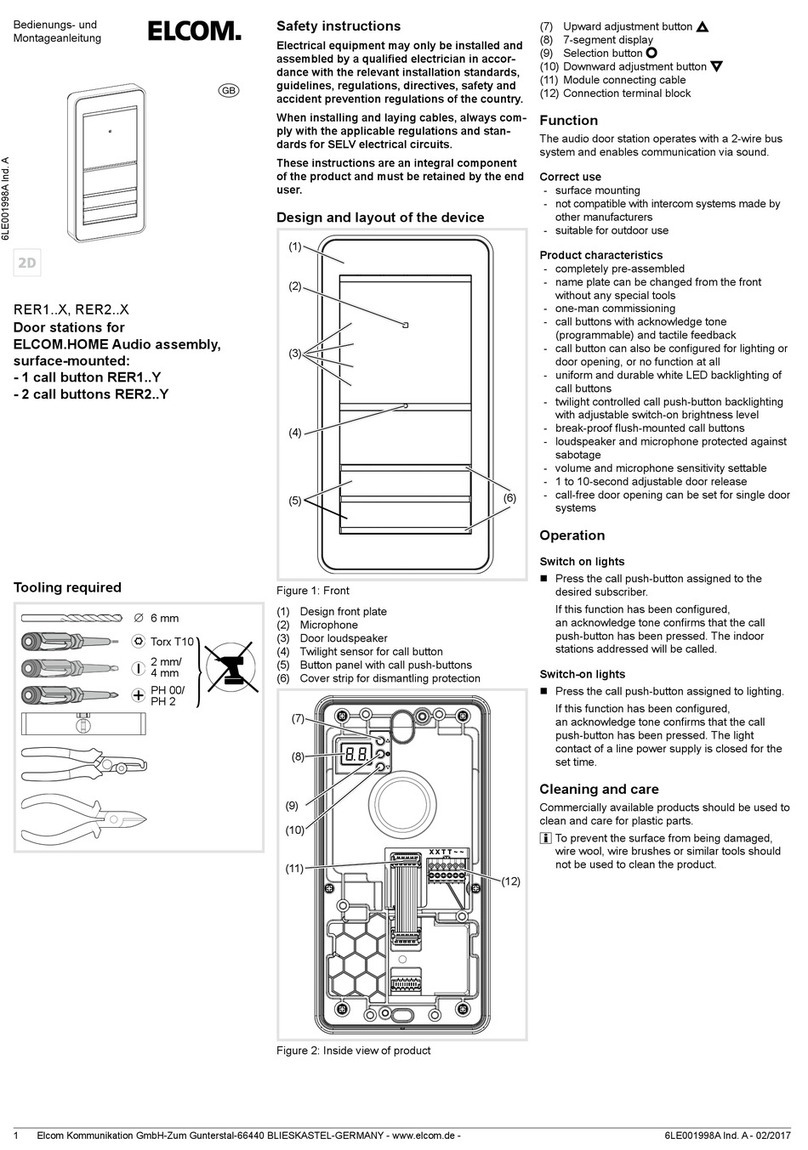
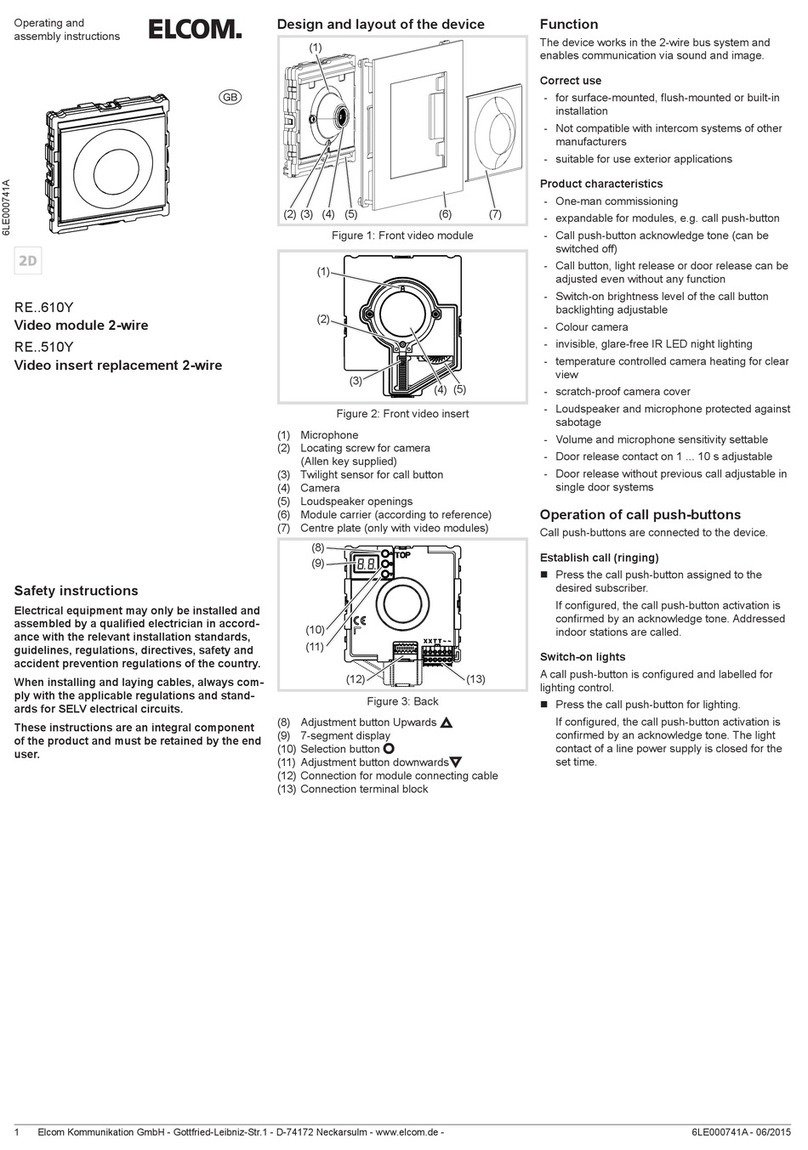
On the back of the device, there are 3 buttons and
a 2-digit 7-segment display (Figure 3, 8 ... 11) for
the system settings.
zPress / button.
Device turns to setting mode. The rst menu
entry is displayed.
The reading directions of the 7-segment display
varies by 180° depending on which button /
you start with.
zSelect the desired menu entry with /
(gure 9).
zConrm the selection with .
The 7 segments display goes dark if there is no
actuation for 5 seconds. Settings are applied.
The device returns to normal operation.
Setting the values
The menu entry to be set is conrmed and ashes
alternately with the value to be set.
zPress / button.
Short button-press: change the value by one
step.
Long button-press: run through values. Scroll-
ing stops when the button is released.
zConrm set value with .
The device applies the setting and returns to
the previous menu entry.
Address call push-button automatically
The call push-button and connector on the back
are addressed by the automatic call push-button
addressing as follows. The addressing, e.g. with
two-rowed door stations, takes place starting from
the top downwards, and with a two-rowed door
station, counterclockwise automatically upwards to
the right (gure 8).
The menu entry is selected. ashes alter-
nately with the entry for cancel.
zWith / select the entry for automatic
addressing.
zConrm with .
During the addressing, the display ickers.
Afterwards the display returns to the previous
menu entry .
P
P