Etec MP201 User manual

MP3 Digital
Audio Player
Models: MP201 & MP202
User Manual

General Description of Functions
•USB 2.0 transmission speed.
•Supporting multiple audio formats
MP3, WMA, WAV.
•For use with Microsoft Windows® 2000 or newer and MAC operating systems
•Voice Record
•7-Band EQ
Normal, Rock, Pop, Classic, Soft, Jazz, Bass
•Color Backlit Display
•Multiple play MODEs
Normal, repeat- one, repeat-all, random play, and browse play modes
•Auto OFF
•Fast forward and Fast reverse
•Sync lyric
Safety Precautions
1. To ensure your safety, please do not use the Player in a damp location or allow any liquids to come in
contact with the player.
2. It is recommended not to use the Player in very hot/cold, dusty or humid environment.
3. Please do not disassemble or repair the Player by yourself or it may affect the operation and sound
quality of the Player. The MP3 Player has no parts that can be serviced by the user.
4. We do not recommend that you use earphones when you are driving
5. Your hearing ability may be harmed permanently due to listening at a loud volume level. Therefore, it
is recommended that you adjust the volume of MP3 Player to a proper level magnitude to avoid
damaging your hearing ability.
6. If you do not intend to use the Player for an extended period of time, please remove the battery to
avoid possible corrosion and damage to the Player caused from battery leakage
7. Avoid dropping the Player.

STATEMENT
Thank you for purchasing this ETEC digital MP3 Player.
Prior to using the product, it is recommended that you read the USER MANUAL for your best
experience and use of this player.
.
The contents of the manual may be modified without prior notice when there is any change of
performance and function of the product.
Quick start guide
For experienced computer users the MP201 / MP202 is very easy to use. This Quick start guide
allows users to load and start playing music files, but we recommend reading the entire manual
to understand all of the MP201 / MP202 features.
As with any ‘plug and play’ USB storage device, digital media files can be added to the MP201 /MP202
from the host computer simply by using the ‘drag and drop’ approach familiar to most Windows users.

Downloading files to the MP201 / MP202
1) For Windows (Microsoft Windows® 2000 or newer operating systems only) and MAC users
downloading digital media files is easy – just connect the player via USB and start loading files
immediately.
2) Once connected to a computer, the MP201 / MP202 will appear as a ‘Removable disk’ or ‘USB
storage device’ and files can be copied directly onto the player using the ‘drag and drop’
approach.
If your computer does not automatically detect the MP201 / MP202, open the ‘My Computer’ icon
from the desktop and click on the ‘Removable disk’ or ‘USB storage device’ to access the MP201
/ MP202 USB memory. For MAC users open the FINDER window and click on the removable
USB drive in the upper portion of the Finder menu.
3) The MP201 / MP202 will automatically organize digital music, recorded voice files and open them
using the appropriate application from the player’s main menu. For example, if MP3 or WMA
files are loaded on to the Player, user will be able to play these files when opening the Music
playback mode from the main menu.

Know your Player
Outline and key
Display screen
Battery capacity
Indicates the full battery capacity of 1.5V has reached. The power capacity indication will be
decreased as the operation time increases.
The inside of battery capacity icon will be blank when the battery capacity is almost finished.

When the icon flashes, it is time to change the battery.
Button operation
Definition of key functions
1. “PLAY”: ON/ PLAY/ STOP/OFF, hereafter referred to as “PLAY key”.
2. “MODE”: to select the entry and to enter the menu, hereafter referred to as “MODE key”.
3. “VOL+”: volume increase, fast increase.
4. “VOL–”: volume decrease, fast decrease.
5. “NEXT”: NEXT entry, fast forward.
6. “LAST”: LAST entry, fast reverse.
7. "RECORD”: Short Press RECORD,Long Press saves the recording.
8. “USB”: USB jack.
9. “Headphone Jack”: standard 3.5mm headphone jack.
Definition of button operations
The button operation includes Short Press, Long Press, Press & Hold, and Press. The instructions that
follow below refer to Short Press unless otherwise stated.
1. Short Press: Press the button once for the command to take effect.
2. Long Press: Press & Hold the button for about a second for the command to take effect.
3. Press: Press the button and the command takes effect when the button is released
4. Press & Hold: The command will begin at the moment the button is pressed and stop the
moment the button is released. This is used for commands such as; “Fast forward/Fast
reverse”.
Basic Function
Enter menu
It is available to enter the various menus by pressing down the MENU button. Long Press the button to
enter the PLAY menu status and Short Press to enter the menu at stop status.
Entering the different function MODEs
Different function MODEs may be entered from the Main Menu.

Menu: (Long Press MODE button to enter the Main Menu. Press the MODE button to select.
Music MODE:
Record MODE:
Play MODE:
Browse play:
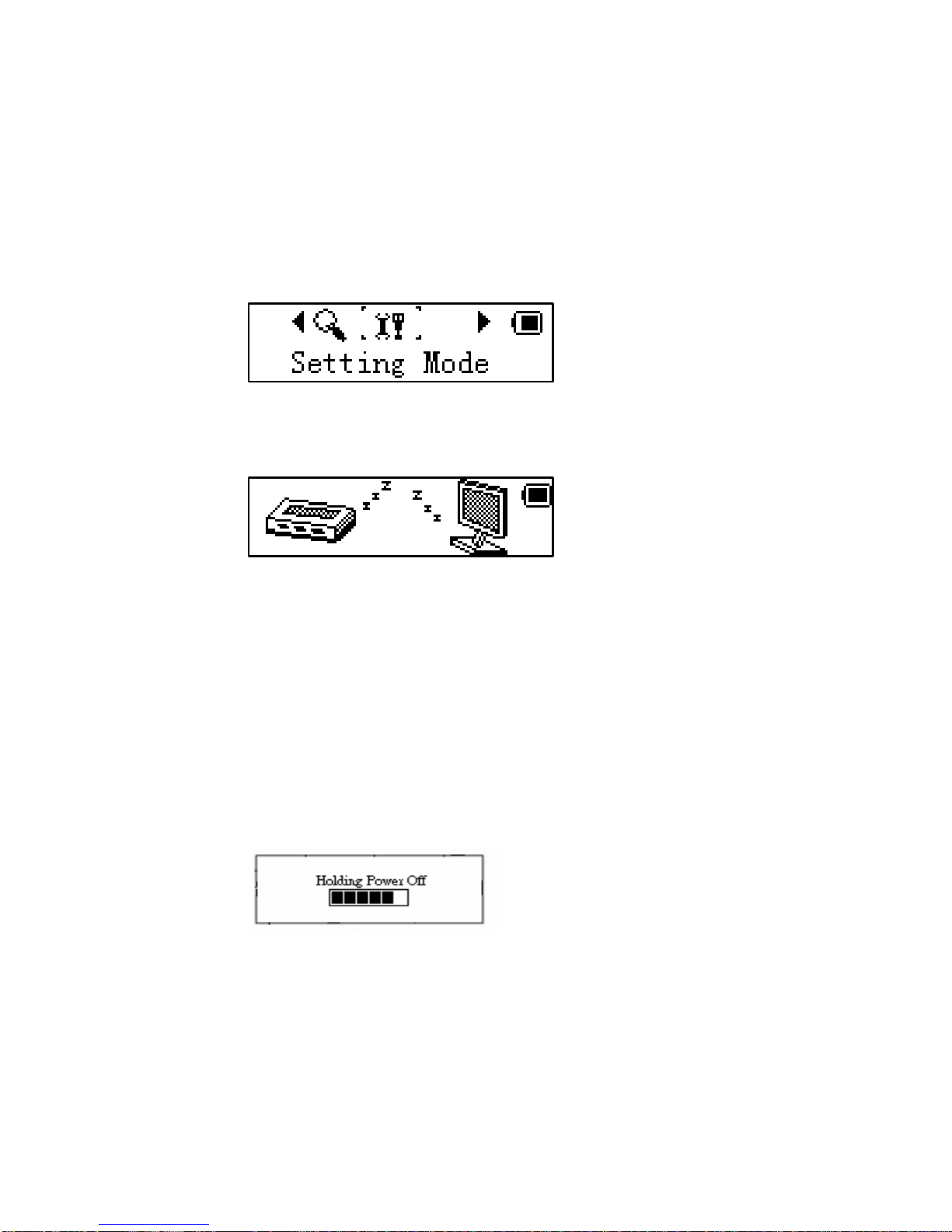
System setting:
Connecting PC to enter USB MODE:
Volume adjust
“VOL+” increase volume.
“VOL–” decrease volume.
Power ON/OFF
At power OFF status, Short Press the PLAY button to turn the power ON.
In the power ON status, Long Press PLAY button to turn the power OFF.
Play or stop (under record MODE, with pause function);
When in the music MODE, Short Press PLAY button to play music.
When playing music, Short Press the PLAY button to stop Play.

Record/pause (Short Press), stop record (Short Press)
In the RECORD status, Short Press PLAY button to pause recording. Short Press PLAY again, to stop
recording. Short Press the MODE button to enter PLAY status for the recorded file.
Play music
Simple operation
1. Plug the headphones into the earphone jack.
2. Short Press the PLAY button to turn ON and to enter the “Music MODE”, Short Press PLAY button
again to begin playing music.
3. Select music: LAST key: select the previous music file
NEXT key: select the next music file
4. Volume adjustments: VOL+: to increase the volume VOL-: to reduce the volume
Sync lyric display
The Player supports lyric files with ‘.LRC’ suffix, and will display the lyrics synchronously with the
music.
How to use lyric file?
Please make sure the lyric has the same name to the music.
For example:
Music file: My heart will go on.mp3
Lyric file: My heart will go on .lrc
How to know if lyric available?
If lyric matched, the icon “ ” will be replaced into “ ”.

For example:
Long Press MODE to turn ON the lyrics display.
Short Press MODE to exit lyric display
Equalizer MODE
1. When playing music:
2. Press MODE to enter PLAY submenu;
3. Push NEXT choosing Equalizer MODE
4. Press MODE to enter ‘Equalizer MODE’ submenu.
This manual suits for next models
1
Table of contents
Other Etec MP3 Player manuals