OK: English
Language
1. In the setting mode, press the or button to select
‘SYSTEM SETTING’, and then press ‘OK’ button.
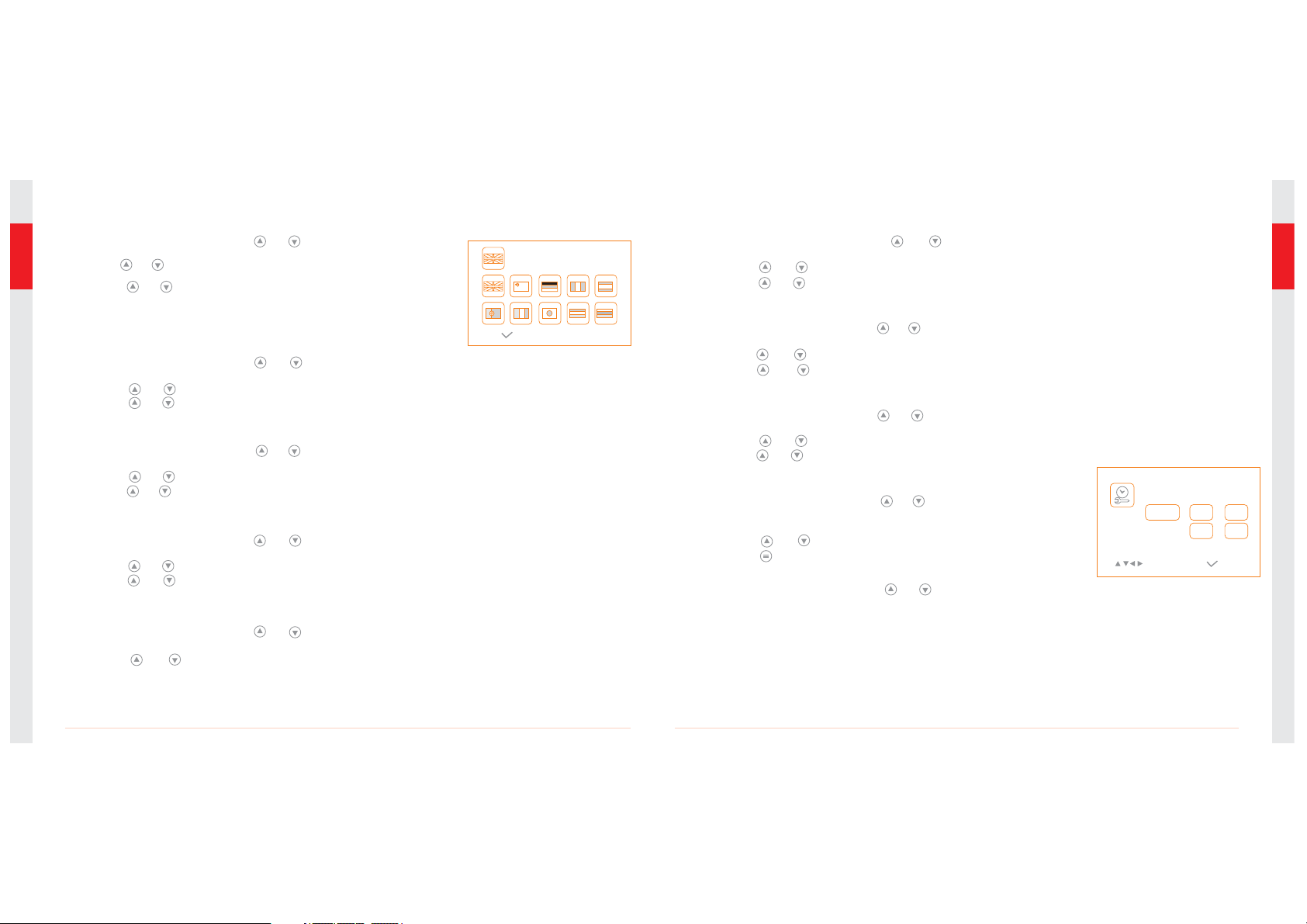
2. Press the or button to select ‘Language’, and then press
‘OK’ button, the following interface will appear:
3. Press the or button to select your desired language.
4. Press ‘OK’ button to confirm and exit.
Language Setting
Video System Setting
1. In the setting mode, press the or button to select ‘SYSTEM SETTING’, and then press
‘OK’ button.
2. Press the or button to select ‘Video System’ and then press ‘OK’ button.
3. Press the or button to toggle between NTSC and PAL. Once your desired system is
selected, press ‘OK’ button to confirm and exit.
Formating
1. In the setting mode, press the or button to select ‘SYSTEM SETTING ’, and then press
‘OK’ button.
2. Press the or button to select ‘Format’, and then press ‘OK’ button.
3. Press the or button to toggle between YES and NO, that is, to format or cancel. Once
you have highlighted your desired selection, press the ‘OK’ button.
Default Setup
1. In the setting mode, press the or button to select ‘SYSTEM SETTING ’, and then press
‘OK’ button.
2. Press the or button to select ‘Default Setup’ and then press ‘OK’ button.
3. Press the or button to toggle between YES and NO, that is to restore default or cancel.
Once you have highlighted your desired selection, press the ‘OK’ button.
View Version Information
1. In the setting mode, press the or button to select ‘SYSTEM SETTING’, and then press
‘OK’ button.
2. Press the or button to select ‘Version’ and then press ‘OK’ button. You will now be
able to view the version details of your product.
Frame Rate Setting
1. In the setting mode, press the or button to select ‘RECORDER SETTING’, and then
press ‘OK’ button.
2. Press the or button to select ‘Frame Rate’ and then press ‘OK’ button.
3. Press the or button to toggle between different frame rates. Once your desired rate
is selected, press ‘OK’ button to confirm and exit.
Time Stamp Setting
1. In the setting mode, press the or button to select ‘RECORDER SETTING’, and then press
‘OK button’.
2. Press the or button to select ‘Time Stamp’ and then press ‘OK’ button.
3. Press the and buttons to toggle between on and off. Once your desired selection is made,
press ‘OK’ button to confirm and exit.
Recording Type
1. In the setting mode, press the or button to select ‘RECORDER SETTING’, and then press
‘OK’ button.
2. Press the or button to select ‘Recording Type’ and then press ‘OK’ button.
3. Press the or button to toggle between ‘still’ and ‘video’. Once your desired selection is
made, press ‘OK’ button to confirm and exit. Date/Time
OK:
2009 / 02 / 13
09 : 51
Date/Time Setting
1. In the setting mode, press the or button to select ‘Date/Time’
and then press ‘OK’, The right interface will appear:
2. Press ‘OK’ button to select Date or Time;
Press the or button to adjust selection;
Press the button to confirm and exit.
Event Playback
1. In the setting mode, press the or button to select ‘EVENT PLAYBACK’, and then press
‘OK’ button.
2. Refer to user manual instructions on Playback of Video/Picture, Deleting Video/Picture, and
Deleting Folder for guidance.
12
11