7
4. Wireless setup
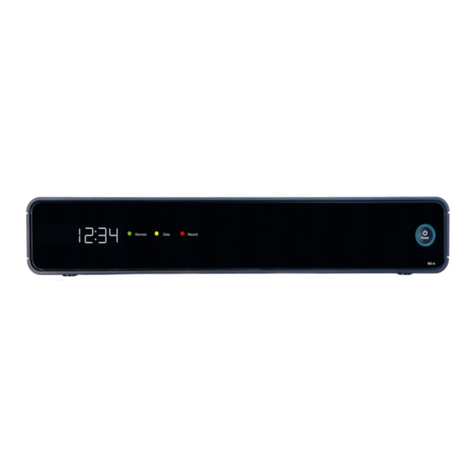
This section is only relevant if wireless functionality
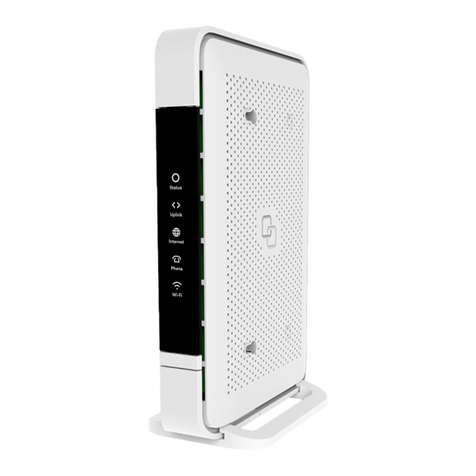
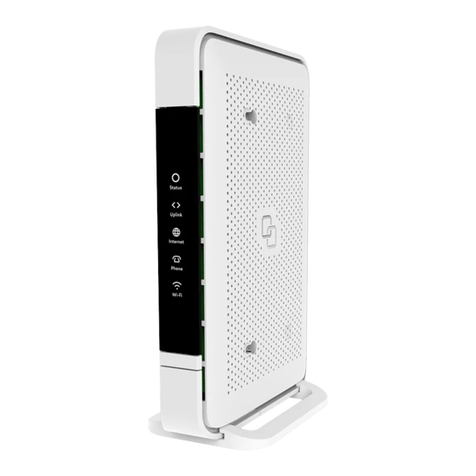
is available on your Platinum. The LED
indicates if wireless functionality is enabled.
Step 1:
To set up the wireless connection between your
computer and the Platinum you may need the SSID
and WPA key of the Platinum. The SSID is the name
of the wireless network. The WPA key is the pass-
word needed for your secured wireless network. The
default SSID and the WPA key are printed on the label
on the rear of your Platinum and on the seperate
labels included in the package.
You may write down these values here:
SSID: _____________________________________________
WPA key: _________________________________________
Step 2:
(Instructions for Windows Vista / Windows 7; for
other operating systems please contact your service
provider)
• Go to “Start” at the bottom left corner and
click on “Control Panel”.
• The Control Panel window will appear. Click
on “View Network Status and Tasks” at the
“Network and Internet” category.
• The Network Connections window will appear.
Click on the “Connect to a network”.
• Show “Wireless” and select the network (SSID)
that is printed on the label.
• If requested press the WPS button on your
Platinum. Alternatively you can connect using
the WPA key that is printed on the label.
• Your connection is now operational. Open your
web browser and verify that your connection
is working. If your connection is not working,
please refer to the troubleshooting section.
• After installation you can manually change the
SSID and WPA key, by using the web-interface
of the Platinum.