gofanco Matrix88HD2 User manual

8x8 HDMI Matrix 4K
with LCD
User's Guide
G4-0147A
P/N: Matrix88HD2

2
Thank you for purchasing from gofanco. Our products
aim to meet all your connectivity needs wherever you
go. For optimum performance and safety, please read
the instructions carefully and keep this User's Guide for
future reference. If you need more information about
our products, please visit www.gofanco.com. For
For drivers or manual download, please go to
www.gofanco.com/downloads.
Important Safety Notices
Pleasereadsafetyinstructionscarefullybeforeinstallation
and operation.
• Please pay close attention to all warnings and hints
for this device
• Do not expose this unit to rain, heavy moisture, or
liquid
• Do not put any items into the device or attempt to
modify its operation
• Do not repair the device or open the enclosure
without professional guidance to avoid electric
shocks. Doing so may void your warranty
• Keep the product in a well-ventilated location to
avoid damage from overheating
• Shut off power and make sure environment is safe
before installation
• Do not plug the HDMI cables and IR cables
in/out when the device is in use to avoid cable
damage. Make sure they are plugged into the
correct ports
• Use the included 12VDC power adapter only. Make
sure the specification matches if using 3rd-party
DC power adapters

3
Introduction
The 8x8 HDMI Matrix 4K allows you to select and switch
between any of the 8 HDMI source devices to display on
any of the 8 HDMI outputs.
Features
• Connect up to eight HDMI source devices and
independently distribute any source to any of the
eight HDMI displays
• Supports up to 4K@60Hz YUV 4:4:4 8-bit, HDR,
HDR10, HLG, Dolby Vision, 3D, HDCP 2.2/1.4,
18Gbps bandwidth
• 8x HDMI inputs and 8x HDMI outputs
• 8x Analog audio inputs, 8x Analog audio outputs,
8x S/PDIF audio outputs
• Supports audio embedded and extraction
• Supports PCM 2.0-5.1 / 16-24bit / 32-192KHz, and
Dolby TrueHD, Atmos, DTS-HD Master, DTS-X
• Control methods: Panel buttons, IR remote, RS232,
IP, and Web GUI
• Supports Telnet, UDP, HTTP, and TCP/IP via
Ethernet
• EDID management: Presets and EDID learning
• 1U Rack mountable
• Firmware upgradable via RS232 for expanded
capability and compatibility

4
PackageContents
• 8x8 HDMI Matrix 4K
• IR remote control
• IR Receiver cable
• Software CD
• Phoenix plug
• Power adapter (12VDC/3A)
• User's guide
Installation Requirements
• HDMI source devices
• HDMI displays
• Premium High Speed HDMI cables (not included)

5
Figure 1: Front Panel Layout
1. LCD screen: Display the Matrix information
2. Output selection buttons (1-8): Press to select an
output port
3. Input selection buttons (1-8): Press to select an
input source
4. Function Buttons:
Preset: Press to add/select a preset configuration
Up: Press to select the previous menu item
Lock: Long press to lock/unlock the Matrix
Menu: Press to activate the LCD's the main menu
interface, press again to return to previous screen.
*Note:When entering themain menu, pressa button
within 30 seconds, otherwise the LCD screen will
return to the previous display and turn off within 60
seconds
Down: Press to select the next menu item
Enter: Press to confirm
Product Layout

6
1. Analog Audio In (1-8): Connect to theanalog output
of your source device
2. Analog Audio Out (1-8): Connect to your speakers
or headphones
3. SPDIF Out (1-8): Connect to your S/PDIF audio
device
4. RJ45: IP or Web GUI control
5. RS232: Connect to your control PC
6. IR In: Connect to the IR receiver cable. This is
required only if the front panel IR receiver window
is blocked
7. Ground: Case grounding point
8. HDMI In (1-8): Connect to your HDMI source
devices
9. HDMI Out (1-8): Connect to your HDMI displays
10. Power Jack: Connect to the included power adapter
Figure 2: Rear Panel Layout

7
Hardware Installation
1. Power off all devices including your HDMI
source(s) and HDMI display(s).
2. Connect your HDMI source devices to the Matrix
4K's HDMI Input connectors with HDMI cables
(HDMI cables not included).
3. Connect your HDMI displays to the Matrix 4K's
HDMI Output connectors with HDMI cables
(HDMI cables not included).
4. Optional: Connect the included IR Receiver cable
to the IR interface port. This connection is needed
only if the front panel IR receiver window is
blocked.
5. Optional: Connect an AVR amplifier or speakers
to the S/PDIF output ports.
6. Optional: Connect the Matrix 4K's RS232 socket
and your PC's serial port or a CAT cable between
theMatrix4K'sRJ45portandrouterorPC'sethernet
port. This connection is needed only if matrix
device control using a PC is required.
7. Plug the included power adapter into the Matrix
4K's Power Jack, then plug the power adapter into
a reliable power outlet.
8. Power on all connected devices. The Matrix 4K is
ready for use.

8
Application Diagram
The application diagram shows the most typical input
and output devices used with the 8x8 HDMI Matrix 4K.
Figure 3: Application Diagram

9
Matrix Device Control
Input Selection and Output Selection Buttons
Use the Input selection buttons (see #3 on page 5) and
Output selections (see #2 on page 5) to select and switch
between any of the 8 source devices to display on any of
the 8 displays.
• Select an input source to display on an output port:
Example: To select Input 1 source to display on
Output 1 port - Press Output 1 button (see #2 on
page 5), then press Input 1 button (see #3 on page 5).
• Selectaninputsourceto display on multiple output
ports: Example: Select Input 2 source to display on
Output ports 1, 2, and 3 - Press Output 1, 2, and 3
buttons (see #2 on page 5), then press Input 2 button
(see #3 on page 5)
• Select an input source to display on all output
ports: Example: Select Input 4 source to display on
all Outputs - Long press Output 4 button (see #2 on
page 5), then long press Input 4 button (see #3 on
page 5)

10
Menu
Allows you to control various aspects of your display
device and source device.
Output Signal Control
Theoutputinterface comprises of ninesub-menus Output
1-8 and All. It allows you to switch source device and/or
turn off the audio of any output port.
Output menu interface
Output port menu interface
Table of contents
Other gofanco Matrix Switcher manuals
gofanco
gofanco Matrix44 User manual

gofanco
gofanco PRO-Matrix88-aud User manual
gofanco
gofanco Matrix88-HDBT User manual

gofanco
gofanco Matrix44-HDBT User manual
gofanco
gofanco Prophecy PRO-Matrix44-SC User manual

gofanco
gofanco 4x4 HDMI Matrix 4K User manual
gofanco
gofanco PRO-MatrixWall44 User manual

gofanco
gofanco Matrix44HD2-BSC User manual
gofanco
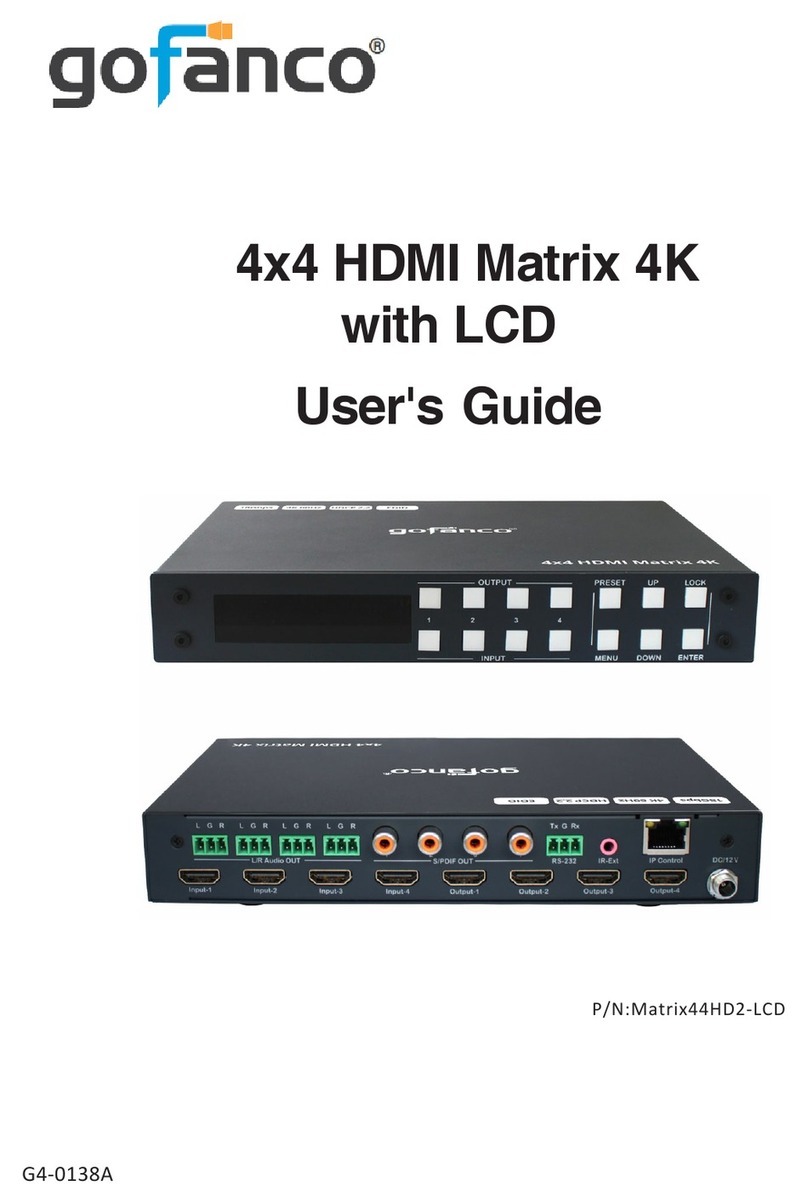
gofanco Matrix44HD2-LCD User manual

gofanco
gofanco PRO-Matrix88 User manual