a) Access the General Tab of the Setup Area again and scroll to the “Location” area. Find the Time Zone field and
change that to time zone where your HomeTroller Zee is installed. Example: US –America/New_York
b) From the HomeTroller Zee web interface, use the pull down menus to navigate to the General Tab of the Setup
Area (TOOLS > Setup). If an update is available, click the update button near to top of the page and wait for the
update to download and install. Your HomeTroller Zee will automatically reboot once the update is installed.
Configuring the Wi-Fi Adapter
If you ordered the Wi-Fi adapter with your Zee, follow these instructions for setting it up: (You must have HS set up with
the Ethernet cable first)
a) Connect the Wi-Fi adapter to your HomeTroller with the Ethernet cable plugged in still.
b) Access the Network Tab of the Setup section. Locate the Wi-Fi Settings section.
c) Enter the SSID (Wi-Fi network name) of your Wi-Fi. (This is case sensitive)
d) Choose your encryption type and enter your Wi-Fi password. Keep ‘Use DHCP’ checked.
e) Go to Tools->System->Shutdown System. Once the system is shutdown. Unplug the power and then the
Ethernet cable. Now reconnect the power and let the system boot.
f) If you go to find.homeseer.com now, it should show another HomeTrollerZEE. This is your new IP address and
are all set to use the Wi-Fi adapter.
STEP #2 - Z-Wave Network Setup
In order to control Z-Wave devices, such as light switches, thermostats, door locks and sensors, they must be included
into a Z-Wave “network”. Follow the steps below to create your Z-Wave network and to include devices. Note: the steps
below assume you’ve already physically installed Z-Wave devices in your home.
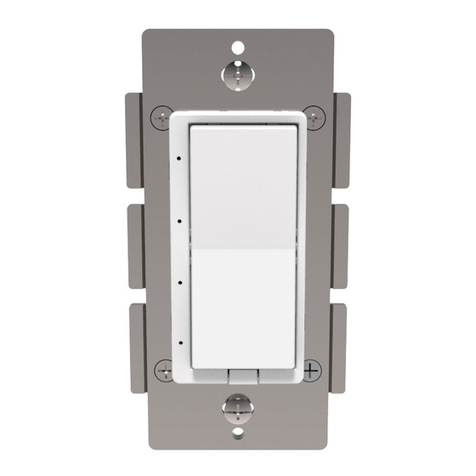
Including Externally Powered Devices (wall switches, receptacles, plug-in modules, etc)
a) Unpack the enclosed black USB “Z-Stick” and put it into “inclusion mode”by
pressing and releasing the large round button on one side. A blue LED light
around the button will begin blinking slowly.
b) While the Z-Stick is in inclusion mode, position it within 1-3 feet of your Z-Wave
device. Now press the network button (or paddle) on your Z-Wave device and
observe the blinking LED on the Z-Stick. If successful, the LED light will glow
solidly for about 2 seconds and then will begin blinking slowly again. Note: If
the LED does not glow solidly, the device may need to be reset. Reset the
device by following the procedure outlined in “Excluding Devices” below.
c) If you have other Z-Wave devices to add to your network, you may keep the
Z-Stick in inclusion mode and add the remaining devices using the procedure above. Once you’re finished, tap
the button on the Z-Stick again. The LED light will turn off and it will no longer be in inclusion mode.
Including Battery Powered Devices (door locks, environmental sensors, etc)
Battery operated devices must be included into your Z-Wave network using the HomeTroller Zee web interface. Follow
the steps below to include your battery operated device(s).
a) Position your battery operated Z-Wave device within 1-3 Feet of your HomeTroller Zee.
b) From the web interface, use the pull down menus to navigate to the Z-Wave Controller Management page
(PLUG-INS > Z-Wave > Controller Management).
c) Locate the “Z-Wave Interfaces” area and expand the ZStick section. Open the “Actions:” menu and choose
“Add/Include a Node”.