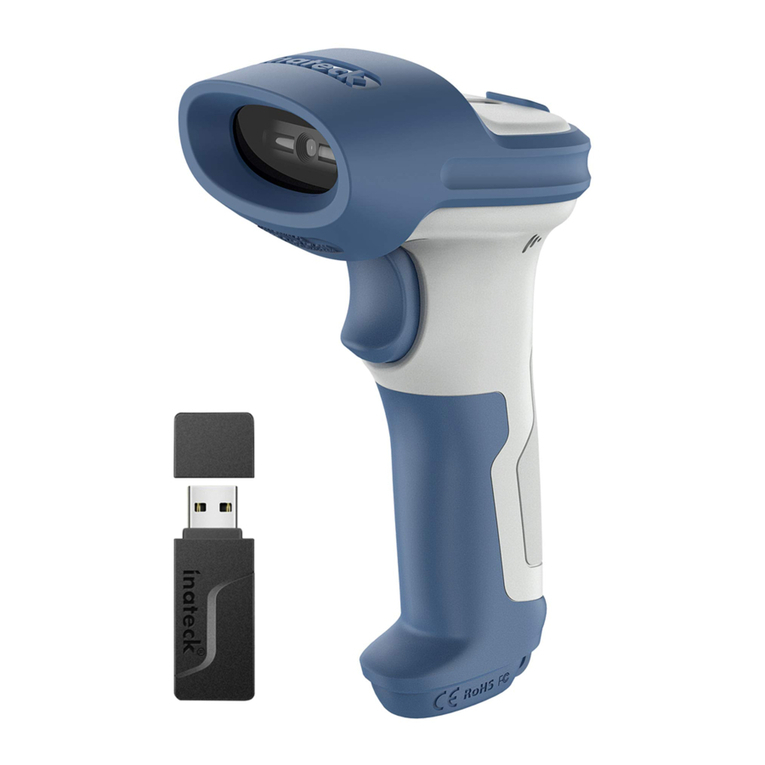
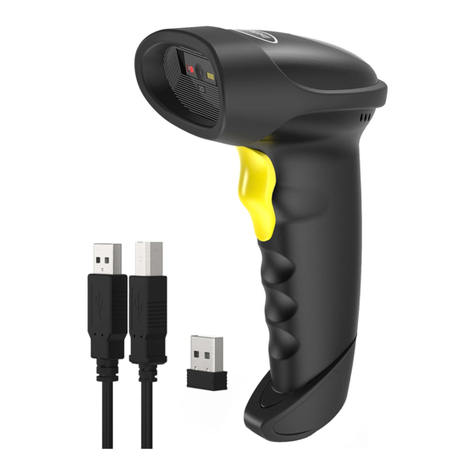
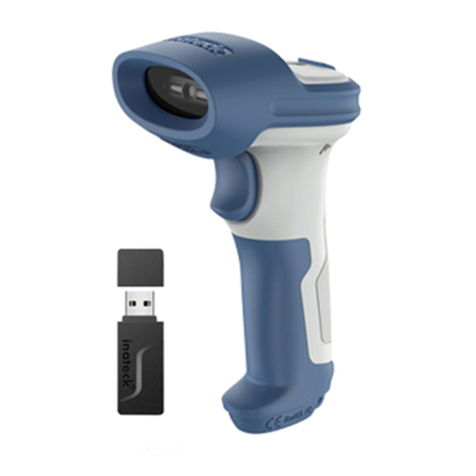
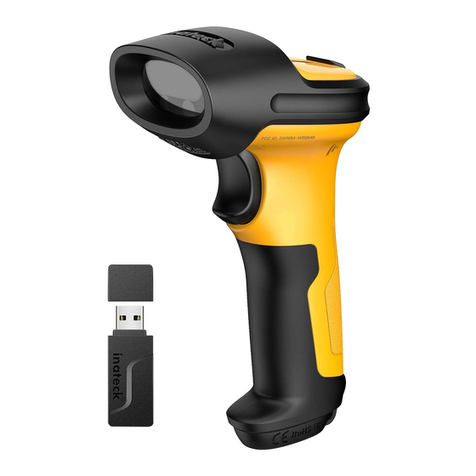
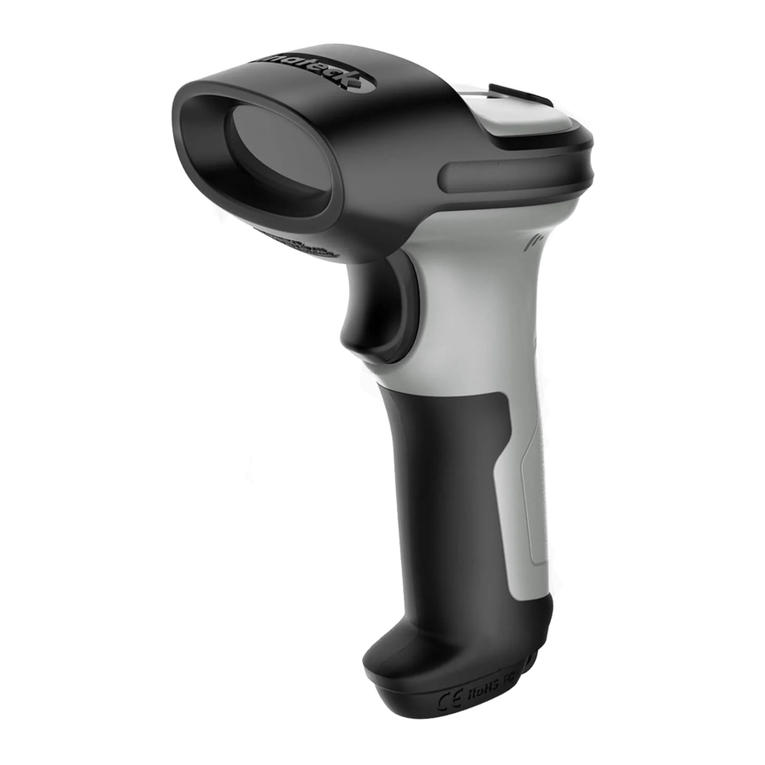
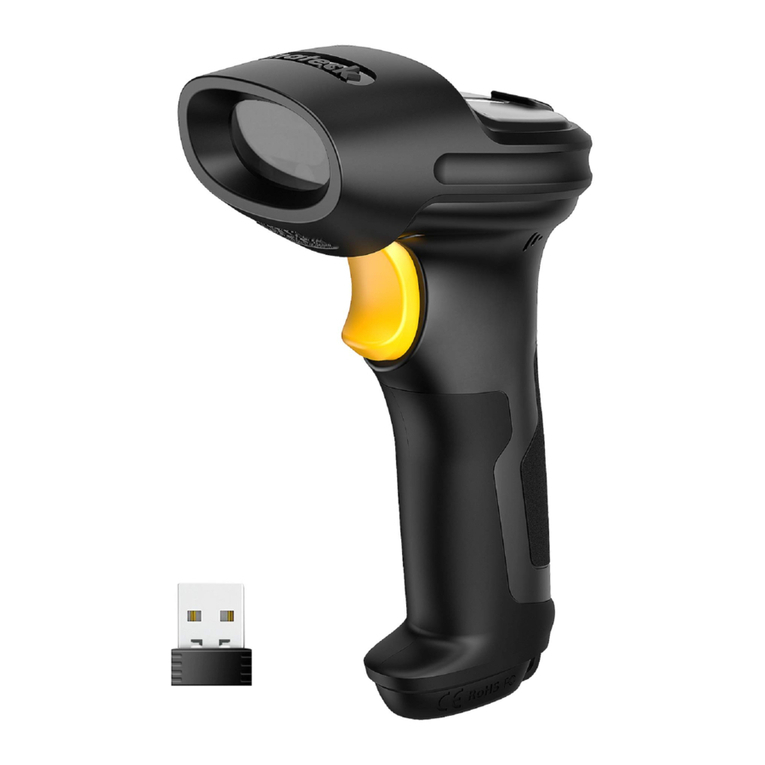
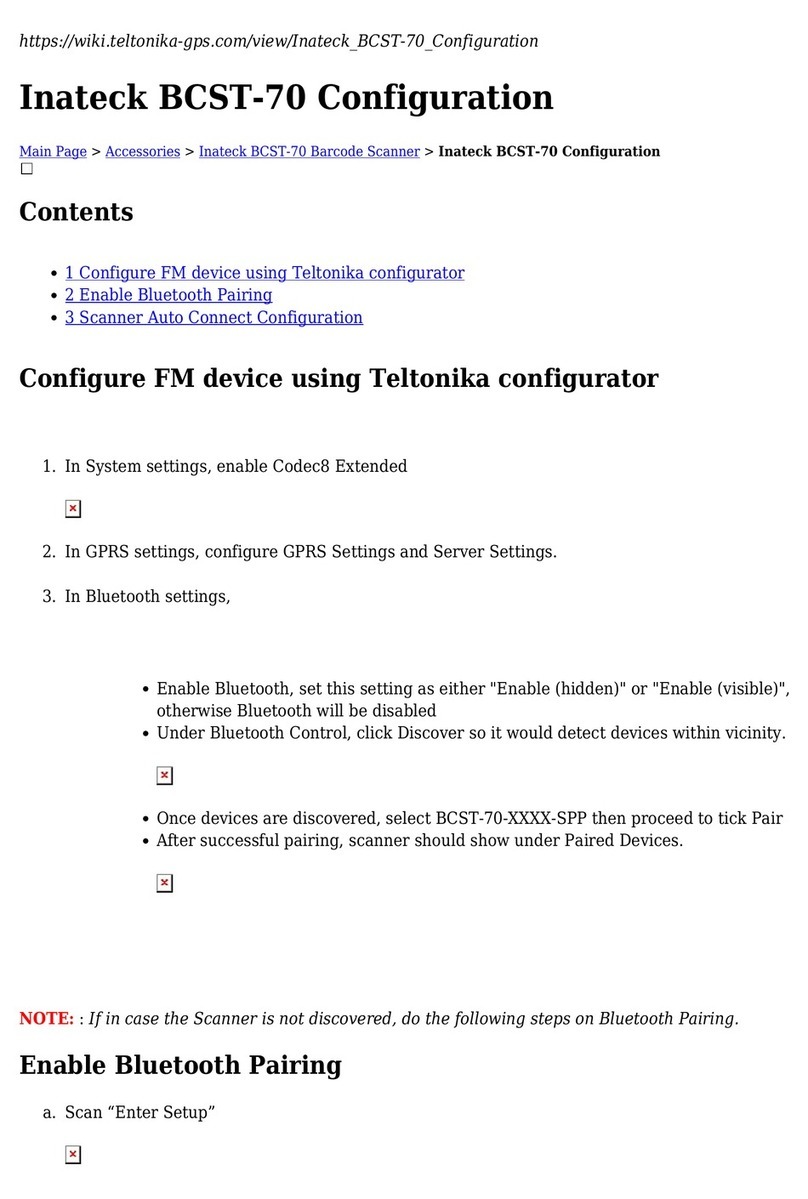
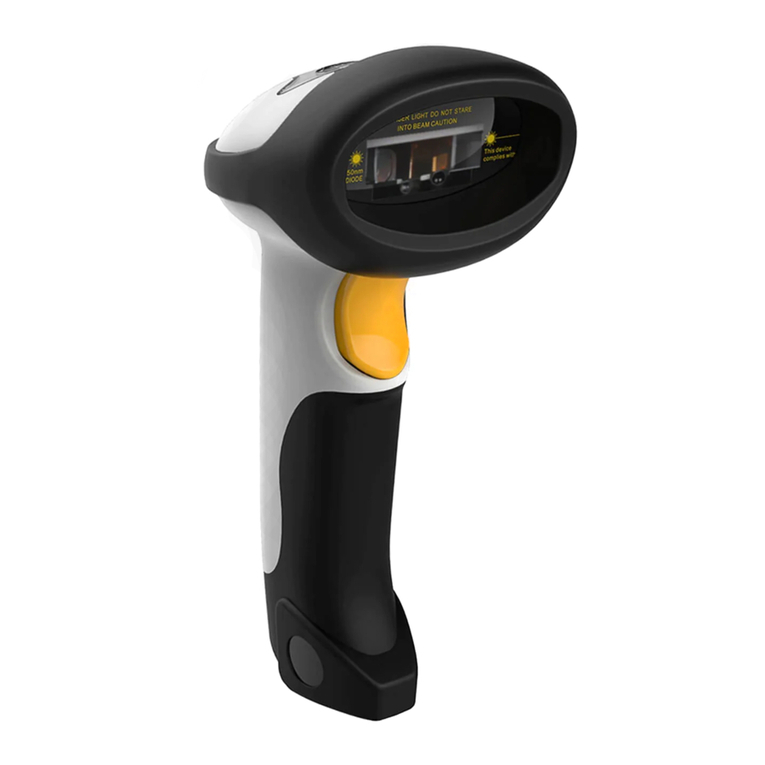
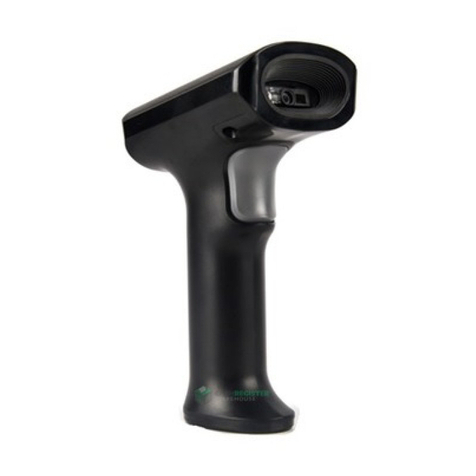
Inateck BCST-10 User manual

www.inateck.com
Instruction Manual
BCST-10
Barcode Scanner

IMPORTANT NOTICE
Safety Precaution
* DO NOT disassemble the scanner, or place foreign
matter into the scanner cause a short circuit or circuit
damage.
* DO NOT expose the scanner or battery to any
flammable sources.
Maintenances Precaution
* Use a clean cloth to wipe dust off the body of the
scanner.
* If you find the scanner abnormal, write down the
specific scenario and consult the maintenance person.
2

Contents
IMPORTANT NOTICE........................................................................2
Safety Precaution........................................................................2
Maintenances Precaution............................................................2
Contents.............................................................................................3
Overview of BCST-10 Barcode Scanner............................................5
Features of the Scanner..............................................................5
Appearance.................................................................................5
Introduction of Key Function........................................................6
Specifications...............................................................................6
Correct Aiming.............................................................................7
Incorrect Aiming...........................................................................7
QUICK START....................................................................................7
Enter the Setting Mode................................................................9
Exit the Setting Mode with Save..................................................9
Exit the Setting Mode without Save.............................................9
Restore Factory Defaults...........................................................10
Check Software Version............................................................10
Save Custom Settings...............................................................11
Chapter 1 Features and Basic Setups.............................................12
1.1 Battery..................................................................................13
1.1.1 Mounting the battery(charging)...................................13
1.1.2 How to operate BCST-10 Barcode Scanner................13
1.1.3 Auto Power Off............................................................13
1.2 Transmit Buffer.....................................................................14
1.2.1 Inventory Mode...........................................................16
1.3 LED Indicator.......................................................................17
1.4 Beeper.................................................................................17
1.4.1 Beeper Volume...........................................................18
1.5 Scan Modes.........................................................................19
1.5.1 Manual Mode..............................................................19
1.5.2 Auto Power Off Mode..................................................20
1.5.3 Auto-induction Mode...................................................21
1.6 Symbologies Supported.......................................................22
1.7 USB Wired Data Transmission.............................................22
Chapter 2 How to Connect with BT..................................................23
2.1.Select Output Interface........................................................24
2.1.1 BT SPP Mode.............................................................24
3

2.1.2 BT HID Mode..............................................................24
2.2 Setting up a BT connection..................................................25
2.3 Connect to PC via BT...........................................................26
2.4 Connect to PDA via BT.........................................................31
2.4.1 One-click Android Connection.....................................36
2.4.2 One-click iOS Connection...........................................39
2.4.3 Connect via BT Input Method......................................42
Chapter 3 SYMBOLOGY SETTINGS..............................................45
3.1 Codabar................................................................................46
3.2 Code25: Industrial 25............................................................47
3.3 Code25: Interleaved 25.........................................................48
3.4 Code25: Matrix 25.................................................................49
3.5 Code25: Standard 25............................................................50
3.6 Code 39.................................................................................51
3.6.1 Enable/Disable Code 39...............................................51
3.6.2 START/STOP Transmission..........................................51
3.6.3 Checksum Verification...................................................52
3.6.4 Standard/Full ASCII Code 39........................................53
3.7 Code 93.................................................................................54
3.8 Code 128...............................................................................55
3.9 EAN-8....................................................................................54
3.9.1 Enable/Disable EAN-8..................................................55
3.9.2 Convert to EAN-13........................................................56
3.9.3 Checksum Transmission...............................................57
3.10 EAN-13................................................................................58
3.10.1 Enable/Disable EAN-13..............................................58
3.10.2 Convert to ISBN..........................................................58
3.10.3 Checksum Transmission.............................................59
3.11 UPC-A..................................................................................60
3.11.1 UPC-A Output “0”........................................................60
3.11.2 UPC-A Checksum Transmission.................................60
3.12 UPC-E..................................................................................61
3.12.1 Enable/Disable UPC-E...............................................61
3.12.2 UPC-E Checksum Transmission................................61
3.13 MSI.......................................................................................62
4

Overview of BCST-10 Barcode Scanner
Features of the Scanner
* Small size, portable.
* User feedback via LED indicator and beeper
* The voice volume of scan barcode successfully could change via
setting barcode.
* Built-in 256 KB Flash memory can store up to thousand scan
barcodes.
* Provides 2 KB memory for reserve buffer while Bluetooth
connection interrupt, can store up to 110 scan barcodes.
* Supports BT SPP.
* Supports BT HID.
★Supports a wide range of barcode types. FedEx and USPS
barcodes are all supported.
★Whole body shockproof and drop resistance design
★Proprietary intellectual property rights
★Comfortable operating feel
★Button life up to 3 million times
★Support BT standard protocol, no need adaptor
★1500mAh large capacity lithium battery
★Long working hours
★The maximum readable digit extend to 64-bit. BCST-10 both wired
and wireless mode support 64bit readable
★Prefix and suffix are allowed to be added. Reset to factory default
settings by scanning the “Factory Reset” barcode.
Appearance
Power
USB port
Bluetooth Wireless mode USB Wired mode
Scan Window
5

Introduction of Key Function
* Long press Scan button 3 seconds will turn on the BCST-10
scanner.
* Long press Scan button 3 seconds will turn off the BCST-10
scanner.
* Flip the Scan button can read the barcodes.
Specifications
PHYSICAL CHARACTERISTICS
Material
Size
Color
Power supply
Weight
PERFORMANCE CHARACTRISTICS
Bluetooth
Interfaces Supported
Light Source (Laser)
Sensor
Decode Capability
Resolution
Nominal Working Distance
Decode Rate
Scan width
Decode mode
Scan mode
Print Contrast Minimum
Scan angles
Cylinder Horizontal Scan
Indication
Radio Range
POWER
Voltage
Laser Safety
EMC
standby Current
Operating current
ABS+TPU
Length 160mm*Width 70mm* Height 90mm
White, Black
Built-in rechargeable lithium battery
150g(With battery)
Bluetooth class 2.0, Version +EDR
USB, RS232, PS2 Keyboard
Laser LED 650+/-20nm
2500 pixels
Codabar, USPS, FedEx, UPC-E, Code 93,
MSI, Code 128, UCC/EAN-128, Code 39,
EAN-8, EAN-13, UPC-A, ISBN, Industrial 25,
Interleaved 25, Standard 25, 2/5 Matrix
5mil
6~30cm
100 decodes per second
30mm=Scanner Window
Single-Line Aiming
Auto off mode / Manual mode
30%
Roll30° Pitch75° Yaw65°
Diameter 35mm
Beeper, LED
10m Visual range
DC 5V
Accord with national level two laser safety
standards
CE & FCC DOC Compliance
35mA
60mA
6

USER ENVIRONMENT
Operating Temp.
Storage Temp.
Operating Humidity
Storage Humidity
Drop Specifications
Accessories
0 to 50. °C / 32 to 122°F
20-85% ( non-condensing )
Free fall of 1.5m air drop
Lithium battery, Charger., Data lines
Correct Aiming
Incorrect Aiming
QUICK START
The setting of the BCST-10 Barcode Scanner can be changed by
reading the setup barcodes contained in this manual. This section
describes the procedure of setting the BCST-10 Barcode Scanner
by reading the setup barcodes and provides some example for
demonstration.
Step 1: Turn on BCST-10 Barcode Scanner. It will response with a
long beep(high tone), it's LED shows red and with Intmt
twinkle.
Note: How the BCST-10 Barcode Scanner establishes a
connection with computer or other compatible device,
please refer to Chapter 2.
Step 2: Enter the Setting Mode. The BCST-10 Barcode Scanner
will response three beeps (tone descending from high to
low), and its LED indicator will flashing purple.
7

Step 3: Read a Setup barcode. The BCST-10 Barcode Scanner
will response three beeps (tone ascending from low to
high), and its LED indicator will flashing purple.
For Example:
Step 4: Exit the Setting Mode. The BCST-10 Barcode Scanner will
response three beeps (tone descending from high to low),
and its LED indicator will not flashing purple and power off.
Note: When any setup error occurs, the BCST-10 Barcode
Scanner will respond with a long beep (low tone), and its
LED indicator will flashing purple.
Steps of Setup
Enter Setup
Details (eg: Enable/Disable a Barcode)
Exit Setup
Enter Setup
Exit with Save
Enable Codabar
8

Enter the Setting Mode
For the scanner to enter the setting mode, you must have it read the
"Enter Setup" barcode, which will be located at the bottom of almost
every page of this manual.
The BCST-10 Barcode Scanner will respond with three beeps (tone
descending from high to low), and its LED indicator becomes purple
and go off quickly after reading the barcode.
For setting scanner parameters, see "Read a Setup Barcode" below.
Exit the Setting Mode with Save
For the scanner to exit the setting mode, you must have it read the
"Exit with Save" barcode, which will be located at the bottom of
almost every page of this manual.
Just like reading the "Enter Setup" barcode, the scanner will respond
with three beeps (tone ascending from low to high) after reading the
barcode.
Exit the Setting Mode without Save
If you want to exit the setting mode without saving any changes, you
must have the scanner read the "Exit without Save" barcode.
Just like reading the "Enter Setup" barcode, the scanner will respond
with three beeps (tone ascending from low to high) after reading the
barcode.
Enter Setup
Exit with Save
Exit without Save
9

Restore Factory Defaults
"Restore Factory Defaults" is a special barcode. The BCST-10
Barcode Scanner will respond with a short beep (high tone) after
reading this barcode. At this time, the scanner system could restore
factory defaults, and no need to read "Exit with Save" barcode
again. The Scanner defaults enable HID, PIN defaults 10010.
Note: Most of setting mode have restore factory defaults selection.
The factory default value for each setting is indicated by an asterisk
"*".
You could use this barcode at the following status:
1. The scanner can not work. For example, it can not read barcodes.
2. You forget the settings you did to the scanner before, and you
don't want to be affected by the settings when you use the
scanner.
3. After using a function which is not be used usually in the scanner.
Check Software Version
If you want to know the software version of BCST-10, should read
the ‘Enter Setup’ and ‘Output Software Version’ barcode:
Checking the software version is done at the enter setup mode, so
after output the software version, need to read ‘Exit without Save’
barcode.
Restore Factory
Enter Setup
Output Software Version
Exit without Save
10
Other manuals for BCST-10
4
Table of contents
Other Inateck Barcode Reader manuals

Inateck
Inateck BCST-10 User manual

Inateck
Inateck P7 User manual

Inateck
Inateck BCST-20 User manual

Inateck
Inateck BCST-70 Quick guide

Inateck
Inateck BCST-54 User manual

Inateck
Inateck BCST-71 User manual

Inateck
Inateck BCST-60 User manual

Inateck
Inateck BCST-91 User manual

Inateck
Inateck BCST-33 User manual

Inateck
Inateck BS02004 User manual

Inateck
Inateck BCST-70 User manual

Inateck
Inateck BCST-20 User manual

Inateck
Inateck P6 User manual

Inateck
Inateck BCST-70 User manual

Inateck
Inateck BCST-55 User manual

Inateck
Inateck BCST-10 User manual

Inateck
Inateck P6 User manual

Inateck
Inateck P7 User manual

Inateck
Inateck BCST-91 User manual

Inateck
Inateck BCST-33 User manual