manuals.online logo
Brands
  1. Home
  2. •
  3. Brands
  4. •
  5. INNOSTREAM
  6. •
  7. Cell Phone
  8. •
  9. INNOSTREAM INNO 30 User manual

INNOSTREAM INNO 30 User manual

Other manuals for INNO 30

1

Other INNOSTREAM Cell Phone manuals

INNOSTREAM INNO-P11 User manual

INNOSTREAM

INNOSTREAM INNO-P11 User manual

INNOSTREAM INNO 30 User manual

INNOSTREAM

INNOSTREAM INNO 30 User manual

INNOSTREAM INNO-P10 User manual

INNOSTREAM

INNOSTREAM INNO-P10 User manual

INNOSTREAM INNO-A21 User manual

INNOSTREAM

INNOSTREAM INNO-A21 User manual

INNOSTREAM INNO-A10 User manual

INNOSTREAM

INNOSTREAM INNO-A10 User manual

INNOSTREAM INNO 98 User manual

INNOSTREAM

INNOSTREAM INNO 98 User manual

INNOSTREAM INNO 90 User manual

INNOSTREAM

INNOSTREAM INNO 90 User manual

INNOSTREAM INNO 55 User manual

INNOSTREAM

INNOSTREAM INNO 55 User manual

INNOSTREAM INNO89 User manual

INNOSTREAM

INNOSTREAM INNO89 User manual

INNOSTREAM INNO 89 User manual

INNOSTREAM

INNOSTREAM INNO 89 User manual

INNOSTREAM INNO 55 User manual

INNOSTREAM

INNOSTREAM INNO 55 User manual

INNOSTREAM I-2100 User manual

INNOSTREAM

INNOSTREAM I-2100 User manual

Popular Cell Phone manuals by other brands

Gigabyte GSmart t600 null

Gigabyte

Gigabyte GSmart t600 null

Sony Ericsson Z200 null

Sony Ericsson

Sony Ericsson Z200 null

Gigabyte GSmart t600 null

Gigabyte

Gigabyte GSmart t600 null

Gigabyte GSmart t600 null

Gigabyte

Gigabyte GSmart t600 null

Sony Ericsson K700i null

Sony Ericsson

Sony Ericsson K700i null

Zte BLADE A520 quick start guide

Zte

Zte BLADE A520 quick start guide

Nokia Lumia 620 user guide

Nokia

Nokia Lumia 620 user guide

Blackbe;rry KEYone Safety and product information

Blackbe;rry

Blackbe;rry KEYone Safety and product information

Bea-fon X5 Premium quick guide

Bea-fon

Bea-fon X5 Premium quick guide

Blackbe;rry 8707 Series user guide

Blackbe;rry

Blackbe;rry 8707 Series user guide

Blackbe;rry Storm Troubleshooting

Blackbe;rry

Blackbe;rry Storm Troubleshooting

LG LM-X420QN user guide

LG

LG LM-X420QN user guide

LifeWatch V user guide

LifeWatch

LifeWatch V user guide

Bea-fon SILVER LINE SL860 user guide

Bea-fon

Bea-fon SILVER LINE SL860 user guide

IKI Mobile KF4.5i user manual

IKI Mobile

IKI Mobile KF4.5i user manual

Hitech HT-850 user guide

Hitech

Hitech HT-850 user guide

Yezz Fashion F10 user manual

Yezz

Yezz Fashion F10 user manual

Point Mobile PM60 user manual

Point Mobile

Point Mobile PM60 user manual

manuals.online logo
manuals.online logoBrands
  • About & Mission
  • Contact us
  • Privacy Policy
  • Terms and Conditions

Copyright 2025 Manuals.Online. All Rights Reserved.

INNO 30 User’s Guide INNOSTREAM Confidential
PAGE : 1 of 1
Color Mobile Phone
Tri-band GSM/DCS/PCS
INNO 30 User’s Guide
INNO 30 User’s Guide INNOSTREAM Confidential
PAGE : of
Contents
1.BEFORE YOU START
1.BEFORE YOU START 1.BEFORE YOU START
1.BEFORE YOU START
1.1 PHONE LAYOUT AND ICONS .........................................................................................................
1.
..
.2 KEYS DESCRIPTION .....................................................................................................................
1.3 QUICK SILENCE MODE..................................................................................................................
1.4 USING THE NAVIGATION KEYS .....................................................................................................
1.5 USING THE EARPHONE.................................................................................................................
1.6 DISPLAY IN THE IDLE SCREEN ......................................................................................................
1.7 USING THE KEYPAD LOCK FEATURE .............................................................................................
2.
2.2.
2.
GETTING STARTED
GETTING STARTEDGETTING STARTED
GETTING STARTED ................................
................................................................
................................................................
................................................................
................................................................
................................................................
...................................................
......................................
...................
2.1 HOW TO ATTACH THE BATTERY...................................................................................................
2.2 HOW TO REMOVE THE BATTERY...................................................................................................
2.3 HOW TO CHARGE THE BATTERY ...................................................................................................
2.4 HOW TO PLACE THE SIM CARD .....................................................................................................
2.5 HOW TO REMOVE THE SIM CARD...................................................................................................
2.6 HOW TO SWITCH YOUR PHONE ON AND OFF...................................................................................
3.
3.3.
3. SECURITY CODES
SECURITY CODES SECURITY CODES
SECURITY CODES ................................
................................................................
................................................................
................................................................
................................................................
................................................................
......................................................
............................................
......................
3.1 PIN ...........................................................................................................................................
3.2 PUK ...........................................................................................................................................
3.3 PIN2 ..........................................................................................................................................
3.4 PUK2 .........................................................................................................................................
3.5 SIM LOCK CODE ..........................................................................................................................
3.6 LOCK CODE ................................................................................................................................
3.7 PASSWORD .................................................................................................................................
4. MAKING AND RECEIV
4. MAKING AND RECEIV4. MAKING AND RECEIV
4. MAKING AND RECEIVING A CALL
ING A CALLING A CALL
ING A CALL ................................
................................................................
................................................................
................................................................
...........................................................
......................................................
...........................
4.1 MAKING A CALL ..........................................................................................................................
4.2 ANSWERING A CALL ....................................................................................................................
4.3 MAKING THE EMERGENCY CALL ...................................................................................................
4.4 MAKING AN INTERNATIONAL CALL ...............................................................................................
4.5 ENTERING A "PAUSE" CHARACTER IN A DIAL STRING .....................................................................
4.6 NOTIFICATION OF MISSED CALL....................................................................................................
5.
5.5.
5.
IN
ININ
IN-
--
-CALL OPTIONS
CALL OPTIONSCALL OPTIONS
CALL OPTIONS................................
................................................................
................................................................
................................................................
................................................................
................................................................
.....................................................
..........................................
.....................
5.1 PUTTING A CALL ON HOLD/UNHOLD .............................................................................................
5.2 MAKING A SECOND CALL .............................................................................................................
5.3 SWAPPING BETWEEN ACTIVE CALLS AND HELD CALLS ...................................................................
5.4 ANSWERING A SECOND INCOMING CALL ........................................................................................
5.5 ADJUSTING THE EARPIECE VOLUME..............................................................................................
5.6 MUTING THE MICROPHONE ..........................................................................................................
5.7 SENDING DTMF ...........................................................................................................................
5.8 STORING A NUMBER ON THE SCRATCHPAD....................................................................................
5.9 USING THE SMS FUNCTION
5.10 USING THE LOUDSPEAKER ...........................................................................................................
INNO 30 User’s Guide INNOSTREAM Confidential
PAGE : 3 of 3
5.11 MAKING A CONFERENCE CALL .............................................................................................................
6.
6.6.
6. PHONEBOOK
PHONEBOOK PHONEBOOK
PHONEBOOK ................................
................................................................
................................................................
................................................................
................................................................
................................................................
..............................................................
............................................................
..............................
6.1 STORING A PHONE NUMBER WITH A NAME ....................................................................................
6.2 QUICK SEARCHING FOR A NUMBER IN THE PHONEBOOK ..................................................................
6.3 STORING A NUMBER OF THE RECENT CALLS TO THE PHONEBOOK ...................................................
6.4 SPEED LIST ................................................................................................................................
6.5 USING THE PHONEBOOK OPTIONS.................................................................................................
7.
7.7.
7. TEXT EDITING
TEXT EDITING TEXT EDITING
TEXT EDITING ................................
................................................................
................................................................
................................................................
................................................................
................................................................
...........................................................
......................................................
...........................
7.1 INPUT MODE..............................................................................................................................
7.2 T9 ABC INPUT MODE.................................................................................................................
7.3 MULTI-TAP INPUT MODE............................................................................................................
7.4 NUMERIC INPUT MODE ...............................................................................................................
7.5 SYMBOLS INPUT MODE ...............................................................................................................
8.
8. 8.
8. THE MENU MAP
THE MENU MAPTHE MENU MAP
THE MENU MAP................................
................................................................
................................................................
................................................................
................................................................
................................................................
.........................................................
..................................................
.........................
9.
9. 9.
9. THE
THETHE
THE MENU FUNCTIONS
MENU FUNCTIONS MENU FUNCTIONS
MENU FUNCTIONS................................
................................................................
................................................................
................................................................
................................................................
................................................................
............................................
........................
............
9.1 MESSAGES
(SMS, MMS, E-mail, Voicemail, Broadcast)
9.2 CALL RECORDS
(Dialled Calls, Received Calls, Missed Calls, Delete Records, Cost & Duration, Data Counter)
9.3 PHONE SETTING
(Own Numbers, Language, Sound Setting, Display Setting, Clock Setting, Call Setting, Connection
Profile, Security Setting, My Menu Setting)
9.4 CAMERA & MEDIA
(Camera, Camcorder, Image File, Audio File, MFlash Folder, Video Folder, File Manager, Memory Status)
9.5 ORGANISER
(Calendar, View Today Report, Alarm, Memo, Template)
9.6 NETWORK SERVICE
(Call Divert, Call Barring, Call Waiting, Caller Identity, Closed User Group, Network Selection)
9.7 GAME & UTILITY
(Games, Java, Biorhythm, Timer, calculator, Voice Memo, Melody Composer, Converter, Lady Schedule)
9.8 INTERNET
(Home, Resume, Bookmarks, Push Messages, Settings, Empty Temp Files, Go To Address,
Version Info)
9.9 SIM AT SERVICE
10. VIS
10. VIS10. VIS
10. VIS
11. DATA AND FAX
11. DATA AND FAX11. DATA AND FAX
11. DATA AND FAX................................
................................................................
................................................................
................................................................
................................................................
................................................................
........................................................
................................................
........................
12. PHONE
12. PHONE 12. PHONE
12. PHONE AND BATTERY CARE
AND BATTERY CAREAND BATTERY CARE
AND BATTERY CARE ................................
................................................................
................................................................
................................................................
................................................................
................................................................
.................................
..
.
13. TROUBLE SHOOTING
13. TROUBLE SHOOTING13. TROUBLE SHOOTING
13. TROUBLE SHOOTING ................................
................................................................
................................................................
................................................................
................................................................
................................................................
..............................................
............................
..............
14. GLOSSARY
14. GLOSSARY14. GLOSSARY
14. GLOSSARY ................................
................................................................
................................................................
................................................................
................................................................
................................................................
................................................................
................................................................
................................
15. SAFETY INFORMATI
15. SAFETY INFORMATI15. SAFETY INFORMATI
15. SAFETY INFORMATION
ONON
ON ................................
................................................................
................................................................
................................................................
................................................................
................................................................
..........................................
....................
..........
16. INDEX
16. INDEX16. INDEX
16. INDEX ................................
................................................................
................................................................
................................................................
................................................................
................................................................
................................................................
................................................................
........................................
................
........

INNO 30 User’s Guide INNOSTREAM Confidential
PAGE : 4 of 4
1. efore You Start
1.1 Phone Layout and Icons
The following illustration shows the main elements of your phone.
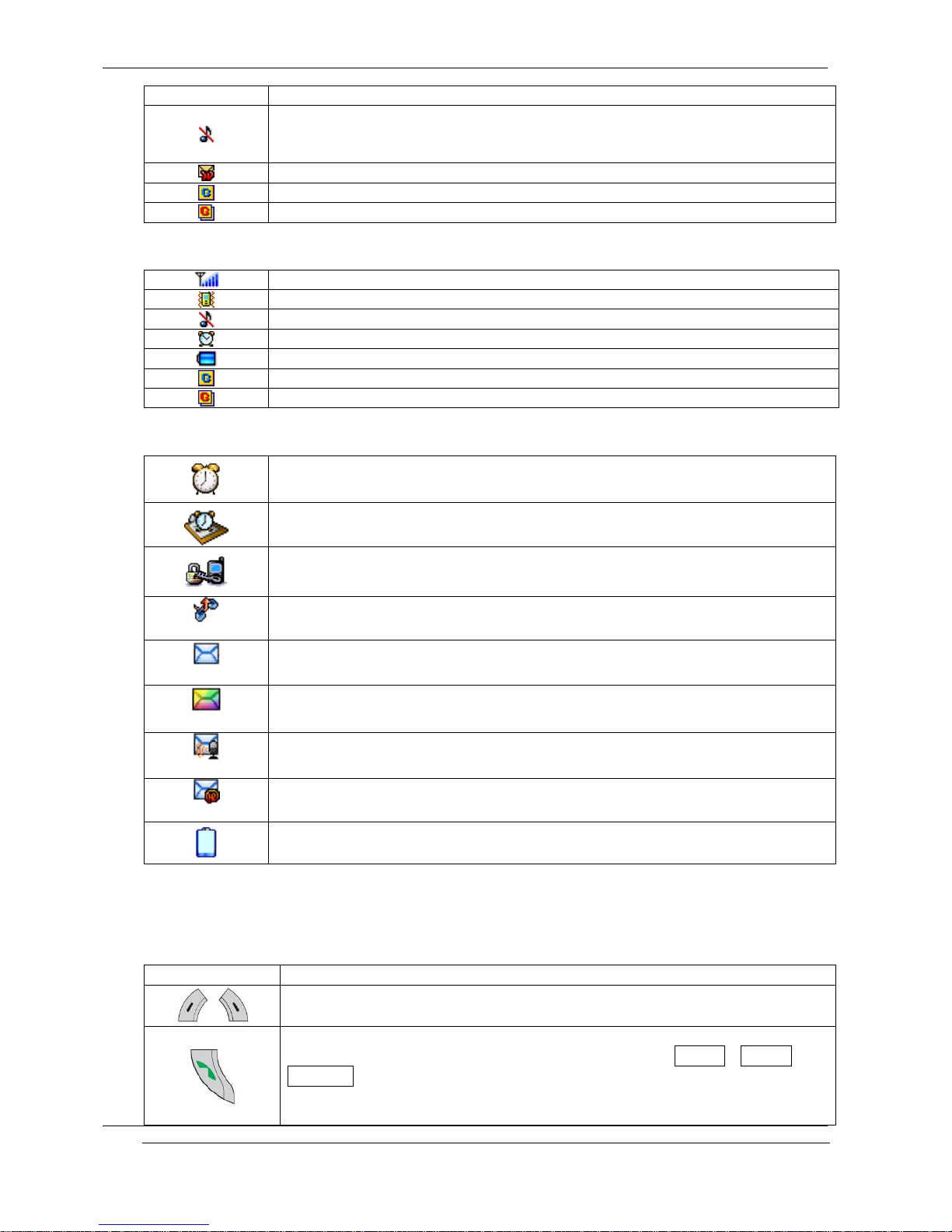
< Icons in the main display screen >
Shows the received signal strength. The larger the number of bars, the better
the signal strength.
Appears when a new text message has been received
Appears when you have messages waiting in voice mail
Appears when vibrator is selected as ring tone type.
Appears when an alarm clock is enabled.
Appears when the phone is out of your home network area and the phone is
registered to the network other than its home service (i.e. when travelling in
other countries with GSM service)
Shows the level of battery status. The more bars you see, the more power
Main display screenMain display screenMain display screenMain display screen
Soft Key(left)
Send Key
Numbers and
Alpha Keys
Soft Key(Right)
Navigation Keys
End Key
Side Key
Micro Phone
Ear Phone Jack
Antenna
Sub
Display
Screen
Camera
External Socket
EL Light
INNO 30 User’s Guide INNOSTREAM Confidential
PAGE : 5 of 5
battery has left.
Indicates that your phone is on the quick silence mode.
If your phone is in the quick silence mode, all audible key tones are muted and
all audible alerts are changed to vibrator alert.
Appears when a PUSH message has been received
Appears when your phone is registered to a GPRS network.
Appears when there is an active GPRS connection.
< Icons in the sub display screen >
Shows the received signal strength.
Appears when vibrator is selected as ring tone type.
Indicates that your phone is on the quick silence mode.
Appears when an alarm clock is enabled.
Shows the level of battery status.
Appears when your phone is registered to a GPRS network.
Appears when there is an active GPRS connection.
< Event images in the sub display screen >
Appears when an alarm is expired.
Appears when the alarm of scheduler is expired.
Indicates that your phone is under security code checking after power up.
1
11
1
Appears when a missed call has occurred.
1
11
1
Appears when a new text message has been received
1
11
1
Appears when a new MMS message has been received
1
11
1
Appears when you have messages waiting in voice mail
1
11
1
Appears when a new PUSH message has been received
Indicates that the battery level of your phone is low.
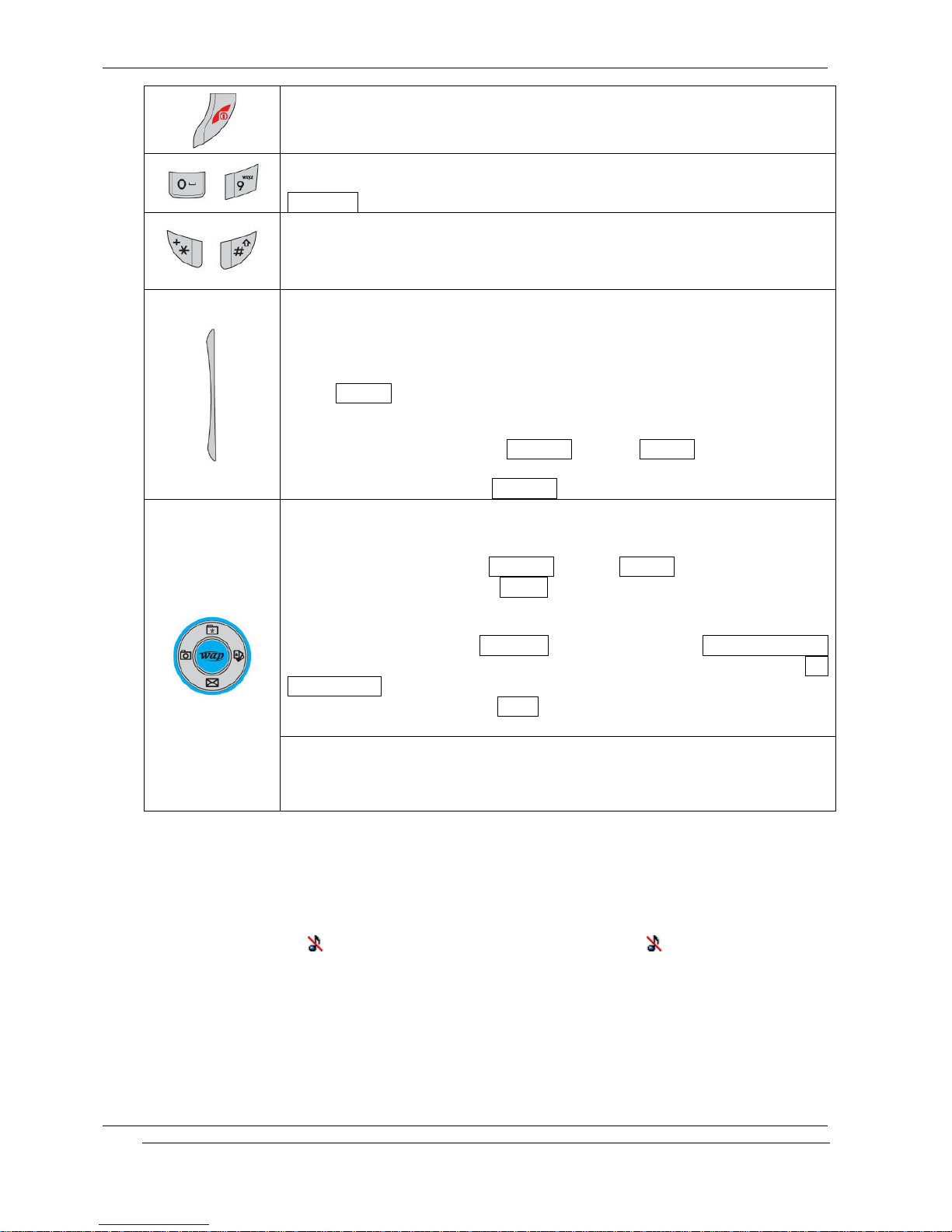
1.2 Keys Description
Key
KeyKey
Key
Description
DescriptionDescription
Description
Performs the functions indicated by the text in the bottom line of the display
screen above those keys.
Makes or answers a call.
In the idle mode, launches the recent calls list.(Dialled
DialledDialled
Dialled, Missed
MissedMissed
Missed and
Received
ReceivedReceived
Received )
In the menu, selects menu function or stores information that you have
entered (such as a name) in the phone or SIM memory.
INNO 30 User’s Guide INNOSTREAM Confidential
PAGE : 6 of 6
Ends a call.
Also switches the phone ON or OFF when pressed and held.
In the menu, returns to the idle mode or cancels your input.
~
Enters numbers, letters and some special characters.
By pressing and holding [ 1
11
1 ] in the idle mode, you can directly listen to the
Voicemail
VoicemailVoicemail
Voicemail.
~
In the idle mode, enters special dial characters.
Enters ‘ +
++
+’ (International Indicator) or ‘ P
PP
P’ (Pause) when pressed and held
Whilst you are playing the game, these keys are used for adjusting the game
melody volume.
(on the left side of phone)
During a call, adjust the earpiece volume.
During a game, adjust the game melody volume.
[VOL-UP]
It switches between the quick silence mode and previous profile you have
set on Profiles
ProfilesProfiles
Profiles menu when pressed and held in the idle mode.
[VOL-DOWN]
In the idle mode, displays the today’ s date, day and time for short time.
In the idle mode, launches the Still
StillStill
Still
Shot
ShotShot
Shot menu of Camera
CameraCamera
Camera menu if you press
and hold while the folder is closed.
For more details, please see Still
StillStill
Still
Shot
ShotShot
Shot menu in section 9.
In the editing mode, moves the cursor.
In the menu, moves the menu cursor.
In the idle mode, each key has following functionality.
[NAVI-LEFT] : launches the Still
StillStill
Still
Shot
ShotShot
Shot menu of Camera
CameraCamera
Camera menu
[NAVI-RIGHT] : launches the Games
GamesGames
Games menu.
During a call, [NAVI-LEFT] and [NAVI-RIGHT] change the call focus on the
multiple calls state.
[NAVI-UP] : launches the My
MyMy
My
Menu
MenuMenu
Menu list, and launch the My
MyMy
My
Menu
MenuMenu
Menu
Setting
SettingSetting
Setting
menu if you press and hold [NAVI-UP] key. For more details, please see My
MyMy
My
Menu
MenuMenu
Menu
Setting
SettingSetting
Setting menu in section 9.
[NAVI-DOWN] : launches the Inbox
InboxInbox
Inbox message lists of all kinds of message.
During a call, [NAVI-UP] and [NAVI-DOWN] adjust the earpiece volume.
[NAVI-CENTRE]
In the editing mode, launches the editing mode selection menu.
In the menu, selects the menu on which menu cursor is.
In the idle mode, accesses the WAP site.
1.3 Quick Silence Mode
You can switch the sound/alert mode of your phone by just pressing and holding the [VOLUME
VOLUMEVOLUME
VOLUME-
--
-
UP
UPUP
UP]on the idle screen. icon on the top of the main display screen or icon on the top of the
sub display screen indicates that your phone is under the quick silence mode status.
If your phone is in the quick silence mode, all audible key tones are muted and all audible alerts
are changed to vibrator alert.
You can return to previous profile setting by pressing and holding the [VOLUME
VOLUMEVOLUME
VOLUME-
--
-UP
UPUP
UP] again.
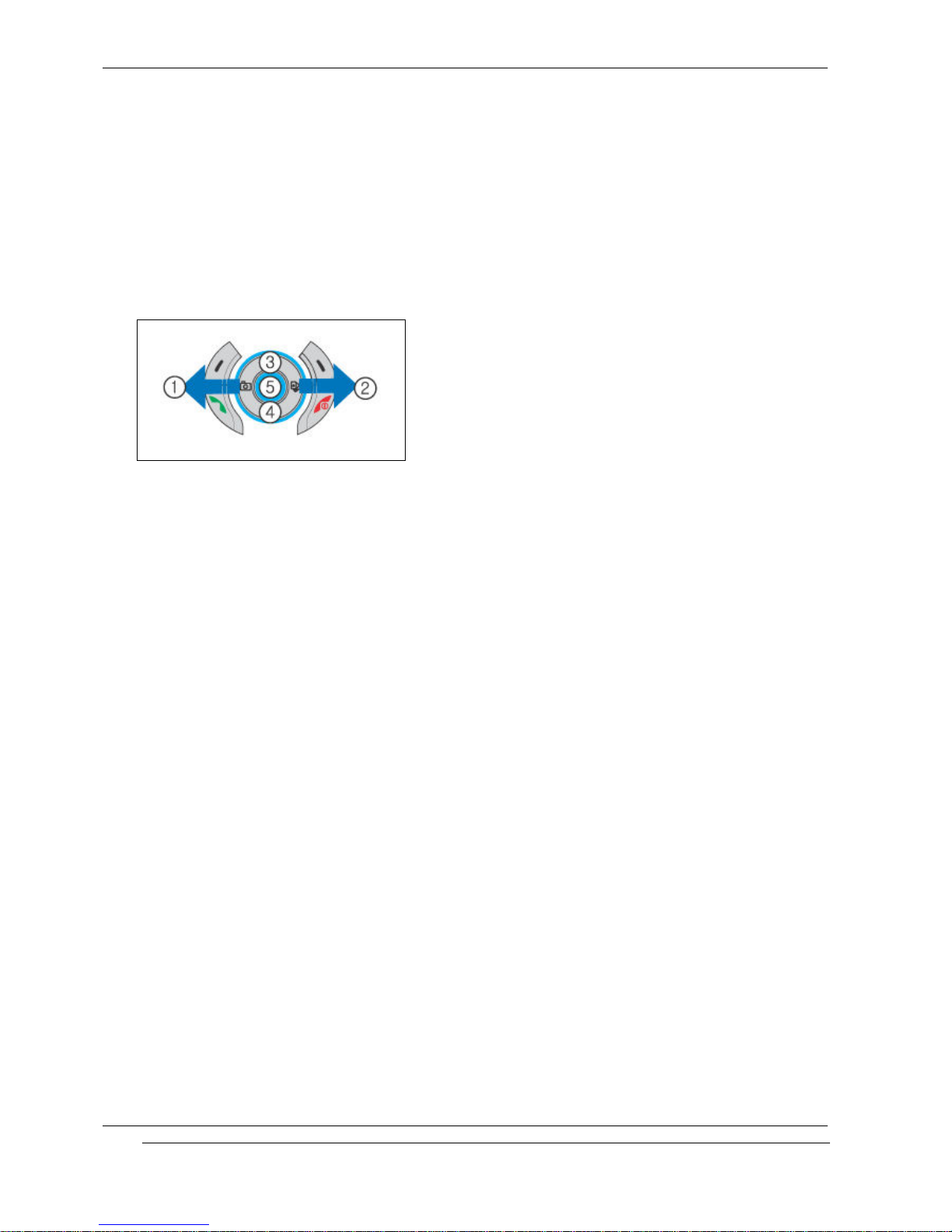
1.4 Using the Navigation Keys
INNO 30 User’s Guide INNOSTREAM Confidential
PAGE : 7 of 7
To use the navigation keys appropriately.
1. [NAVI
NAVINAVI
NAVI-
--
-LEFT
LEFTLEFT
LEFT]
: Push the left side of the navigation key bar to left direction.
2. [NAVI
NAVINAVI
NAVI-
--
-RIGHT
RIGHTRIGHT
RIGHT] : Push the right side of the navigation key bar to right direction.
3. [NAVI
NAVINAVI
NAVI-
--
-UP
UPUP
UP]
: Push the up side of the navigation key bar to up direction.
4. [NAVI
NAVINAVI
NAVI-
--
-DOW
DOWDOW
DOWN
NN
N] : Push the down side of the navigation key bar to down direction.
5. [NAVI
NAVINAVI
NAVI-
--
-CENTRE
CENTRECENTRE
CENTRE] : Push the navigation key bar down.
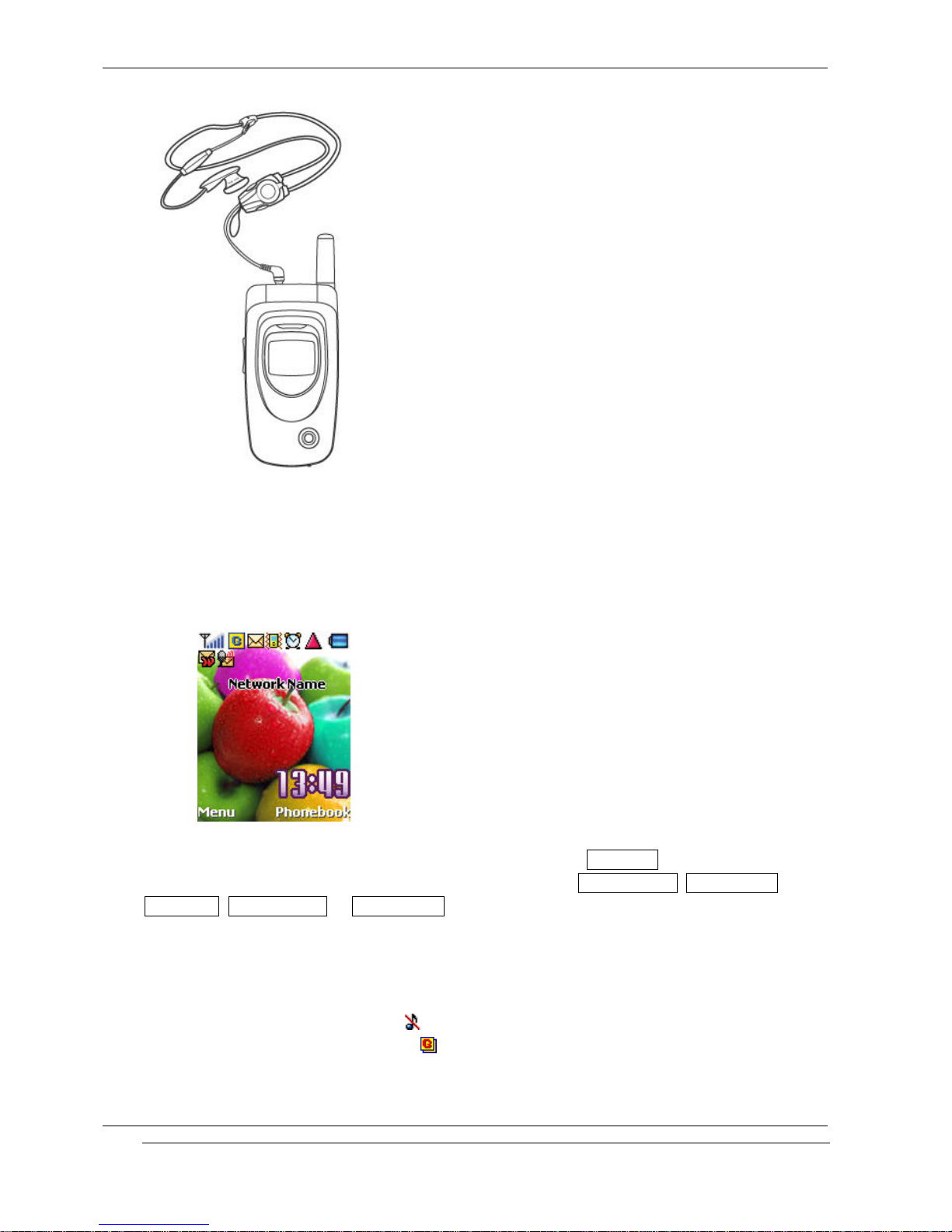
1.5 Using the Earphone
If you insert the earphone to the jack on the left side of your phone, you can use it in the same
way as your phone’ s earpiece and microphone.
You can answer or end a call by pressing the hook button on the earphone.
When new waiting call is come whilst you are in a call, you can answer the waiting call by
pressing the hook button on the earphone. (The first call will be held automatically)
You can make the last number dialled call in the idle screen by pressing the hook button on the
earphone. The last number dialled is launched by pressing the hook button, and then the call will
be made by pressing the hook button again.
INNO 30 User’s Guide INNOSTREAM Confidential
PAGE : 8 of 8
1.6 Display Screens in the Idle Mode
< Main Display Screen >
< Main Display Screen >< Main Display Screen >
< Main Display Screen >
 Icon Area
 Network Status or Event Area
 Broadcast and Digital Time Area
 Function Key Area
The background image is displayed according to the setting of Wallpaper
WallpaperWallpaper
Wallpaper menu. Please see
Section 9 for details. You can set the background image from Sample
SampleSample
Sample
Image
ImageImage
Image, Photo
PhotoPhoto
Photo
Album
AlbumAlbum
Album,
Image
ImageImage
Image
File
FileFile
File, Mflash
MflashMflash
Mflash
Folder
FolderFolder
Folder or Video
VideoVideo
Video
Folder
FolderFolder
Folder
menu.
Icon A
Icon AIcon A
Icon Area
rearea
rea:
9 icons such as Signal Level
Signal LevelSignal Level
Signal Level, GPRS,
GPRS, GPRS,
GPRS, SMS
SMSSMS
SMS, Vibrator
VibratorVibrator
Vibrator, Ala
AlaAla
Alarm
rmrm
rm,
Roaming
RoamingRoaming
Roaming, Battery
BatteryBattery
Battery Level, PUSH
Level, PUSH Level, PUSH
Level, PUSH
and Voicemail
VoicemailVoicemail
Voicemail are displayed indicating the phone status.
If the quick silence mode is enabled, icon will appear in the Vibrator icon’ s place.
If there is an active GPRS connection, icon will appear in the GPRS icon’ s place.
If Travel Charger is inserted, the Battery icon will be scrolled.
INNO 30 User’s Guide INNOSTREAM Confidential
PAGE : 9 of 9
Network Status or Event A
Network Status or Event ANetwork Status or Event A
Network Status or Event Area
rearea
rea:
::
:
Network name registered is displayed. If Network
NetworkNetwork
Network
Name
NameName
Name
Display
DisplayDisplay
Display menu is set to Off
OffOff
Off, the network
name is not displayed even though your phone is registered to any GSM or GPRS network.
If there is not any GSM or GPRS network near the location you are, No
NoNo
No
Service
ServiceService
Service is displayed.
If you are in the coverage of a GSM or GPRS network but you are not allowed to be registered to
the network, E
EE
Emergency
mergencymergency
mergency
Only
OnlyOnly
Only is displayed.
If an event is occurred, an adequate big event icon is displayed.
! Note:
! Note: ! Note:
! Note: If Network
NetworkNetwork
Network
Name
NameName
Name
Display
DisplayDisplay
Display menu is set to Off
OffOff
Off, the network name is not displayed even
though your phone is registered to any GSM or GPRS network.
Broadcast and Digital Time
Broadcast and Digital TimeBroadcast and Digital Time
Broadcast and Digital Time
Area
AreaArea
Area:
::
:
If you set to get the broadcast
message from the network, you can see it on this area of the idle
screen. For details of how to activate and deactivate it, please see Broadcast
BroadcastBroadcast
Broadcast menu in Section 9.
In this case, the User Selectable Area updates the received broadcast messages. If you want to
go back to default screen, press [END
ENDEND
END].
The digital time is displayed at the right bottom place in this area. If Clock
ClockClock
Clock
Display
DisplayDisplay
Display menu is set
to Off
OffOff
Off, the digital time is not displayed.
! Note:
! Note: ! Note:
! Note: The broadcast
message service may not be available on all networks.
Function Key Area
Function Key AreaFunction Key Area
Function Key Area:
::
:
The functions assigned to right soft key and left soft key are displayed.
If you press [VOLUME
VOLUMEVOLUME
VOLUME-
--
-DOWN
DOWNDOWN
DOWN], current date, day and time is displayed at this area for short
time.
< Sub Display Screen >
< Sub Display Screen >< Sub Display Screen >
< Sub Display Screen >
 Icon Area
 Network Status or Event Area
 Time Area
The background image is displayed according to the setting of Wallpaper
WallpaperWallpaper
Wallpaper menu. Please see
Section 9 for details. You can set the background image from Sample
SampleSample
Sample
Image
ImageImage
Image, Photo
PhotoPhoto
Photo
Album
AlbumAlbum
Album or
Image
ImageImage
Image
File
FileFile
File menu.
Icon A
Icon AIcon A
Icon Area
rearea
rea:
5 soft icons such as Signal Level
Signal LevelSignal Level
Signal Level, GPRS,
GPRS, GPRS,
GPRS, Vibrator
VibratorVibrator
Vibrator, Alarm
AlarmAlarm
Alarm,
and Battery
Battery Battery
Battery Level
Level Level
Level are displayed
indicating the phone status.
If the quick silence mode is enabled, icon will appear in the Vibrator icon’ s place.
If there is an active GPRS connection, icon will appear in the GPRS icon’ s place.
If Traver Charger is inserted, the Battery icon will be scrolled.
Network Status or Event A
Network Status or Event ANetwork Status or Event A
Network Status or Event Area
rearea
rea:
::
:
INNO 30 User’s Guide INNOSTREAM Confidential
PAGE : 10 of 10
Network name registered is displayed. If Network
NetworkNetwork
Network
Name
NameName
Name
Display
DisplayDisplay
Display menu is set to Off
OffOff
Off, the network
name is not displayed even though your phone is registered to any GSM or GPRS network.
If there is not any GSM or GPRS network near the location you are, No
NoNo
No
Service
ServiceService
Service is displayed.
If you are in the coverage of a GSM or GPRS network but you are not allowed to be registered to
the network, E
EE
Emergency
mergencymergency
mergency
Only
OnlyOnly
Only is displayed.
If an event is occurred, an adequate event image is displayed. For more details, please see
Section 1.1.
If you press [VOLUME
VOLUMEVOLUME
VOLUME-
--
-DOWN
DOWNDOWN
DOWN] on the idle screen, current date and day is displayed on the area
for short time.
Time A
Time ATime A
Time Area
rearea
rea:
::
:
Current time is displayed in this area.
2. Getting Started
NOTE :
NOTE :NOTE :
NOTE :
Please never detach the battery from your mobile whilst your phone is alive. To turn off your
phone, please press and hold down only until you see the power-off animation.
Please use only approved batteries and chargers.
2.1 How to attach the battery
1. Align the bottom of the battery down into the holes in the bottom of the phone.
2. Then sit the battery on the back of the aligned until it clicks into place.
2.2 How to remove the battery
Turn off your phone first.