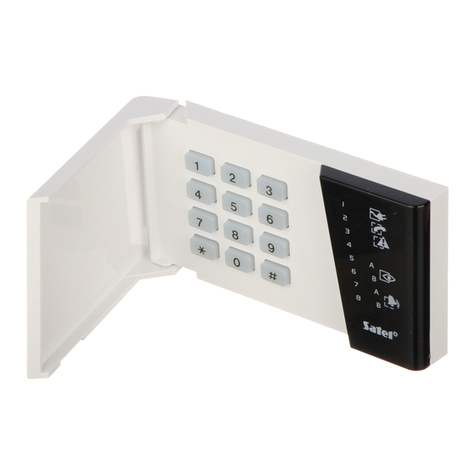
Interlogix Simon XT User manual

nterlogix Simon XT nstallation Guide - Verizon VoLTE
The LTE Module for Simon XT, XTi, and XTi-5 enables wireless reporting of all alarms and other system events from the
nterlogix Simon XT, XTi, and XTi-5 control panel on the Verizon LTE wireless (cellular) network. The module can be
used as the primary communication path for all alarm signaling, or as a backup to a telephone line connection to the
monitoring station. The wireless alarm signaling and routing service are operated by Alarm.com.
The LTE Module also features integrated support for Alarm.com’s emPower™ solution with built-in Z-Wave capabilities
and for Alarm.com’s mage Sensor when the mage Sensor daughterboard is added or an mage Sensor radio is built-in.
Two-way voice over LTE is supported on module firmware versions 185 and above.
The module interfaces with the Simon XT, XTi, and XTi-5 panels, fits into a special compartment inside the panel, and is
powered by the control panel and panel battery.
Specifications
Compatible Simon XT panels with software versions 1.3 and later
and Simon XTi
Power requirements 6V nominal
Standby current 30mA (10mA in PowerSave Mode)
Peak current 1.7 A
Operating temperature 32 to 120°F (0 to 49°C)
Storage temperature -30 to 140°F (-34 to 60°C)
Max. relative humidity 90% non-condensing
Cellular network LTE
https://answers.alarm.com/ADC/Partner/ nstallation_and_Troubleshooting/Panels/ nterlogix_Simon_XT/ nterlogix_Simon_XT_…
Updated: Tue, 31 Mar 2020 20:51:49 GMT
1

Dimensions (H x W) 4 1/16 x 1 7/8 in.
Compatibility
The LTE module is compatible with all Simon XT (version 1.3+), all XTi, and all XTi-5 control panels.
Account creation
Before installing an Alarm.com LTE Module in a Simon XT, XTi, or XTi-5 system, a new customer account needs to be
created with Alarm.com. t is recommended to create the account at least 24 hours in advance of installation to ensure
that the radio is activated prior to installation. For more information about creating a new customer account, see How to
Create an Alarm.com Customer Account.
To activate an account, see www.alarm.com/dealer and login. n Customers, click Create New Customer. The following
customer information is required to create the account:
• Customer Address
• Customer Phone Number
• Customer E-mail
• Preferred login name for the customer
• Alarm.com Radio Serial Number
At the end of the account creation process, there is the option to print a Welcome Letter for the customer that has their
login information and temporary password for the Alarm.com website.
Note: At least one sensor must be learned into the panel to complete the new subscriber setup. f not all sensors and
touch screens were learned in before powering up the module, an updated sensor list must be requested by performing
an LTE phone test or requesting an updated equipment list from the Partner Portal.
Installation
The installation consists of inserting the module into the panel, attaching the antenna, and performing an LTE phone test
at the panel.
Follow these guidelines during installation:
• Before affixing the panel to a wall, verify the LTE signal level at the installation location.
◦ On the Simon XT panel, press and hold [5] for 10 seconds to view the LTE signal level.
◦ With either panel, module LED L4 blinks to indicate signal strength. For more information, see LED details. An
installation location with a sustained signal level of two or more bars is recommended.
• Do not exceed the panel total output power when using panel power for the LTE Module, hardwired sensors, and
/or sirens. Refer to the specific panel installation instructions for details.
• Only one LTE Module can be used per Simon XT, XTi, or XTi-5 panel.
https://answers.alarm.com/ADC/Partner/ nstallation_and_Troubleshooting/Panels/ nterlogix_Simon_XT/ nterlogix_Simon_XT_…
Updated: Tue, 31 Mar 2020 20:51:49 GMT
2

• The LTE Module draws a maximum of 30 mA average during normal operation. n PowerSave Mode, during or
immediately following an AC power failure, the module will draw only 10 mA on average.
• Avoid mounting the panel in areas with excessive metal or electrical wiring, such as furnace or utility rooms.
• Leave 12 to 18 inches of open space around the module antenna.
• Do not install the control panel and module in a basement or other below-ground location. Doing so will negatively
impact LTE signal strength.
Tools and supplies needed
The following tools and supplies are required:
• Small flat-head and Phillips screwdrivers
• Screws (included)
• Antenna (included)
Module insertion and antenna installation
Before installing the module, disconnect the battery and AC power from the panel.
1. Open the panel by pressing the two tabs on the top of the XT or by lifting the tabs on the XTi and XTi-5 panel, as
shown in Figure 1.
Figure 1: Top View of Simon XT, XTi, and XTi-5 panels
2. The module compartment can be found behind the front panel that swings down, to the left of the battery
compartment as seen in Figure 2.
Figure 2: Module compartment for Simon XT, XTi, and XTi-5 panel
https://answers.alarm.com/ADC/Partner/ nstallation_and_Troubleshooting/Panels/ nterlogix_Simon_XT/ nterlogix_Simon_XT_…
Updated: Tue, 31 Mar 2020 20:51:49 GMT
3

3. Push the antenna end into open module connector to snap the antenna onto the module. The module must be
seated correctly beneath the two small, plastic corner tabs, as shown in Figure 3, to ensure it fits into the
compartment properly.
Figure 3: Module plastic corner tabs
4. nsert the module by angling the end of the module where the antenna is attached downwards, making sure that
the edge of the module sits below the plastic tabs (see Figure 3). Once the module is seated evenly, carefully push
the bottom of the module into the 8-pin connector beneath it.
5. Thread the antenna’s wire through the channel in the bottom of the panel. This antenna can then be inserted into
the wall behind the panel. The antenna should be placed at least 3 feet away from the panel, and in order to obtain
optimal reception, the antenna should be affixed as high up as possible.
6. The secondary antenna (pre-attached to the module) should be routed and placed as shown in Figure 4.
Figure 4: LTE Antenna Routing and Placement
https://answers.alarm.com/ADC/Partner/ nstallation_and_Troubleshooting/Panels/ nterlogix_Simon_XT/ nterlogix_Simon_XT_…
Updated: Tue, 31 Mar 2020 20:51:49 GMT
4

Power up
Reconnect panel battery and AC power. When an LTE Module is connected to a powered control panel, the LEDs at the
bottom of the module will become active. t may take a few moments after power up for the LEDs to become active. f
the LEDs do not light up at all, verify the module has been fully inserted into the connector beneath it then perform a full
power cycle by following these steps:
1. Disconnect the battery leads and unplug the panel power transformer from AC power.
2. Verify that the module is inserted securely and that the antenna is snapped-in completely.
3. Connect battery leads to the battery. On the XT, make sure to observe polarity (red to + and black to –) and to
keep the wires outside of the tab holding them in place.
Important: Plug the battery in before plugging in the transformer, otherwise the panel will issue a System Low
Battery message regardless of the battery voltage level.
4. Plug the panel power transformer into the AC outlet.
LTE Phone Test (module registration)
To initiate module communication with Alarm.com and the LTE network the first time, perform a LTE phone test.
To perform a Phone Test on a Simon XT:
1. Press the arrow to scroll to System Test, then press OK.
2. Enter the installer code (default 4321) or master code (default 1234).
3. Press the arrow to scroll to Comm Test, then press OK. The panel will display LTE Comm Test in progress to
indicate the test has been initiated.
https://answers.alarm.com/ADC/Partner/ nstallation_and_Troubleshooting/Panels/ nterlogix_Simon_XT/ nterlogix_Simon_XT_…
Updated: Tue, 31 Mar 2020 20:51:49 GMT
5

Quick Phone Test:
1. On the main screen with the panel disarmed, hold down the [3] key for five seconds.
2. The panel will display LTE Comm Test in progress to indicate the test has been imitated.
The Simon XT, XTi, and XTi-5 panel will let you know when the LTE Phone Test has completed by displaying LTE Test
signal sent OK on the panel screen. This indicates that Alarm.com has received and acknowledged the signal. This does
not guarantee that the signal went through to a monitoring station; it confirms that the Alarm.com Operations Center
received the signal. The monitoring station should be contacted directly to verify that the signal was received on the
correct account and that the Monitoring Station routing settings have been set up correctly.
The signal may not go through to the monitoring station if the Monitoring Station Account settings were entered
incorrectly on the Partner Portal or if Alarm.com was unable to send the signal successfully to the Monitoring Station
receivers. n these cases, the panel will show a Fail to Communicate message.
Required settings for LTE Module
Some panel settings are changed automatically when the LTE module is connected to the control panel. These settings
should not be altered. They are:
Sensor/Zone 40
Upon initial module power up, the panel recognizes and learns the LTE module as sensor/zone 40 and assigns LTE
Module as the sensor/zone name. Any device previously residing in panel memory as sensor/zone 40 is automatically
deleted and must be learned into panel memory using any available sensor/zone number between 01 and 39.
Clock
The LTE module sets the panel clock when it connects to Alarm.com and then updates it every 18 hours. t is important
to select the correct panel time zone on the Alarm.com website, or the panel time will not be accurate. f a system is
powered up before the customer account has been created, the time zone will default to Eastern Time.
Smoke Supervision
The Smoke Supervision setting (enables 200s smoke alarm supervision between panel and smoke detectors) for XT
version 1.6+, XTi version 1.7+, and XTi-5 is not compatible with the Alarm.com LTE module. This setting will be
automatically disabled when the module connects and should not be enabled at the panel. The default supervision with
the Smoke Supervision setting disabled is one hour.
Troubleshooting: module status information
Module status information for verifying and troubleshooting module connection status or errors can be found through the
nteractive Services menus on the XT, XTi, and XTi-5 panels.
https://answers.alarm.com/ADC/Partner/ nstallation_and_Troubleshooting/Panels/ nterlogix_Simon_XT/ nterlogix_Simon_XT_…
Updated: Tue, 31 Mar 2020 20:51:49 GMT
6

To verify module status using the Simon XT versions 1.3+:
1. Press the arrow to scroll to System Test, then press OK.
2. Enter the installer code (default 4321) or master code (default 1234).
3. Press the arrow to scroll to Interactive Services, then press OK.
4. Press the arrow to scroll to LTE Module Status, then press OK.
LTE module statuses
The following table provides descriptions for each LTE module status. For more information on the referenced LED L1
error patterns, see LED L1 (red).
Status Description
Idle Most common state
Roaming Roaming on the partner network.
PowerSave Mode AC Power is Down
Registering… Same as three flashes on LED L1
Connection Error Same as four Flashes on LED L1
Radio Error Radio is not operating correctly, same as five flashes on
LED L1
Server Error Same as eight flashes on LED L1
Connected Currently talking to Alarm.com Servers
Connecting… n the process of connecting to Alarm.com
Updating… Updating Signal Level
https://answers.alarm.com/ADC/Partner/ nstallation_and_Troubleshooting/Panels/ nterlogix_Simon_XT/ nterlogix_Simon_XT_…
Updated: Tue, 31 Mar 2020 20:51:49 GMT
7

Keypad long presses for module status
n addition, some of the information can be retrieved on the Simon XT via long key presses from the keypad. Press and
hold the following panel keys for 10 seconds to display the given information on the panel display. Most messages are
displayed for less than 30 seconds but can be cut short by pressing [#] for 10
seconds.
Key Function
1 Key 15-digit module serial number. This number is needed to
create the Alarm.com customer account.
2 Key Module firmware version. (e.g.,
4183a)
3 Key Performs Phone
Test
5 Key
Wireless signal strength level and module status or error,
if any. The panel will display bars for the signal level
(zero to five) and a number (2 to 31) followed by the
Mode it is in. (See LTE Module
Statuses).
6 Key
Battery voltage as read by the module, to two decimal
places, and the AC power status. (e.g. Battery: 6.79v,
AC Power OK)
8 Key
LTE frequency used by the module: High = 1700MHz;
Low = 700
MHz.
Troubleshooting LEDs
Status LEDs indicate network and module status. Figure 5 below shows the location of the status LEDs on the LTE
module.
Figure 5: Status LEDs
https://answers.alarm.com/ADC/Partner/ nstallation_and_Troubleshooting/Panels/ nterlogix_Simon_XT/ nterlogix_Simon_XT_…
Updated: Tue, 31 Mar 2020 20:51:49 GMT
8

The following table below describes the LED functions.
LED Function
L1 Error LED. Flashes one to eight times in an eight-second
interval to indicate the specific error. See LED L1 (red)
for errors and common fixes.
L2
Panel Communication and Z-Wave status messages.
Flashes every time the module communicates with the
panel and flashes in patterns to indicate Z-Wave status.
L3
LTE Communication. Flashes every time the LTE signal
level is checked and when packets are exchanged with
Alarm.com.
L4
LTE Signal Level. Flashes zero to five times to indicate
signal strength, or toggles on/off slowly when
communicating with Alarm.com servers.
L5 Z-Wave Error LED.
LED details
LED L1 (red)
L1 flashes when there is an error. The number of flashes indicates the error number. f there are two or more errors at
the same time, the errors will flash one after the other. The LED will stay off for at least four seconds between errors.
https://answers.alarm.com/ADC/Partner/ nstallation_and_Troubleshooting/Panels/ nterlogix_Simon_XT/ nterlogix_Simon_XT_…
Updated: Tue, 31 Mar 2020 20:51:49 GMT
9

Table 4: Errors flashed on L1 (red)
Number of flashes Error and solution
1
The module cannot communicate with the panel.
Perform a power cycle on the panel. f the error persists
lift the module out of the panel and re-insert it. f the
error is still observed try a different module. Finally, if
that does not fix the problem try a different panel.
2 then 4 The module provisioning process could not be
completed.
2 then 5
The module provisioning process could not be
completed because the module is currently roaming on
the carrier’s network.
3
The module is trying to register on the LTE network. f it
persists for more than a few minutes, the module is
having problems registering. Check L4 for signal level. f
the signal level is lower than two bars, change the
panel’s location or use a remote antenna option.
4
The module is registered on the LTE network but cannot
connect with Alarm.com. Contact Alarm.com Technical
Support.
5
The radio portion of the module is not working correctly.
f this persists for more than a few minutes the module
may need to be replaced. This error is extremely rare so
verify that the module is flashing five times.
6
This is an error only if it persists for more than a minute.
Otherwise, it’s just an indication that the module is fixing
an unusual condition regarding communication with the
LTE network.
https://answers.alarm.com/ADC/Partner/ nstallation_and_Troubleshooting/Panels/ nterlogix_Simon_XT/ nterlogix_Simon_XT_…
Updated: Tue, 31 Mar 2020 20:51:49 GMT
10
Other manuals for Simon XT
8
This manual suits for next models
2
Table of contents
Other Interlogix Control Panel manuals
Interlogix
Interlogix NetworX NX-6V2 User manual
Interlogix
Interlogix Concord 4 RF User manual
Interlogix
Interlogix zerowire ZW-6400 User manual
Interlogix
Interlogix NXG-4 Installation guide
Interlogix
Interlogix Alliance AL-4017 User manual

Interlogix
Interlogix Simon 3 User manual
Interlogix
Interlogix Advisor Advanced ATS 000A Series Assembly instructions

Interlogix
Interlogix Allegro User manual
Interlogix
Interlogix ATS1201E Assembly instructions