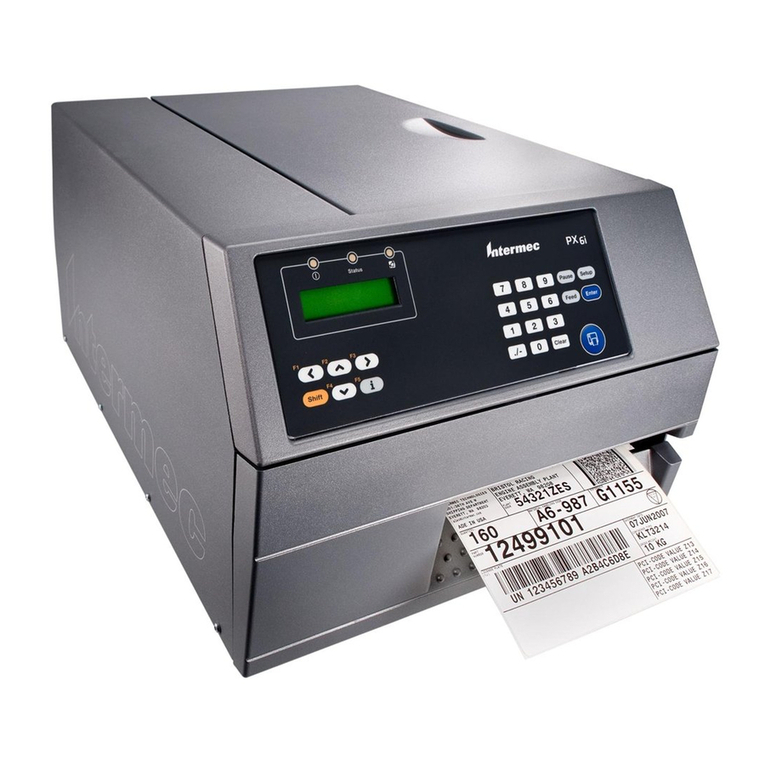
Intermec PB40 User manual
Other Intermec Printer manuals
Intermec
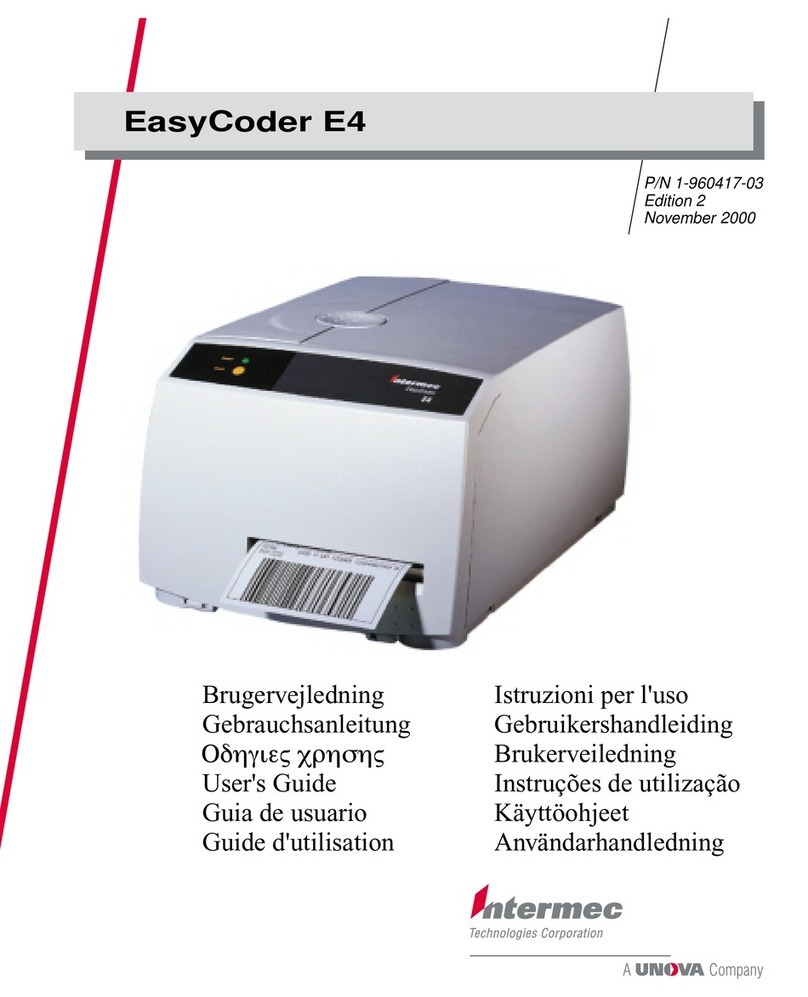
Intermec EasyCoder E4 User manual

Intermec
Intermec EasyCoder PD41 User manual
Intermec
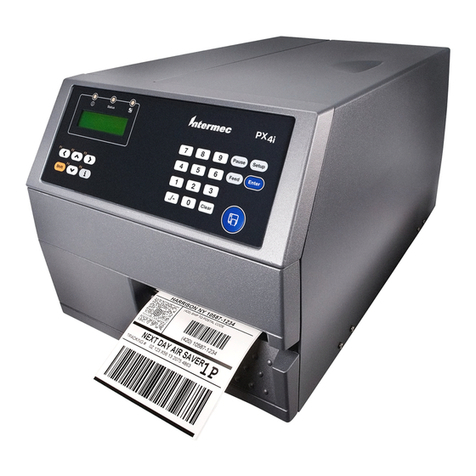
Intermec EasyCoder PX4i User manual
Intermec
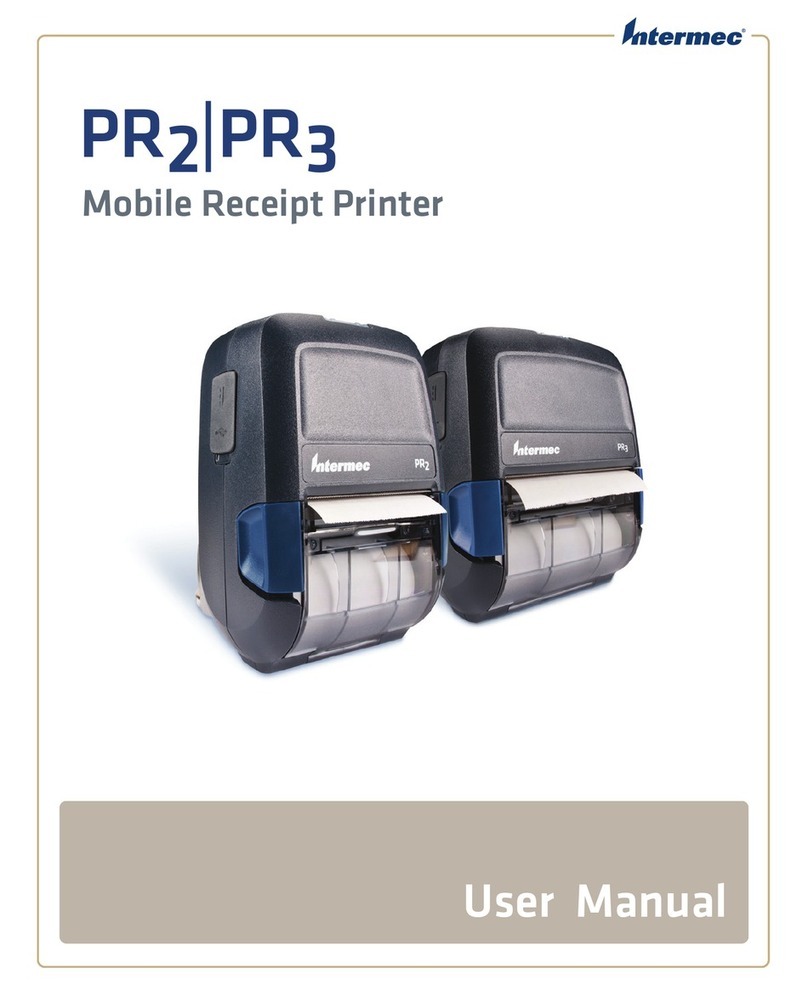
Intermec PR2 User manual
Intermec
Intermec EasyCoder PX4i User manual

Intermec
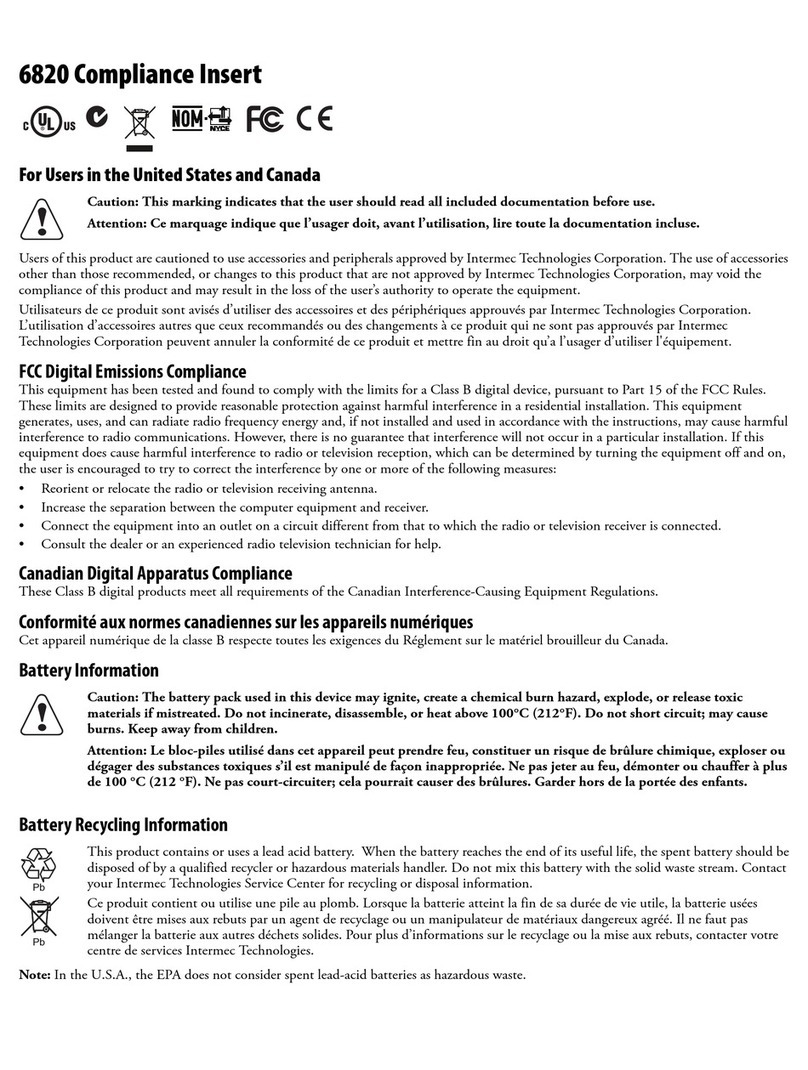
Intermec EasyCoder PL3 User manual
Intermec
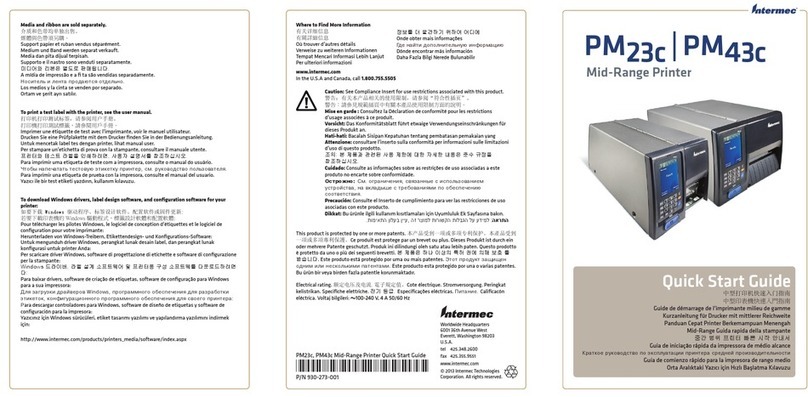
Intermec 6820 Series Manual
Intermec
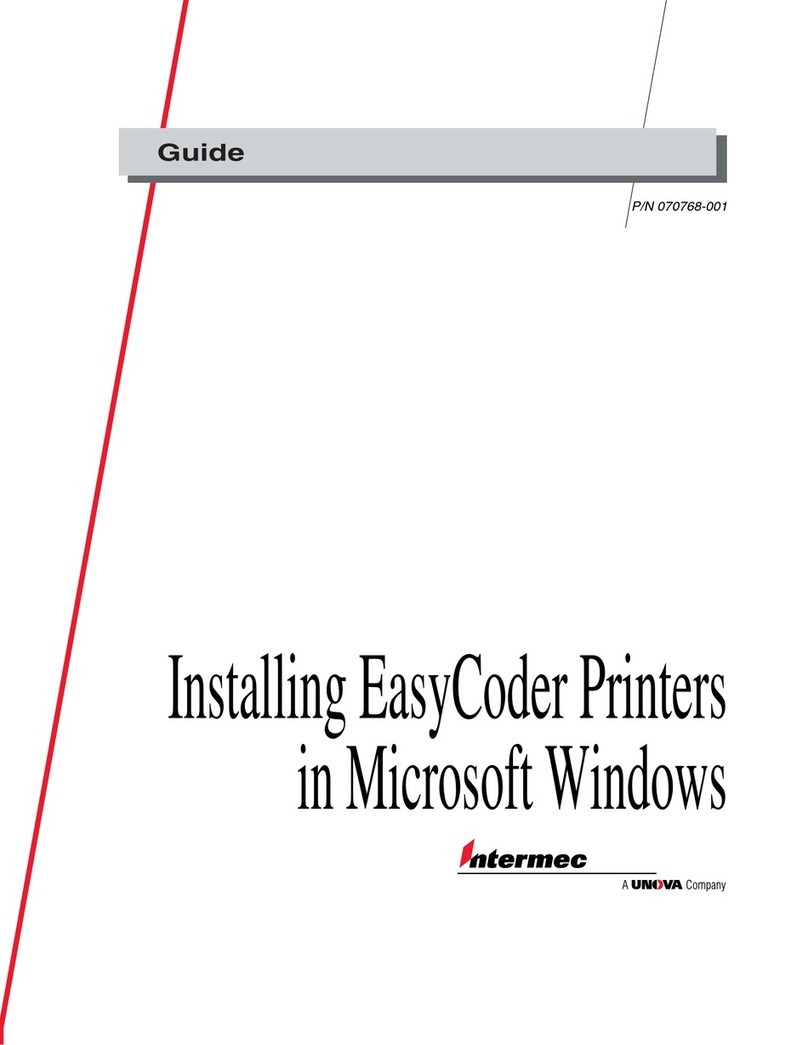
Intermec PM23c User manual
Intermec
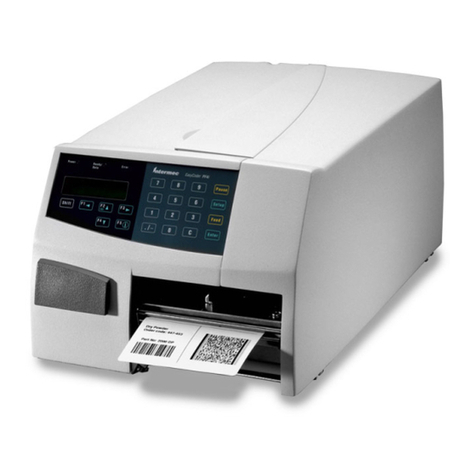
Intermec EasyCoder 101 User manual
Intermec
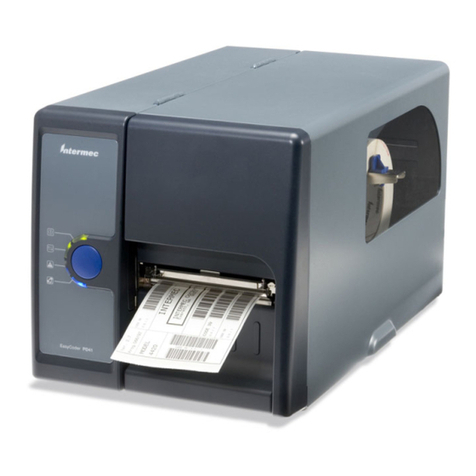
Intermec EasyCoder PF2i User manual
Intermec
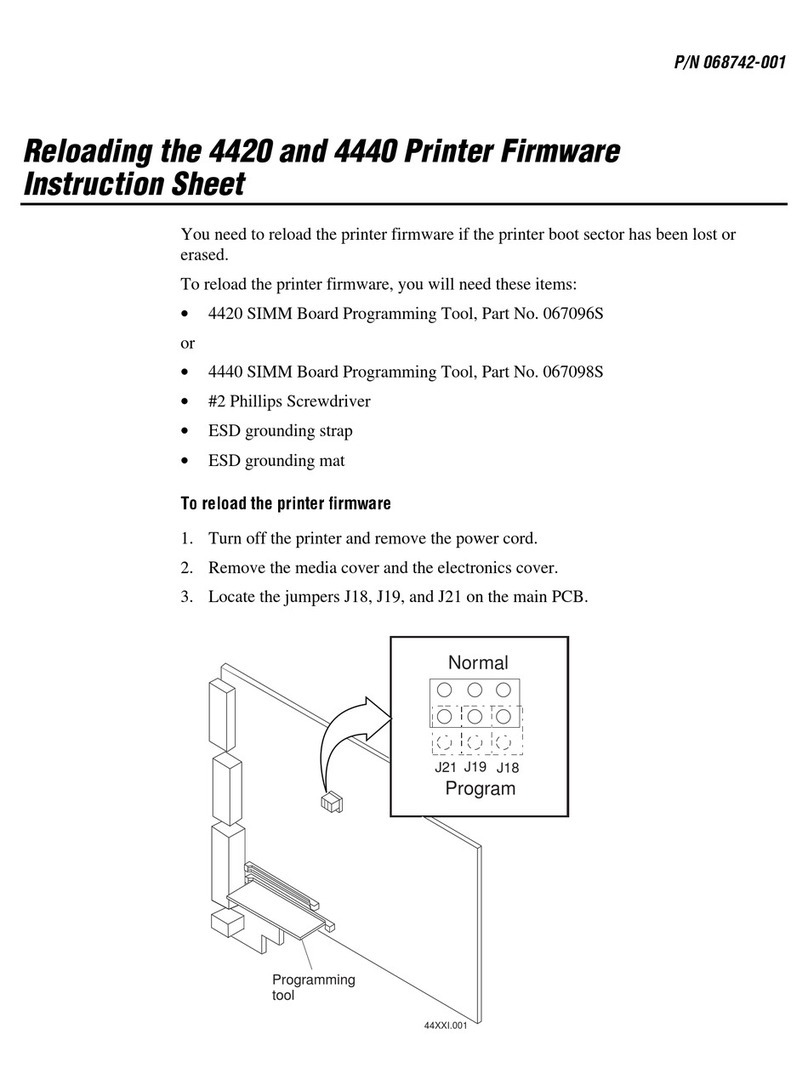
Intermec EasyCoder PD41 User manual
Intermec
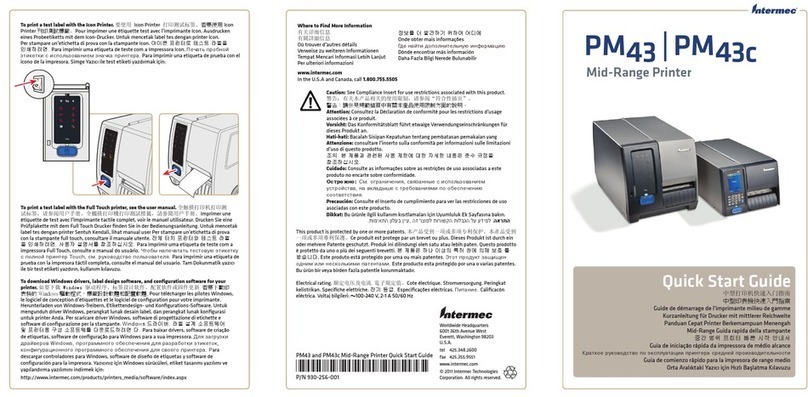
Intermec EasyCoder 4420 User manual
Intermec
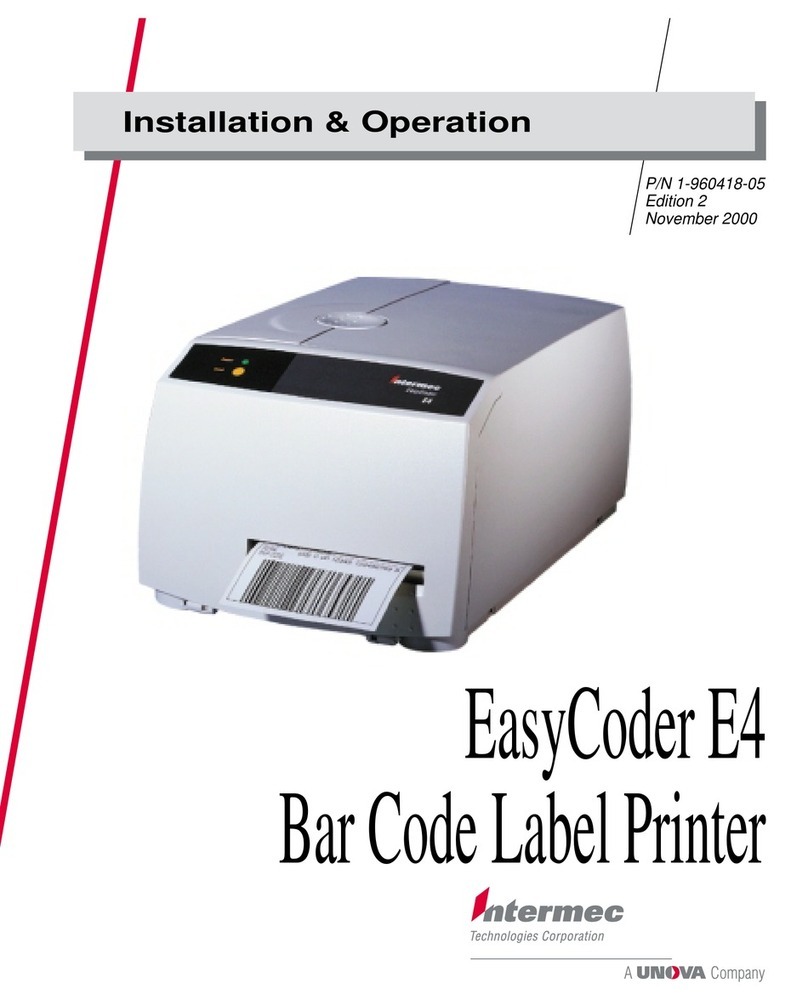
Intermec PM43 User manual
Intermec
Intermec EasyCoder E4 Operating instructions
Intermec
Intermec 6820 Series User manual
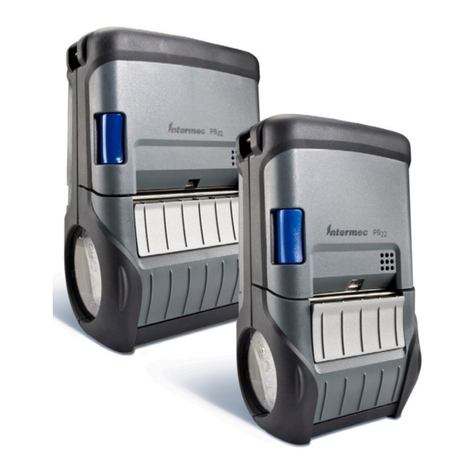
Intermec
Intermec PB22 User manual
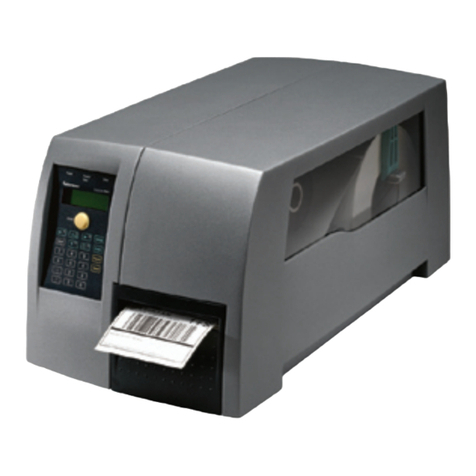
Intermec
Intermec PM4I User manual
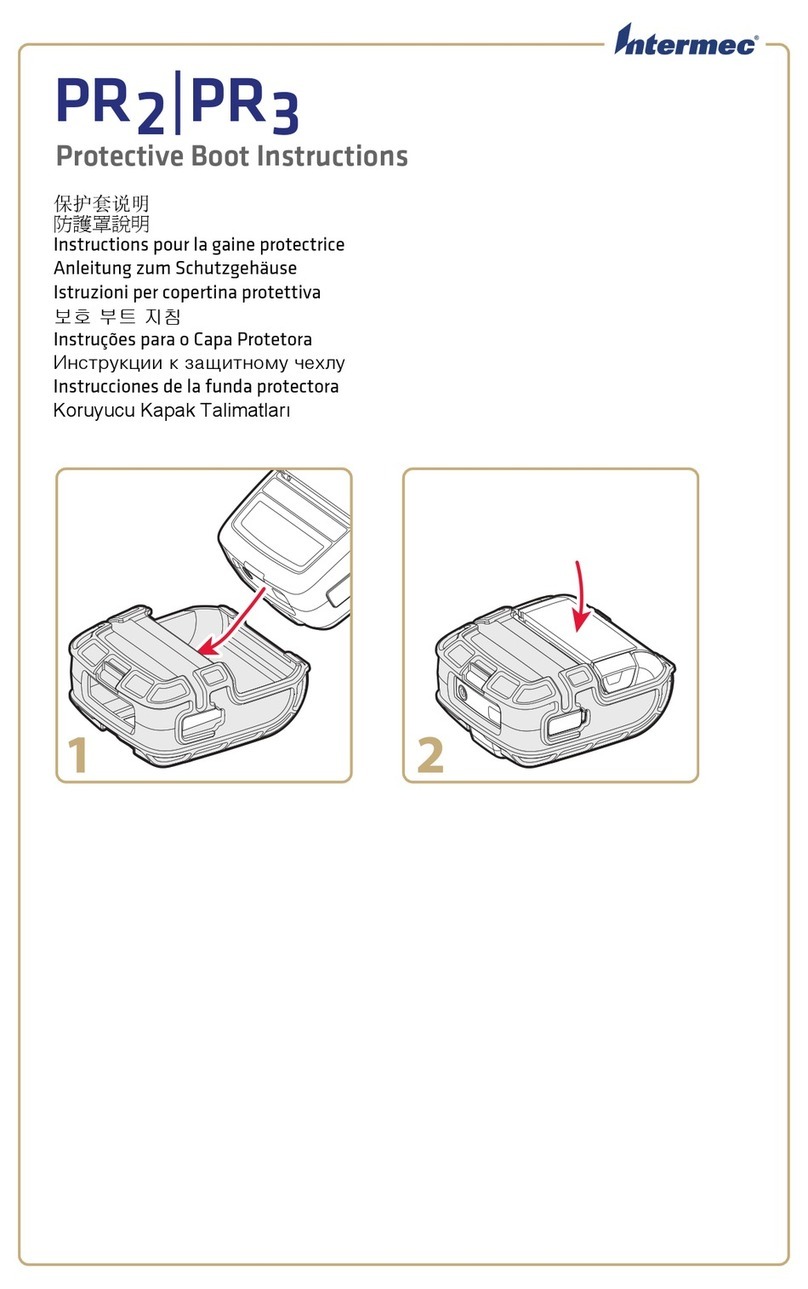
Intermec
Intermec PR2 User manual
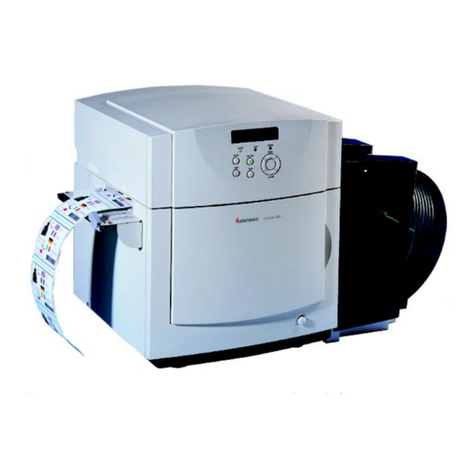
Intermec
Intermec ColorCoder 901 User manual
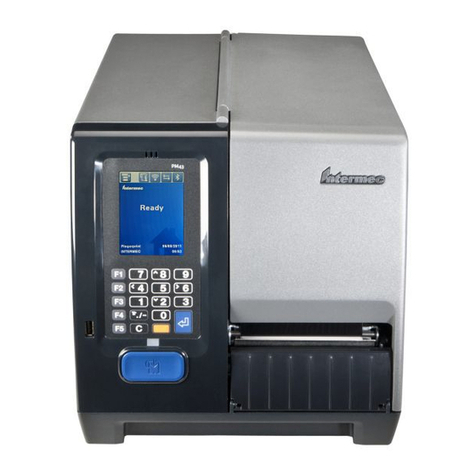
Intermec
Intermec PM23c User manual