5
iPort FS-23 Instruction Manual
iPort FS-23 System Connections
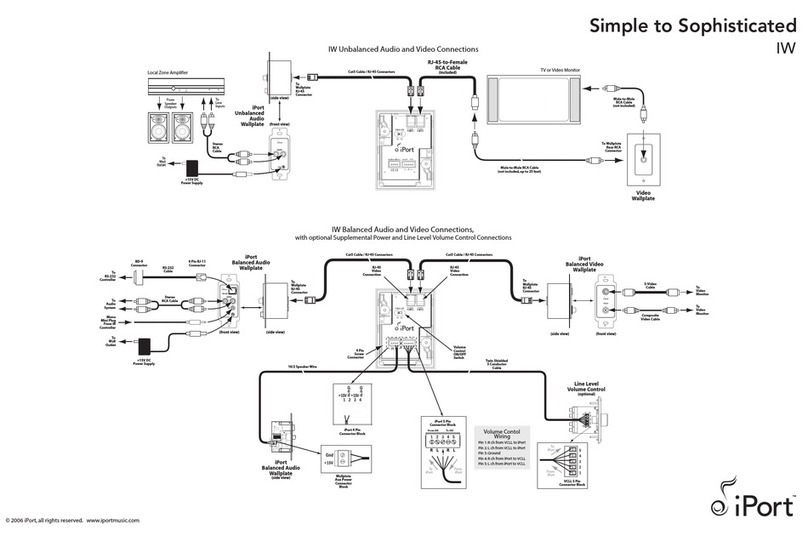
The iPort FS-23’s unbalanced audio and video outputs are designed for use in a local-zone sys-
tem where the audio/video equipment is located less than 30 feet (9m) from the iPort. For longer
distances, the iPort Balanced Audio Kit (part #70122, not included) and Balanced Video Kit (part
#70123, not included) are available. The Balanced Audio Kit allows the iPort to connect to audio
equipment located up to 500 feet (152m) away. The Balanced Video Kit allows the iPort to connect
to video equipment located up to 250 feet (76m) away. For further information about connecting
the iPort FS-23 to a long-distance audio/video system, see the instruction manuals included with the
Balanced Audio and Balanced Video kits.
Connecting the iPort FS-23 to a Local-Zone Audio/Video System
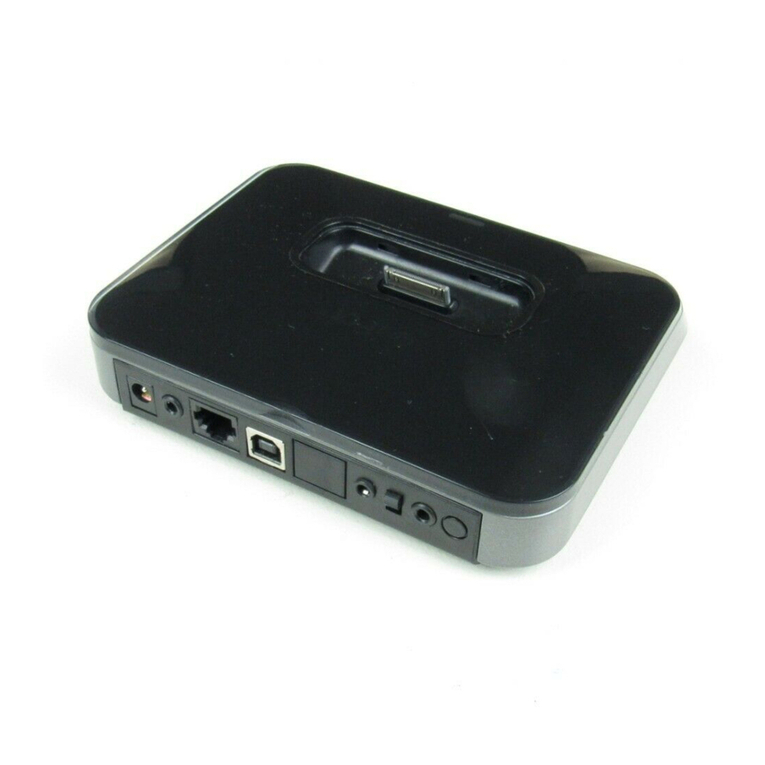
1. Connect the iPort FS-23 dock to the audio/video and computer components as shown in the
diagram in Figure 2 on page 6:
2. Connect the included audio cable to the iPort’s audio outPut jack and to an analog audio
source input on the audio system or TV.
3. Connect the included component video cable to the iPort’s comPonent video outPut jack and
to the component video inputs of the audio system or TV.
4. Connect an Ethernet cable (not included) to the iPort’s RJ-45 Ethernet port and to a computer,
switch, or hub on your home network. (optional)
5. Connect the supplied 12V DC power supply to the iPort’s power connector.
6. After confirming that all cables are connected correctly, plug the power supply into a wall
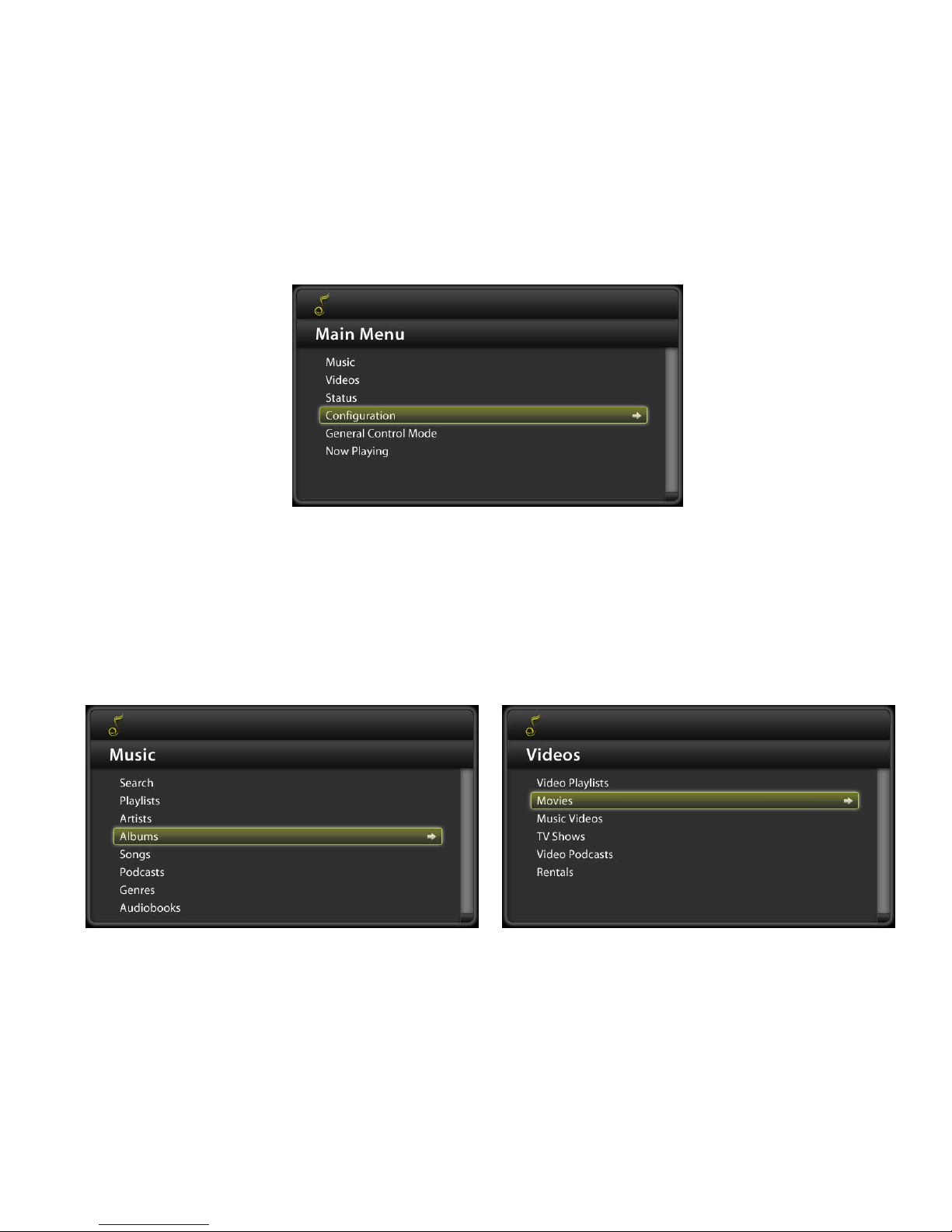
outlet. The iPort’s Main Menu appears on the TV.
For remote zone IR control:
1. Connect an optional 3.5mm-to-3.5mm cable to the iPort’s ir control inPut and to the IR control
output of a compatible third-party IR control system (optional; for multi-room systems only).