IRIScan Anywhere 3 User manual

Scanner
UserGuide

Table of Contents i
Read This First ...................................................1
Important safety instructions ......................................1
Disclaimer ...........................................................2
Copyright ............................................................2
Notes about copyrighted materials .............................3
Disposal of this product..............................................3
Scanner Accessories ...........................................3
Introduction ........................................................5
Scanner Diagram ........................................................5
Front View..................................................................... 5
Rear View...................................................................... 6
Bottom View ................................................................. 6
Indicators ....................................................................7
Suitable and Unsuitable Original Types.....................8
Orientation of the Original and Scanned Image.........9
Using the Scanner...............................................10
Preparation and Initial Setup ......................................10
Power on the Scanner .................................................11
Set the Scanning Resolution.......................................11
Scan an Original .........................................................12
Automatic Image Cropping ........................................14
Connecting the Scanner to a Computer......................15
System Requirements .................................................... 15
More Information .......................................................17
File Naming and Storage Rules..................................... 17
Supported Memory Card Types .................................... 17
Table of Contents

Table of Contentsii
Care and Maintenance ...................................... 18
Cleaning the Scanner..................................................18
Cleaning the Outer Casing ............................................ 18
Cleaning the Image Sensor ........................................... 18
Calibrating the Scanner ..............................................19
Storing the Scanner ....................................................20
Battery maintenance ...................................................20
Frequently Asked Questions/Troubleshooting 21
Specifications...................................................... 23

Read This First 1
Read This First
Please read the following important safety instructions carefully
before using this scanner. Failure to observe these instructions may
result in personal injuries or damages to the scanner.
Important safety instructions
Always follow these basic safety precautions when using the
scanner. This will reduce the risk of fire, electric shock, and injury.
Do not place this scanner under direct sunlight or near heat
sources, such as in a closed car under sunlight or near a
stove. The outer casing of this device may become
deformed and the sophisticated sensors inside may become
damaged due to excessive heat.
Do not use this device near water, in the rain or allow any
liquid to get inside this device. Water and moisture may
cause short-circuit to the electronic components and lead
to malfunctions.
Do not use this device in dusty environments. Dust grains
may cover this device and scratch the original. Do not scan
originals that are contaminated by dusts or other particles.
Do not use this device near strong electromagnetic
sources, such as a microwave oven or television. The
electromagnetic interference may cause this device to
malfunction.
Do not attempt to disassemble or modify this device. There
are no user-serviceable parts inside this device, and
unauthorized modifications will void your warranty.
Do not drop or apply shock/vibration to this device. Strong
impacts may damage the components inside.

Disclaimer2
Disclaimer
I.R.I.S. SA makes no representations or warranties, either expressed
or implied, with respect to the contents of this publication. I.R.I.S.
SA reserves the right to revise this publication and to make changes
from time to time in the contents thereof without obligation to notify
any person of such revision or changes.
Copyright
Copyright I.R.I.S. SA. All rights reserved. No part of this
publication may be reproduced, transmitted, transcribed, stored in a
retrieval system or translated into any language or computer
language, in any form or by any means, electronic, mechanical,
magnetic, optical, chemical, manual or otherwise, without the prior
written permission of I.R.I.S. SA. Brand names, product names and
trademarks used in this publication are the properties of their
respective owners.
Do not insert objects other than compatible memory cards
into the memory card slot of this device. The metal
contacts inside the slot can easily become damaged by
foreign objects.
This scanner contains a rechargeable built-in Li-Polymer
battery. The battery should only be charged via the USB
connection to a PC. If the battery needs replacement, the
operation should only be performed by an authorized and
qualified service person. Do not attempt to replace the
battery yourself.
The mini USB socket on this device is designed solely for
connecting to the USB cable. Do not insert any other
objects into this port.
If there are strange odors or heat emitting from this device
or any signs of malfunction, turn this device off
immediately and contact your dealer for inspection or
service.

Scanner Accessories 3
Notes about copyrighted materials
Avoid scanning and re-distributing copyrighted originals and images
or those of unknown sources. Doing so may violate your local
copyright laws and related regulations. I.R.I.S. SA cannot be made
liable for the losses that may result from breaching the laws
described above.
Disposal of this product
To help protect the environment, dispose of this scanner properly
according to your local regulations regarding the disposal of waste
products.
Scanner Accessories
Your IRIScanTM Anywhere scanner is provided with the following
accessories. If any items are missing or damaged, please contact
your place of purchase immediately.
- 1 calibration card
- 1 USB cable
- 1 sensor cleaning swab

Scanner Accessories4

Introduction 5
Introduction
Scanner Diagram
No. Name Function/description
Power button
• Press to power on the scanner.
• When scanner power is on, press and release to
change scanning resolution.
• Press and hold for one second to power off the
scanner.
• When the original jams in the feeding slot ,
press to back it out from the scanner.
Power indicator Indicates the power status of the scanner. Refer to
Indicators on page 7 for details.
Status indicator
Indicates the operating status of the scanner and
memory card. Refer to
Indicators
on page 7 for
details.
Paper guide Slide the guide to adjust the feeding slot for
smaller originals and ensure proper alignment.
Feeding slot Insert an original into this slot to begin scanning.
Mini USB socket For connecting the scanner to a computer via the
USB cable.
Front View
1
5
2
3
4
5
6

Introduction6
Rear View
No. Name Function/description
USB socket For connecting a USB flash drive.
Output slot The scanned original comes out from this slot.
SD/xD/MMC/
MS card slot
Accepts the following types of memory cards:
SD, xD, MMC and MS. Refer to Supported
Memory Card Types on page 17 for details.
1
2
3
No. Name Function/description
Reset button
In case there is no response from the scanner,
insert a pointed object into this hole to trigger the
reset button and reset the scanner.
Bottom View
1

Introduction 7
Indicators
Please see below for the lighting patterns of the indicators and their
meanings.
color (*)
• When the scanner is connected to a
computer: the battery is fully charged and
the scanner is ready for use.
or
• When the scanner is not connected to a
computer: the scanner power is on and the
scanner is ready for use.
(green) color (*)
Scanning current original.
(orange) color (*)
The battery is being charged when scanner
power is on.
(orange)
The battery is being charged when scanner
power is off.
(orange) color (*) The battery power is low.
• The scanner is powered off.
• The battery is fully charged (when scanner
power is off and connected to a computer).
(green) color (*)
• Initializing system and memory card. Please
wait until the initialization process is
complete before using the scanner.
• Busy scanning and storing image file. Please
wait until the process is complete before
scanning another original.
Power Status/card
: Blinking slowly
: Blinking rapidly
: Steadily on
: Off
Indicator lighting patterns and the functions they represent
Table of contents
Other IRIScan Scanner manuals

IRIScan
IRIScan Book 5 Instruction manual
IRIScan
IRIScan Anywhere Wifi User manual
IRIScan
IRIScan Express 3 User manual
IRIScan
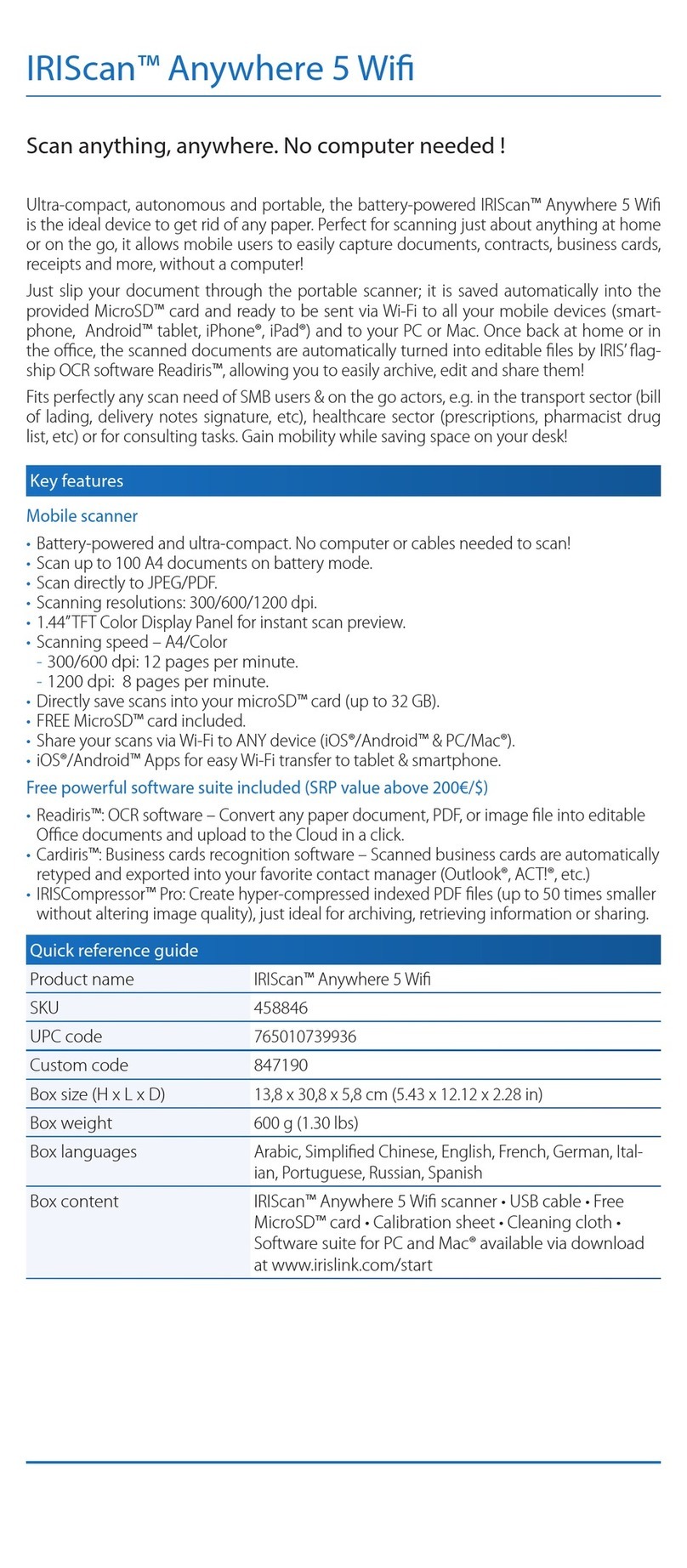
IRIScan Anywhere 5 WiFi User manual
IRIScan
IRIScan Pro 3 Wifi Instruction manual
IRIScan
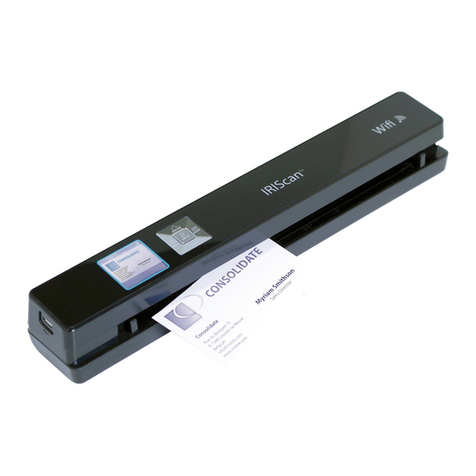
IRIScan Anywhere Wifi Instruction manual
IRIScan
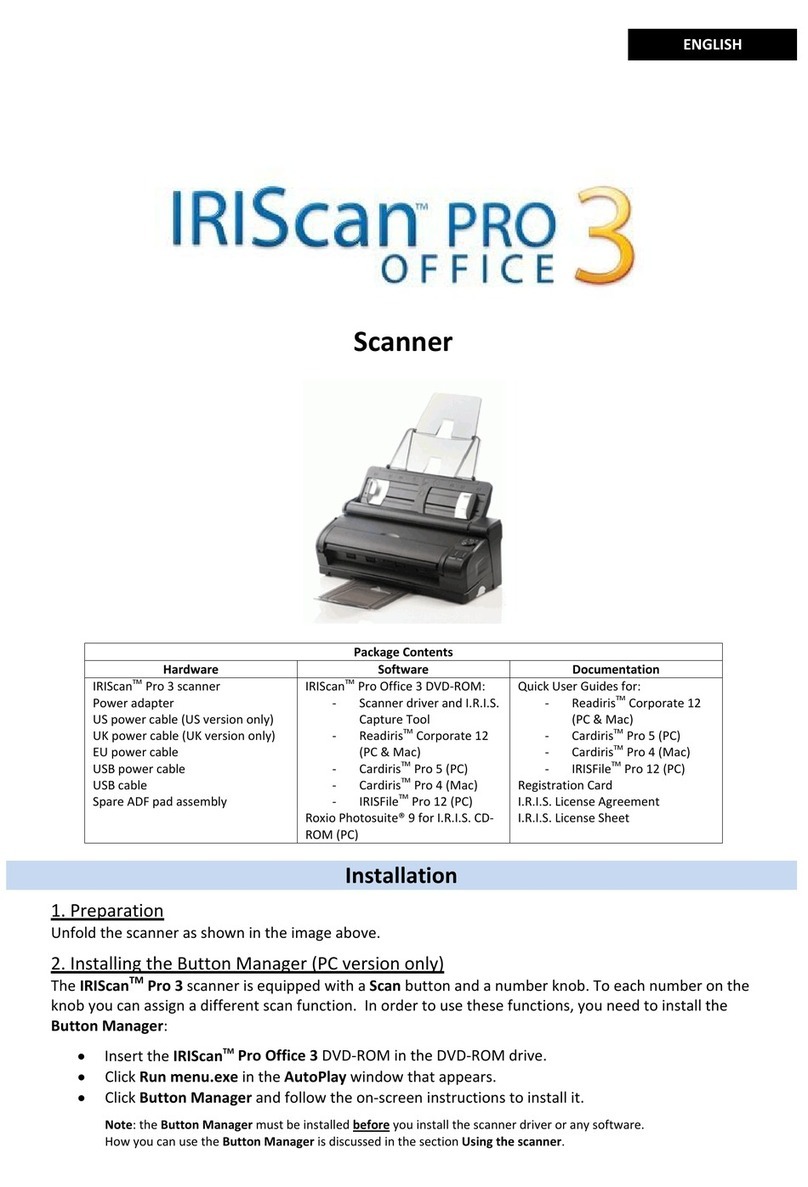
IRIScan Pro Office 3 User manual
IRIScan
IRIScan Executive 4 Instruction manual

IRIScan
IRIScan Book 2 Executive User manual
IRIScan
IRIScan Book Executive 3 Instruction manual