CONNECTING TO THE LAN
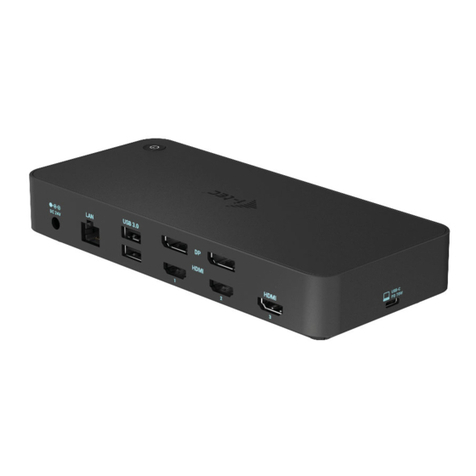
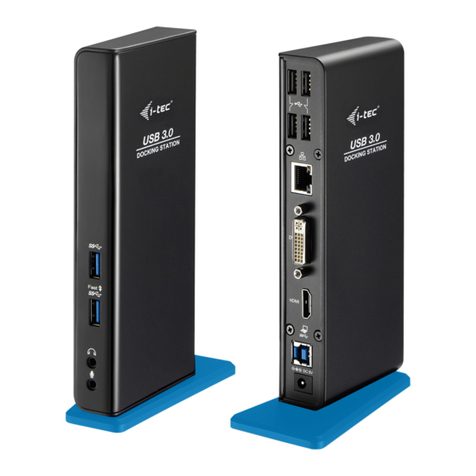
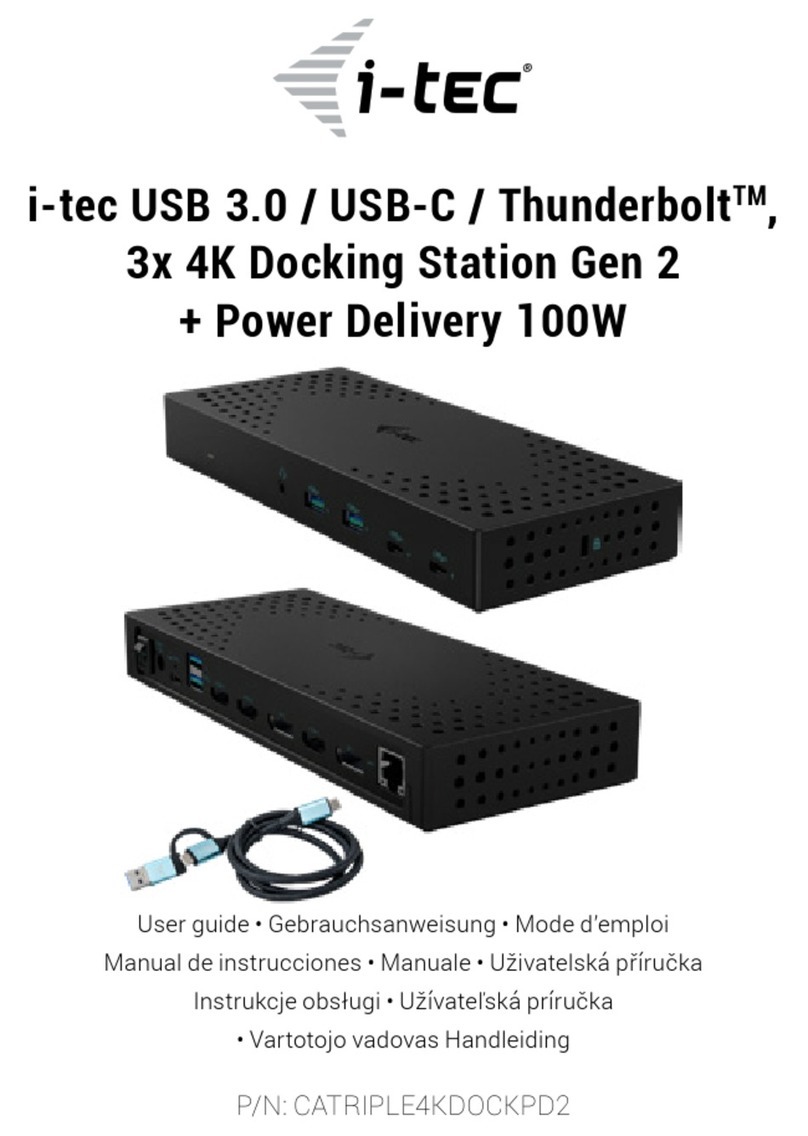
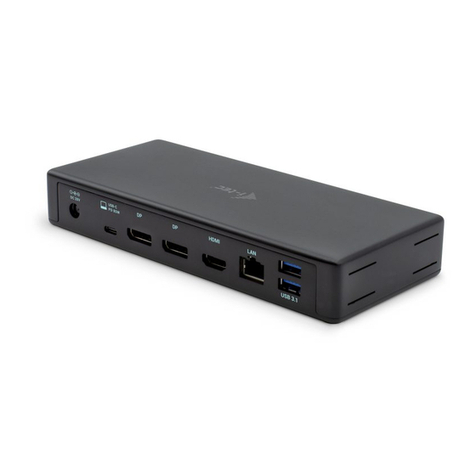
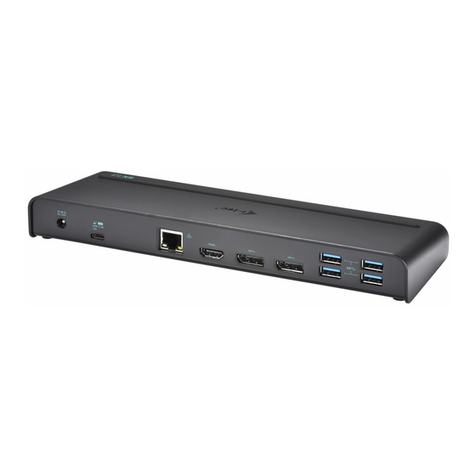
You can use the GLAN RJ-45 port for connecting the Ethernet to a router / switch and to the internet, it
supports speeds of 10 / 100 / 1000 Mbps.
CONNECTING USB DEVICES
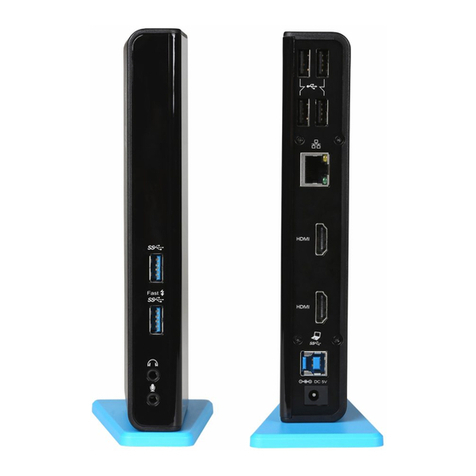
You can use USB 3.0 ports for connecting your keyboard, mouse, external hard drive, printer and other
devices or you can use it for connecting a USB HUB, which will give you more free USB ports.
CHARGING
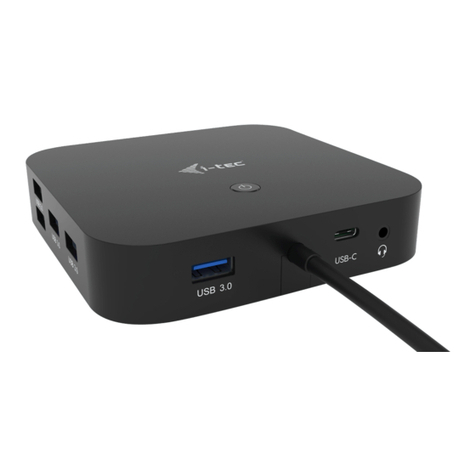
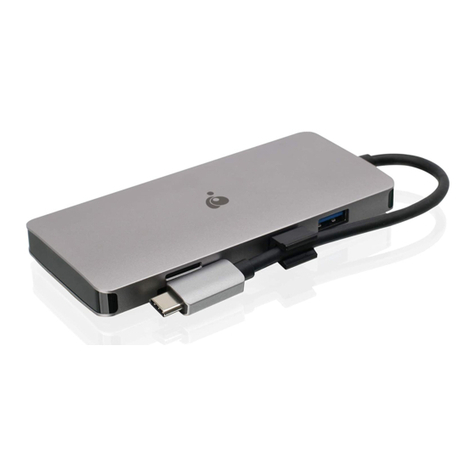
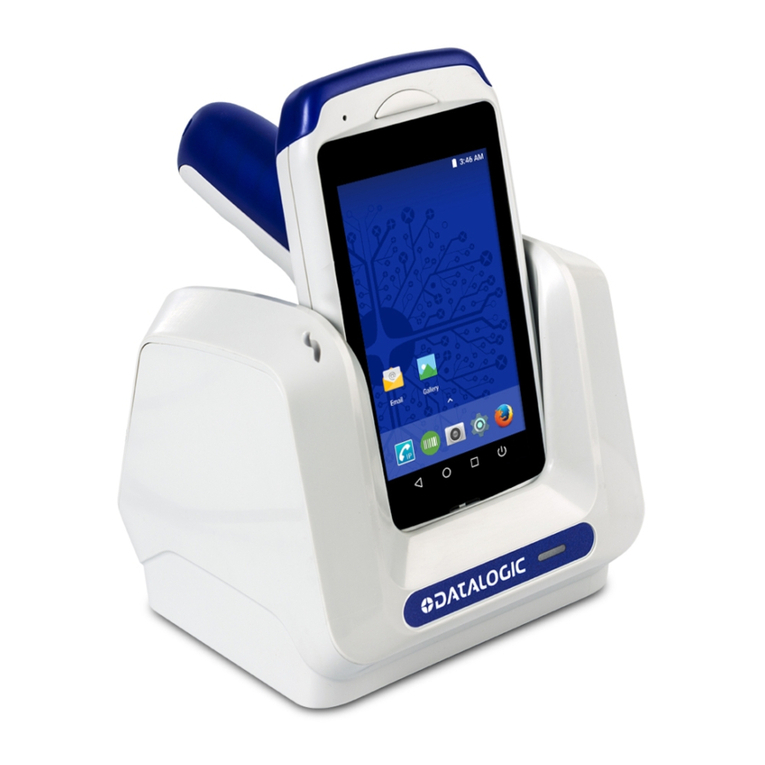
The docking station supports charging of USB mobile devices, such as smart phones, e-book readers,
multimedia players, navigation devices, and tablets. Simply connect the device that you want to charge
using the original cable to the USB port of the docking station. The port on the front panel of the docking
station is the most appropriate, because it supports fast charging.
CHARGING THROUGH POWER DELIVERY
HP Folio G1, Dell XPS13, Acer UX390, MacBook Pro 2016, Chromebook Pixels or Windows 10 devices with
USB-C port and power delivery support and power adapter up to 100W.
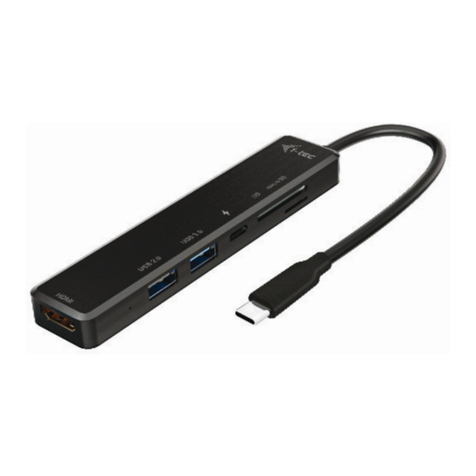
The docking station offers USB-C Power Delivery, designed for energizing the connected “parent” device.
Notes for using the USB-C port:
Fully compatible devices / systems (Alt Mode & Power Delivery)
USB-C is a new standard connector with a large diversity of uses, while the information on compatibility is
complex. Some USB-C devices / systems support Alt Mode video output, while other devices do not. Some
can be energized and charged from USB-C Power Delivery, while other devices can not. Devices / systems
currently supporting both Alt Mode and Power Delivery include for example MacBook Retina 12"
2015/2016, Chromebook Pixel 2015 and Dell XPS 13" 9350 / 15" 9550.
Partially compatible devices (supporting either Alt Mode or Power Delivery, but not both)
Many current USB-C devices that support Alt Mode video output do not support charging from USB-C Power
Delivery. These devices still need their original power adaptors for charging. On the other hand, some USB-C
phones or tablets can be charged from Power Delivery, but most of them do not support Alt Mode video
output.
Non-compatible devices / systems
The docking station uses new functions introduced with USB 3.1. This means the USB-C Power Delivery is not
compatible with USB 3.0 / 2.0 for charging older devices. Further, the USB-A 3.0/2.0 (Male) convertors to
USB-C (Female) for connecting USB-C devices in USB-A 3.0 ports of the docking station are not compatible
either. Most current phones and tablets with the USB-C port do not support Alt Mode video output and
some do not support USB-C Power Delivery. Check the compatibility with this technology in the device
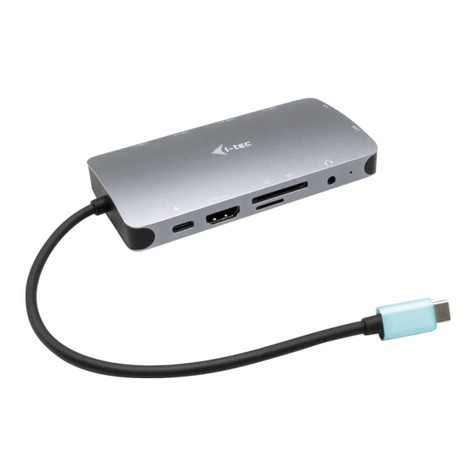
instructions or contact the device manufacturer. Lenovo Yoga 900 is not compatible with the i-tec USB-C
Travel Docking Station. No phones and tablets with the Android OS currently support Alt Mode video output.
At the moment ASMedia USB 3.1 controllers do not support Alt Mode video output either.
AUDIO
Audio output devices, for listening through HDMI, need to be set / verified here: System Preferences-
Sound-Output –select HDMI Audio Device.
Setting the audio output device to both the earphones and the monitor simultaneously can be done in
Open-Applications-Utilities-Audio settings MIDI.app –click on „+“ on the left at the bottom – Create
device with multiple outputs and select the desired outputs from the offered options on the Device with
multiple outputs.
Note: The majority of problems with the docking station and the connected peripheral devices can be solved
by turning the docking station off and turning on after approximately 10 s.