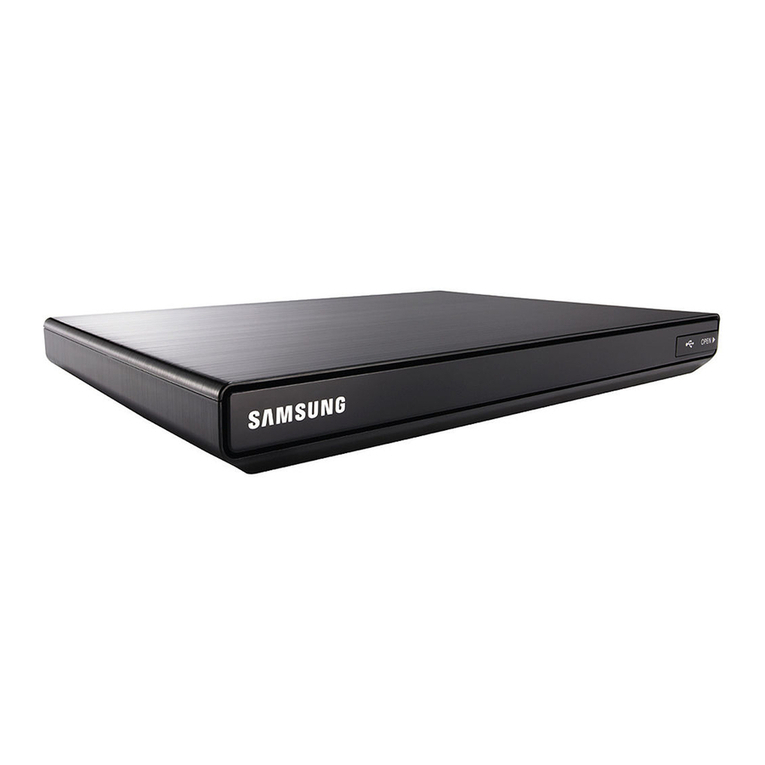
JVC TU-DB1SU User manual

DIGITAL TERRESTRIAL SET TOP BOX INSTRUCTIONS
TU-DB1SU
ENGLISH
Trade Mark of the DVB Digital Video Broadcasting
Project (1991 to 1996) Number: 3205

- 1 -
CONTENTS
Safety Precautions 2
In the box 3
Over Air Download 3
STB buttons 4
emote control buttons 5
Preparation 7
Connections 7
Switching on 8
Inithial settings 8
Everyday Operation 9
Changing Channels 9
Channel List 10
Electronic Programme Guide 10
Digital Telete t 11
Widescreen 12
Advanced Operation 12
Configuring Your Receiver 12
Editing The Channel List 13
Channel and Menu Protection 14
Favourite Channels 15
Programme Reminders and Timers 15
Installation 16
Specification 18
Connecting the external devices 19
Troubleshooting Guide 20

- 2 -
SAFETY PRECAUTIONS
POWE
Always use the provided AC adapter.
Operate only from the power source specified (AC 100-240 V,50/60Hz) on the AC adapter.
In using, the AC adapter get heat on the surface of the case. It is normal, not defective.
Do not be covered with any material on case of AC adapter while it is in operation. Leave the 15 cm
space(minimum) around the AC adapter.
The rating information and safety caution of the AC adapter are on its case.
LEADS
Ensure the power supply lead, and all other leads, are positioned so they are not likely to be walked on or
pinched by things placed on or against them. Pay particular attention to the power lead, where it enters the
mains plug and where it comes out of the STB. Do not connect or adjust leads when the STB is plugged in.
TEMPE ATU E AND MOISTU E
Do not leave or use the STB in a hot, cold or humid area. Do not allow the STB to get wet - from drips or
splashes - as this may be dangerous. Do not place water-filled objects such as flower vases, on top of the
STB.
VENTILATION
Slots and openings in the STB cover are for ventilation. Do not cover or block them as this could lead to
overheating.
CLEANING
Unplug the STB before it is cleaned. Use a lightly dampened cloth only. Do not use liquid or aerosol cleaners.
HEAT AND FLAMES
The receiver should not be placed near to naked flames or sources of intense heat, such as an electric fire.
Ensure that no naked flames sources, such as lighted candles, are placed on top of the STB.
LIGHTNING
Unplug your STB from the wall socket if there is a storm or lightning, or if it is to be unused for a long time.
EPLACEMENT PA TS
If your STB needs a replacement part, ensure the person undertaking the repair uses parts which are specified
by the manufacturer or have the same specifications as the original part. Other parts may cause a fire,
electric shock or other hazards.
BATTE Y DISPOSAL
Please ensure that e hausted batteries from the remote control handset are disposed of safely.
SE VICING
Ensure the person who services your STB is qualified to do so. Do not remove the cover yourself - you
could get an electric shock.
We are proud to offer a high-quality product. To keep this level of quality, your STB should be serviced at
a JVC authorised service centre.

- 3 -
IN THE BOX
Thank you for buying this JVC Degital Terrestrial Set Top Box.
Inside your package you should have:
Degital Terrestrial Set Top Bo (STB) receiver
AC adaptor 1
Remote control unit: RM-C1890S
Dry battery for the remote control unit AA (R06) 2
Instruction book
Warranty Card
Aerial cable 1
Scart cable 1
OVER AIR DOWNLOAD
Over Air Download (OAD): To ensure that your STB always has the most up todate information. Please ensure
that after use it is set to its standby mode. The STB automatically powers up at 3AM each day and searches
for any new information which may be broadcast and will download this to your receiver automatically. This
operation will normally take appro imately 30 seconds.
If you have an important recording to make at 3AM which must not have a 30 second interrupt then you
can disable the auto OAD search by performing the following:
1. Press Menu button and using the up / down buttons to choose Configuration and press the OK button,
2. Use the up and down buttons to choose "RECEIVER UPGRADE" and press OK button.
3. Using the left / right button change function from Enable to Disable.
4. Press OK button then MENU and MENU to return to Normal operation.
Do not forget to re enable the automatic OAD function after you have made your recording by repeating
the above instructions but this time selecting ENABLE.

- 4 -
RECEIVER BUTTONS
Front:
6WDQGE\EXWWRQ 3URJUDPGRZQXSEXWWRQV

- 5 -
REMOTE CONTROL BUTTONS
%$&.EXWWRQ
7H[WEXWWRQ
3URJUDPPH8S'RZQ
EXWWRQV>3@>3@EXWWRQV
0( 8EXWWRQ
0XWH
*8,'(EXWWRQ
6WDQGE\
79'79EXWWRQ
2.EXWWRQ
XPEHUEXWWRQV
9ROXPH8S'RZQ
EXWWRQV
:,'(EXWWRQ
,QIRUPDWLRQEXWWRQ
6OLGH6ZLWFK
$9EXWWRQ
&RORXUEXWWRQV
8S'RZQ5LJKW/HIW
EXWWRQV
68%7,7/(EXWWRQ
3$*(83'2: EXWWRQV
9&5'9'FRQWURO
EXWWRQV

- 6 -
REMOTE CONTROL BUTTONS
To operate this STB:
Set the Slide Switch to STB position.
For details of the use of each buttons, see each sections e planation.
Note: Volume-/+ buttons and the Mute button work for the volume from the TV.
To operate a JVC brand TV or VCR:
Set the Slide Switch to the TV/VCR position.
Pressing a button that looks the same as the devices original remote control button has the same effect
as the original remote control.
Note: Even you operating a JVC brand TV or VCR some buttons may not work.
To operate a JVC brand DVD player:
Set the Slide Switch to the DVD position.
Pressing a button that looks the same as the devices original remote control button has the same effect
as the original remote control.
Note: Even you operating a JVC brand DVD player some buttons may not work.

- 7 -
PREPARATION
Connections
Place your receiver on a firm, level surface with at least a 10cm gap around all sides of the case and in
a position convenient for connection to your television, a mains power outlet and a TV aerial wall outlet (or
the 'flying lead' from your TV aerial, as appropriate).
Please refer to the Safety Precautions on page 2.
Turn off your television at the mains and disconnect the lead going to the aerial wall outlet (or the flying aerial
lead) and connect this to the ANTENNA IN socket on the rear of the receiver. Connect the aerial cable supplied
from the TV OUT socket on the receiver to the TV set's aerial socket.
Connect the TV SCART socket on the rear of the receiver to a suitable SCART socket on your television.
There may be more than one SCART socket on your television and, if unsure which to use, you should refer
to its manual for guidance.
79
79
$HULDO
,Q
79$HULDO
796FDUW,Q
$17(11$
,1
9&5'9579 '&,1
9
',* ,7$/ $8',2 2 87
&2 $;,$/
$17 (1 1$
287
1RWXVH
If you have a VCR or other equipment connected to your television, please connect the receiver as described
here and refer the Connecting the e ternal devices on page 19.
Connecting the AC adapter to the DC IN.
Finally, plug the receiver into the mains outlet, then the power lamp lights to red.
Inserting the batteries into the remote control handset.
Remove the battery compartment cover from the rear of the remote control handset by lifting the catch
at one side. Insert two AA(R6) sized batteries, taking care to observe the correct orientation as marked on
the inside of the compartment. Replace the compartment cover.

- 8 -
PREPARATION
Switching on
Turn on your TV set and select the SCART input (with the AV key, or similar, on the television remote control).
Press the [STANDBY] key on the remote control handset. The power lamp change to green and the receiver's
menu will be seen on the TV screen.
If you do not see the receiver's menu on the television screen, press the AV button on your TV remote control
until you see the First Time Installation menu.
Inithial settings
Because this is the first time that the receiver has been used, there are no channels stored in the receiver's
memory and the First Time Installation menu is displayed on the screen.
First you have to choose the country and language using UP/DOWN/LEFT/RIGHT keys. Then you have
to press OK. As you press OK, the TV Type selection screen is displayed.
You should select the type of TV set you have connected to the STB. Press the [LEFT] or [RIGHT] keys
on the remote control handset to switch the indicator on the screen to show either 16:9, if you have a 16:9
or 'widescreen' TV, or to 4:3 if you have a standard TV set. Then press [OK] to start the installation process.
The ne t menu will appear.
Using the [LEFT] or [RIGHT] keys on the remote control, make sure YES, and press the [OK] key to start
the automatic search.
The receiver will automatically tune to the UHF transmission channels 21 to 68 looking for digital terrestrial
TV broadcasts and displaying the names of channels found. This process will take about five minutes.
When the search is finished, the first channel of the channel list and the information banner is displayed
you can now watch digital terrestrial broadcasting, selecting the channel you require as described in the ne t
section.
HINT
Depending on the reception conditionsin your particular area, you may find that the list of channels
found includes one or more repeated names. This is because the receiver may detect and store some
channels, including those it cannot receive clearly, from adjacent areas alongside the strong
channels from a transmitter nearby. This is not a problem and the weaker channels can be deleted
from the receiver later, as described in ADVANCED OPERATION Editing the channel list/PR list
on page 13.

- 9 -
If no digital terrestrial television broadcasts are
found the receiver will display a message:
You should then refer to the Troubleshooting Guide
on page 20 to establish the cause of the problem.
When you have finished watching digital terrestrial
broadcasting, you may wish to switch the receiver
to standby to save power - although the receiver can
remain powered up continuously, even when the
television is turned off, without harm to the
television or itself.
Hint
In standby, the receiver still consumes power
and thereby contributes to air and water
pollution and the exhaustion of the World's
natural resources. Overnight, or when your
receiver is not going to be used for long
periods of time, you can turn it off at the mains
and this will save energy (and save you money).
You will not have to re install the receiver when
it is turned on again.
EVERYDAY OPERATION
While using the STB to the full there are great many
buttons to use in different situations. Many of the
menu screens displayed by the receiver have
reminders as to which keys do what, at the base of
the screen. In addition, many screens have further
help available which is displayed when the [i] key
is pressed, as prompted at the bottom right of the
screen.
Providing your TV set SCART socket has switch
control, pressing the [TV/DTV] key at any time while
watching television programmes will switch the TV
set between displaying the digital terrestrial
television programme and its normal analogue
television reception.
CHANGING CHANNELS
You can choose the channel by using the P /
buttons or the number buttons.
When using the number buttons, enter the
programme number as follows.
E ample: PR6 press 6, PR12 press 12 ,
PR123 press 1,2 and 3.
Hint
The channel list numbers are assigned by the
broadcasters. Because not all channels are
broadcast free to air and stored by the receiver,
the channel list numbers do not run
continuously. The fifteenth channel in the list,
for example, may not be channel number 15 but
channel number 17.
Hint
If you enter a number which does not
correspond to a stored channel, the next valid
channel number is selected instead. If you enter
a number greater than the highest numbered
channel in the channel list, the receiver will
select the last channel in the list.
Information Banner
Whenever you change channel, using the [P+] and
[P-] keys or the number keys, the receiver displays
the channel picture along with an information banner
at the bottom of the screen. This will remain on the
screen for appro imately three seconds. The
information banner can also be displayed at any
time while watching TV by pressing the [i] key on the
remote control. Pressing the [i] key again removes
the banner.
Hint
Not all channels broadcast the programme
data. If the name and times of the programme
is not available then No Information is
displayed in the information banner.
The information banner gives a number of facts on
the channel selected and the programmes on it. The
name of the channel is displayed, along with its
channel list number and an indication of the strength
of the signal received on this tuning channel.
The name and the start and finish time of the
programme currently showing on the selected
channel are given, and the current time.
Other manuals for TU-DB1SU
2
Other JVC Set-top Box manuals