Kodak 2F6571 User manual

www.kodak.com/go/hdtvdocksupport 1
ENGLISH
See your user’s guide – for more information about using your dock, visit
www.kodak.com/go/hdtvdocksupport.
Remote control
Button Press to
ON/O turn on/off the HDTV dock.
DISPLAY turn on/off picture/video status information bar.
Home return to the home screen.
BACK return to the previous screen.
stop a slide show, display thumbnails.
MENU display menu choices.
OK accept the current selection.
4-way navigate through pictures or menus.
ZOOM + increase picture magnification.
ZOOM - decrease picture magnification.
select mark pictures for an operation.
SLIDE play a slide show.
play/pause play/pause a video or slide show.
rewind fast rewind a video.
fast forward fast forward a video.
stop stop a video, display the first frame.
stop a slide show, display thumbnails.
PAGE UP display the previous page of images.
PAGE DOWN display the next page of images.
Remove the tab to start
using the remote.

2www.kodak.com/go/easysharecenter
ENGLISH
ront/Side View
Back View
1 Remote control sensor 4 Memory card slot - SD, MMC
2 Charging light 5 USB connector
3 Power light 6 Dock connector
1 USB connector 3 Audio out connectors
2 Video out connectors 4 DC-In (5 V)
4
6
5
1
2
3
1
2
34

www.kodak.com/go/hdtvdocksupport 3
ENGLISH
Connecting the dock power, HDTV
Your power cable (included with the dock) may be different from the one
pictured. Use the plug that accommodates your type of power outlet.
1
2
3
video
audio
power

4www.kodak.com/go/easysharecenter
ENGLISH
Inserting a card or USB device
Attaching the camera insert
USB devices (use either USB connector):
SD/MMC card
card reader
flash drive
Custom camera insert included with
your camera.

www.kodak.com/go/hdtvdocksupport 5
ENGLISH
Turning on the dock; Home screen
-OR-
Power light
Press
ON/O .
choose an
Input Source. Thumbnails
(pictures/videos/
folders on a
selected Input
Source)
Press
then OK to
The Home screen appears.
(Use the remote control buttons to make your selections.)
Note: Devices connected to the dock are listed as Input Sources.
Press BACK to move between the Input Source list and thumbnails window.
Make sure the camera is
set to the appropriate
regional format (NTSC or
PAL). See your camera
user’s guide for details.

6www.kodak.com/go/easysharecenter
ENGLISH
Setting your language
Charging the camera battery
1Connect the dock power.
2Insert the battery in the camera (Kodak Ni-MH or
Li-Ion rechargeable battery). Turn off the camera.
3Place the camera on the dock.
Charging begins. Full charging takes up to 3 hours.
Charging light:
4
Press MENU.
1
On the remote control:
to highlight Language, press OK.
3
2to highlight Settings, press OK.
to select your language, press OK.
Blinking green Charging
Steady green ully charged
Blinking red Error, see Troubleshooting

www.kodak.com/go/hdtvdocksupport 7
1Working with pictures/ ideos
Viewing pictures and ideos
Use your high definition television to view pictures and videos from a docked camera
(see page 5), memory card, or USB drive (see page 4).
■The Home screen displays your pictures and videos as thumbnails (see page 5).
■Use the remote control and OK buttons to navigate through your
pictures/videos and to make your selections.

Working with pictures/videos
8www.kodak.com/go/easysharecenter
Home screen features
Thumbnails iew
■To navigate through the thumbnails, press .
■To play a video ( ), highlight the video thumbnail,
then press OK. Press or OK when the first frame
appears (single view).
Input sources Pictures, ideos and folders are displayed from:
Camera The camera that’s placed on the dock.
SD card A card inserted in the dock memory card slot.
USB device A USB device (flash drive, card reader, etc.) inserted in the dock USB
connectors. Each device is shown as a separate source. Each card in a
card reader is shown as a separate USB device. The device inserted into
the side USB connector is shown first.
Icons on thumbnails
Video (see page 8)
Picture has a sound tag (see page 9)
Multimedia slide show (see page 8)
Selected picture/video/folder (see page 11)
View-only avorites (see your camera user’s guide)

Working with pictures/videos
www.kodak.com/go/hdtvdocksupport 9
■To play a multimedia slide show ( ), highlight an MMS folder, then press OK.
■To view folder contents, highlight the folder, then press OK.
NOTE: Press BACK to move between the Input Source list and thumbnails window.
Single iew
Begin working with your pictures and videos in Single view.
■To iew a single, full-screen picture, highlight the thumbnail, then press OK.
■To magnify a picture 2X - 4X, press ZOOM+. Press ZOOM- to return to 1X. To view
other parts of the picture, press .
■To play a sound tag ( ) that is associated with a picture, press .
■Press DISPLAY to turn on/off the picture information.
■Press to view previous/next picture.
■Press BACK or to return to the Home screen.

Working with pictures/videos
10 www.kodak.com/go/easysharecenter
Using the menu
Use the Menu button on the remote control to work with your pictures/videos and
change your dock settings.
Display in Single iew and press MENU to:
■Rotate a picture. Press to highlight a rotation option (Clockwise or
Counterclockwise), then press OK. You can only rotate pictures that are unprotected
and are larger than 2.0 MP.
■Enhance a picture. See page 12.
■Crop a picture. Press to highlight Crop, then press OK. Press the ZOOM buttons
to size the crop box and press to move it. Press OK. You can only crop pictures
that are larger than 2.0 MP.
■Print a picture. (Available when a printer is connected to your dock.) See page 14.
■Make picture. (Available for videos only). See page 12.
■Copy a picture/video to another connected device. Press to highlight Copy,
then press OK. Press to highlight the location you want to copy to, then press
OK.
■Protect/Unprotect a picture/video from deletion. Press to highlight Protect (or
Unprotect), then press OK.
■Delete a picture/video. Press to highlight Delete, then press OK. Press to
highlight your choice, then press OK. Press to highlight Yes, then press OK.
Other manuals for 2F6571
1
Other Kodak Docking Station manuals
Kodak
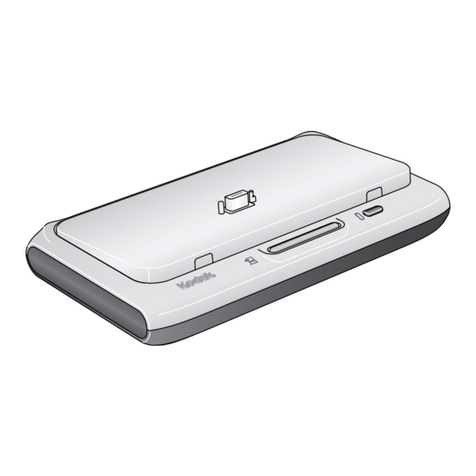
Kodak EasyShare Camera Dock Series 3 User manual

Kodak
Kodak EasyShare printer dock User manual
Kodak
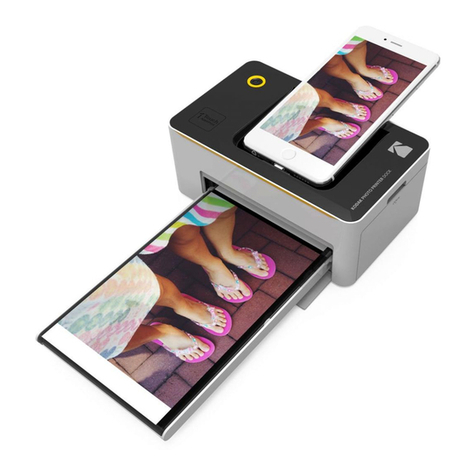
Kodak PD-450 User manual
Kodak
Kodak Dock II User manual
Kodak
Kodak 6000 - EasyShare Camera Dock User manual
Kodak
Kodak EasyShare Series 3 User manual

Kodak
Kodak PD-450 User manual
Kodak
Kodak EasyShare Printer Dock 6000 Instruction Manual
Kodak
Kodak EasyShare printer dock User manual
Kodak
Kodak Dock II User manual