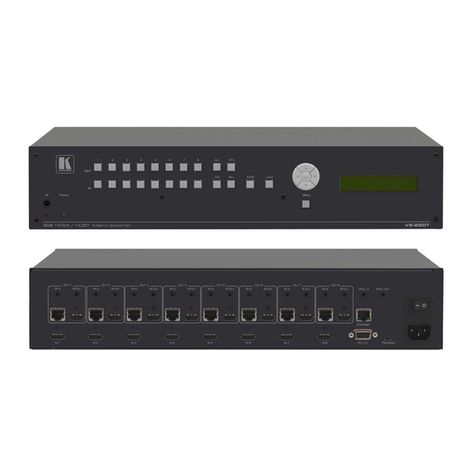
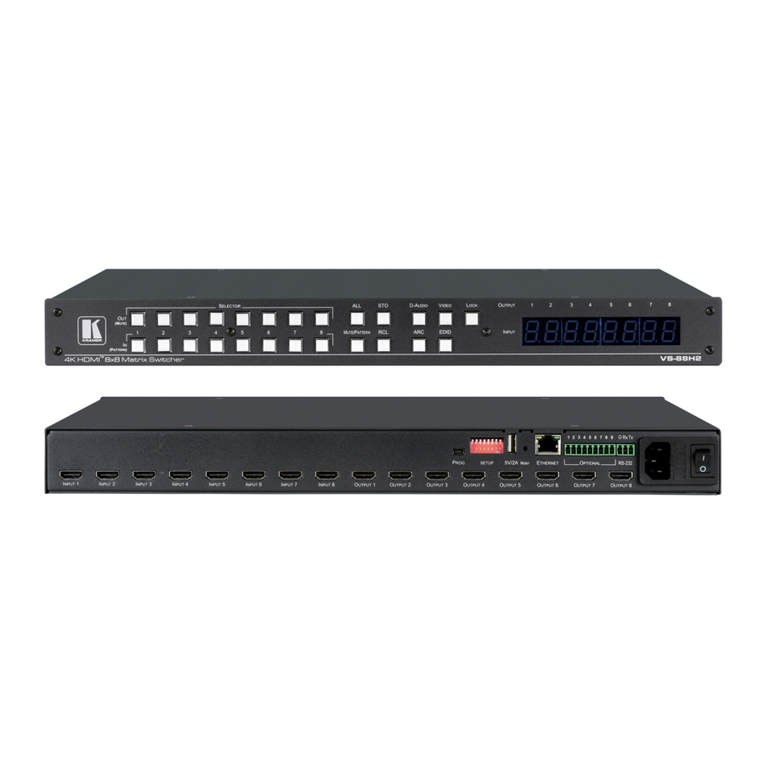
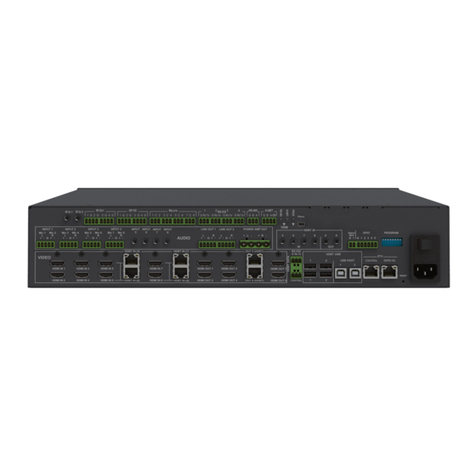
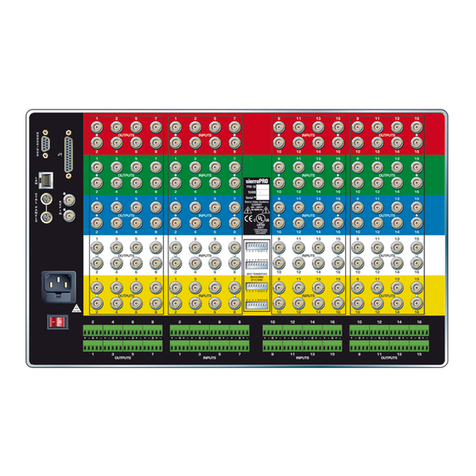
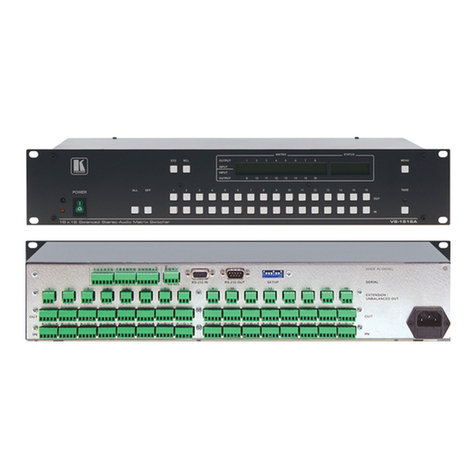
Connect to the GENLOCK source.
Connect to the GENLOCK connector of the next unit in the daisy chain.
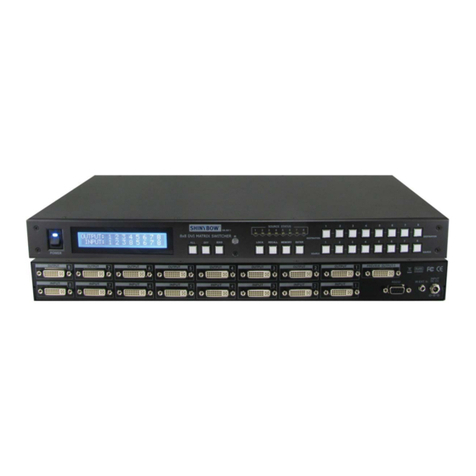
Connect to sources and acceptors (8 in total, or 4 in total for dual mode).
RS-232 (G,Rx,Tx) Terminal Block Connector
Connect to a PC or remote controller.
Connect to a PC via LAN and also used for firmware upgrade.
Press briefly to restart the system.
Press for 10 seconds to reset IP settings to factory default values.
The device powers up and loads the factory default values:
IP address: 192.168.1.39; Mask: 255.255.255.0; Gateway 192.168.1.1.
AC connector enabling power supply to the VS-8FDxl.
Illuminated switch for turning the unit ON and OFF.
Step 3: Install the VS-8FDxl
To rack mount the machine attach both ear brackets to the machine (by removing the three screws
from each side of the machine and replacing those screws through the ear brackets) or place the
machine on a table.
Step 4: Connect the inputs and outputs
Each VS-8FDxl port can be defined as an input or an output, enabling flexible configurations such as 1x7 distribution amplifiers, 7x1
routers or any other possible input-output combination. By default, the VS-8FDxl is set to operate as a 4x4 router: PORT 1 to PORT
4 as the inputs, and PORT 5 to PORT 8 as the outputs.
Always switch OFF the power on each device before connecting it to your VS-8FDxl. For best results, we recommend that you
always use Kramer high-performance cables to connect AV equipment to the VS-8FDxl.
Optionally, daisy-chain the VS-8FDxl by looping the genlock source to the next machine.