Lexmark MS710 Series User manual
Other Lexmark Printer manuals

Lexmark
Lexmark 22L0214 - C 770dtn Color Laser Printer User manual
Lexmark
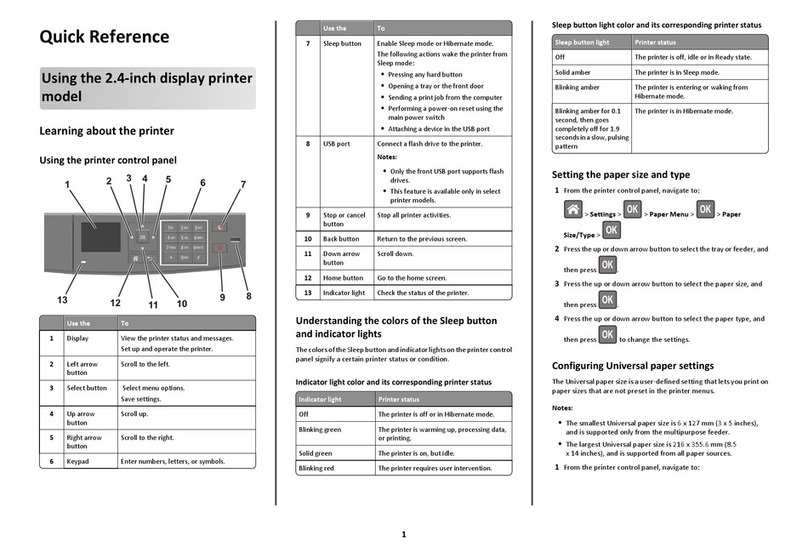
Lexmark MS510 Series User manual

Lexmark
Lexmark Optra 4044-XXX User manual
Lexmark
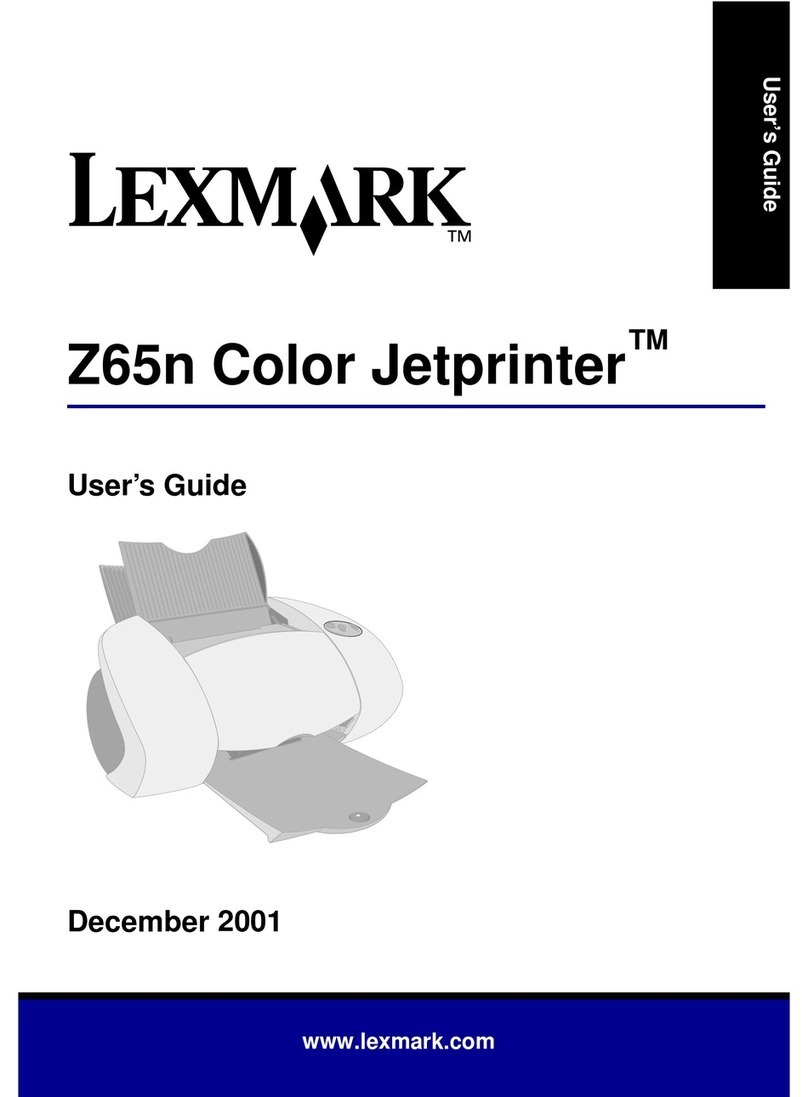
Lexmark Z65n User manual
Lexmark
Lexmark Medley 4012-009 User manual
Lexmark
Lexmark Color Laser Instruction Manual
Lexmark
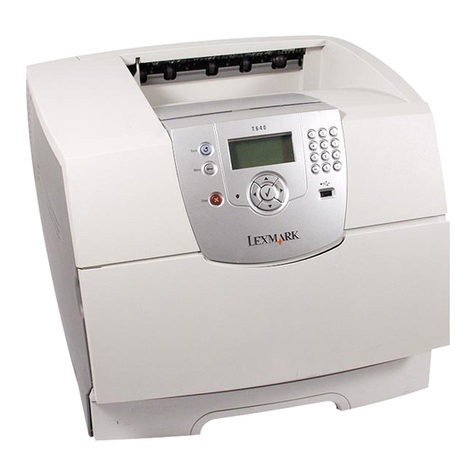
Lexmark T640tn User manual

Lexmark
Lexmark MS810de User manual
Lexmark
Lexmark C 750 Operating instructions
Lexmark
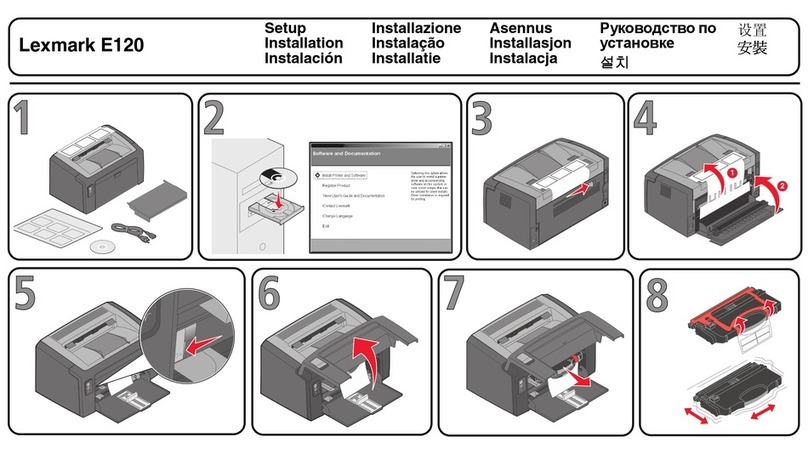
Lexmark E120 User manual
Lexmark
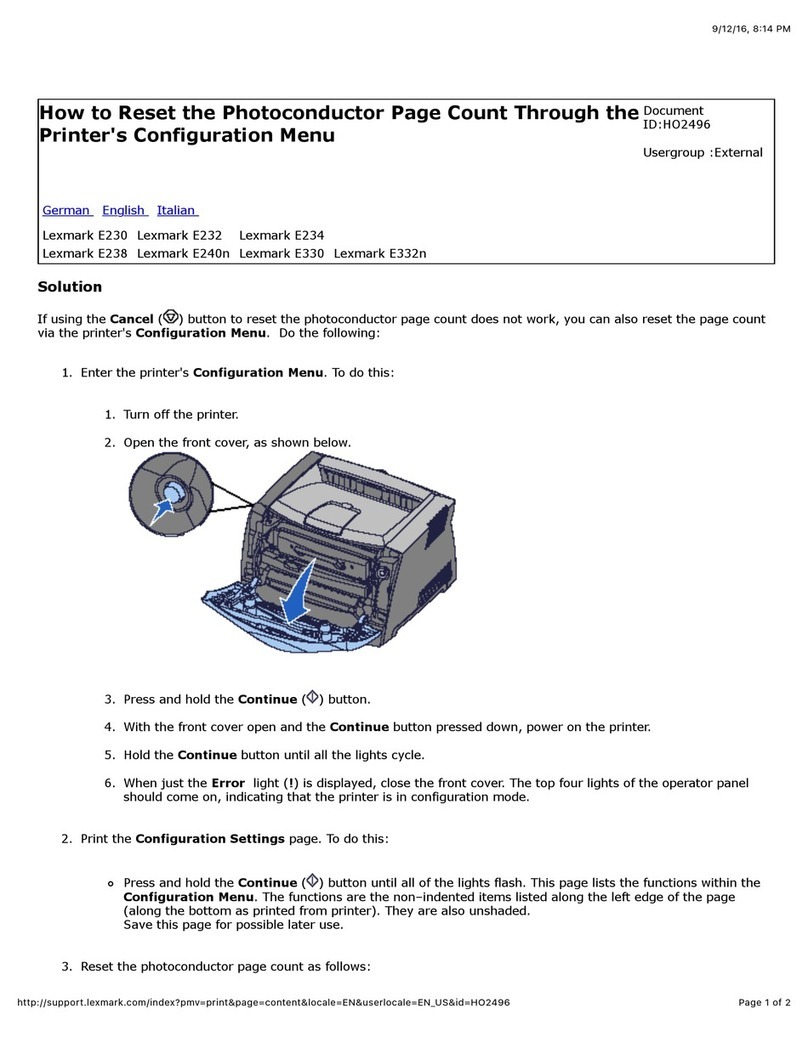
Lexmark E 230 Guide
Lexmark
Lexmark 258x Use and care manual
Lexmark
Lexmark C52 series User manual
Lexmark
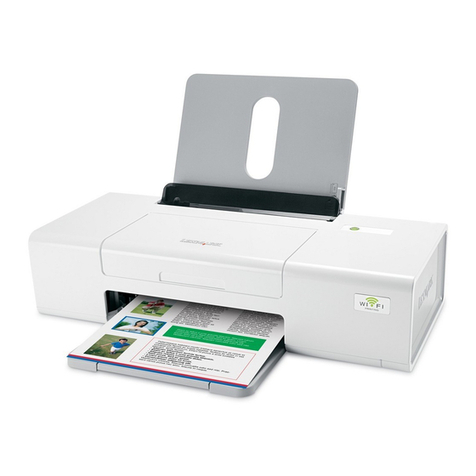
Lexmark Z1420 - Single Function Wireless Inkjet Prin User manual
Lexmark
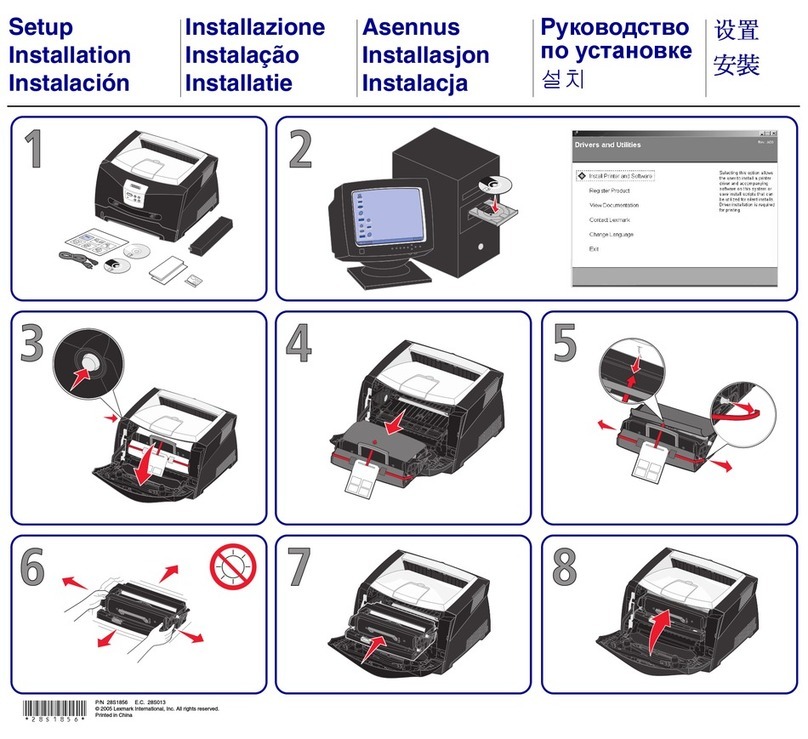
Lexmark E340 Manual
Lexmark
Lexmark P700 User manual
Lexmark
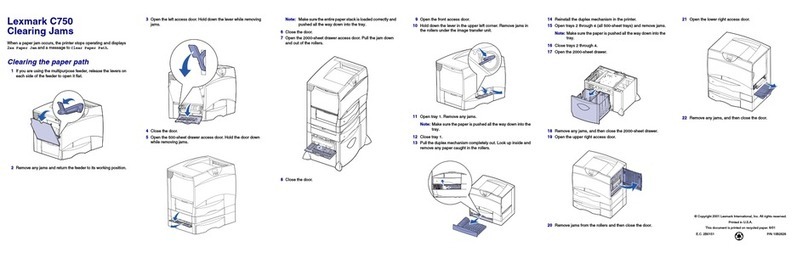
Lexmark C 750 User manual
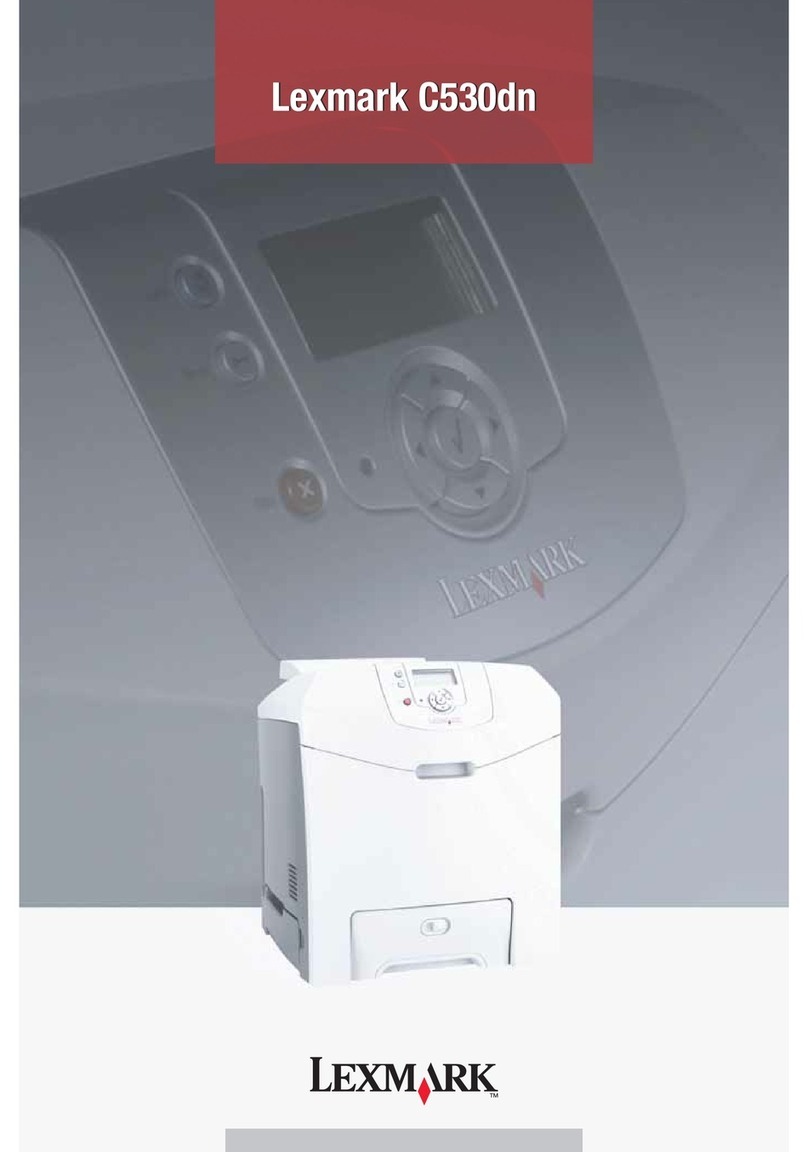
Lexmark
Lexmark 34C0150 User manual
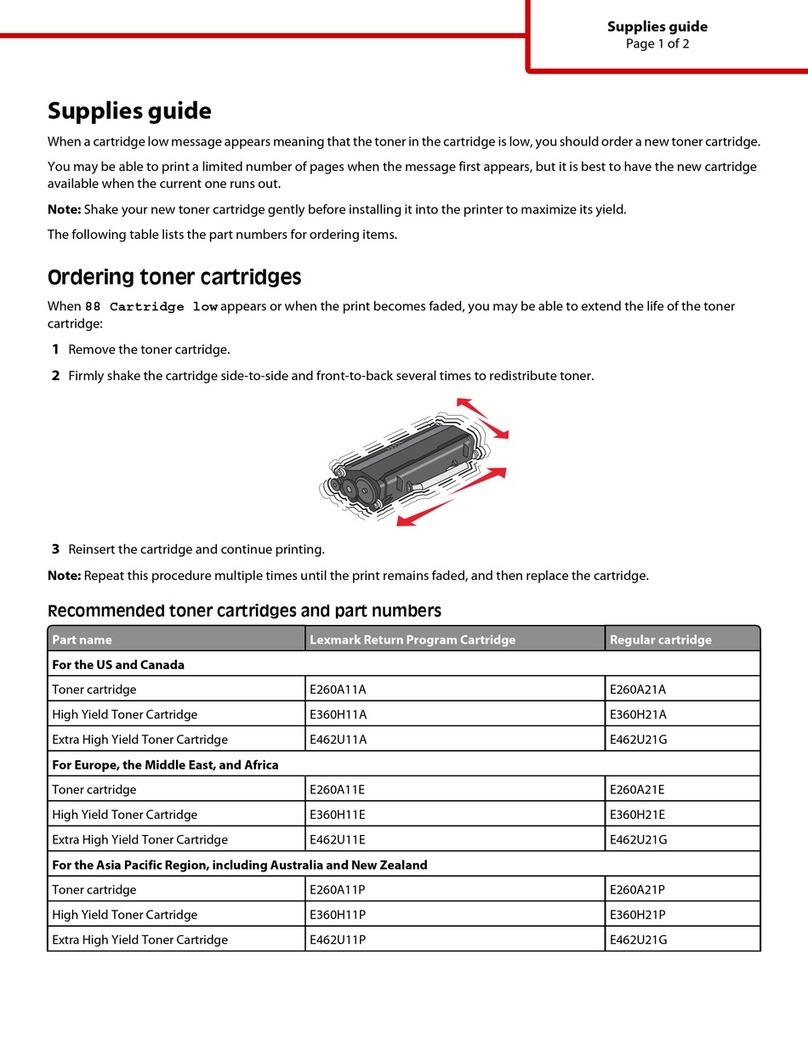
Lexmark
Lexmark SERIES E460DN User manual
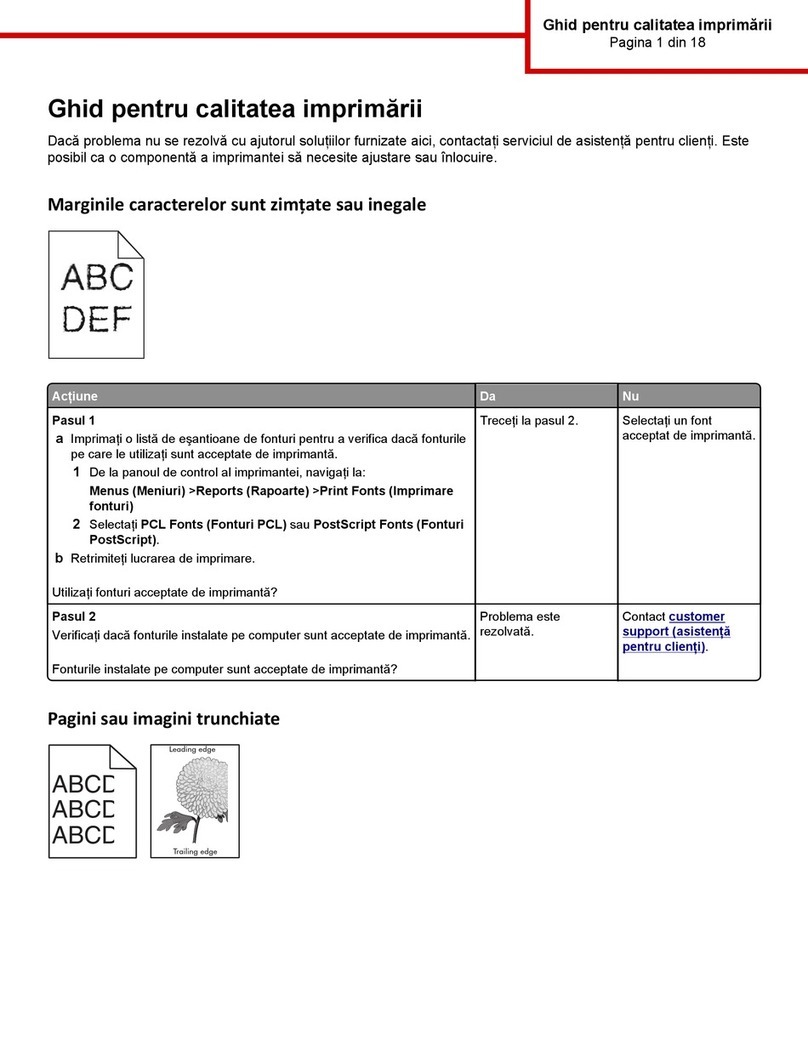
Lexmark
Lexmark M1145 User manual