Page 8
Step 10a Remote access to only one terminal
The following steps are required if only one terminal is connected to the MX510.
1. Setup Forwarding at MX510
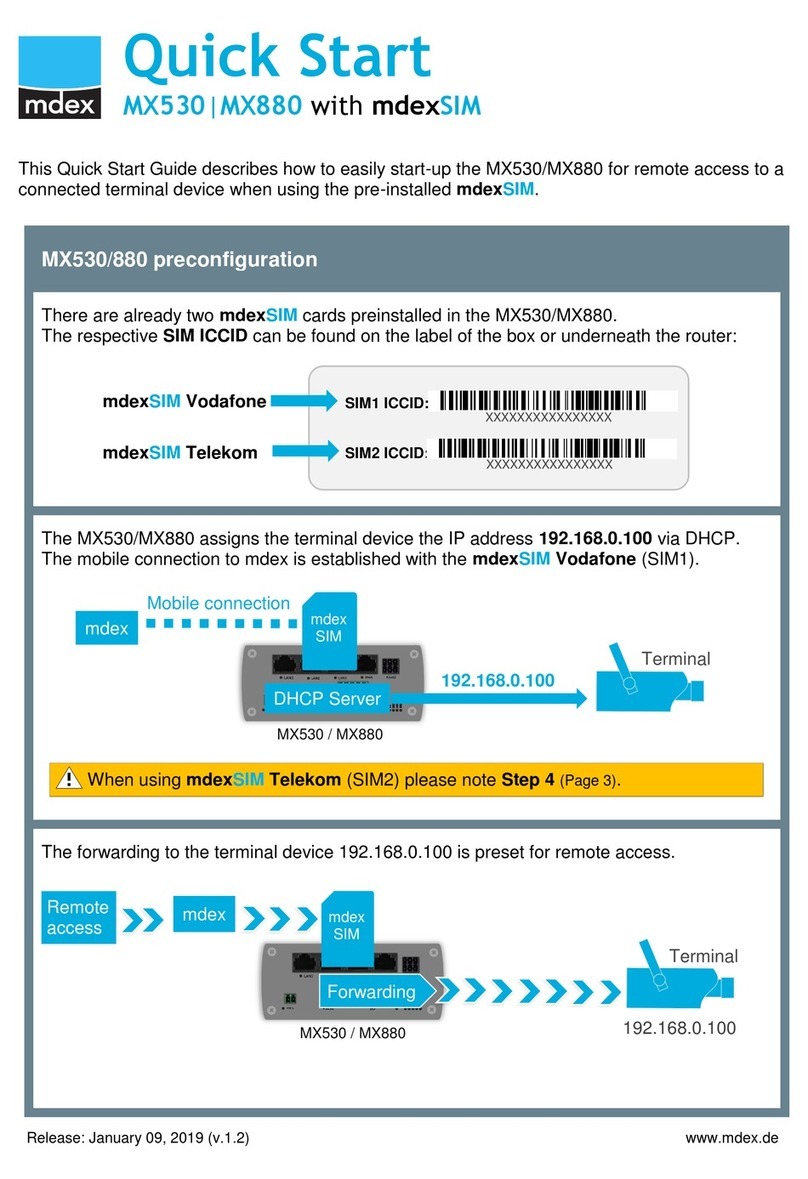
A host forwarding (all data packets and protocols) is already preset to the IP address
192.168.0.100. You must change only the source zone from "WAN" to "VPN".
1. Click on Network Port Forwarding.
2. Change at “DMZ configuration” the “Source zone”to VPN.
3. Click on .
Now all incoming data packets and protocols are forwarded over the MX510 OpenVPN tunnel to
the local IP address 192.168.0.100 (terminal).
2. Connect your terminal to a LAN socket
Remove your computer from the MX510 and connect your terminal to the LAN1, LAN2 or
LAN3 socket of the MX510.
Your terminal should be set to DHCP client (automatically obtain an IP address).
The MX510 is preconfigured for dynamic assignment of IP addresses (DHCP) and
automatically assigns the IP address 192.168.0.100 to your connected terminal.
Alternatively, the IP address 192.168.0.100 can be set manually in your terminal.
All incoming data packets over the MX510 OpenVPN tunnel are forwarded to the IP
address 192.168.0.100 (terminal).
Note
The MX510 is preconfigured for the allocation of only one IP address (192.168.0.100). This
IP address is reserved for another 5 minutes after this terminal was removed. So remove
any terminal (eg your computer) from the MX510 router and wait at least 5 minutes (or do a
reboot of the MX510) before connecting the desired terminal to the MX510.