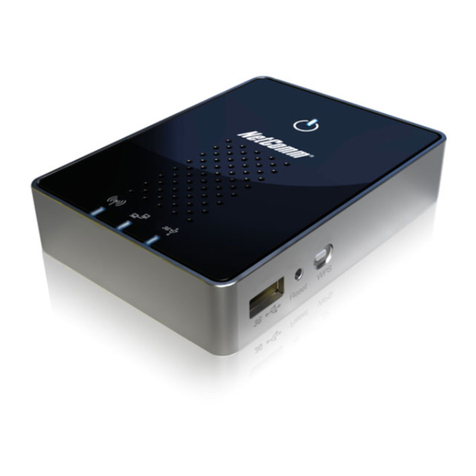
NetComm NF2 User manual


Other manuals for NF2
5
Table of contents
Other NetComm Wireless Router manuals

NetComm
NetComm LIBERTY MyZone 3G24W User manual
NetComm
NetComm T1 User manual
NetComm
NetComm NTC-40W User manual
NetComm
NetComm NTC-30WV User manual
NetComm
NetComm NF5 User manual
NetComm
NetComm NB14WN User manual
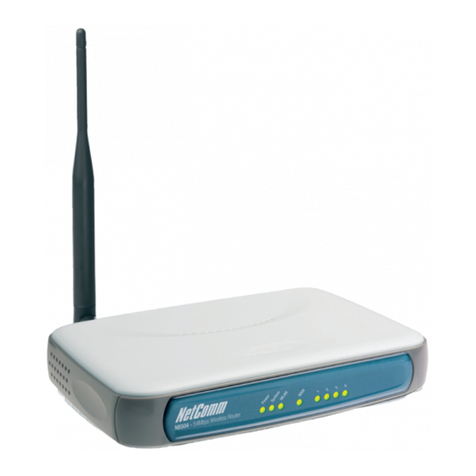
NetComm
NetComm NB504 User manual
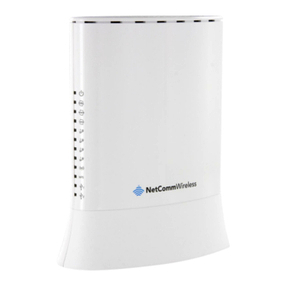
NetComm
NetComm NF10W User manual
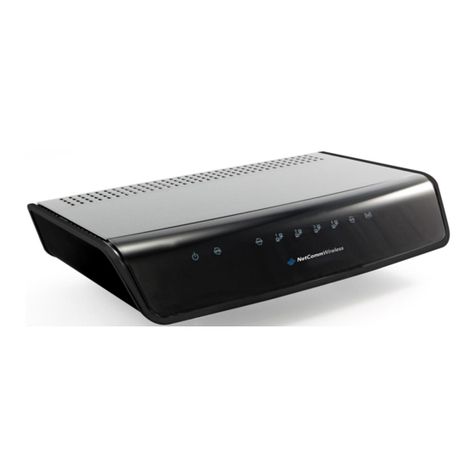
NetComm
NetComm NB16DG User manual
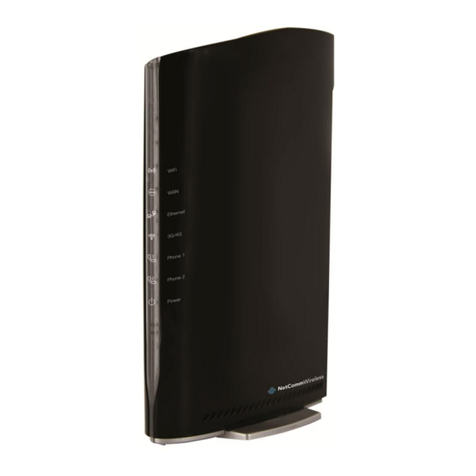
NetComm
NetComm 3G27WV-02 User manual
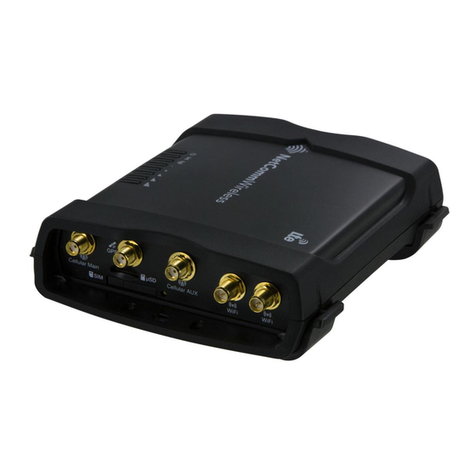
NetComm
NetComm NTC-140W Series User manual
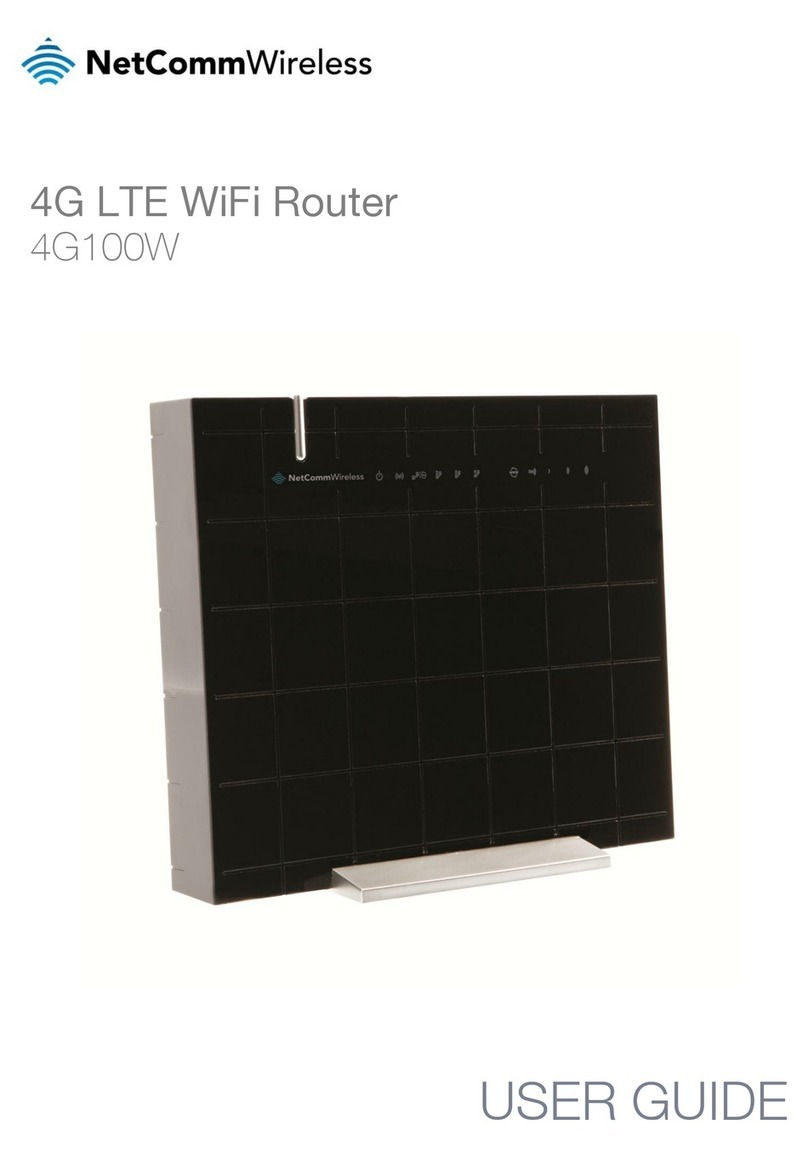
NetComm
NetComm 4G100W-01 User manual
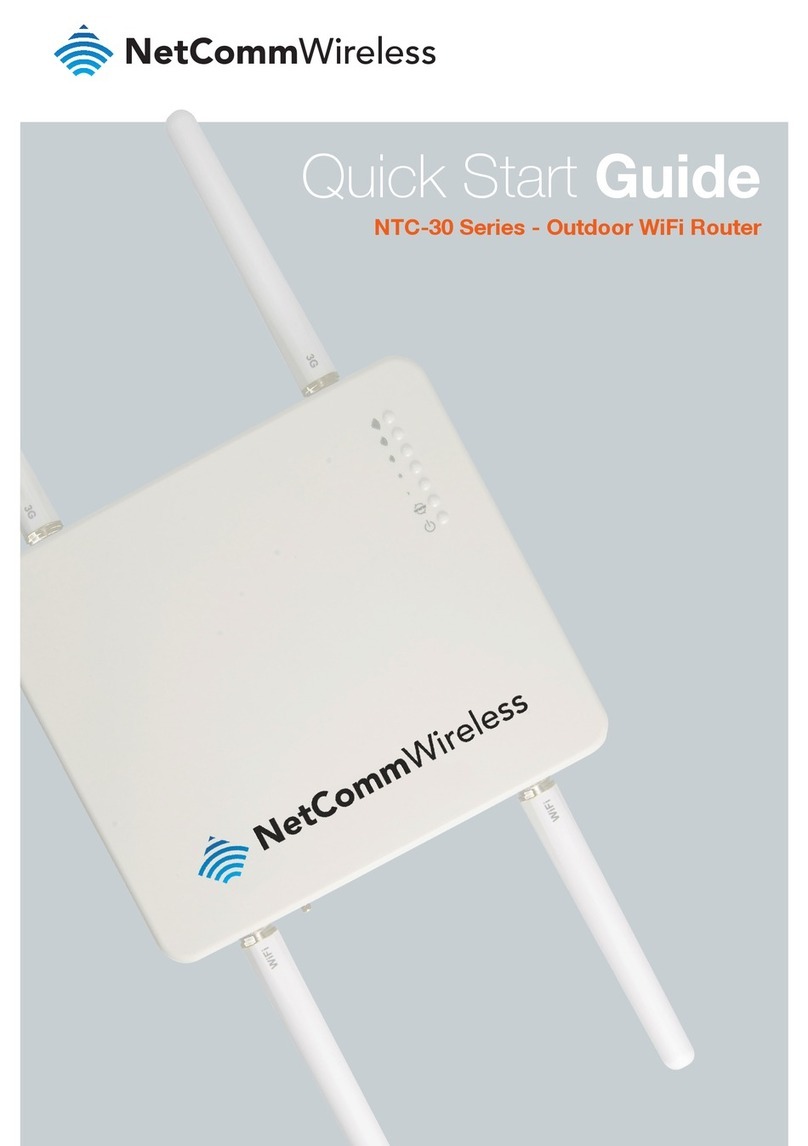
NetComm
NetComm NTC-30 Series User manual
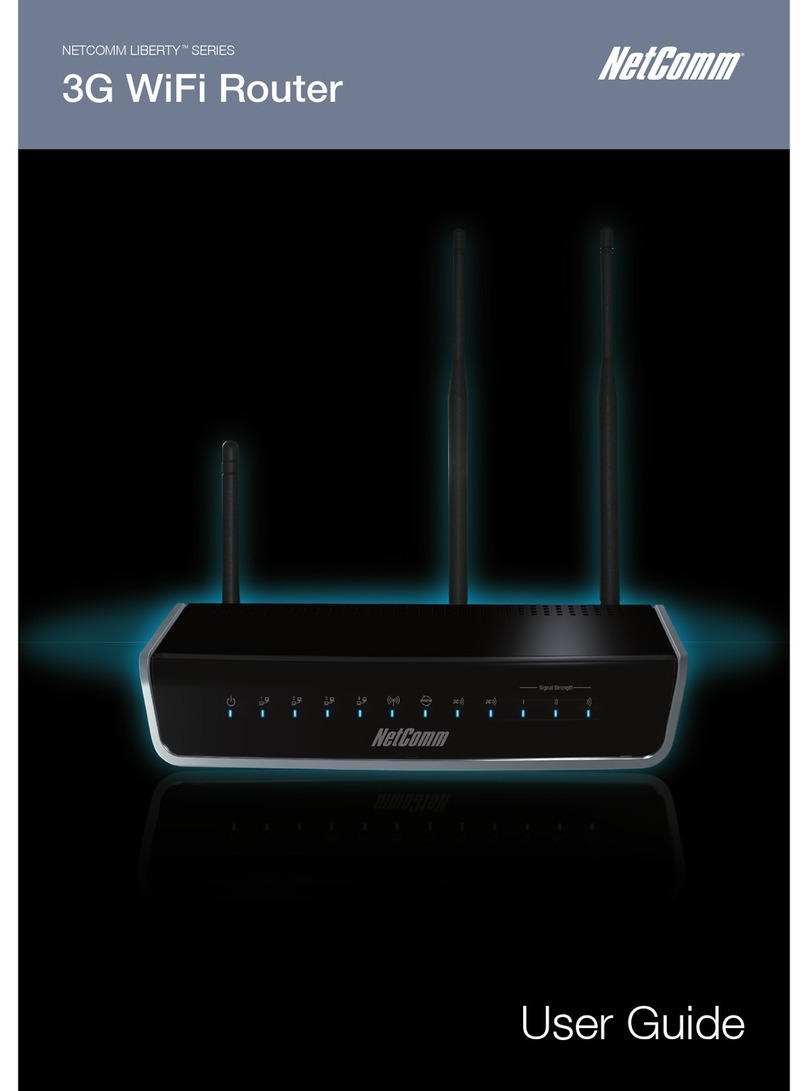
NetComm
NetComm YML-O-3G19W User manual
NetComm
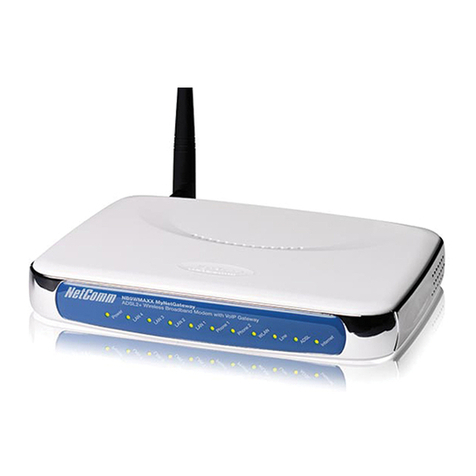
NetComm NB9WMAXX User manual

NetComm
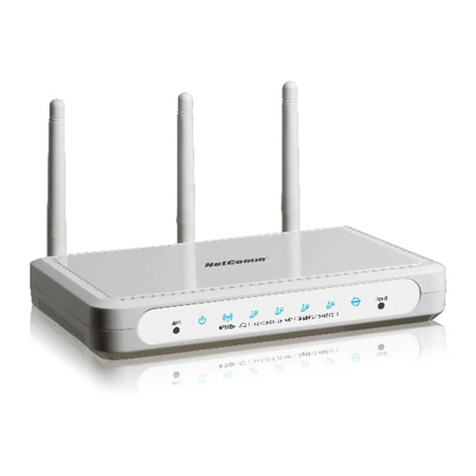
NetComm LIBERTY N300 User manual
NetComm
NetComm 802.11 User manual
NetComm
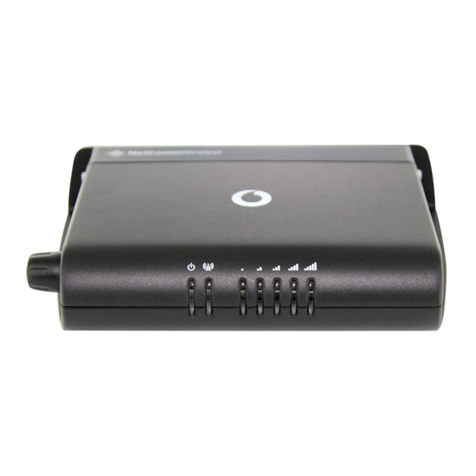
NetComm Vodafone MachineLink 3G User manual
NetComm
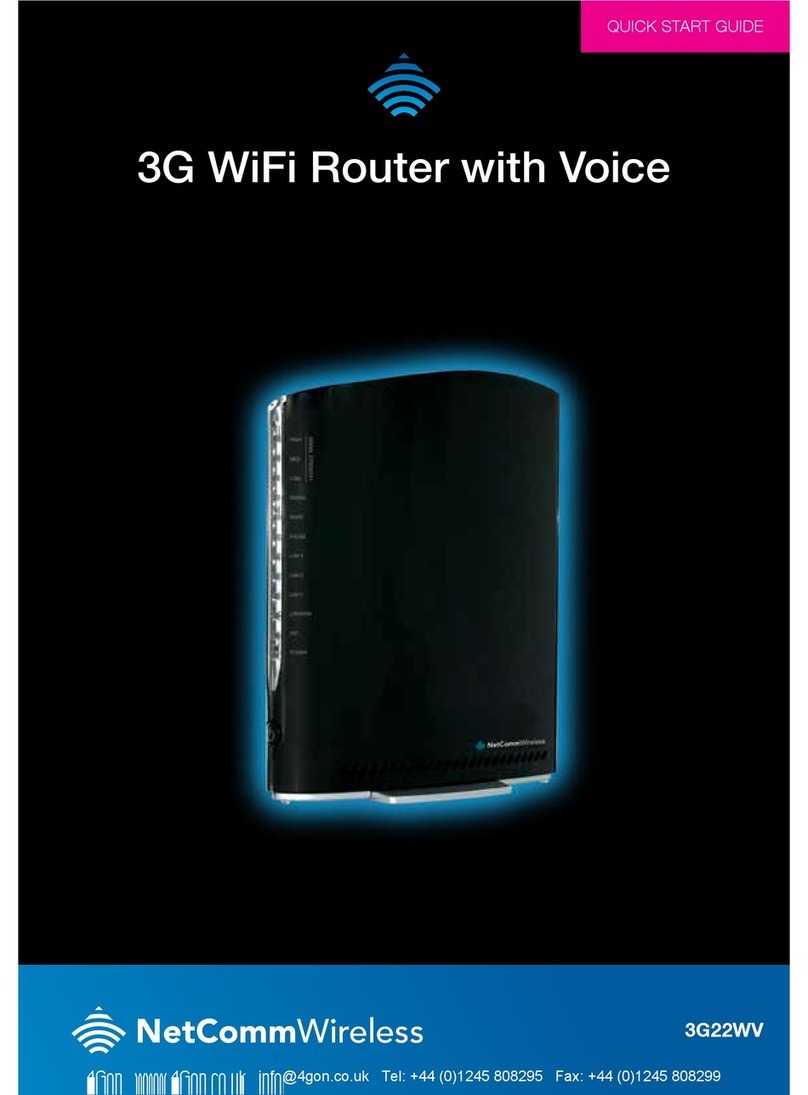
NetComm LIBERTY 3G22WV User manual
NetComm
NetComm NTC-402 User manual