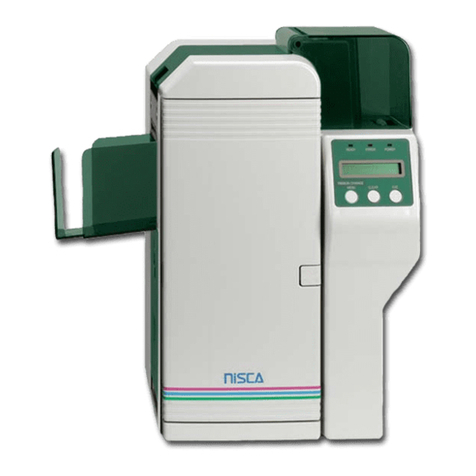
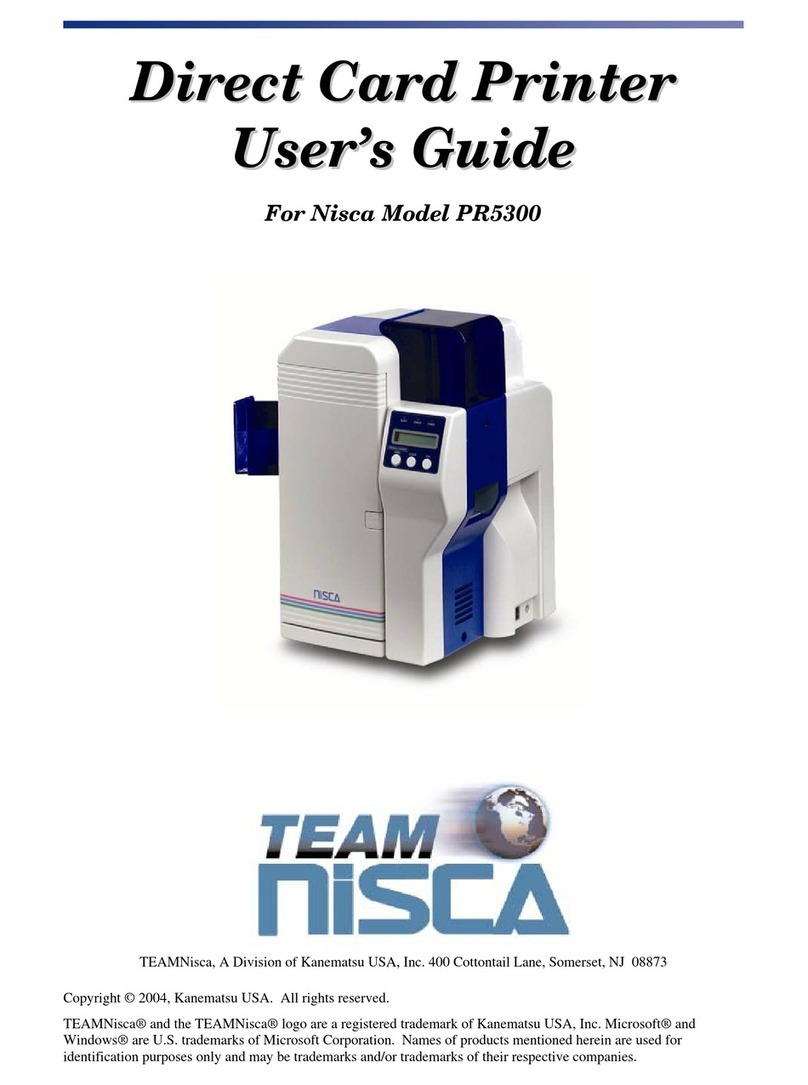
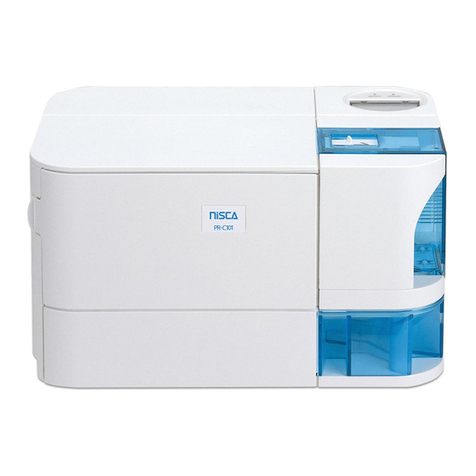
Nisca PR5350 User manual

D
Di
ir
re
ec
ct
t
C
Ca
ar
rd
d
P
Pr
ri
in
nt
te
er
r
U
Us
se
er
r’
’s
s
G
Gu
ui
id
de
e
Nisca Series
PR5300 • PR5310 • PR5350 • PR53LE
TEAMNisca, A Division of Kanematsu USA, Inc. 100 Randolph Road, Somerset, NJ 08873
Copyright © 2005, Kanematsu USA, Inc. All rights reserved.
TEAMNisca® and the TEAMNisca® logo are a registered trademark of Kanematsu USA, Inc. Microsoft® and
Windows® are U.S. trademarks of Microsoft Corporation. Names of products mentioned herein are used for
identification purposes only and may be trademarks and/or trademarks of their respective companies.


i
Table of Contents
Chapter 1: Introduction
1.2 Welcome! ............................................................................................................................1
1.3 About This User’s Guide ...................................................................................................1
1.4 General Site Requirements .................................................................................................2
1.5 Important Safety Instructions ..............................................................................................2
1.5.1 Electrical Requirements .............................................................................................3
1.5.2 Physical Requirements ..............................................................................................3
1.5.3 Environmental Requirements ....................................................................................3
Chapter 2: Getting Started
2.1 Printer Features....................................................................................................................4
2.1.1 Front of the Printer ....................................................................................................4
2.1.2 Rear of the Printer .....................................................................................................5
2.1.3 LCD Panel .................................................................................................................6
2.1.4 LCD Operation ..........................................................................................................6
2.1.5 Front Access Panel ....................................................................................................7
2.2 Unpacking the Printer .........................................................................................................7
2.3 Loading the Ribbon .............................................................................................................9
2.4 Connecting the Printer ......................................................................................................12
2.4.1 SCSI Connection .....................................................................................................12
2.4.2 Parallel Connection .................................................................................................13
2.4.3 USB Connection.......................................................................................................14
2.5 Loading Cards ...................................................................................................................15
2.6 Card Thickness Adjustment ..............................................................................................16
2.7 Turning On the Printer ......................................................................................................17
2.8 LCD Modes of Operation .................................................................................................17
2.8.1 Normal Mode Information ......................................................................................17
2.8.2 User Mode Information ...........................................................................................17
2.8.3 Functions of the User Mode ....................................................................................18
Chapter 3: Maintenance
3.1 Basic Automated Cleaning ...............................................................................................20
3.2 Manual Cleaning ...............................................................................................................22
3.3 Cleaning the Takeup Roller ..............................................................................................22
3.4 Cleaning the Input Rollers ................................................................................................22
3.5 Cleaning the Flip/Turn Transport Rollers .........................................................................24
3.6 Cleaning the Print Unit Rollers .........................................................................................24
3.7 Cleaning the Print Head ....................................................................................................25
3.8 Updating the Firmware .....................................................................................................27
Chapter 4: Troubleshooting
4.1 Interpreting LCD Display Messages .................................................................................30
4.2 Interpreting LCD Jam Messages .......................................................................................31
4.3 Card Appearance Issues ....................................................................................................33
4.4 General Troubleshooting Suggestions ..............................................................................34
4.5 Where to Get Additional Help ..........................................................................................35
4.6 PR53xx Series Block Diagram .........................................................................................36

ii
Appendix A: PR53xx Printer Specifications ............................................................. 37
Appendix B: Printer Configuration ........................................................................... 39
Appendix C: User Mode Menu Map
C-1 PR5300/PR5310 User Mode Menu Map .........................................................................41
C-2 PR5350 User Mode Menu Map........................................................................................43
C-3 PR53LE User Mode Menu Map ......................................................................................45
Appendix D: Parts Replacement
D-1 Replacing the Input Rollers .............................................................................................47
D-2 Replacing the Print Head .................................................................................................48
D-3 Replacing the Fan Filter ...................................................................................................50

1
CHAPTER
1.
Introduction
1.2 Welcome!
Congratulations on your purchase of the Nisca PR53xx Series Direct Card Printer. The printer
gives you brilliant images using these features:
Full color edge to edge
300 dpi dye sublimation printing technology
Industry leading 24-bit continuous tone printing
256 Grayscale printing
High speed printing
Dual sided printing (excluding the PR53LE)
Full Windows®-based application compatibility
This printer produces cards ideal for driver’s licenses, printing bureaus, access control badges,
and standard corporate identification.
1.3 About This User’s Guide
This User’s Guide contains important safety information, along with detailed instructions on how
to install, use and maintain the printer.
This guide uses the following conventions:
Warning This warning symbol means danger. You are in a situation that could cause
bodily injury. Information presented must be followed carefully to avoid
harm.
Caution This caution symbol means reader be careful. In this situation, the user might do
something that could result in equipment damage.

2
Note This note symbol means reader take note. Notes contain important information
and helpful suggestions about your printer.
1.4 General Site Requirements
When choosing a site for the PR53xx series printer, consider the following recommendations:
Select a site that is out of direct sunlight to prevent deformation of the plastic housing and
discoloration of the cards.
Placement should be on a sturdy platform and off the floor.
Platform should be free from vibration.
Environment should be free from high humidity and dust.
Environment should have a relatively stable temperature.
Provide enough space to allow adequate ventilation.
Place it in a location that allows easy access to all sides.
1.5 Important Safety Instructions
Before using your printer, read the following safety instructions to make sure you use the printer
safely and effectively:
Turn off and unplug the printer before cleaning.
Do not spill liquids on the printer.
Always prevent debris from entering the printer.
Do not place heavy objects on the printer.
Use only a power source indicated in the Electrical Requirements section.
Do not place the printer on an unstable surface.
Do not place the printer near a radiator or a heating vent.
Do not place the printer near sources of heat or electromagnetic interference.
Except as specifically indicated and explained in this User’s Guide, do not attempt to
service the printer yourself.
When moving the equipment, always be sure to turn off the power prior to moving.
Do not let the power cord become damaged or frayed.
Do not block the air vents or fan on the printer. Do not touch any part inside the printer
except as directed by this User’s Guide.
Do not use the printer for purposes other than its intended use.
Unplug the printer and refer servicing to qualified service personnel in the event that any
of the conditions exist:
•The power cord or plug is damaged.
•Any liquid or solid object falls into the printer.
•The printer has been dropped or the case has been damaged.

3
•The printer does not operate normally or exhibits a distinct change in
performance.
1.5.1 Electrical Requirements
The PR53xx series printer requires the following electrical specifications for optimal
performance:
100-240 VAC at 50/60 Hz. The printer is auto-switching to power within this range.
Single phase, 3-wire grounded receptacle.
If you use an extension cord with the printer, verify it’s rated for a minimum of 125
VAC, 10 Amps.
Warning Never operate the printer in a location where the operator, computer, or
printer can get wet. Personal injury could result. The printer must be
connected to a grounded electrical power supply and properly protected
against electrical surges and grounding faults.
1.5.2 Physical Requirements
The PR53xx series printer requires a sturdy platform that can accommodate its weight and
physical dimensions. The printer weighs 26.6 pounds (13 kilograms). The dimensions are:
Height: 16.57” (421 mm)
Width: 10.66” (271 mm)
Depth: 10.03” (331 mm)
1.5.3 Environmental Requirements
The PR53xx series printer requires the following environmental conditions for optimal operation:
Operating temperature range of 50° – 95°F (10° – 35° C). To ensure best performance,
temperatures should be in the range of 68° – 77° F (20° – 25° C).
Operating relative humidity range of 35% – 80% non-condensing.

4
CHAPTER
2.
Getting Started
Note This user’s guide explains the operation of the PR5300, PR5310, PR5350 and
PR53LE. Where necessary, the areas that apply only to certain printer models
will be specified.
2.1 Printer Features
2.1.1 Front of the Printer
A. Front Access Panel
Opens to allow access to the inside of the printer.
B. Front Access Panel Release Button
Button that allows the front access panel to open.
C. Card Output Stacker
Used to store printed cards.
D. Card Input Feeder
Used to load blank cards for printing.
A
G
F
E
D
B
C
Figure 2-1: Printer features

5
E. LCD Panel
Display’s the current status of the printer.
F. Rejected Card Exit
Used to eject a card that encounters a problem.
G. On/Off Switch
Turns the printer power on and off.
2.1.2 Rear of the Printer
A. Circuit Breaker
Protection device that stops current if there is a direct short or excessive heat.
B. Interface Connection
Available Interface Connection: Refer to Appendix A.
C. Options Connector Port
The printer supports the attachment of an optional card lamination module.
Options connector port not available on PR53LE.
D. Power Receptacle
Supplies power to the printer.
E. RS232C Interface
Interface for RFID encoding and reading modules. Connect using a D-Sub 9 pin
female (DB-9) to a D-Sub 9 pin female. Cable not included. Interface is only
available on models PR5310 and PR5350.
A
B
C
D
E
Figure 2-2: Rear of printer

6
2.1.3 LCD Panel
2.1.4 LCD Operation
ITEM DESCRIPTION MODE FUNCTION
A LCD Panel Normal
User Displays the printer’s status.
Displays the selected menu or values.
B Ready LED Green light indicates printer is ready and
will accept data.
C Error LED Indicates an error has occurred.
D Power LED Indicates the power is on.
E Ribbon Change / Menu Button Normal
User
Press this button to change the ribbon. Press
and hold this button enter User’s Mode.
Use this button for menu selections.
F Clear Button Normal
User
Used for clearing or resetting errors. It is
also used to stop continuous printing.
In some cases, it is used to set values.
G EXE Button Normal
User Not used.
Used to execute the displayed item or to
change the setting.
A
B C
F
G
D
E
Figure 2-3: Printer LCD panel
Other manuals for PR5350
1
This manual suits for next models
3
Table of contents
Other Nisca Printer manuals