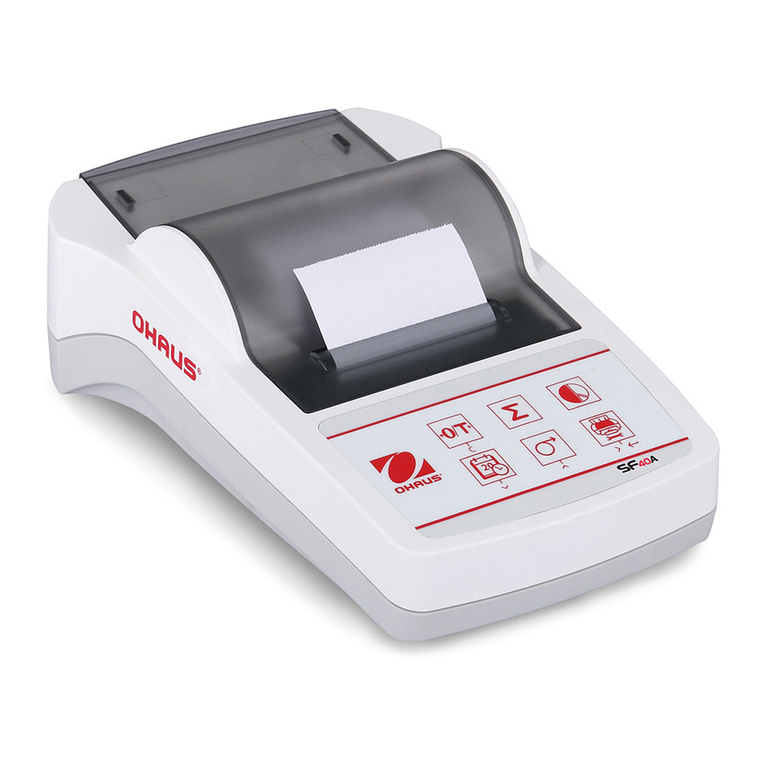
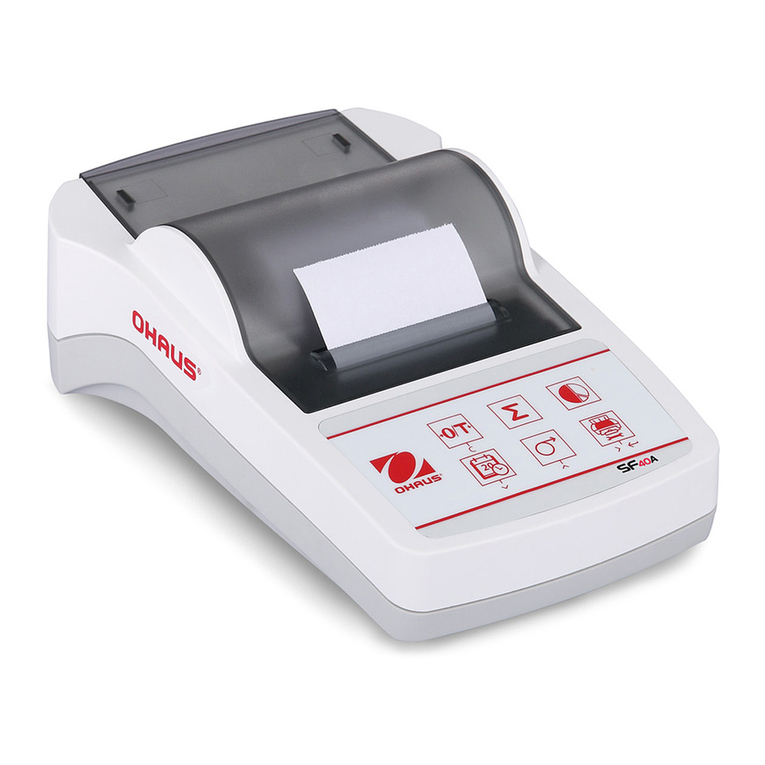
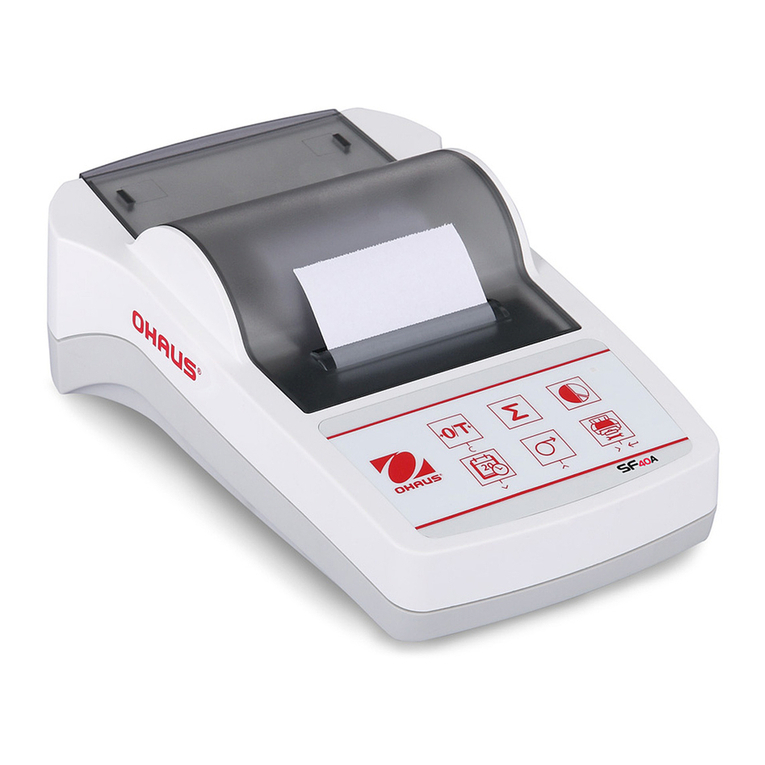
OHAUS SF40A User manual
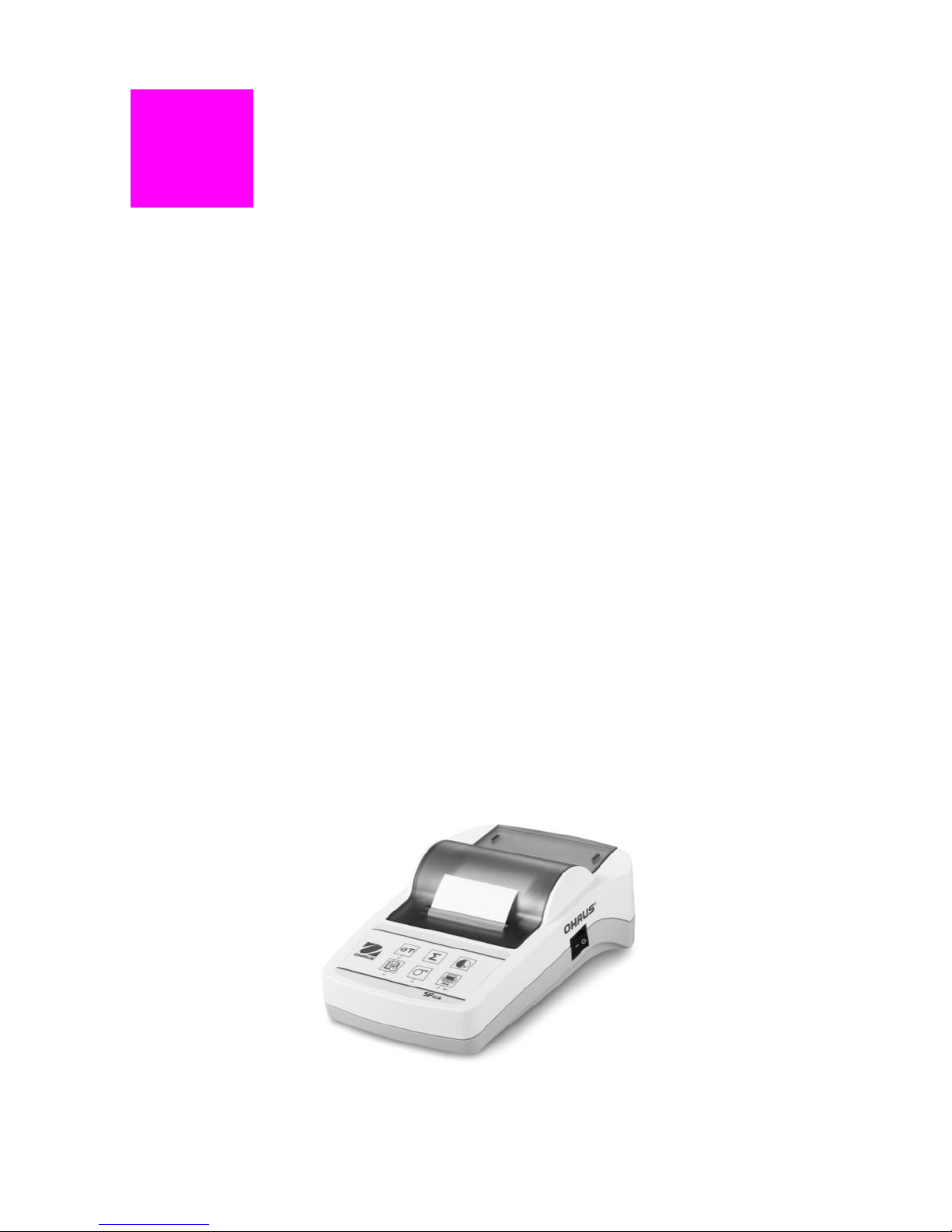
SF40A PRINTER
Instruction Manual

CONTENTS
Overview………………………………………………………………………….1
1 Introduction…………………………………..........................................2
1.1 Description…....…………………………………………………….2
1.2 Features……………………...……………………………………….2
2 Startup Procedure………………………………….…………………...3
2.1 Safety Measures…………….……………………………………..3
2.2 Power Supply…………………….……………..………….……...3
2.3 Printer setup………….............….………………………………….4
2.3.1 Printer setup using the accompanying software……….….4
2.3.2 Printer setup using printer only…………..………………….7
2.4 Installing the Printer…………………………….…………………….8
2.4.1 Connecting the printer to the instrument……….……….….8
2.4.2 Switching the printer on…………………..………………….8
2.4.3 Inserting paper……………...……………..………………….8
3 Keystroke Functions…………….….….…..………………...….………...9
4 Menu……………………………………………………………………..........10
5 Printer Test…………………………………………………….…………….13
6 Maintenance……………………………………………………….......13
6.1 Changing the Paper Roll………………………….…..................13
6.2 Replacing the Ribbon…………………………………...............13
6.3 Cleaning……………………………..……….…….......................14
6.4 Disposal…………………….…...................................................14
7 Troubleshooting…………………………..…………………………………15
8 Recommended Settings………………………........................................17
9 Consumables and Spare Part………………………...............................18
10 RS232C Interface……………..……………………………….................18
11 Technical Data……………………………………………………..............19

SF40A Printer EN-1
Overview
Control panel Functions
Key
SF40A
Zeroing /Taring the balance
Abort – Exit
Printout of date and time
Scroll down menu option
Paper feed
Scroll up menu option
Printing of stable weight
values
Opening the menu
- select next menu option
Save settings
Totaling application
Statistics application
1 On/Off Switch
2 Pilot lamp – status indicator
3 Control panel
4 Power connection
5 Interface connector
Controls
Connections
3
5
2
1
4
5

EN-2 SF40A Printer
1 Introduction
1.1 Description
The SF40A is an advanced dot matrix printer for OHAUS instruments. The
printer has Statistics and Totalization functions. The SF40A also meets the
requirements of modern quality assurance systems such as (GLP, GMP,
ISO9001 etc.).
1.2 Features
Supports all 13 languages present in Ohaus instruments.
Statistics and Totalization functions.
Zero / Tare function.
Real-time clock function.
The printout meets the requirements of modern quality assurance
systems (GLP, GMP, ISO9001, etc.)
Complies with the requirements of measurement traceability by
precisely documenting the origin of data, as well as calibration
procedures.
Meets the requirement of archiving measurement results by providing
a thermally stable and light resistant printout.
Easy setup with the software provided with the printer.

SF40A Printer EN-3
2. Startup Procedure
2.1 Safety Measures
The Printer has been tested for the connections and intended purposes
documented in these Operating Instructions. However, it is your
responsibility to perform the necessary tests related to the methods and
purposes of its intended use. Therefore, you should observe the following
safety measures.
The printer must be used indoors only, and never in
hazardous areas.
The electronics of the printer are protected against the
ingress of splashing water and dust. However, since the
printer housing is not watertight, the printer should not be
used in the presence of liquids.
Comply with cleaning instruction (see chapter 6.3), protect
power plug against wet conditions.
Never open the printer housing. If you have any problems
with your printer, please contact your responsible OHAUS
service.
If the equipment is used in a manner not specified by the
manufacturer, the protection provided by the equipment
may be impaired.
2.2 Power Supply
Your printer is supplied with an AC adapter with a country-specific power
cable. The power supply is suitable for all line voltages in the range: 100 –
240 VAC, 50 – 60 Hz (for exact specifications, see chapter 9).
Attention
First, check the local line voltage is in the range 100 –
240 VAC, 50 - 60 Hz and whether the power plug fits
your local power supply connection. If this is not the
case, on no account connect the printer or the AC
adapter to the power supply, but contact the
responsible OHAUS dealer.
Only plug the adapter into a socket which is
grounded.
Important
Before operating, check all cables for damage.
Guide the cables so that they cannot become damaged
or interfere with the weighing process.
Make sure that the AC adapter cannot come into
contact with liquids
The power plug must always be accessible.
EN-4 SF40A Printer
2.3 Printer Setup
The default setting of the printer is as below, if you want change some of
them you need set up before use it.
There are two ways to change the default setting:
Use the accompanying software
Operate on the printer only.
2.3.1 Printer setup using accompanying software
1) Attach the interconnect cable to the printer interface on the computer
and to the printer.
2) Connect the printer to the main power supply.
3) Use the main switch <I/O> to power on.
4) Insert the CD into the computer and install the printer software.
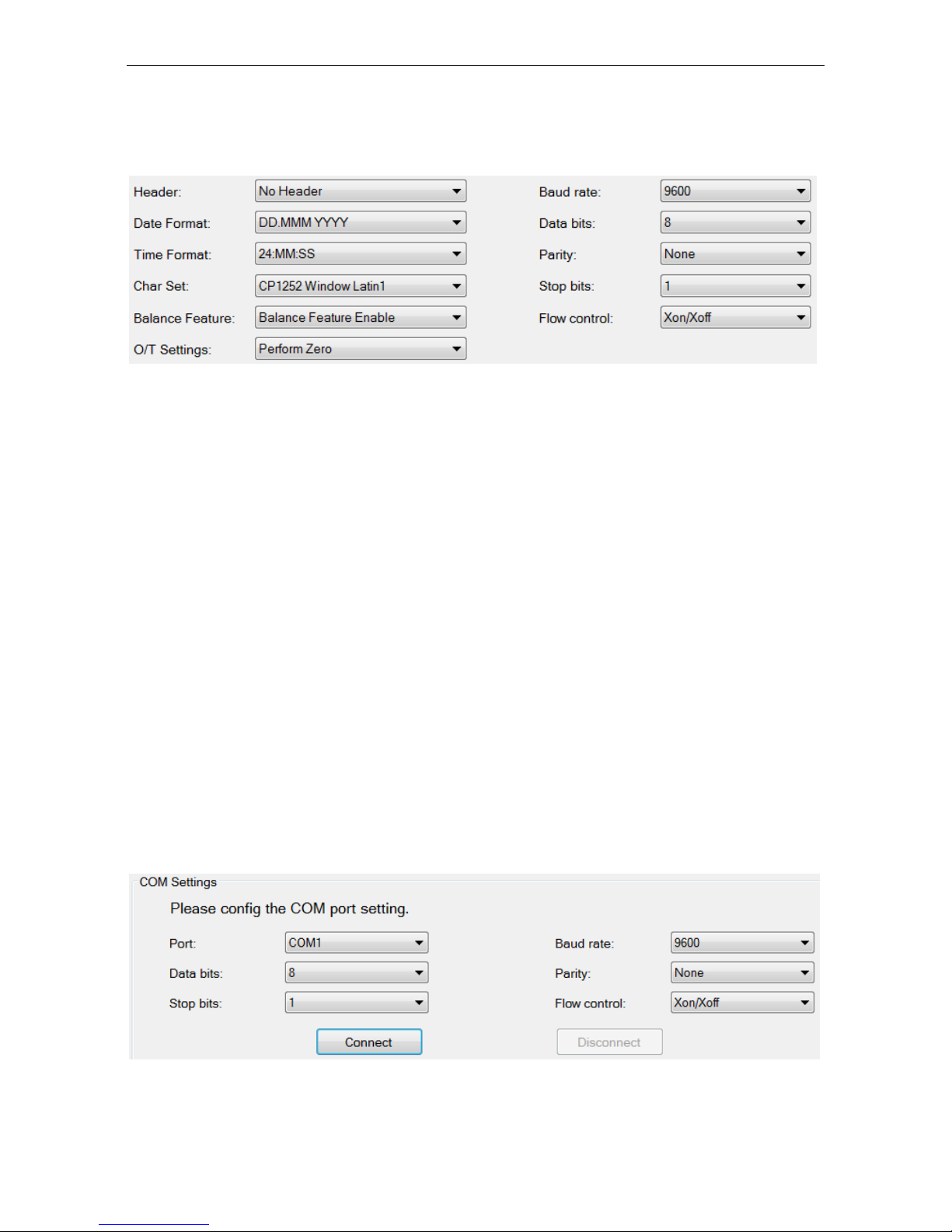
5) Run the software and set up the RS232 parameter of computer, then
click the “Connect” button.
SF40A Printer EN-5
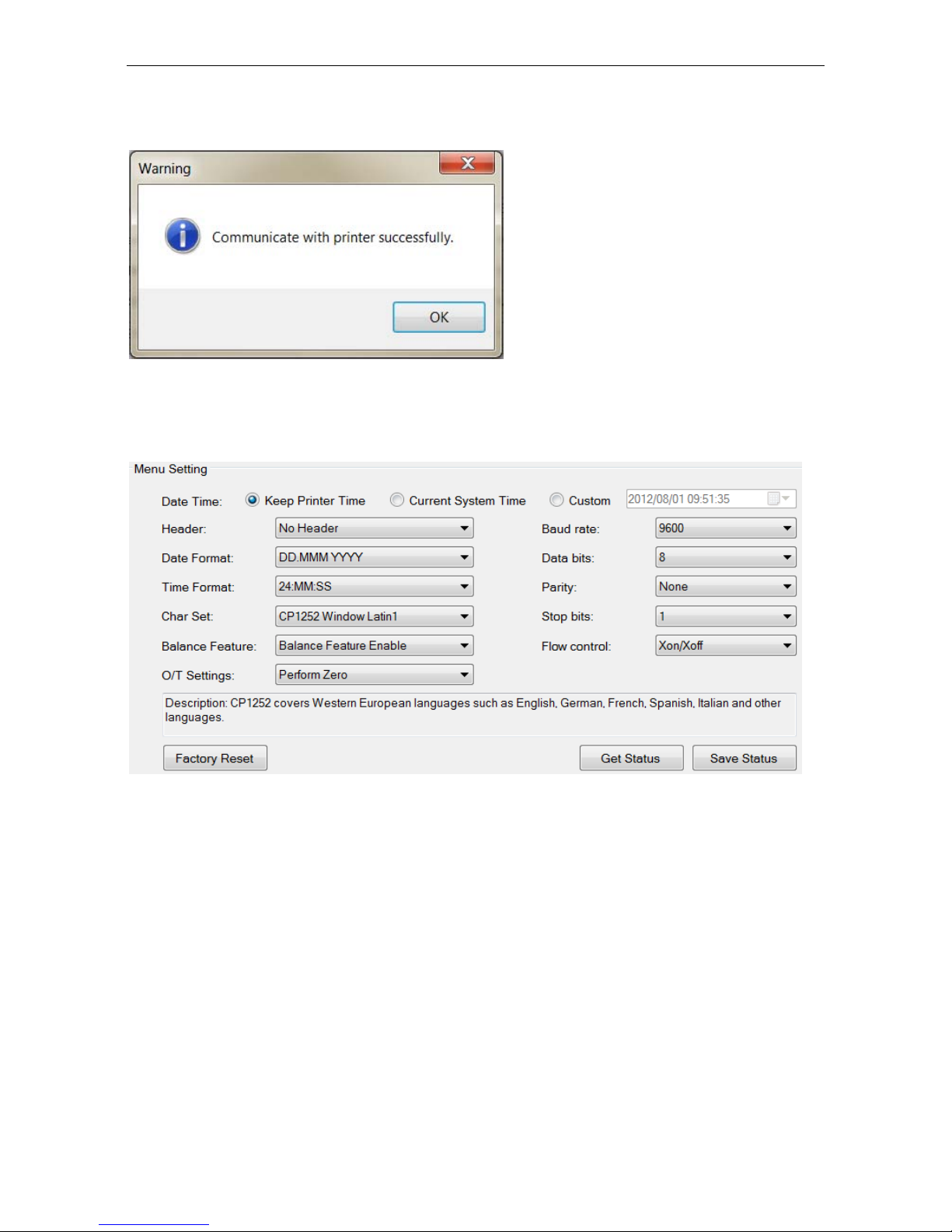
6) The following window will appear if connection is successful, click OK to
continue.
7) The printer Menu setting is now activated and all the settings can be
changed.
a. Date Time: Set the date and time for the printer
Keep Printer Time: keep the existing date and time in the printer
Current System Time: Get the date and time from your computer
Custom: Set the date and time manually

EN-6 SF40A Printer
b. Header: Set the header of the printing content
No header: No header for printing content
Date/Time: Header with date and time
Date/Time/Balance: Header with date, time and instrument ID
c. Date Format: Set date format
d. Time Format: Set Time Format
e. Char Set: Set the Code page for different languages
CP 1252 Window Latin1: Covers Western European languages
such as English, German, French, Spanish and Italian.
CP 1251Window Cyrillic: Covers languages that use the Cyrillic
alphabet such as Russian, Bulgarian and Serbian Cyrillic.
CP437 MS-DOS Latin US: Covers Western European languages
such as English, German, French, Spanish and Italian.
CP852 MS-DOS Latin2: Covers Central European languages that
use Latin script such as Polish Bosnian, Czech, Hungarian,
Croatian, Romanian, Serbian and Slovak.
CP860 MS-DOS Portuguese: Covers Portuguese language
f. Balance Feature :
1) Enable/Disable a function: 0/T, Statistics, Totalization
2) Printer connection status: LED light will either blink or stay lit.
Balance Feature Enabled: 0/T, Statistics and Totalization are
enabled. The printer connection status LED light will blink if the
connection with balance is lost.
Balance Feature Disable: 0/T, Statistics, Totalization functions
are disabled. The printer connection status LED will be lit even
if the connection with balance is lost.
SF40A Printer EN-7
g. 0/T Setting: Set up the function of the button 0/T
Perform Zero: Perform Zero function when pressing the button.
Perform Tare: Perform Tare function when pressing the button.
h. Baud rate, Data bits, Parity, Stop bits, Flow control: Set the
parameters of RS232 setting.
The settings should be the same as the instrument to be connected.
For the instrument RS232 settings, please see the instrument manual.
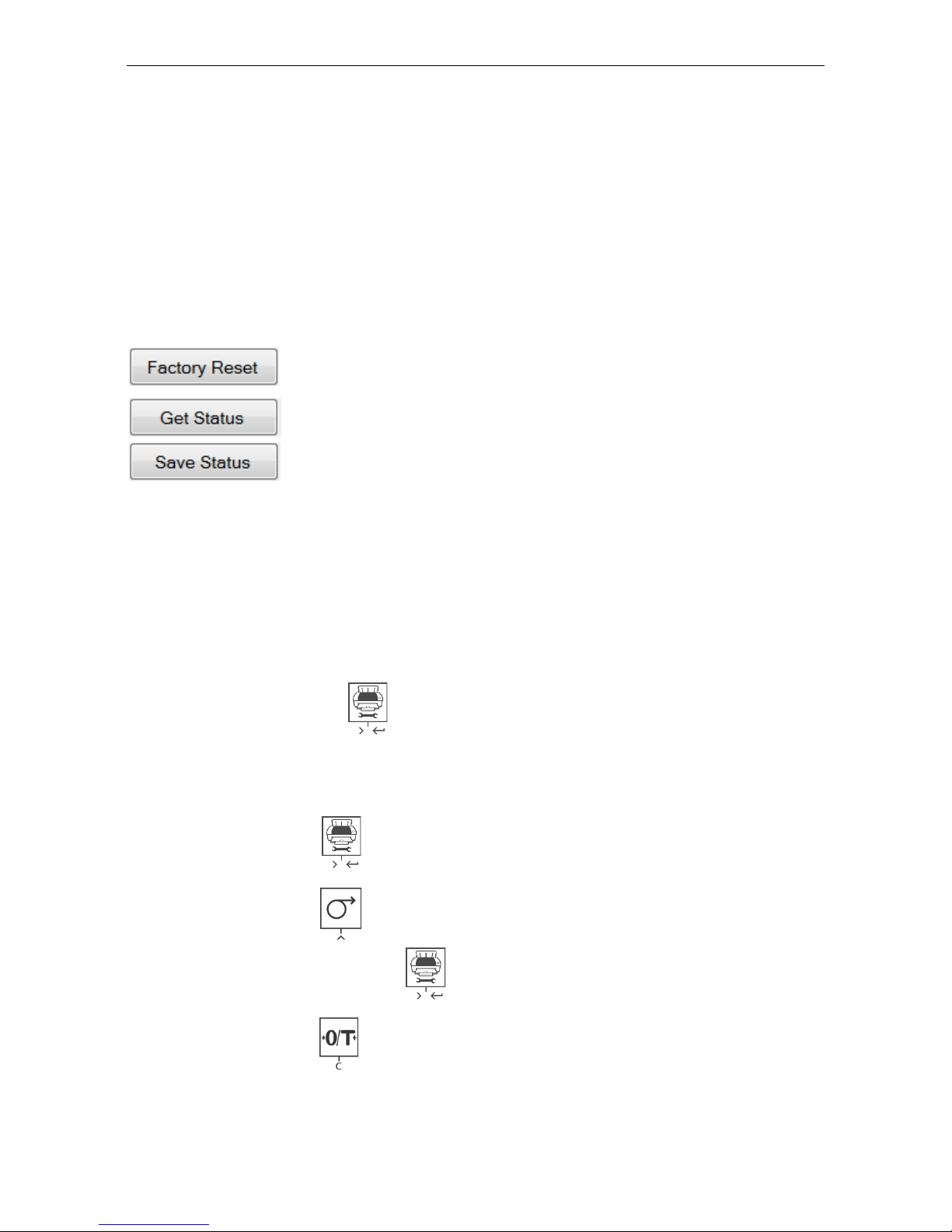
Reset the printer to factory default setting.
Get the current setting from the printer.
Save the setting to the printer.
8) Click „Save Status‟ button to save the setting and click Exit to finish the
setup.
2.3.2 Printer setup using printer only
1) Connect the printer to the main power supply.
2) Use the main switch <I/O> to power on.
3) Press and hold the « » button to enter the menu list, the printer will
print
“----------Menu-------“.
Press « » to choose which item to change.
Press « » to change the parameter.
Press and hold « » to save and exit.
Press « » to exit without saving
The printer will print the content to show the result of every operation.
For total menu structure, please see chapter 4.
EN-8 SF40A Printer
2.4 Installing the printer
2.4.1 Connecting the printer to the instrument
Before connecting, make sure the instrument and printer have the same
RS232 parameter setting. For instrument Baud rate settings, please see
the related manual.
Attach the interconnect cable to the printer interface of the
instrument and to the printer.
Switch the instrument on.
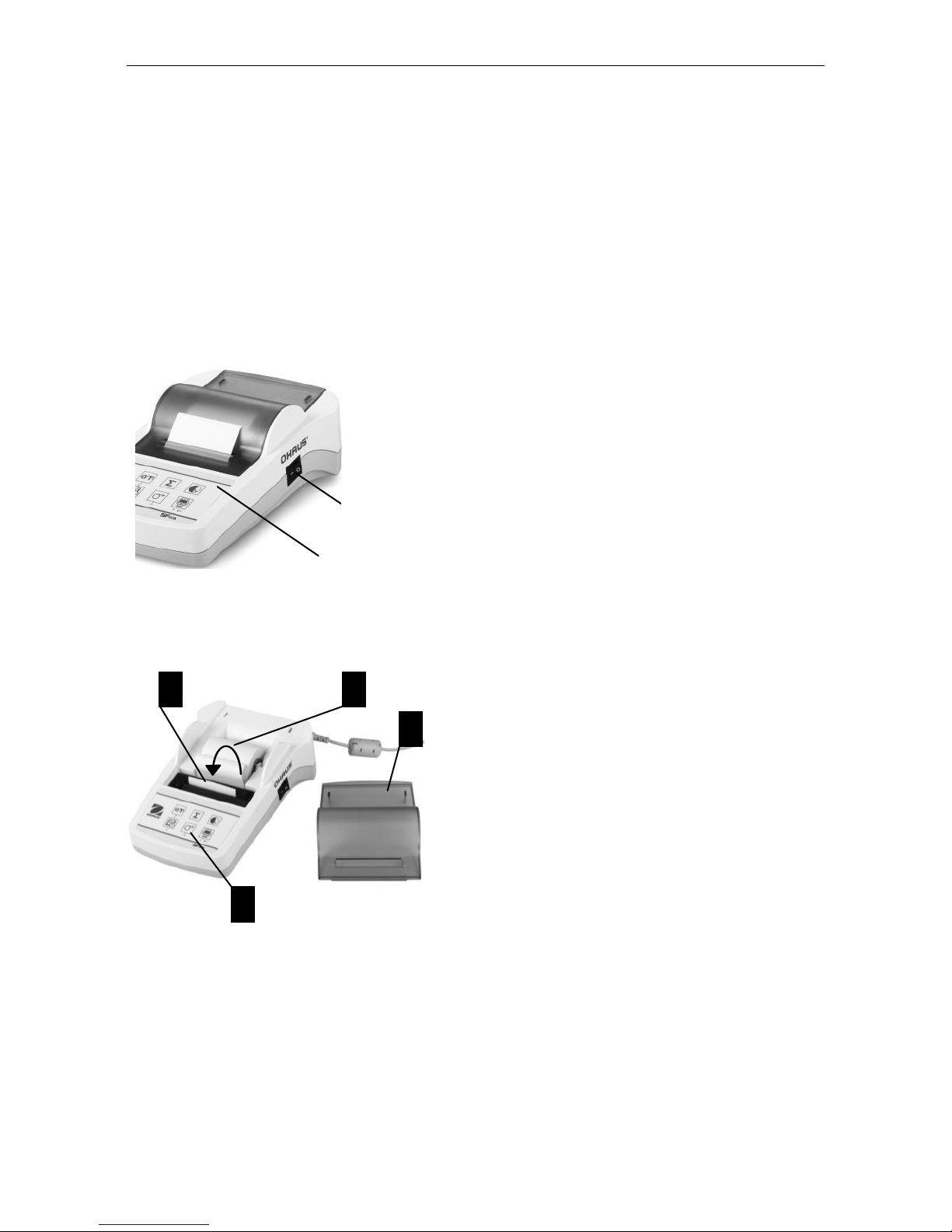
2.4.2 Switching the printer on
Connect the printer to the mains power.
Use the main switch <I/O> to power on.
RS232 interface only: The pilot lamp will
flash until an instrument is connected. If
the lamp continues to flash see chapter 7.
2.4.3 Inserting Paper
Remove paper cover (pull on the
back) (1).
Insert the paper rotary axis through
the core of the paper roll (2).
Feed paper through the slot in the
printing unit in the direction of the
arrow (3).
Press and hold until enough paper
has been fed (4).
Replace the paper cover (1).
<I/O>
Pilot lamp
1
2
3
4
Other manuals for SF40A
7
Table of contents
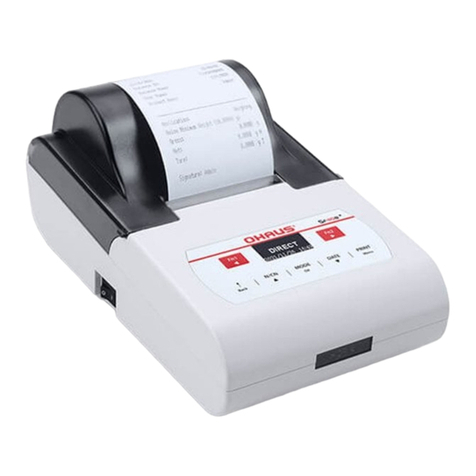
Other OHAUS Printer manuals