manuals.online logo
Brands
  1. Home
  2. •
  3. Brands
  4. •
  5. Okina USA
  6. •
  7. Security Camera
  8. •
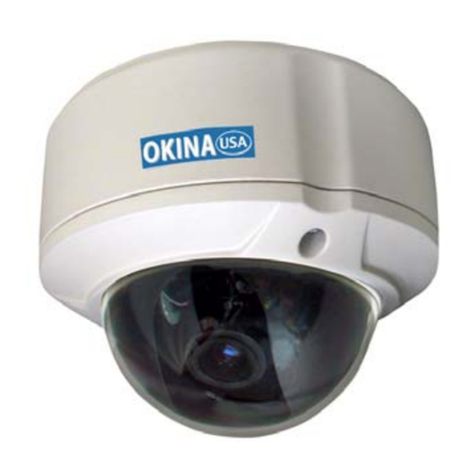
  9. Okina USA SDNR-F630DN-OSD Quick start guide

Okina USA SDNR-F630DN-OSD Quick start guide

This manual suits for next models

1

Other Okina USA Security Camera manuals

Okina USA SIR-768AILP-IO User manual

Okina USA

Okina USA SIR-768AILP-IO User manual

Okina USA SDNR-F63012-OSD User manual

Okina USA

Okina USA SDNR-F63012-OSD User manual

Okina USA EIR8H22-42VF840 Quick start guide

Okina USA

Okina USA EIR8H22-42VF840 Quick start guide

Okina USA DNR Series Quick start guide

Okina USA

Okina USA DNR Series Quick start guide

Okina USA SHB-7540DNP Quick start guide

Okina USA

Okina USA SHB-7540DNP Quick start guide

Okina USA ECO SHB-7540DN Quick start guide

Okina USA

Okina USA ECO SHB-7540DN Quick start guide

Okina USA HD21DX36-K10 User manual

Okina USA

Okina USA HD21DX36-K10 User manual

Okina USA SEDX-768AI-VDD User manual

Okina USA

Okina USA SEDX-768AI-VDD User manual

Okina USA Eco Series Quick start guide

Okina USA

Okina USA Eco Series Quick start guide

Okina USA EIR48-42VF Quick start guide

Okina USA

Okina USA EIR48-42VF Quick start guide

Okina USA SDNX-870AI-VD User manual

Okina USA

Okina USA SDNX-870AI-VD User manual

Okina USA SDNI36-870AI-VD User manual

Okina USA

Okina USA SDNI36-870AI-VD User manual

Okina USA 3-AXIS SHDX-755AIDN-VD Quick start guide

Okina USA

Okina USA 3-AXIS SHDX-755AIDN-VD Quick start guide

Okina USA SVD-248AI Quick start guide

Okina USA

Okina USA SVD-248AI Quick start guide

Okina USA HD SDI 1080 P ICR 33 IR User manual

Okina USA

Okina USA HD SDI 1080 P ICR 33 IR User manual

Okina USA SS10W-C100H User manual

Okina USA

Okina USA SS10W-C100H User manual

Okina USA SDNR-8700 User manual

Okina USA

Okina USA SDNR-8700 User manual

Okina USA WDEDX-768AI-VD User manual

Okina USA

Okina USA WDEDX-768AI-VD User manual

Okina USA SED4-7610B User manual

Okina USA

Okina USA SED4-7610B User manual

Okina USA SIV7-T54AI922 Quick start guide

Okina USA

Okina USA SIV7-T54AI922 Quick start guide

Okina USA SSB-7420DNP Quick start guide

Okina USA

Okina USA SSB-7420DNP Quick start guide

Okina USA SIR36-870VF650LP User manual

Okina USA

Okina USA SIR36-870VF650LP User manual

Okina USA SET-7680 User manual

Okina USA

Okina USA SET-7680 User manual

Okina USA TV7IB42-8360 User manual

Okina USA

Okina USA TV7IB42-8360 User manual

Popular Security Camera manuals by other brands

ADEMCO RapidDome Owners Operating & Installation Guide

ADEMCO

ADEMCO RapidDome Owners Operating & Installation Guide

EverFocus EBA2880 user manual

EverFocus

EverFocus EBA2880 user manual

Honeywell OptiCAM-IR Installation and setup guide

Honeywell

Honeywell OptiCAM-IR Installation and setup guide

Uniq UC-600 user manual

Uniq

Uniq UC-600 user manual

OPTICOM NVD-120-S datasheet

OPTICOM

OPTICOM NVD-120-S datasheet

Steren CCTV-221 instruction manual

Steren

Steren CCTV-221 instruction manual

Arm Electronics C420BCDNVFIR Features

Arm Electronics

Arm Electronics C420BCDNVFIR Features

Eneo PLD-2036PTZ installation guide

Eneo

Eneo PLD-2036PTZ installation guide

Axis AXIS M20 Series installation guide

Axis

Axis AXIS M20 Series installation guide

Panasonic KX-HCM230 operating instructions

Panasonic

Panasonic KX-HCM230 operating instructions

COP-USA CC15NV-SL Specifications

COP-USA

COP-USA CC15NV-SL Specifications

Active Silicon HARRIER H.264 quick start guide

Active Silicon

Active Silicon HARRIER H.264 quick start guide

Motorola Avigilon 1.3C-H5SL-BO1-IR installation guide

Motorola

Motorola Avigilon 1.3C-H5SL-BO1-IR installation guide

INSTEON 2864-232 user manual

INSTEON

INSTEON 2864-232 user manual

Wisenet XNB-6002 quick start guide

Wisenet

Wisenet XNB-6002 quick start guide

Axis M5525-E user manual

Axis

Axis M5525-E user manual

Vitek VTC-IR62NZ922 user guide

Vitek

Vitek VTC-IR62NZ922 user guide

Panasonic WV-SF342 Specifications

Panasonic

Panasonic WV-SF342 Specifications

manuals.online logo
manuals.online logoBrands
  • About & Mission
  • Contact us
  • Privacy Policy
  • Terms and Conditions

Copyright 2025 Manuals.Online. All Rights Reserved.

http://www.okinausa.com SDNR-F630DN-OSD_rev013009
SUPER LOW LUX DNR DAY & NIGHT
OSD CAMERA
1/3” SONY SUPER HAD CCD SENSOR
630 TV Lines
Dual Voltage 12V DC / 24V AC
OPERATIONAL MANUAL
Please read the Operational Manual
before attempting to use this product.
P = PAL Version
SDNR-F630DN-OSD
SDNR-F630DN-OSDP
http://www.okinausa.com SDNR-F630DN-OSD_rev013009
z1/3” Sony Super HAD CCD
z630 TV Lines
z0.001 Lux
zOSD with Day & Night
zDigital Noise Reduction (DNR)
The Digital Noise Reduction (DNR) technology is built into the camera to eliminate any noise associated with
low light environment. Ghost and blooming effects are reduced dramatically, leaving the image clean and
vivid. An added benefit is that the hard drive required capacity for DVR recording is substantially reduced by
up to 70%, due to the DNR technology.
The Day & Night digital control function is embedded within the camera to enhance picture quality. Day &
Night digital control technology automatically detects day or night time to keep full color in day time and
turn to B/W at night. It also detects the environmental brightness automatically. Star Lighting mode will be
working while the brightness is low. This ensures the picture brightness which can reach to 0.001 lux.
The camera can easily set up any function through the on-screen display menu. The privacy masking
function enables you to select and record only chosen coverage among 4 areas. Up to 4 motion detection
areas are available for setting. It is adjustable on location or size and an alarm will be alerted on screen.
zOne (1) SDNR-F630DN-OSD/SDNR-F630DN-OSDP Camera
zOne (1) Power Cord
zOne (1) Allen Wrench
zOne (1) Auto Iris Lens Connection Plug
zOne (1) Lens Adjustor
zOne (1) Operational Manual
* For any returns, please include all components listed above with original packaging in Resalable
Condition. Absolutely No Returns will be accepted if any component is missing/damaged.
FEATURES
zStar Lighting, Color at Night
zSense-up Control x2, x4, x6, x8, x10, x12, x14,
x16, x24, x32, x64, x128
z160mA
zDual Voltage 12V DC / 24V AC
* Lens Not Included
Aspherical IR Day & Night Lens is Recommended
for Best Performance (Made in Japan)
DNR dramatically reduces both random and fixed noise.
It also reduces DVR disk s
p
ace usa
g
e b
y
u
p
to 70%.
2
LIST OF COMPONENTS
http://www.okinausa.com SDNR-F630DN-OSD_rev013009
Auto Iris Lens Connector Plug & Definition on Connection:
NOTE: Installer is to select the option of “lens --- auto iris” prior to auto iris lens hook up.
DIMENSIONS
PARTS AND FUNCTIONS
3
Lens Cable
http://www.okinausa.com SDNR-F630DN-OSD_rev013009
1. On-Screen Display
Setup Menu Function Summary
Lens
(Selection)
Manual: Manual Iris
DC/Video: Auto Iris Lens Type
Shutter
(Condition and Speed Control)
ESC: Electronic Shutter
Manual: Manual
FLK: Flickerless
Manual: 1/60(50)~1/120,000sec
x2~x128
WHITE BAL
(White Balance)
ATW: Auto White Balance
AWC: Auto White Balance Control
Manual: Manual
ATW: 1,800~10,500K
AWC: Auto Detection on White
Balance (One Push)
Manual: Red/Blue Switch
BLC (Back Light Compensation) Off, Low, Middle, High Back Light Compensation
AGC (Auto Gain Control) Off, Low, Middle, High Brightness Adjustable (1~70)
DNR (Digital Noise Reduction) Off, Low, Middle, High DNR Off When AGC Off
SENS-UP (Low Illumination) Off, Low, Middle, High Sens-up Off When AGC Off
SPECIAL Off, Auto Other Function
EXIT Special Functions Setup Save & Exit
Special Function Summary
CAMERA ID English Letter /
Number 0~9 / -, Empty
Up to 15 letter or numbers can
be used
COLOR AUTO: AUTO
ON: ON
Auto: Digital Control on D/N
Mode Switch
SYNC (Synchronization) INT: Internal Sync is default to Internal
MOTION DETECTION OFF / ON
ON: The motion detection
function enables you to select
and display motion notification
PRIVACY OFF / ON
ON: The privacy function
enables you to select and
record only chosen coverage
among 4 areas
MIRROR OFF / ON Mirror Mode Switch
SHARPNESS OFF / ON Adjustable 0~31
RESET All Setting Return to Default Value
RETURN Save & Return to Setup Menu
2. Setup
Below are 5 setup buttons on the rear of the camera.
OPERATION
4
http://www.okinausa.com SDNR-F630DN-OSD_rev013009
Setup: Menu
Setup: Lens Selection
When selecting DC mode, the brightness of the lens is adjustable after pressing SETUP. Select
LEFT/RIGHT to adjust auto iris and to modify brightness. Return to last menu by pressing SETUP
while finishing modification.
Setup: Shutter
FLK: Flickerless
Flicker is usually caused by non-synchronizing frequency. When selecting FLK mode, the speed of
electronic shutter for NTSC is 1/100s and for PAL, it is 1/120s.
Manual Control
When in MANUAL mode, press SETUP to enter into shutter menu. Set up the shutter speed by
LEFT/RIGHT button. NTSC: x128~x2, 1/60~1/120,000s; PAL: x128~x2, 1/50~1/120,000s. Return to
last menu by pressing SETUP while finishing modification.
NOTE: When selecting DC DRIVE, the shutter speed will be fixed at 1/60 (NTSC), 1/50 (PAL) which
the shutter mode is not selectable. When the shutter is set as FLK or MANUAL, SENS-UP will not
work.
Press SETUP to have On-Screen Display
Press UP/DOWN to select Setup
Press LEFT/RIGHT to select Setup
1. Position the arrow to
SHUTTER in setup menu by
pressing UP/DOWN button
2. Press LEFT/RIGHT to select
shutter mode
ESC: Electronic Shutter Control
When selecting ESC, system
will automatically adjust the
shutter speed to control
brightness. When selecting ESC
mode, the brightness of the
screen is adjustable after
pressing SETUP. Select
LEFT/RIGHT to adjust the
brightness. Return to the last
menu by pressing SETUP while
finishing modification.
5
1. Position the arrow to LENS in setup
menu by UP/DOWN button.
2. Press LEFT/RIGHT to select lens type
Manual: Setup when using manual
iris lens
Manual Mode: Internal electronic
shutter (IES) is on and brightness is
controlled by IES
DC: Setup when using auto iris lens
which controls the iris automaticall
y
http://www.okinausa.com SDNR-F630DN-OSD_rev013009
Setup: White Balance
Setup: Back Light Compensation (BLC)
1. Position the arrow to WHITE BAL in setup menu by UP/DOWN
button.
2. Press LEFT/RIGHT to select WHITE BAL mode.
ATW: Auto Tracking White Balance
The camera will track the color temperature at a range between
1800°K~10500°K and keep white balance automatically.
AWC: Auto White Balance Control
AWC adjusts the white balance.
1. Select AWC
2. Place a white sheet of paper in front of the camera to
obtain the optimum state under current illumination.
3. Press SETUP, the white balance is adjusted.
4. Repeat step 2 when the light source is changed.
The function works when there is a strong back light behind the
object.
1. Position the arrow to BACKLIGHT in setup menu by pressing
UP/DOWN button.
2. Select the mode you wish to operate by pressing
LEFT/RIGHT button.
HIGH: The gain increases from 0dB up to 42dB
MIDDLE: The gain increases from 0dB up to 30dB
LOW: The gain increases from 0dB up to 18dB
OFF: BLC function is disabled
5
MANUAL
1. Select MANUAL and press SETUP to enter into menu.
2. Choose RED/BLUE by UP/DOWN and increase or decrease
the red and blue values thru LEFT/RIGHT buttons.
3. Return to last menu by pressing SETUP while finishing
modification.
6
http://www.okinausa.com SDNR-F630DN-OSD_rev013009
Setup: Auto Gain Control (AGC)
Setup: Digital Noise Reduction (DNR)
Setup: Sens-up (Low Illumination)
Turn on AGC when the light source is low to amplify the image
signal and to enhance the brightness in low illumination.
1. Position the arrow to AGC in setup menu by pressing
UP/DOWN button.
2. Select the mode you wish to operate by pressing
LEFT/RIGHT button.
HIGH: The gain increases from 6dB up to 42dB
MIDDLE: The gain increases from 6dB up to 30dB
LOW: The gain increases from 6dB up to 18dB
OFF: The gain is fixed at 6dB
NOTE: When selecting HIGH/MIDDLE/LOW, press LEFT/RIGHT to
adjust brightness in setup menu. Return to last menu by pressing
SETUP while finishing modification. When the AGC is on, the noise
will be caused by magnification on the signal of image brightness.
The noise depends on the level of AGC, so there will be more
noise when AGC is higher.
The DNR technology increases S/N ratio for enhancing the image in
low illumination, raising DVR recording efficiency and storage
capacity.
1. Position the arrow to DNR in setup menu by pressing
UP/DOWN button.
2. Select the mode you wish to operate by pressing LEFT/Right
button.
OFF: DNR function is disabled
LOW: Suggested Level – The level has a basic control on
noise reduction with almost no ghost image.
MIDDLE: The level is applied when the noise is obvious. A
ghost image would appear in low illumination.
HIGH: Noise is greatly reduced while ghost images are
increasing.
NOTE: DNR works with AGC. When AGC is off, DNR will be disabled.
Sens-up helps maintain a bright, clear screen image by automatically
detecting changes of the level of light in low illumination.
1. Position the arrow to SENS-UP in setup menu by pressing
UP/DOWN button.
2. Select the mode you wish to operate by pressing LEFT/RIGHT
button.
OFF: SENS-UP is disabled
AUTO: SENS-UP will be on by auto light detection
NOTE: When selecting AUTO, press SETUP to enter into menu.
Adjust the mode from x2~x128. Return to last menu by pressing
SETUP while finishing modification. When AGC is off, SENS-UP will be
disabled. When SHUTTER is in MANUAL, FLK mode, SENS-UP will be
disabled.
7


http://www.okinausa.com SDNR-F630DN-OSD_rev013009
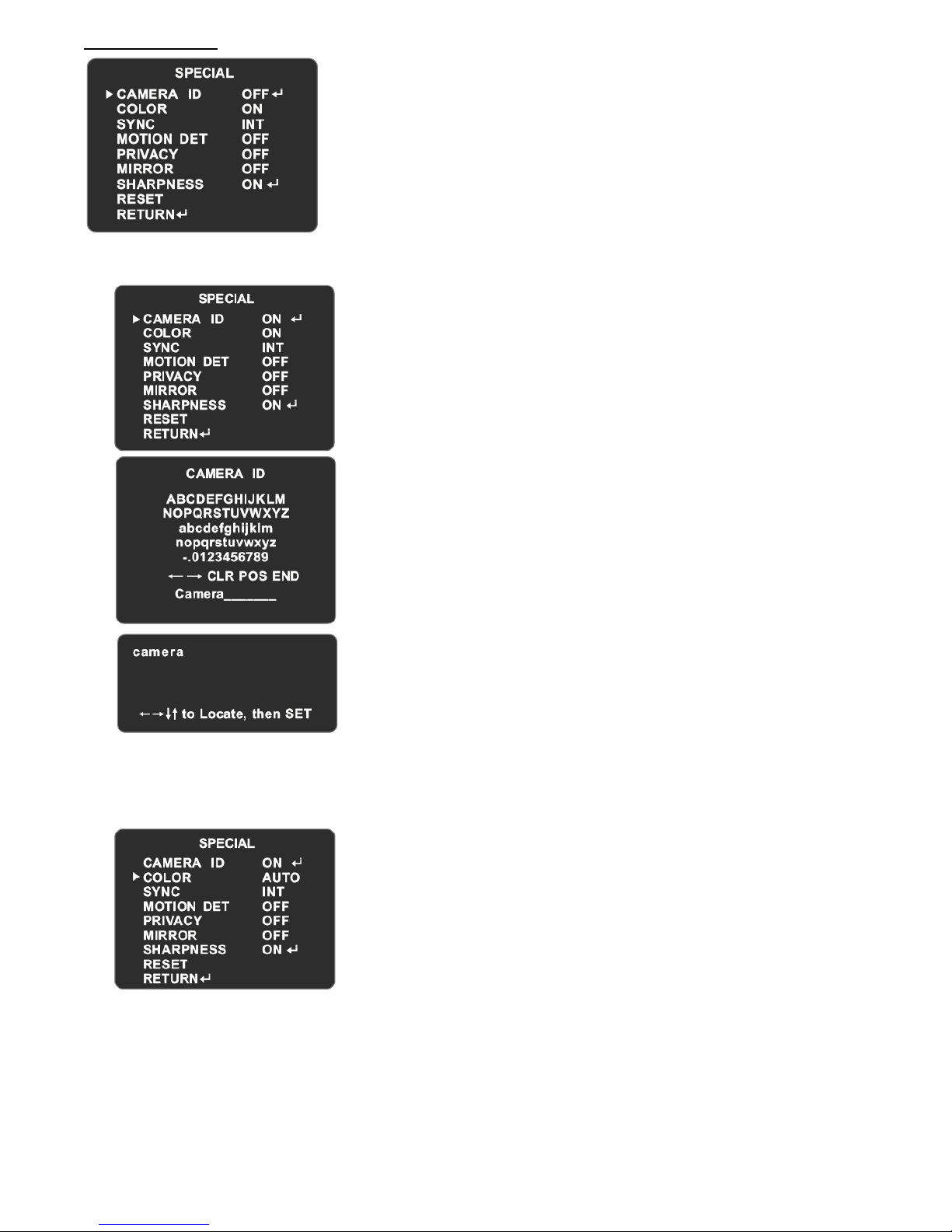
Setup: Special
A) Camera ID
B) Color
1. Position the arrow to SPECIAL in setup menu by pressing
UP/DOWN button.
2. Select the mode you wish to operate by pressing LEFT/RIGHT
button.
1. Position the arrow to CAMERA ID in setup menu by pressing
UP/DOWN button.
2. Select the mode you wish to operate by pressing
LEFT/RIGHT button.
OFF: ID does not appear on monitor
ON: ID appears on monitor
Enter into CAMERA ID by pressing SETUP when in ON mode
1. Move the cursor to the letter to choose by positioning
UP/DOWN/LEFT/RIGHT button.
2. Enter the letter by selecting SETUP button
3. While modifying the letters in the CAMERA ID, select
『→』or『←』and press SETUP button to move the cursor to the
letters that need to be corrected.
4. CLR is to clear letters.
5. Position the cursor to POS and press SETUP when the ID is
completed.
6. The modified ID will be shown on the top left corner.
Position the ID to the place where you would like it to be
displayed by moving UP/DOWN/LEFT/RIGHT. Return to last
menu by pressing SETUP while finishing modification.
7. Select END and press SETUP to complete ID.
NOTE: Up to 15 letters or numbers can be used for CAMERA ID.
1. Position the arrow to COLOR in setup menu by pressing
UP/DOWN button.
2. Select the mode you wish to operate by pressing
LEFT/RIGHT button.
AUTO: The camera has a function which automatically
switches to the appropriate mode for daytime or night
time. The camera displays a color image in day and it
converts to B/W mode at night.
ON: Default value. It is fixed to color mode and the
image does not switch to B/W at night.
NOTE: When AGC is off, COLOR function will be fixed to ON
which cannot be modified.
8
http://www.okinausa.com SDNR-F630DN-OSD_rev013009
C) Sync
D) Motion Detection
E) Privacy
The camera is fixed to INT in SYNC mode that cannot be
modified by the user.
When there is a moving object, the camera will detect it and an
on-screen alert will pop up. The user can set up the detected
coverage area by selecting the 4 areas individually on the monitor.
1. Position the arrow to MOTION DET in setup menu by
pressing UP/DOWN button.
2. Select the mode you wish to operate by pressing
LEFT/RIGHT button
OFF: Motion Detection is off
ON: Motion Detection is on
When selecting ON, enter into MOTION DETECTION by
pressing Setup
1. Position the arrow to AREA SEL by pressing
UP/DOWN button. The chosen area including
AREA1~AREA4 can be set u
p
b
y
LEFT/RIGHT button.
2. Position the arrow to AREA STATE by pressing UP/DOWN button. The detection of the
chosen area can be turned on/off by LEFT/RIHGT button.
3. Position the arrow to TOP/DOWN/LEFT/RIGHT by UP/DOWN button. The detected place and
coverage of the chosen area can be set up by pressing LEFT/RIHGT button.
4. Return to last menu by pressing SETUP while finishing modification.
NOTE: Motion detection only shows alert on the monitor without additional alarm output.
This mode conceals the areas you do not wish to show on the
screen.
1. Position the arrow to PRIVACY in setup menu by pressing
UP/DOWN button.
2. Select the mode you wish to operate by pressing
LEFT/RIGHT button.
OFF: This will cancel the Privacy
ON: This will activate the Privacy
When selecting ON, enter into PRIVACY by pressing Setup.
1. Position the arrow to AREA SEL by pressing
UP/DOWN button. The chosen area including
AREA1~AREA4 can be set up by LEFT/RIGHT button.
2. Position the arrow to AREA STATE by pressing
UP/DOWN button. The privacy area can be
canceled/activated by pressing LEFT/RIGHT button.
3. Position the arrow to TOP/DOWN/LEFT/RIGHT by pressing UP/DOWN button. The privacy
place and coverage can be set up by LEFT/RIGHT button.
4. Return to last menu by pressing SETUP while finishing modification.
9
http://www.okinausa.com SDNR-F630DN-OSD_rev013009
F) Mirror
G) Sharpness
H) Reset
I) Return
Setup: Exit
The MIRROR function inverts the image.
1. Position the arrow to MIRROR in setup menu by pressing
UP/DOWN button.
2. Select the mode you wish to operate by pressing
LEFT/RIGHT button.
OFF: To turn off Mirror
ON: To turn on Mirror
This is to enhance the quality of the image.
1. Position the arrow to SHARPNESS in setup menu by
pressing UP/DOWN button.
2. Select the mode you wish to operate by pressing
LEFT/RIGHT button.
OFF: To turn off SHARPNESS
ON: To turn on SHARPNESS
When selecting ON, enter into SHARPNESS by pressing setup.
Adjust sharpness level by pressing LEFT/RIGHT button. Return to
last menu by pressing SETUP while finishing modification.
Return to Default Value.
1. Position the arrow to RESET by pressing UP/DOWN button.
2. Press setup and all settings will return to default value.
Return to Main Menu.
1. Position the arrow to RETURN by pressing UP/DOWN
button.
2. Press setup to return to main menu.
Exit from OSD menu.
1. Position the arrow to EXIT by pressing UP/DOWN button.
2. Press setup to exit from OSD menu.
10