6
FOROPTIMUMTIMER
PERFORMANCE, CONNECT
TOWIFITORECEIVETHE
LATESTTIMERUPDATES.
Timer Installation—Connecting to WiFi
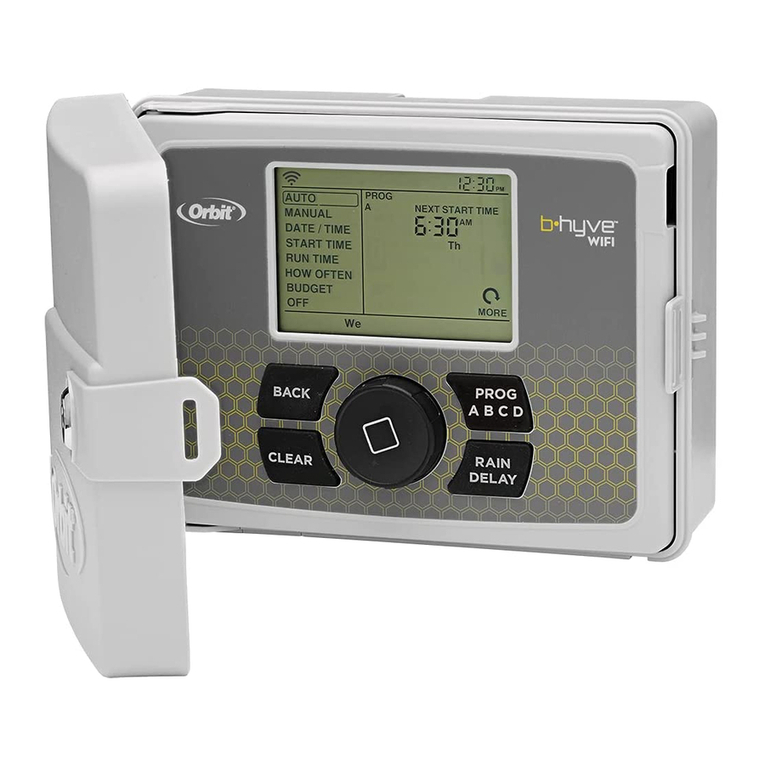
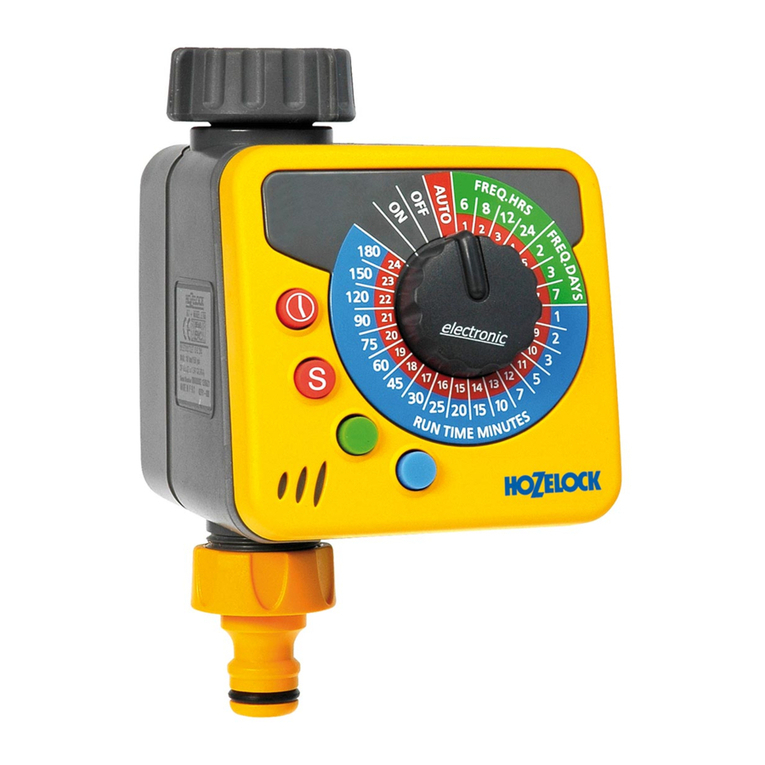
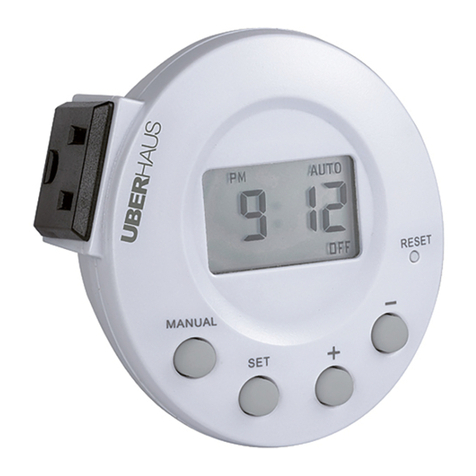
Plug in your Orbit® B-hyve™ timer
Once your B-hyve™ timer is plugged into
the power source, it will automatically
look to pair with your smart device. In the
top left corner of the timer screen the
“Bluetooth” icon will flash with a graduated
blinking sequence. This indicates that your
timer is ready to pair with a smart device.
Connect to your Orbit® B-hyve™ timer
Open your B-hyve™ app, create an account
or login, and follow the step-by-step process
to add and set up your device. The B-hyve™
app will connect to your device and you will,
then, be guided to connect to your home
Wi-Fi network.
Connect to your Wi-Fi network
Select your network from the list and enter
the password for the network to connect
your timer to your Wi-Fi signal. When
connected, the Wi-Fi icon on the timer will
stop blinking and show solid lines, indicating
your signal strength.
ABCD
Note: If you do not see your network name
in the list, tap the refresh button in the
app. If your network name still does not
appear, tap “Advanced” in the app and enter
your network name and password. This
device will only connect through . GHz
Wi-Fi networks. . GHz networks are not
supported and will not appear in your app.