OPTION A VIRTUAL WIRE DEPLOYMENT
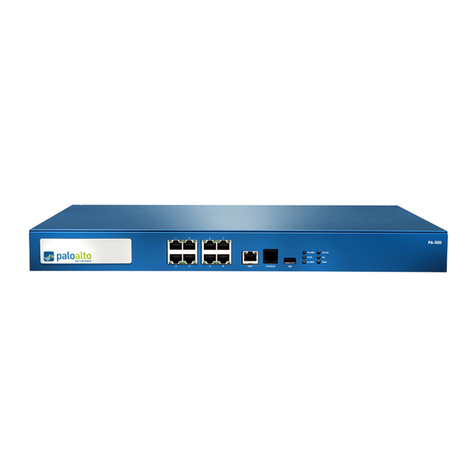
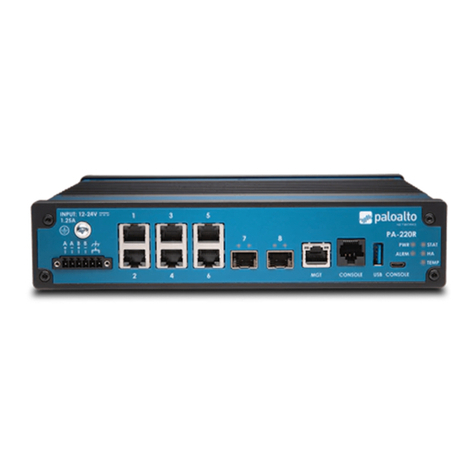
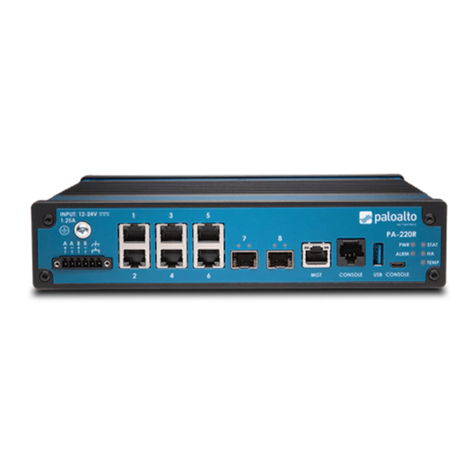
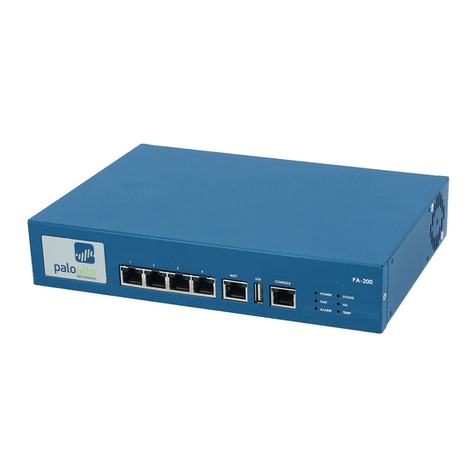
The default configuration of the PA-200 device is a virtual wire between ports 1 and
2, which enforces security policies. No configuration is required for this basic setting.
Proceed to “Performing the Final Setup.”
OPTION B LAYER 2 DEPLOYMENT
CONFIGURING THE INTERFACES
Click Network > Interfaces.
Click ethernet1/1, choose Layer2 from the drop-down menu, and then click OK.
Click ethernet1/2, choose Layer2 from the drop-down menu, and then click OK.
CONFIGURING THE SECURITY ZONES
Click Network > Zones and then click trust. Choose Layer2 from the Type drop-down box.
Check the check box for ethernet1/2 and then click OK.
Click untrust. Choose Layer2 from the Type drop-down box.
Check the check box for ethernet1/1 and then click OK.
CONFIGURING THE VLANS
Click Network > VLANs and then click New. Type the name of the VLAN in the Dot1q
VLAN Name field.
Check the check boxes for the ethernet1/1 and ethernet1/2 in the Interfaces list, and
then click OK.
Click Commit and then proceed to “Performing the Final Setup.”
OPTION C LAYER 3 DEPLOYMENT
CONFIGURING THE INTERFACES
Obtain two IP addresses for ports 1 and 2 on the PA-200 device from your network
administrator.
Click Network > Interfaces.
Click ethernet1/1 and choose L3 from the drop-down menu.
Enter the IP address and subnet mask (for example, 10.1.1.1/24) for port 1 in the IP
Address and Subnet Mask field.
Click Add and then click OK.
Click ethernet1/2 and choose L3 from the drop-down menu.
Type the IP address and subnet mask (for example, 10.1.2.1/24) for port 2 in the
IP Address and Subnet Mask field.
Click Add and then click OK.
CONFIGURING THE SECURITY ZONES
Click Network > Zones and then click trust.
Choose Layer3 from the Type drop-down box.
Check the check box for ethernet1/2 and then click OK.
Click untrust.
Choose Layer3 from the Type drop-down box.
Check the check box for ethernet1/1 and then click OK.
CONFIGURING THE VIRTUAL ROUTERS
Click Network > Virtual Routers and then click New.
Type the name of the virtual router in the Virtual Router field.
Check the check boxes for the ethernet1/1 and ethernet1/2 in the Interfaces list.
Enter network definition in the IP Address/Mask field and the gateway IP in the
Next Hop IP field to configure the static route, and click Add.
Add more static routes as necessary, and click OK when finished.
Click Commit and then proceed to the next section.
Choosing a Deployment Option
•OPTION A: Virtual Wire deployment —Choose this option to transparently place the
PA-200 device between two ports where no routing, switching, or NAT is required.
•OPTION B: Layer 2 deployment — Choose this option to deploy the PA-200 device in
a Layer 2 environment where switching is required.
•OPTION C: Layer 3 deployment — Choose this option to deploy the PA-200 device in
a Layer 3 environment where routing and NAT are required.
1
2
3
4
5
6
7
8
9
10
11
12
13
14
15
16
17
18
19
1
2
3
4
5
6
7
8
9
10
20