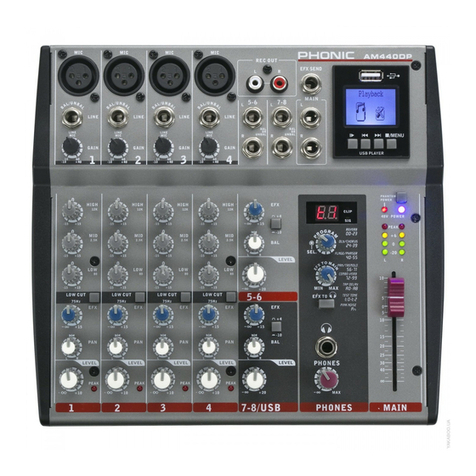
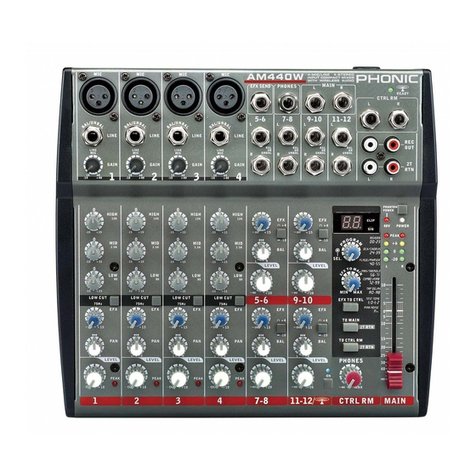
9AM442D/AM642D
24. EFX Control
This control alters the signal level that is sent to the
EFXsend(AUX 2 on theAM442D,AUX3 on theAM
642D) output and the built-in digital effect processor.
TheEFXsendsignalcanbeusedinconjunctionwith
external signal processors (this signal of which can
be returned to mixer via the AUX return input), or
simply as an additional auxiliary output.
25. Pan / Balance Controls
This alternates the degree or level of audio that the
left and right side of the main mix should receive. On
Mic channels, the PAN control will adjust the level
that the left and right should receive (pan), where as
on a stereo channel, adjusting the BAL control will
attenuate the left or right audio signals accordingly
(balance).
26. On Button and
Indicator
Thisturnsthechannelon,
allowing the user to use
thefeedfromthechannel’s
inputstosupplytheMAIN
L/R, GROUP 1/2, AUX
and EFX buses. The
corresponding indicator
will be illuminated when
turned on.
27. 1-2 and L/R Buttons
These handy buttons allow you to decide the audio
path of the corresponding channel. Pushing the “1-
2” button allows the signal to be sent to the Group
1-2 mix, where the “L/R” allows it to be sent to the
Main L/R mix.
28. Peak Indicator
This LED indicator will illuminate when the channel
hits high peaks, 6 dB before overload occurs. It is
best to adjust the channel level control to a level
slightly prior to the peak indicator does not light up.
This will ensure a greater dynamic range of audio.
Thisindicatoralso doubles as aSolo indicator,when
the SOLO button is engaged.
29. Solo Button
The Solo button is pushed to allow the signal of a
corresponding channel to be sent to the Control
Room / Phones control. The signal is either that of a
pre- or post-fader depending on the pre/post button
in the master section.
30. Level Faders
These faders allow users to adjust the level of the
signal from the corresponding input channel that is
to be sent to the destinations selected by the 1-2
and L/R buttons.
Digital Effect Processor
31. Digital Effect Display
This 2-digital numeric display shows the program
number that is currently applied to your EFX audio
signal.WhenyourotatetheProgramcontrol,youcan
scroll through different program numbers; however
the display will revert back to the original program if
a new program is not selected within a few seconds.
For a list of available effects, please observe the
DigitalEffectTable.(WhentheDigitalEffectProcessor
isputinto stand-bymode(by useofthefootswitchor
onbutton)the2 smalldotswithinthenumericdisplay
will ash. In this mode, users are still able to preview
and select new effect programs.)
32. Sig and Clip Indicators
Located within the Digital Effect Display are Clip
and Sig LEDs. The Sig LED will light up when any
signal is received by the effect processor, and the
ClipLEDwilllightupshortlybeforeexcessivesignals
are dynamically clipped. If the Clip LED lights up too
often,itmaybeadvisabletoturndownone orallEFX
controls on input channels to ensure the signal level
is not too high.
33. Program Control
This control is used to scroll through the various
effects.Turningthecontrol clockwisewillallow users
to ascend into higher program numbers, and turning
it counter-clockwise will allow users to descend
into lower program numbers. Pushing this control
will apply the new effect. When a tap-delay effect
is selected, pressing this control will allow users to
select the tap-delay time.
By pushing the button several times, the effect
processor interprets the time between last two
pushes and remembers this as the delay time, until
the button is pushed again (this is kept, even after
the power is turned off). When the tap delay effect is
selected, a small LED will ash within the digital effect
display window at the selected intervals.
34. DFX On Button and Indicator (AM642D
only)
This button will turn the Digital Effect processor on
and off.Activation of the Effect Processor will cause
the accompanying LED indicator to light up.