manuals.online logo
Brands
  1. Home
  2. •
  3. Brands
  4. •
  5. PNY
  6. •
  7. Video Card
  8. •
  9. PNY VERTO User manual

PNY VERTO User manual

Other PNY Video Card manuals

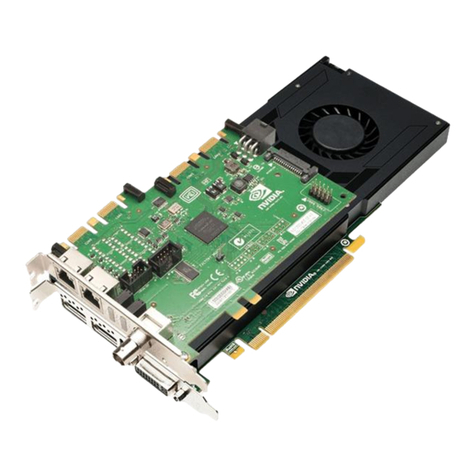
PNY Quadro FX Series User manual

PNY

PNY Quadro FX Series User manual

PNY GEFORCE GTX 770 2GB User manual

PNY

PNY GEFORCE GTX 770 2GB User manual

PNY VCG86GTS5XWB Manual

PNY

PNY VCG86GTS5XWB Manual

PNY NVIDIA Quadro FX 1700 User manual

PNY

PNY NVIDIA Quadro FX 1700 User manual

PNY Quadro4 NVS Series User manual

PNY

PNY Quadro4 NVS Series User manual

PNY VCG8800XXPB Manual

PNY

PNY VCG8800XXPB Manual

PNY NVIDIA Quadro FX 5600 User manual

PNY

PNY NVIDIA Quadro FX 5600 User manual

PNY GEFORCE GTX 760 User manual

PNY

PNY GEFORCE GTX 760 User manual

PNY GEFORCE GTX 780 3GB User manual

PNY

PNY GEFORCE GTX 780 3GB User manual

PNY Quadro K4200 Sync VCQK4200SYNC-PB User manual

PNY

PNY Quadro K4200 Sync VCQK4200SYNC-PB User manual

PNY NVIDIA Quadro FX 4700 X2 User manual

PNY

PNY NVIDIA Quadro FX 4700 X2 User manual

PNY Quadro FX Series User manual

PNY

PNY Quadro FX Series User manual

Popular Video Card manuals by other brands

Diamond Multimedia ATI Radeon SKU 4870PE51GDT Specification sheet

Diamond Multimedia

Diamond Multimedia ATI Radeon SKU 4870PE51GDT Specification sheet

NEC N8116-29 user guide

NEC

NEC N8116-29 user guide

ATI Technologies RADEON 137-40225-20 user guide

ATI Technologies

ATI Technologies RADEON 137-40225-20 user guide

MSI N220GT series user manual

MSI

MSI N220GT series user manual

ATI Technologies RADEON 7000 MAC EDITION user guide

ATI Technologies

ATI Technologies RADEON 7000 MAC EDITION user guide

SIIG aurora Quick installation guide

SIIG

SIIG aurora Quick installation guide

ClearSpeed ClearSpeed Advance e720 user guide

ClearSpeed

ClearSpeed ClearSpeed Advance e720 user guide

MSI R7850 series user guide

MSI

MSI R7850 series user guide

DVS Atomix HDMI installation guide

DVS

DVS Atomix HDMI installation guide

NEC N8116-48 user guide

NEC

NEC N8116-48 user guide

Nvidia Quadro Workstation user guide

Nvidia

Nvidia Quadro Workstation user guide

Aztech VGS3D-AGP user manual

Aztech

Aztech VGS3D-AGP user manual

Advoli TB4 Standard installation guide

Advoli

Advoli TB4 Standard installation guide

ELSA ERAZOR III LT user manual

ELSA

ELSA ERAZOR III LT user manual

Gigabyte GV-R7500L User'smanual

Gigabyte

Gigabyte GV-R7500L User'smanual

MSI R7770 PoweR Edition user guide

MSI

MSI R7770 PoweR Edition user guide

EMS XtremeRGB-Ex1 user manual

EMS

EMS XtremeRGB-Ex1 user manual

Gigabyte GV-N68T256D user manual

Gigabyte

Gigabyte GV-N68T256D user manual

manuals.online logo
manuals.online logoBrands
  • About & Mission
  • Contact us
  • Privacy Policy
  • Terms and Conditions

Copyright 2025 Manuals.Online. All Rights Reserved.

CONTENTS
CHAPTER 1 - INTRODUCTION 2
CHAPTER 2 - HARDWARE INSTALLATION 3
CHAPTER 3 - SOFTWARE INSTALLATION 7
CHAPTER 4 - TECHNICAL SUPPORT 16
Limited Liability
The information contained in this manual has been validated at the time of
manual production. The manufacturer reserves the right to make any chan-
ges, additions and revisions to the product described in this manual at any
time and without notice. Consequently, PNY Technologies. assumes no lia-
bility for damages incurred directly or indirectly from errors, omissions or
discrepancies between the product and the manual.
Copyright
Copyright © 2002-2003 All rights reserved. No reproduction of this docu-
ment in any form is permitted without prior written authorization from PNY
Technologies.
Trademarks
All registered trademarks are the property of their respective owners.
Warranty
PNY Technologies offers a 3 years Warranty for this product. Please visit
our website for more information:
www.pny-europe.com
1GIV 51-03 V1.5 -
GB
CHAPTER 1 - Introduction
Congratulations on the purchase of your graphics accelerator card by PNY
Technologies. You are now the owner of a state-of-the-art video adapter that
offers features and functionality beyond any other graphics card in its class.
We recommend that you read through the Installation Guide before installing
your video card to ensure that the installation process goes smoothly.
Minimum System Requirements:
• Intel Pentium®III, AMD Athlon™ or Duron™ class processor or higher
• 128MB system RAM
• 250W system power supply
• One available AGP 2.0 or 3.0 compliant slot or better, or one available PCI
slot (as required for your specific card)
• 17MB of available hard disk space (50MB for full installation)
• CD-ROM or DVD-ROM drive
• Microsoft®Windows®95 (OSR2), 98, Me, 2000, XP or Windows®NT4.0
(Service Pack 5 or higher)
• VGA compatible monitor
Package Contents:
Please check your VGA package, which contains the items below. If you
find any damaged or missing items, please contact your dealer.
• Verto®GeForce™ graphics card
• This Installation Guide
• CD-ROM: NVIDIA®GeForce™ drivers for Microsoft®Windows®
95/98/Me/2000/XP/NT4.0, Microsoft®DirectX®8 and DirectX®9.
• S-Video cable
Before You Begin
• Before installing the Display driver of your PNY card, make sure your Windows®
95/98/2000/ME/XP or NT was installed in VGA mode and functions properly.
• To use an AGP graphics card with Windows®NT4.0, you may need to re-install NT
with Service Pack 5 (SP5) or Service Pack 6 (SP6) before installing the AGP card.
• If you are running Windows®NT4.0, please note that some drivers are not
compatible with earlier releases of Windows®NT. Consult your dealer or
local support to ensure you have the most recent releases for Windows®
NT and the drivers.
2- GIV 51-03 V1.5
CHAPTER 2 - Hardware Installation
Static electricity can severely damage electronic parts. Take these
precautions prior to beginning the graphics card installation:
• Before touching any electronic parts, drain the static electricity from your
body. You can do this by touching the internal metal frame of your com-
puter while it's unplugged.
• Don't remove a card from the anti-static container it shipped in until you’re
ready to install it. Whenever you remove a card from your computer,
always make sure to place it back in its container.
• Don't let your clothes touch any electronic parts.
• When handling a card, hold it by its edges, and avoid touching its
circuitry.
Preparing Your Computer for Installation
Prior to working on your computer, make sure the power of the computer
and any attached equipment such as a monitor or printer is turned off.
Unplug your computer and remove the cover. Remove your current gra-
phics card. For systems with ‘On-Board 3D Graphics’, there is no graphics
card to remove. Some systems may require you to disable your ‘On-Board
3D Graphics’. Consult your PC users’ manual or vendor manual on how to
properly do this.
Selecting the Proper Expansion Slot
Most computers have a combination of AGP, PCI and ISA expansion slots.
All these slots may look similar at first; however you will notice their diffe-
rences once you examine them more closely. The ISA connectors are black
and are the largest of the three types. The AGP slot on your computer
motherboard is usually the closest connector to the CPU and is made from
a plastic of a contrasting brown color. The PCI connectors are usually loca-
ted between the AGP and ISA connectors, are made from a white plastic
and are the same connector type that most Sound or Modem Cards are
connected. If you are still unsure which connectors are AGP and PCI,
consult your system manual to help you identify them. Plugging your gra-
phics card into an incorrect slot could damage the card, your computer, or
both. Do not try to force a card into a slot that does not accommodate it, as
it is probably the wrong slot. The diagram below should help you in identi-
fying the proper slot.
3GIV 51-03 V1.5 -
GBFDSITNLS

Figure 1: Motherboard Example
Inserting Your Graphics Card
Remove the cover for the slot you intend to use and save the screw for the
mounting bracket of your new VERTO®graphics card. Then, position the
VERTO®graphics card over the expansion slot that coincides with the type
(AGP or PCI) of card purchased. Push the card firmly and evenly until it’s
fully seated into the slot. Replace the screw to secure the bracket of the
graphics card to the computer chassis. Replace the cover of your computer.
Figure 2: Inserting your graphics card.
4- GIV 51-03 V1.5
Connecting Your Display
Plug your Monitor, Flat Panel Display, or your S-Video (TV) cable into the
appropriate connector on your graphics card. All cables MUST be connec-
ted before your computer is powered on.
Figure 3: Possible graphics card connectors
5GIV 51-03 V1.5 -
GB
Additional Power Requirements
If your Verto®GeForce™ graphics card is equipped with an additional power
connector, your system’s power supply must be connected to it for the gra-
phics card to work optimally. Locate an unused 4-pin power plug inside your
computer system and plug it into the card connector as shown below. The
power connector is keyed so that it can only be inserted one way. Please
verify the orientation of the plug before insertion. DO NOT FORCE IT INTO
THE CONNECTOR
Figure 4: Additional power requirements
6- GIV 51-03 V1.5
CHAPTER 3 - Software Installation
Installing the Standard Graphics Adapter (VGA) Driver
•
Power up you computer and launch Windows®95/98/2000/Me/XP/NT
•
The Building Driver Database dialog box will appear as the Windows®
operating system builds the driver database
•
When the Add New Hardware Wizard appears, click Next
•
Choose Search For The Best Driver For Your Device, and click Next
•
Make sure that all of the four choices are left blank. If not, un-check
the applicable box. Then click Next
•
Windows®is now ready to install the Standard Graphics Adapter
driver. Click Next to continue
•
Click Finish. Windows®will install the Standard Graphics Adapter driver
•
You will now be prompted to re-start your computer. Click Yes
You are now ready to install the required drivers for your new graphics card
Installing DirectX®9
GeForce™ FX graphics cards have been designed with full support for
Microsoft®DirectX®9. In order to take advantage of these new capabilities
and enhancements, you need to install DirectX®9 before installing the
drivers for your graphics card.
Note: Windows®95 and some games are not compatible with DirectX®9. Please veri-
fy your games’ manuals for compatibility or go to the games manufacturers’ website
for any upgrades or patches. If your system is running Windows®95 or if your game is
not compatible, you need to install DirectX®8.1. See Installing DirectX®8.1.
Steps to follow:
1. Turn on your computer and start Windows®98/2000/Me/XP/NT. (DirectX®
9 is not supported with Windows®95. You need to install DirectX®8.1. See
Installing DirectX®8.1)
2. Insert the Driver CD into your CD-ROM drive.
7GIV 51-03 V1.5 -
GB
3. The ‘Auto-load’ install shield will appear as shown in Figure 5, click on
the Install DirectX®9 button.
a. If your CD-ROM drive is not auto-detect enabled, click the Start button
on the task bar and then select the Run button.
b. Type “D:\launch.exe” in the dialog box and hit enter (where D:\ is the
location of your CD-ROM drive).
c. The install shield will now appear. Proceed with step 3 above.
4. DirectX®9 will now be installed in your system, follow the instructions on
the screen to complete installation.
5. Your system will restart to complete the installation.
6. You may now proceed to Installing GeForce™ Drivers.
Figure 5: Verto Installation CD
8- GIV 51-03 V1.5
Installing GeForce™ Drivers
After installing DirectX®9 (or DirectX®8.1), the drivers for your graphics
card must be installed. To install the drivers follow these steps:
1.
When your system restarts, the ‘Auto-load’ install shield will appear after you
have re-inserted the installation CDROM, click on the Install Drivers button.
a. If your CD-ROM drive is not auto-detect enabled, click the Start button
on the task bar and then select the Run button.
b. Type “D:\launch.exe” in the dialog box and hit enter (where D:\ is the
location of your CD-ROM drive).
c. The install shield will now appear. Proceed with step 1 above.
2. The VGA Installation dialog box will appear on the screen, follow the
instructions on the screen to complete installation.
a. If you have upgraded your graphics card from another NVIDIA®based
card, your system will have older NVIDIA®drivers installed and you
will get the splash screen as shown in Figure 6.
b. It is imperative that you uninstall the NVIDIA®drivers in your system in
order for the new drivers to install properly.
c. To do this, click the Uninstall Existing Drivers button.
d. The existing drivers will be uninstalled and your system will be rebooted.
e. Once your system reboots, proceed with step 1 above.
Figure 6: Uninstall Existing Drivers Splash Screen
9GIV 51-03 V1.5 -
GB
3. At the time of shipment, the compatibility testing of the graphics card dri-
vers may not have completed. If this is the case, you will get a warning
as in Figure 7. Please click Continue anyway.
To check for the latest drivers, go to our website at: http://www.nvidia.com
4. Once the drivers are installed, the InstallShield Wizard Complete window
will appear as shown in Figure 8.
5. Verify that Yes is selected and then click on Finish to restart your system
for the changes to take effect.
Figure 7: WHQL warning
Figure 8: Restart your system
Installing DirectX®8.1
If your system is using Windows®95 or if your games do not support
DirectX®9, you may install DirectX®8.1.
10 - GIV 51-03 V1.5