manuals.online logo
Brands
  1. Home
  2. •
  3. Brands
  4. •
  5. Primera
  6. •
  7. Printer
  8. •
  9. Primera PX450e User manual

Primera PX450e User manual

Other Primera Printer manuals

Primera Impressa IP60 User manual

Primera

Primera Impressa IP60 User manual

Primera Digital Color Label Press CX1200e User manual

Primera

Primera Digital Color Label Press CX1200e User manual

Primera III User manual

Primera

Primera III User manual

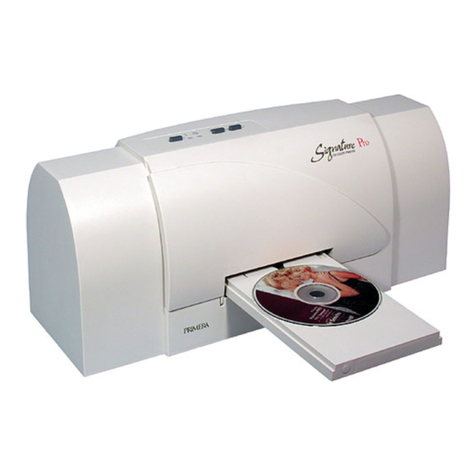
Primera Signature Pro User manual

Primera

Primera Signature Pro User manual

Primera Bravo SE User manual

Primera

Primera Bravo SE User manual

Primera Impressa IP60 User manual

Primera

Primera Impressa IP60 User manual

Primera DP=-XRn User manual

Primera

Primera DP=-XRn User manual

Primera trio User manual

Primera

Primera trio User manual

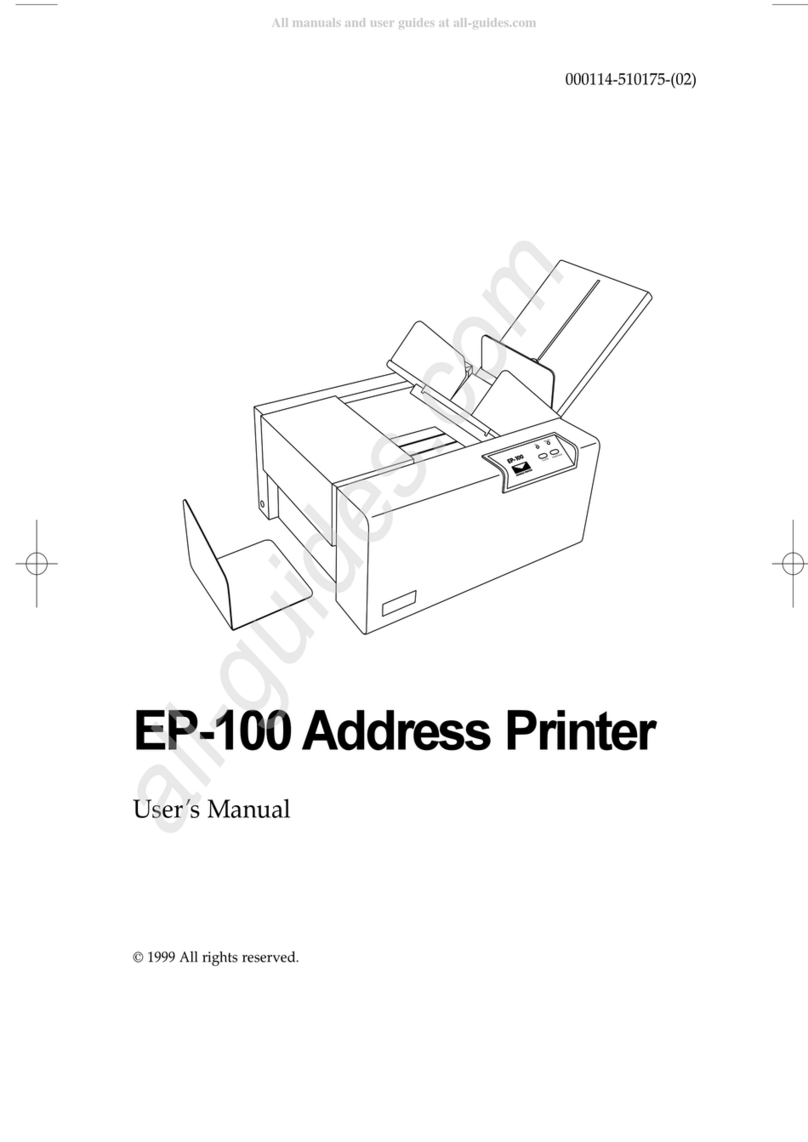
Primera EP-100 User manual

Primera

Primera EP-100 User manual

Primera 000424-510171-(05) User manual

Primera

Primera 000424-510171-(05) User manual

Primera Signature User manual

Primera

Primera Signature User manual

Primera FX400e User manual

Primera

Primera FX400e User manual

Primera Inscripta User manual

Primera

Primera Inscripta User manual

Primera Signature Z6 User manual

Primera

Primera Signature Z6 User manual

Primera Disc Publisher Pro Disc Publisher Pro User manual

Primera

Primera Disc Publisher Pro Disc Publisher Pro User manual

Primera Pictura 310s User manual

Primera

Primera Pictura 310s User manual

Primera Impressa 2 User manual

Primera

Primera Impressa 2 User manual

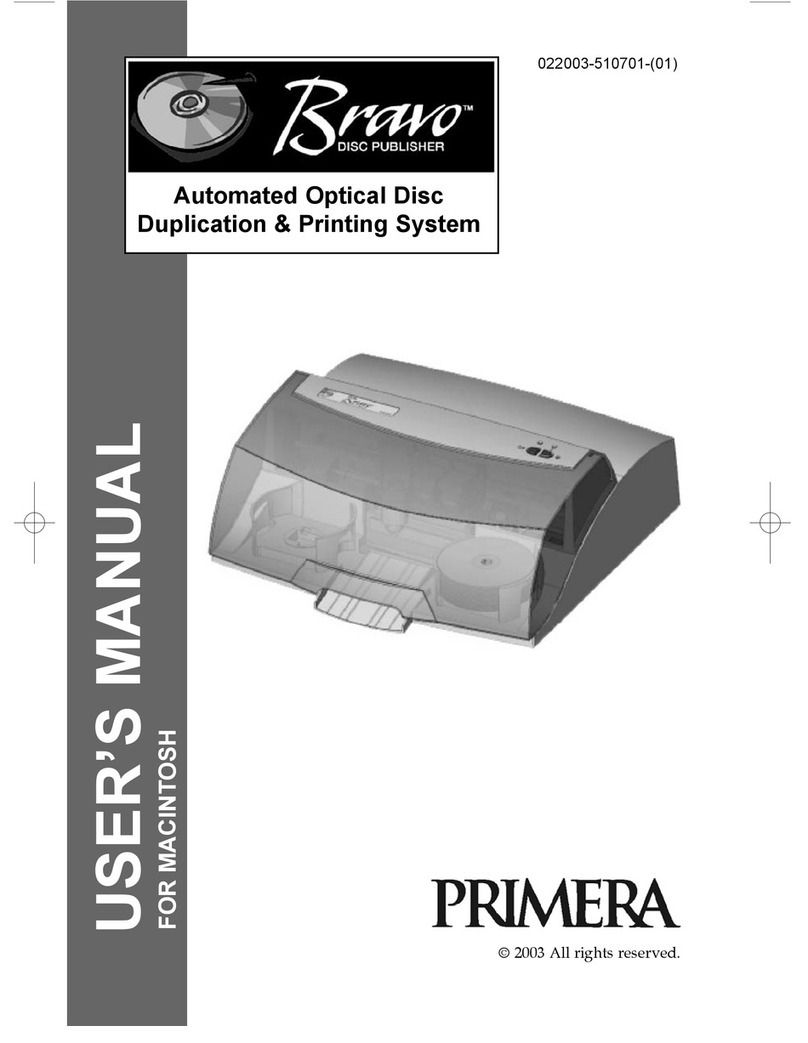
Primera Bravo Pro User manual

Primera

Primera Bravo Pro User manual

Primera Signature User manual

Primera

Primera Signature User manual

Primera AutoPrinter SE User manual

Primera

Primera AutoPrinter SE User manual

Primera BravoPro Automated Optical Disc Printing... User manual

Primera

Primera BravoPro Automated Optical Disc Printing... User manual

Primera Signature User manual

Primera

Primera Signature User manual

Primera Signature User manual

Primera

Primera Signature User manual

Primera VIPColor VP485 Unwinder User manual

Primera

Primera VIPColor VP485 Unwinder User manual

Popular Printer manuals by other brands

Evolis Elypso user guide

Evolis

Evolis Elypso user guide

Lexmark 522n - C Color Laser Printer Service manual

Lexmark

Lexmark 522n - C Color Laser Printer Service manual

Panduit COUGAR LS9Q Operator's manual

Panduit

Panduit COUGAR LS9Q Operator's manual

Olivetti PG L2140 Operation guide

Olivetti

Olivetti PG L2140 Operation guide

Samsung SL-M2820DW user manual

Samsung

Samsung SL-M2820DW user manual

Kyocera FS-9530DN specification

Kyocera

Kyocera FS-9530DN specification

Canon LASER SHOT LBP-1210 Specifications

Canon

Canon LASER SHOT LBP-1210 Specifications

Canon PIXMA PRO-1 Series Getting started

Canon

Canon PIXMA PRO-1 Series Getting started

Canon LBP113w Getting started

Canon

Canon LBP113w Getting started

Lexmark Infoprint 1332 user manual

Lexmark

Lexmark Infoprint 1332 user manual

Epson M1120 user guide

Epson

Epson M1120 user guide

TransAct POSJET 1500 Spare parts

TransAct

TransAct POSJET 1500 Spare parts

Telpar MTP-1500 user manual

Telpar

Telpar MTP-1500 user manual

Star DP8340 SERIES user manual

Star

Star DP8340 SERIES user manual

MGI JETVARNISH 3DS user manual

MGI

MGI JETVARNISH 3DS user manual

Kyocera TASKalfa PA4500ci Operation guide

Kyocera

Kyocera TASKalfa PA4500ci Operation guide

Emaar EP-360 user manual

Emaar

Emaar EP-360 user manual

Fujitsu DL7400 user manual

Fujitsu

Fujitsu DL7400 user manual

manuals.online logo
manuals.online logoBrands
  • About & Mission
  • Contact us
  • Privacy Policy
  • Terms and Conditions

Copyright 2025 Manuals.Online. All Rights Reserved.

User’s Manual
An online version of this manual can be found at
http://primera.eu/europe/manuals.html
© 2011 All rights reserved
151211-511250-(02)
(Color Printer 450)
*after registering your
product. See
www.primerawarranty.com
for terms and conditions.
ii
Notices: The information in this document is subject to change without notice. NO WARRANTY OF
ANY KIND IS MADE WITH REGARD TO THIS MATERIAL, INCLUDING, BUT NOT LIMITED TO,
THE IMPLIED WARRANTIES OF MERCHANTABILITY AND FITNESS FOR A PARTICULAR
PURPOSE. No liability is assumed for errors contained herein or for incidental or consequential
damages in connection with the furnishing, performance, or use of this material. This document
contains proprietary information that is protected by copyright. All rights are reserved. No part of
this document may be photocopied, reproduced, or translated into another language without prior
written consent.
Trademark Acknowledgments: Windows is a registered trademark of Microsoft Corporation.
All other trademarks are the property of their respective owners.
Printing History
Edition 2.0, #151211, Copyright 2011, All rights reserved.
FCC Compliance Statement: This device complies with part 15 of the FCC rules. Operation is subject
to the following two conditions: (1) this device may not cause harmful interference, and (2) this device
must accept any interference received, including interference that may cause undesired operation.
For Users in the United States: This product is intended to be supplied by a UL listed Direct Plug-In
Power Supply marked "Class 2"or a UL listed ITE Power Supply marked "LPS" with output rated
12VDC, 4.5A or higher. This equipment has been tested and found to comply with the limits for a
Class A digital device, pursuant to Part 15 of the FCC Rules. In a domestic environment this product
may cause radio interference, in which case the user may be required to take adequate measures. This
equipment generates, uses, and can radiate radio frequency energy and, if not installed and used in
accordance with the instructions, may cause harmful interference to radio communications. However,
there is no guarantee that interference will not occur in a particular installation. If this equipment does
cause harmful interference to radio or television reception, which can be determined by turning the
equipment off and on, the user is encouraged to try to correct the interference by one or more of the
following measures:
•Re-orient or relocate the receiving antenna.
•Increase the separation between the equipment and receiver.
•Connect the equipment into an outlet on a circuit different from that to which the receiver
is connected.
•Consult the dealer or an experienced radio/TV technician for help.
Use of shielded cables is required to comply with the Class A limits of Part 15 of the FCC Rules.
You are cautioned that any changes or modifications not expressly approved in this manual could
void your authority to operate and/or obtain warranty service for this equipment.
For Users in Canada: This digital apparatus does not exceed the Class A limits for radio noise for
digital apparatus set out on the Radio Interference Regulations of the Canadian Department of
Communications. Le present appareil numerique n'emet pas de bruits radioelectriques depassant
les limites applicables aux appareils numeriques de la class A prescrites dans le Reglement sur le
brouillage radioelectrique edicte par le ministere des Communications du Canada.
CAUTION!
TO PREVENT FIRE OR SHOCK HAZARD, DO NOT EXPOSE THE UNIT TO RAIN OR
MOISTURE. TO REDUCE THE RISK OF ELECTRIC SHOCK, DO NOT REMOVE EXTERIOR
PANELS. NO USER-SERVICEABLE PARTS INSIDE. REFER SERVICING TO QUALIFIED
SERVICE PERSONNEL. OPERATE THE UNIT WITH ONLY THE PROPER ELECTRICAL
SPECIFICATIONS AS LABELED ON THE PRINTER AND AC ADAPTER.
CAUTION!
THIS PRODUCT CONTAINS A LASER DIODE OF A HIGHER CLASS THAN 1. TO ENSURE
CONTINUED SAFETY, DO NOT REMOVE ANY COVERS OR ATTEMPT TO GAIN ACCESS TO
THE INSIDE OF THIS PRODUCT. REFER ALL SERVICING TO QUALIFIED PERSONNEL. THE
FOLLOWING LABEL APPEARS INSIDE YOUR UNIT:
CLASS 1 LASER PRODUCT LASER KLASSE 1
CAUTION!
USE OF CONTROLS OR ADJUSTMENTS OR PERFORMANCE OF PROCEDURES OTHER
THAN THOSE SPECIFIED HEREIN MAY RESULT IN HAZARDOUS RADIATION.

iii
Table of Contents
Section 1: Getting Started...............................................................................1
A. Choosing a Good Location................................................................1

B. Unpacking and Inspection.................................................................2
C. Identifying the Parts...........................................................................3
D. Computer Specifications....................................................................4
Section 2: Hardware and Software Setup....................................................5
A. Connecting Power...............................................................................5
B. Connecting the USB Cable/Installing the Printer Driver .................5
C. Installing Media ..................................................................................7
D. Installing the Ink Cartridge.............................................................10
E. Aligning the Ink Cartridge ..............................................................11
Section 3: Using the Integrated Cutter.......................................................12
Section 4: Printer Settings.............................................................................14
A. PC Printer Driver Settings ...............................................................14
Section 5: Advanced Configuration Settings............................................21
Section 6: Troubleshooting...........................................................................25
A. Solving Registration Problems........................................................25
B. Clearing a Media Jam.......................................................................28
C. Cleaning the Printer..........................................................................28
D. Cleaning the Ink Cartridge..............................................................29
E. Technical Support .............................................................................29
Section 7: Media and Roll Specifications..................................................30
Section 8: Technical Specifications.............................................................32
Index .................................................................................................................33
iv
Getting Started 1
Section 1: Getting Started
THANK YOU…
...for choosing an PX450e Color Point-of-Sale Printer. The
PX450e Printer will print full color point of sale images quickly
and reliably.
This User's Manual is your complete step-by-step guide to
quickly and easily setting up and printing with your new
Printer!
A. CHOOSING A GOOD LOCATION
•Place the printer on a flat surface in a location with
adequate air circulation to prevent internal heat build-up.
•Do not place the printer near heat sources such as radiators
or air ducts, or in a place subject to direct sunlight,
excessive dust, mechanical vibration or shock.
•Allow for adequate clearance in front of the printer to
accommodate the printed paper stock as it is leaving the
printer to avoid the possibility of binding or jamming of
the media.
•Allow for adequate overhead clearance for opening the
top cover to allow easy access to the media and ink
cartridge.
2 Getting Started
B. UNPACKING AND INSPECTION
While unpacking your printer, inspect the carton to ensure
that no damage has occurred during shipping. Make sure
that all supplied accessories are included with your unit. The
following items should be included:
•Printer
•Power Adapter
•Separate Power Cord
•USB Cable
•Software Installer CD
•Color Ink Cartridge
•Starter roll of continuous paper stock
•This manual and other printed information
Save the carton and packing materials. They will come in handy when
transporting the printer.
C. IDENTIFYING THE PARTS
This illustration shows the front of the printer with its control
buttons and LED indicator lights.
The Power LED indicates that the printer is on and ready to
receive print jobs.
The Ink LED will illuminate when a cartridge has 10% or less
of its ink remaining.
The Ink Button moves the print carriage to the center of the
printer so you can easily change the cartridge.
The Load/Feed Button is pressed in order to load media or
form feed the paper stock through the printer.
The Unload Button will unload the installed media by
reversing it through the printer. Make sure to tear off the
printed media before pressing the Unload Button.
Unload Button
Ink Button
Power LED
Load/Feed Button
Ink LED
Top Cover
Getting Started 3
Media Sensor Bar
Cutter
4 Getting Started
This illustration shows the input ports and power switch found
on the rear panel of the printer.
D. COMPUTER SPECIFICATIONS
Minimum PC Specifications
For optimal printing speed you must have a PC with the
following minimum specifications:
• Pentium IV processor
• 512 MB of RAM
• 5 GB of free hard drive space
USB PortPower Switch Power Input Port
Fan-fold Media Slot
Hardware and Software Settings 5
Section 2: Hardware and Software
Setup
A. CONNECTING POWER
1. Locate the Power Adapter
supplied with your printer.
2. Plug the Power Adapter into the
Power Input Port on the rear
panel of the printer.
3. Plug the Power Cord of the
adapter into an available wall
outlet or surge protecting power
strip. Once the Power Cord is connected, the printer can be
switched on and off using the Power Switch.
B. CONNECTING THE USB CABLE / INSTALLING THE
PRINTER DRIVER
1. Place the installer CD in the com-
puter's CD/DVD drive. Ignore
any autorun/autoplay prompt
that appears.
2. Connect the printer to your PC.
3. After a few moments, Windows⎪
will tell you it has found new
hardware and is looking for soft-
ware to install it.
6Hardware and Software Settings
4. Select "Install the software automatically" and click Next.
You may see a notice like the one shown here stating that
the Printer has not passed Windows Logo Testing. Click
Continue Anyway to continue installing the printer driver
for your Printer.