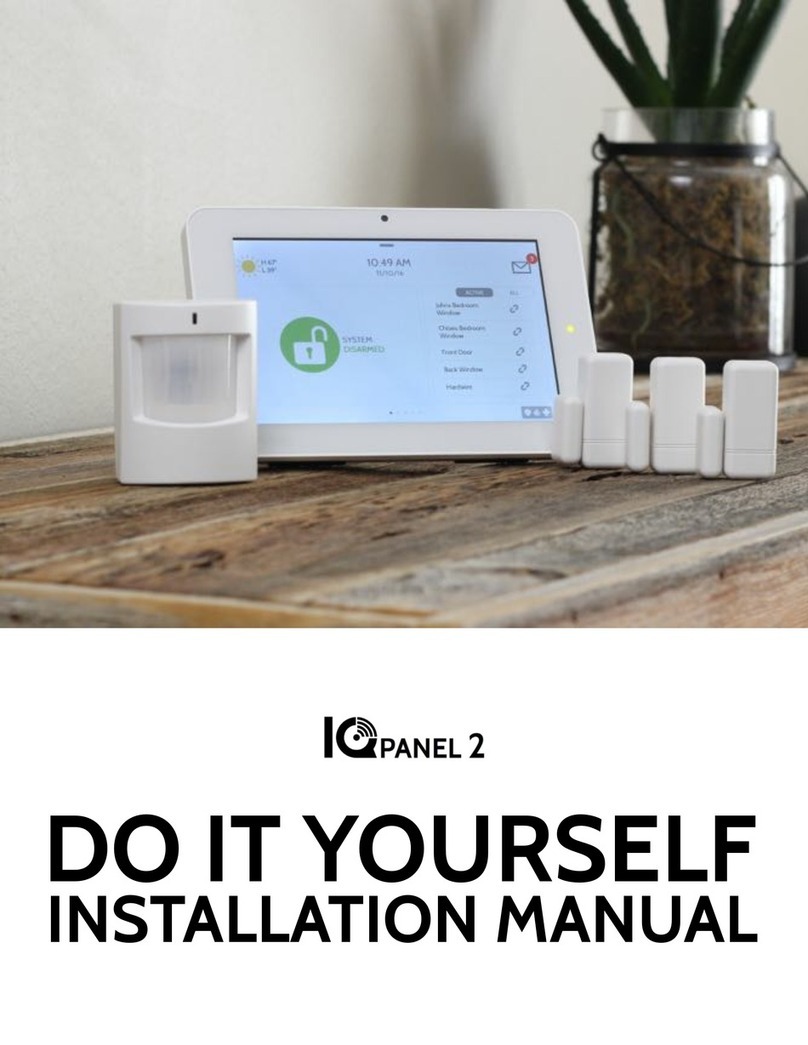
IQ PANEL QUICK INSTALL GUIDE
STEP 1: INSTALL THE HARDWARE
STEP 2: CONNECT WI-FI
STEP 5: PAIR SECURITY & LIFE SAFETY SENSORS
STEP 3: RUN A CELL TEST
STEP 6: PAIR Z-WAVE DEVICES
IMPORTANT
Remove retainer screw
from panel top
Step 1
Pull back plate off
gently
Step 2
Mount back plate to
wall
Step 3
Hook panel stabilizer
strap onto back plate
Step 4 Step 5
Connect battery
DO NOT DISCONNECT
AFTER INSTALLATION
Plug in power supply
and secure with screw.
Flip bracket upside for
decor style plugs.
Connect wires.
DCIN+ to Positive
DCIN- to Negative
Step 6
Tilt panel upward onto
back plate until it snaps
in place
Step 7
Replace retainer screw
and tighten
Step 8 Step 9
Connect power supply
Positive to +
Negative to -
Step 10
Settings System Settings Touch “Wi-Fi Settings”
Touch “Wireless Settings”
Settings Installation Upgrade
Software Touch ”Upgrade using Network”
Select the desired
network.
Enter Wi-Fi
password if
required.
Settings Installation Security
AutoLearn
Sensor “Tamper” Sensor
Typically done by opening case,
see manual for specifics
NOTE: Image Sensors are placed in “pairing mode” by removing and replacing the batteries. See installation manual for details.
The panel will
chime and a
message will
appear.
Touch “OK”
Select a quick
name or custom.
Touch
“Add”
Add
Device
Installation Home Control
Devices Touch “Pair”
Settings
Press “Learn”
button on
device
Device
information
appears
automatically.
Edit as desired.
NOTE: If the device does
not learn in you may need
to “Clear Device” first.
See installation manual
for detailed steps
Touch “Add” to complete
the pairing process.
FOR DETAILED INSTRUCTIONS REFER TO THE IQ PANEL INSTALLATION MANUAL ON DEALERS.QOLSYS.COM
Security Signaling Residential Fire Alarm and
Security Equipment
ETL Listed
Conforms to ANSI/UL Standards
Conforms to ANSI/UL Std. S985. 1023. & 1635
Certified to ULC Sub. C1023 & ULC Std. S545
Document#: IQPANEL-QG-01-15
Revision Date: 5/1/15
Applies to Qolsys Part #s:
Qolsys Inc. proprietary. Reproduction
without permission is not permitted.
*Requires Installer code, default is “1111”
*NOTE: Download could take could take up to 3 minutes, depending on your connection speed. After
the panel re-starts DO NOT TOUCH THE PANEL for 5 minutes to allow the software to fully install.
The panel will begin
“looking” for devices
STEP 4: CHECK FOR SOFTWARE UPDATES
If update is available it will
download and install
automatically. Once
complete, touch “OK” to
restart the panel.*
Settings System
Tests
Cellular
Test Touch “Start” to begin the test
Successful results will initiate a panel
download from the Alarm.com servers, like
date, local time, weather, etc., and begins
syncing your company’s contact info &
template settings. Alarm.com account must be
created prior to test. QS-9004-VRZ
QS9004-840-00-00
QS9014-840-00-02
QS9014-124-00-04
QS9014-484-00-06
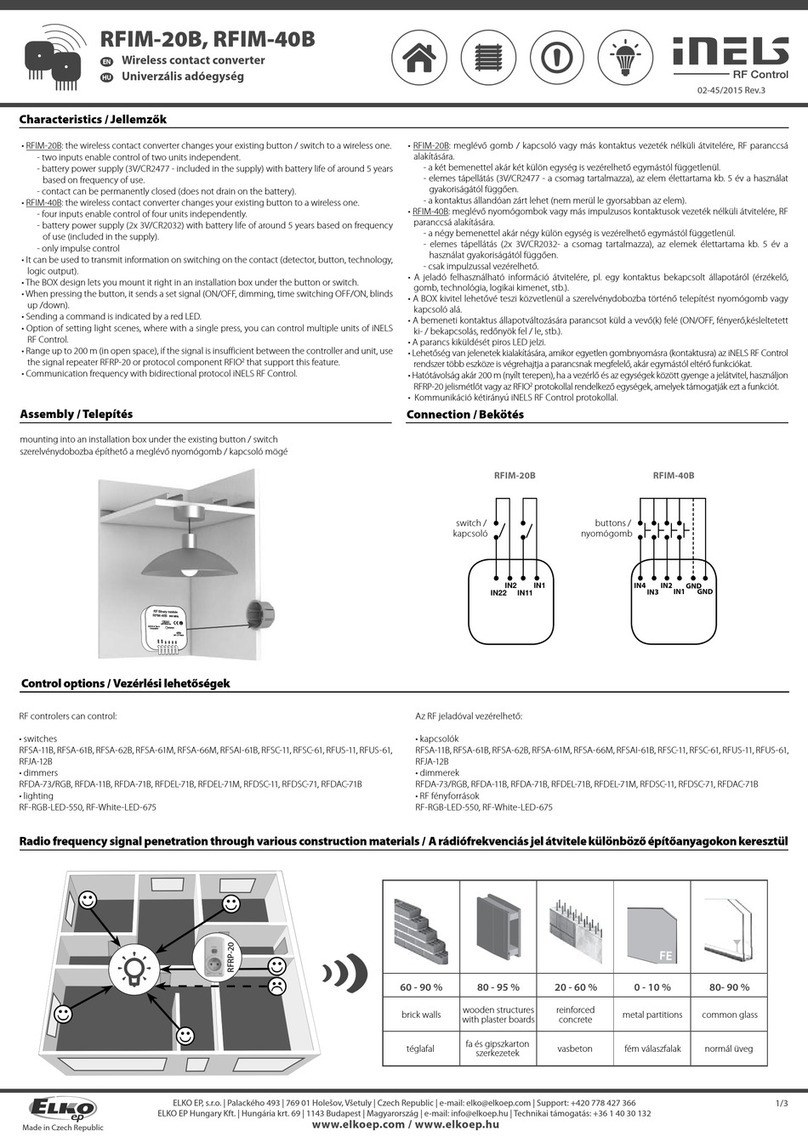
For IQ Panels using Software Version 1.4.2