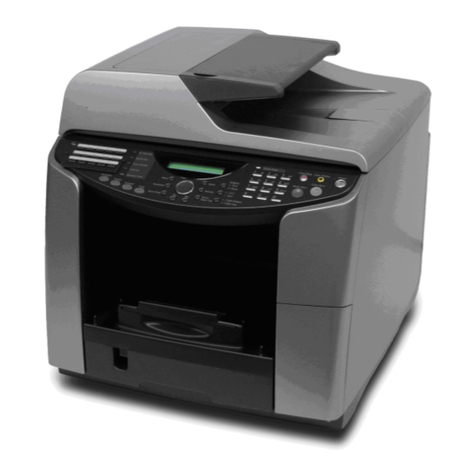
Ricoh Aficio SP C730DN User manual

Read this manual carefully before you use this machine and keep
it handy for future reference. For safe and correct use, be sure to
read the Safety Information in "Read This First" before using the
machine.
For information not in this manual, refer to
the HTML/PDF files on the supplied
CD-ROM.
Troubleshooting
Loading Paper
Getting Started
User Guide


TABLE OF CONTENTS
Manuals for This Machine................................................................................................................................. 3
Manuals List.........................................................................................................................................................5
1. Getting Started
Before You Start..................................................................................................................................................7
How to Read the Manuals.............................................................................................................................7
List of Options................................................................................................................................................. 8
Model-Specific Information...........................................................................................................................9
Guide to Names and Functions of Components............................................................................................10
Guide to Components................................................................................................................................. 10
Guide to the Names and Functions of the Printer's Control Panel........................................................... 16
Turning On/Off the Power..............................................................................................................................18
Turing On the Power....................................................................................................................................18
Turning Off the Power..................................................................................................................................18
Saving Energy.............................................................................................................................................. 19
Displaying the Printer Configuration Screens.................................................................................................21
Displaying the Printer Configuration Screens Using the Control Panel................................................... 21
Displaying the Printer Configuration Screens Using a Web Browser......................................................21
2. Loading Paper
Paper Specifications.........................................................................................................................................23
Paper Precautions.............................................................................................................................................28
Loading Paper into Paper Trays......................................................................................................................30
Extending Tray 1..........................................................................................................................................34
Loading Paper into the Bypass Tray............................................................................................................... 36
Loading Orientation-Fixed Paper or Two-Sided Paper................................................................................ 38
Loading Envelopes...........................................................................................................................................40
Specifications of Envelopes.........................................................................................................................40
Printing on Envelopes with Windows (PCL 6/PostScript 3)..................................................................... 42
Printing on Envelopes with Windows (PCL 5c)..........................................................................................42
Printing on Envelopes with Mac OS X........................................................................................................43
3. Troubleshooting
When a Panel Tone Beeps.............................................................................................................................. 45
When You Have Problems Operating the Printer..........................................................................................46
When the Color Registration Shifts................................................................................................................. 48
1

When the Printed Color Changes...................................................................................................................49
Setting the Gradation Correction Value.................................................................................................... 49
Gradation Correction Sheet....................................................................................................................... 50
Resetting the Gradation Correction Value to the Default Value.............................................................. 51
When the Printing Position Changes...............................................................................................................52
If USB Connection Fails................................................................................................................................... 54
When Messages Are Displayed.....................................................................................................................55
Status Messages.......................................................................................................................................... 55
Alert Messages (Displayed on the Control Panel).................................................................................... 56
Alert Messages (Printed on Error Logs and Reports)................................................................................ 62
Checking the Error Log.................................................................................................................................... 66
When You Cannot Print................................................................................................................................... 67
When the Data In Indicator Does Not Light Up or Flash..........................................................................68
Other Printing Problems................................................................................................................................... 69
When You Cannot Print Properly................................................................................................................69
Paper Misfeeds Occur Frequently..............................................................................................................72
The Printed Image Is Different from the Image on the Computer............................................................. 73
When Printer Is Not Functioning Properly..................................................................................................75
Additional Troubleshooting.........................................................................................................................76
When PictBridge Printing Does Not Work.....................................................................................................79
Removing Jammed Paper................................................................................................................................ 80
Paper Misfeed Message (A).......................................................................................................................80
Paper Misfeed Message (B)....................................................................................................................... 85
Paper Misfeed Message (C).......................................................................................................................86
Paper Misfeed Message (Y)....................................................................................................................... 89
Paper Misfeed Message (Z)....................................................................................................................... 91
Trademarks....................................................................................................................................................... 94
2

Manuals for This Machine
Read this manual carefully before using this machine.
Refer to the manuals that are relevant to what you want to do with the machine.
• The method for viewing the manual depends on the manual.
• Adobe® Acrobat® Reader®/Adobe Reader must be installed in order to view the manuals as PDF
files.
• A Web browser must be installed in order to view the HTML manuals.
User Guide
Summaries are provided below for the operating instructions regarding the basic usage of this
machine, frequently used functions, and troubleshooting when an error message appears.
Read This First
Before using the machine, be sure to read the "Safety Information" section of this manual. It
describes the regulations and environmental conformance.
Quick Installation Guide
Describes procedures from unpacking the machine to connecting it to a computer.
Operating Instructions
Provides detailed information about the operation of the machine in HTML format. The following
are main topics of the manual:
• Setting Up the Printer
• Getting Started
• Loading Paper
• Printing
• Configuring and Managing the Printer
• Troubleshooting
• Maintenance and Specifications
• VM Card Extended Feature Settings
VM Card Extended Feature Settings Web Reference
Explains how to set up the extended features settings using Web Image Monitor.
Security Guide
This manual is for administrators of the machine. It explains security functions that you can use to
prevent unauthorized use of the machine, data tampering, or information leakage. For enhanced
security, we recommend that you first:
• Install the Device Certificate.
3

• Enable SSL (Secure Sockets Layer) Encryption.
• Change the user name and password of the administrator using Web Image Monitor.
For details, see "Before Using This Machine", Security Guide.
Be sure to read this manual when setting the enhanced security functions or user and administrator
authentication.
Driver Installation Guide
Describes how to install and configure the drivers.
4

Manuals List
Manual Name Printed Manual
Provided
PDF Manual
Provided
HTML Manual
Provided
User Guide No Yes No
Read This First Yes No No
Quick Installation Guide Yes No No
Operating Instructions No No Yes
VM Card Extended Feature Settings
Web Reference No No Yes
Security Guide No Yes No
Driver Installation Guide No Yes No
• Driver Installation Guide and HTML manuals are available in English, German, French, Italian,
Spanish, Dutch, and Russian.
5

6

1. Getting Started
This section describes the symbols used in the manuals supplied with the printer, names and functions of
components and how to display the configuration screen of the printer.
Before You Start
How to Read the Manuals
Symbols used in the manuals
This manual uses the following symbols:
Indicates points to pay attention to when using the machine, and explanations of likely causes of paper
misfeeds, damage to originals, or loss of data. Be sure to read these explanations.
Indicates supplementary explanations of the machine's functions, and instructions on resolving user
errors.
This symbol is located at the end of sections. It indicates where you can find further relevant information.
[ ]
Indicates the names of keys on the machine's display or control panels.
Indicates the key sequence order you should perform using the control panel.
Example:
Select [Host Interface] Press [OK]
(Select [Host Interface], and then press the [OK] key.)
(mainly Europe and Asia)
(mainly North America)
Differences in the functions of Region A and Region B models are indicated by two symbols. Read the
information indicated by the symbol that corresponds to the region of the model you are using. For
details about which symbol corresponds to the model you are using, see "Model-Specific Information",
Operating Instructions.
7

Disclaimer
Contents of this manual are subject to change without prior notice.
In no event will the company be liable for direct, indirect, special, incidental, or consequential damages
as a result of handling or operating the machine.
Notes
The manufacturer shall not be responsible for any damage or expense that might result from the use of
parts other than genuine parts from the manufacturer with your office products.
For good output quality, the manufacturer recommends that you use genuine toner from the
manufacturer.
Some illustrations in this manual might be slightly different from the machine.
About IP address
In this manual, "IP address" covers both IPv4 and IPv6 environments. Read the instructions that are
relevant to the environment you are using.
List of Options
This section provides a list of options for this printer and the names commonly used in this manual.
Option name Description
Paper Feed Unit TK2000 500-sheet paper feed unit
Memory Unit Type N 1GB SDRAM module
Hard Disk Drive Option Type C730 Hard disk
IEEE802.11 Interface Unit Type O Wireless LAN interface board
IEEE 1284 Interface Board Type A IEEE 1284 interface board
Camera Direct Print Card Type L Camera direct print card
SD card for NetWare printing Type M NetWare card
VM Card Type W VM card
1. Getting Started
8
Table of contents
Other Ricoh Printer manuals

Ricoh
Ricoh G190 User manual
Ricoh
Ricoh Priport HQ7000 Service manual
Ricoh
Ricoh Aficio SP C840DN User manual
Ricoh
Ricoh SP 210 User manual

Ricoh
Ricoh MP C6502SP Quick start guide

Ricoh
Ricoh SP 230DNw User manual
Ricoh
Ricoh Aficio GX7000 Manual
Ricoh
Ricoh SP C240 Series Mounting instructions
Ricoh
Ricoh Aficio SP 4110N-KP User manual
Ricoh
Ricoh P800 User manual

Ricoh
Ricoh P7575 User manual
Ricoh
Ricoh Ri 1000 Operating instructions
Ricoh
Ricoh AP305 User manual
Ricoh
Ricoh SP 210 User manual
Ricoh
Ricoh SP150 series User manual
Ricoh
Ricoh Aficio GX7000 Manual
Ricoh
Ricoh Aficio SP C231N Specification sheet

Ricoh
Ricoh Aficio CL5000 User manual
Ricoh
Ricoh AficioSP C410DN User manual
Ricoh
Ricoh Aficio SP C430DN User manual