3
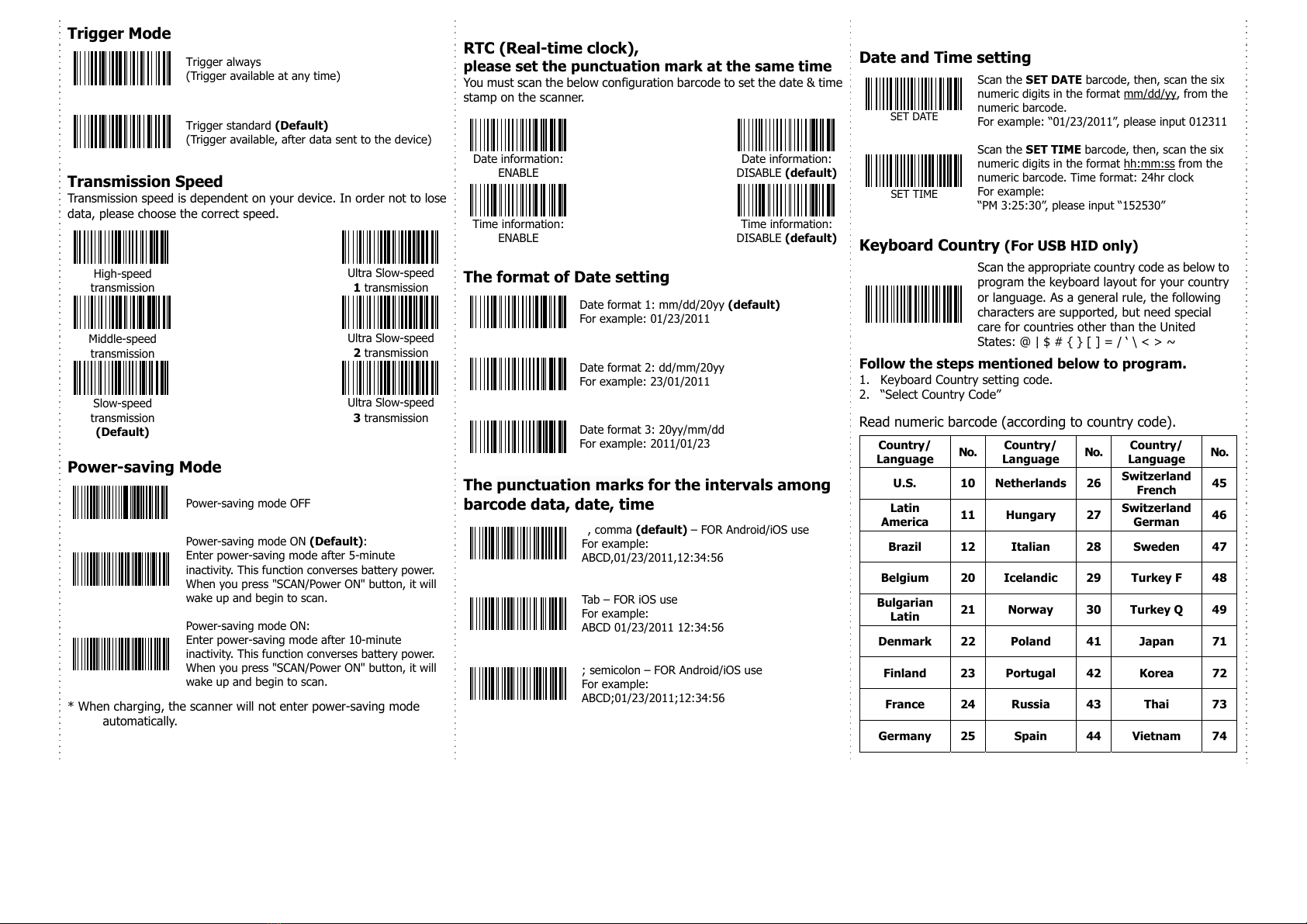
Trigger Mode
Trigger always
(Trigger available at any time)
Trigger standard (Default)
(Trigger available, after data sent to the device)
Transmission Speed
Transmission speed is dependent on your device. In order not to lose
data, please choose the correct speed.
High-speed Ultra Slow-speed
transmission 1 transmission
Middle-speed Ultra Slow-speed
transmission 2 transmission
Slow-speed Ultra Slow-speed
transmission
(Default)
3 transmission
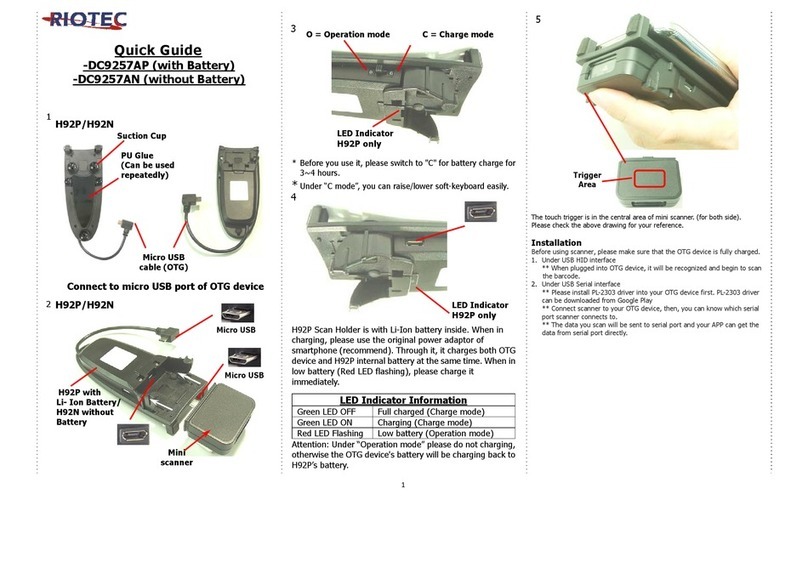
Power-saving Mode
Power-saving mode OFF
Powe
-saving mode ON (Default):
Enter power-saving mode after 5-minute
inactivity. This function converses battery power.
When you press "SCAN/Power ON" button, it will
wake up and begin to scan.
Powe
-saving mode ON:
Enter power-saving mode after 10-minute
inactivity. This function converses battery power.
When you press "SCAN/Power ON" button, it will
wake up and begin to scan.
* When charging, the scanner will not enter power-saving mode
automatically.
RTC (Real-time clock),
please set the punctuation mark at the same time
You must scan the below configuration barcode to set the date & time
stamp on the scanner.
Date information:
ENABLE
Date information:
DISABLE (default)
Time information:
ENABLE
Time information:
DISABLE (default)
The format of Date setting
Date format 1: mm/dd/20yy (default)
For example: 01/23/2011
Date format 2: dd/mm/20yy
For example: 23/01/2011
Date format 3: 20yy/mm/dd
For example: 2011/01/23
The punctuation marks for the intervals among
barcode data, date, time
, comma (default)
FOR Android/iOS use
For example:
ABCD,01/23/2011,12:34:56
Tab
FOR iOS use
For example:
ABCD 01/23/2011 12:34:56
; semicolon
FOR Android/iOS use
For example:
ABCD;01/23/2011;12:34:56
Date and Time setting
SET DATE
Scan the SET DATE barcode, then, scan the six
numeric digits in the format mm/dd/yy, from the
numeric barcode.
For example: “01/23/2011”, please input 012311
SET TIME
Scan the SET TIME barcode, then, scan the six
numeric digits in the format hh:mm:ss from the
numeric barcode. Time format: 24hr clock
For example:
“PM 3:25:30”, please input “152530”
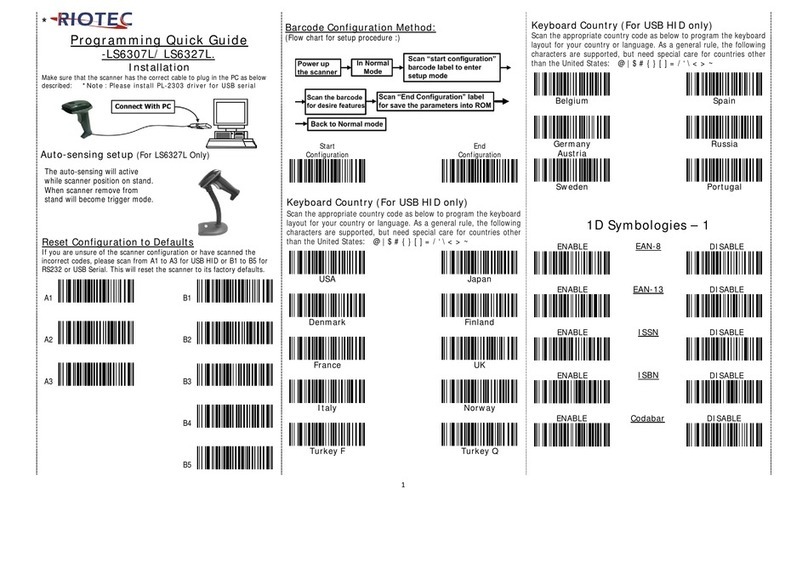
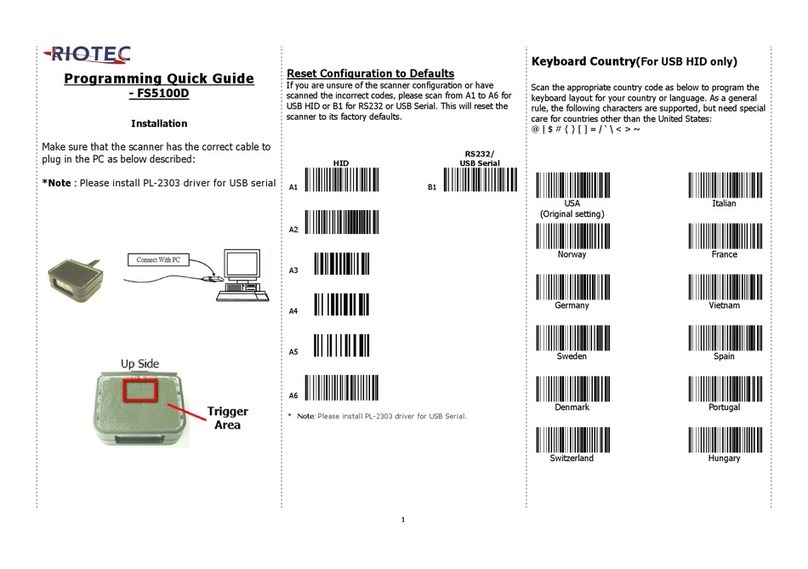
Keyboard Country (For USB HID only)
Scan the appropriate country code as below to
program the keyboard layout for your country
or language. As a general rule, the following
characters are supported, but need special
care for countries other than the United
States: @ | $ # { } [ ] = / ‘ \ < > ~
Follow the steps mentioned below to program.
1. Keyboard Country setting code.
2. “Select Country Code”
Read numeric barcode (according to country code).
Country/
Language No. Country/
Language No. Country/
Language No.
U.S. 10 Netherlands 26 Switzerland
French 45
Latin
America 11 Hungary 27 Switzerland
German 46
Brazil 12 Italian 28 Sweden 47
Belgium 20 Icelandic 29 Turkey F 48
Bulgarian
Latin 21 Norway 30 Turkey Q 49
Denmark 22 Poland 41 Japan 71
Finland 23 Portugal 42 Korea 72
France 24 Russia 43 Thai 73
Germany 25 Spain 44 Vietnam 74