RTX RTX7143 User manual
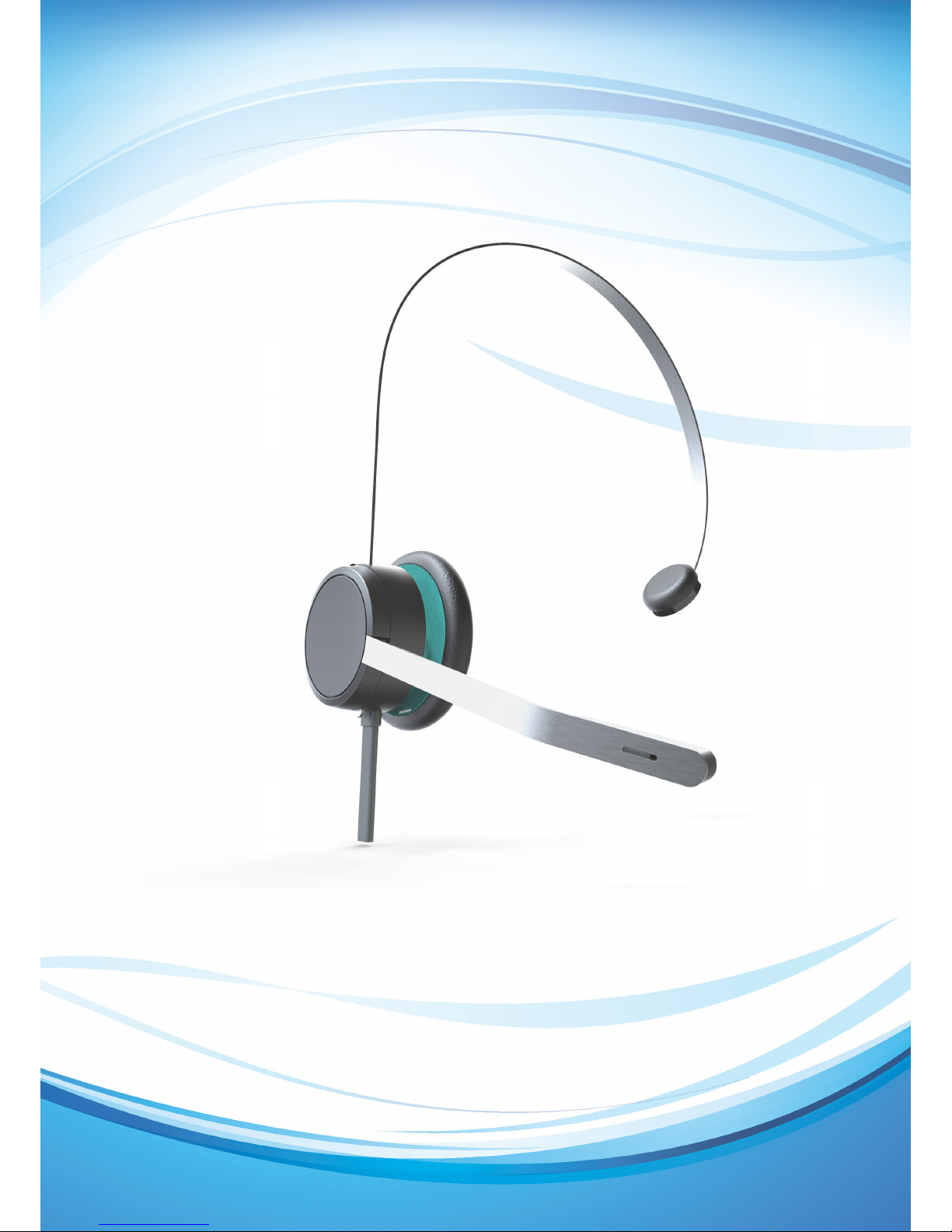
RTX7143 Quickguide

Contents
PART OVERVIEW: 3
CONNECTIONG THE HEADSET TO PC: 4
BLUETOOTH: 4
WEARING THE HEADSET: 5
Adjusting the headband: 5
Positioning the microphone: 5
Rotating the bendable boom arm: 5
HOOK-SWITCH CONTROLER: 6
OPERATING THE HEADSET: 6
HOW TO MUTE THE HEADSET: 6
Answer/Hang-up calls: 7
Auto hook off: 7
Play/Pause audio: 8
USING THE HEADSET WITH A MOBILE DEVICE: 9
PAIRING WITH MOBILE DEVICE: 9
SWITCHING BETWEEN PC AND MOBILE DEVICE: 9
USING THE HEADSET WITH MOBILE DEVICE: 9
Receiving a call on the mobile device when connected to PC: 9
CARE AND SAFTY: 10
3
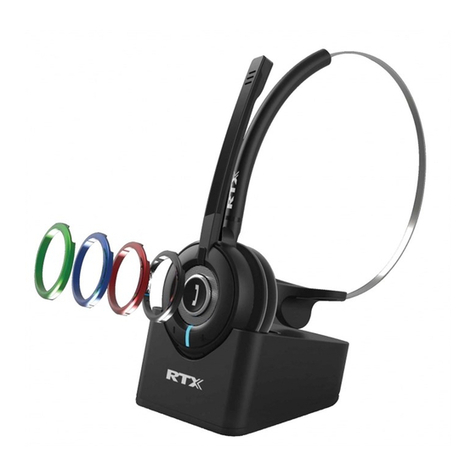
Thank you for purchasing the RTX7143 headset.
In this quick guide, you will nd all necessary information regarding your new RTX7143 headset.
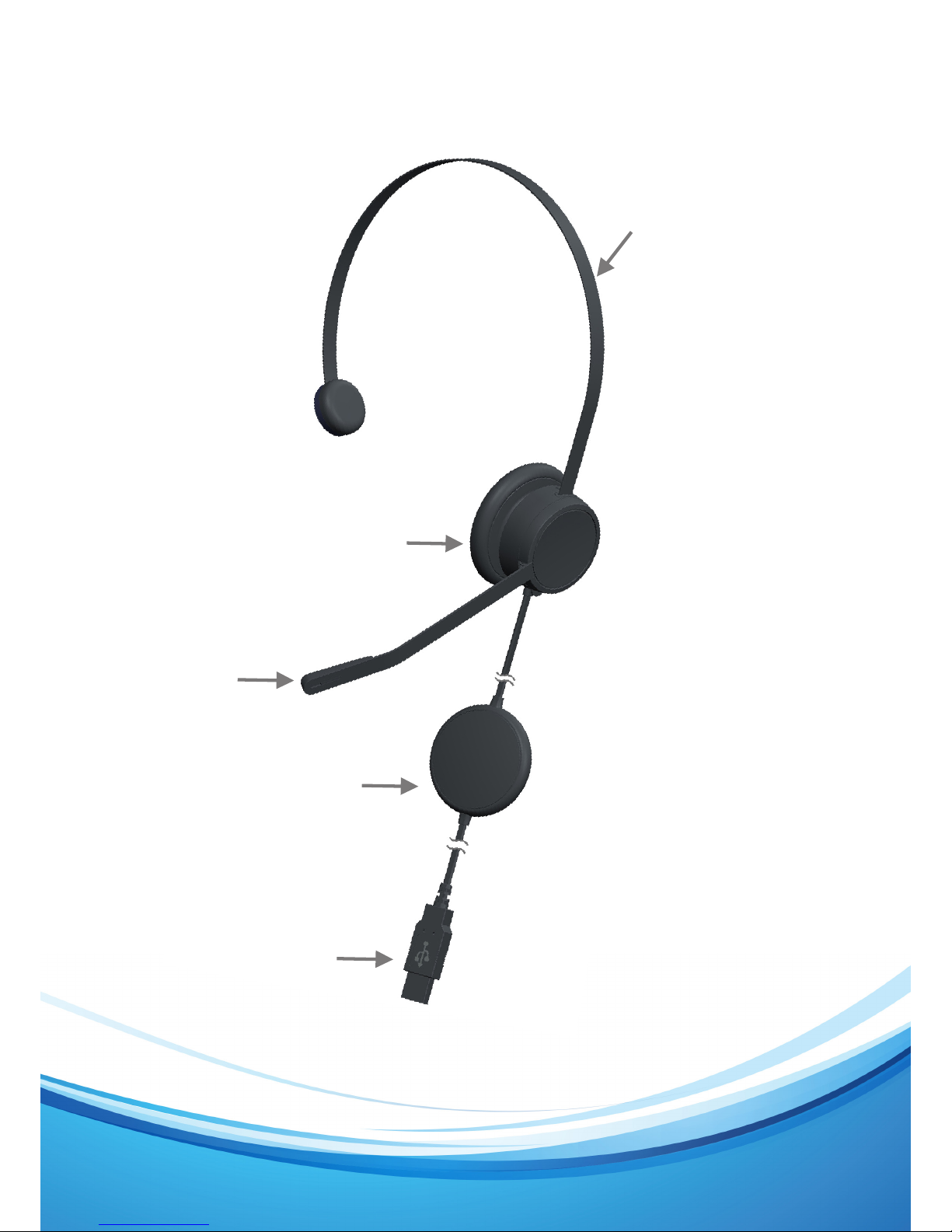
PART OVERVIEW:
Headband
Microphone
USB connector
Hook-Switch
Speaker

4
CONNECTIONG THE HEADSET TO PC:
- Plug-in the USB connector into the PC.
- When the headset is connected for the rst time a pop-up message will be shown in the taskbar,
telling you that the headset is connected. You are now ready to use the headset.
- When the headset is ready to use the will turn
NOTE: If you are using win7 you need to set the RTX7143 as default device in Windows control
panel - Sound settings. This only have to be done once.
BLUETOOTH:
The headset has built-in Bluetooth, for pairing with a mobile device. If the headset is not paired with a
mobile device the will be turned off. If it is paired with a mobile device the will turn red
For Bluetooth pairing and use see page 9.
5
WEARING THE HEADSET:
All RTX corded headsets have a exible and adjustable headband.
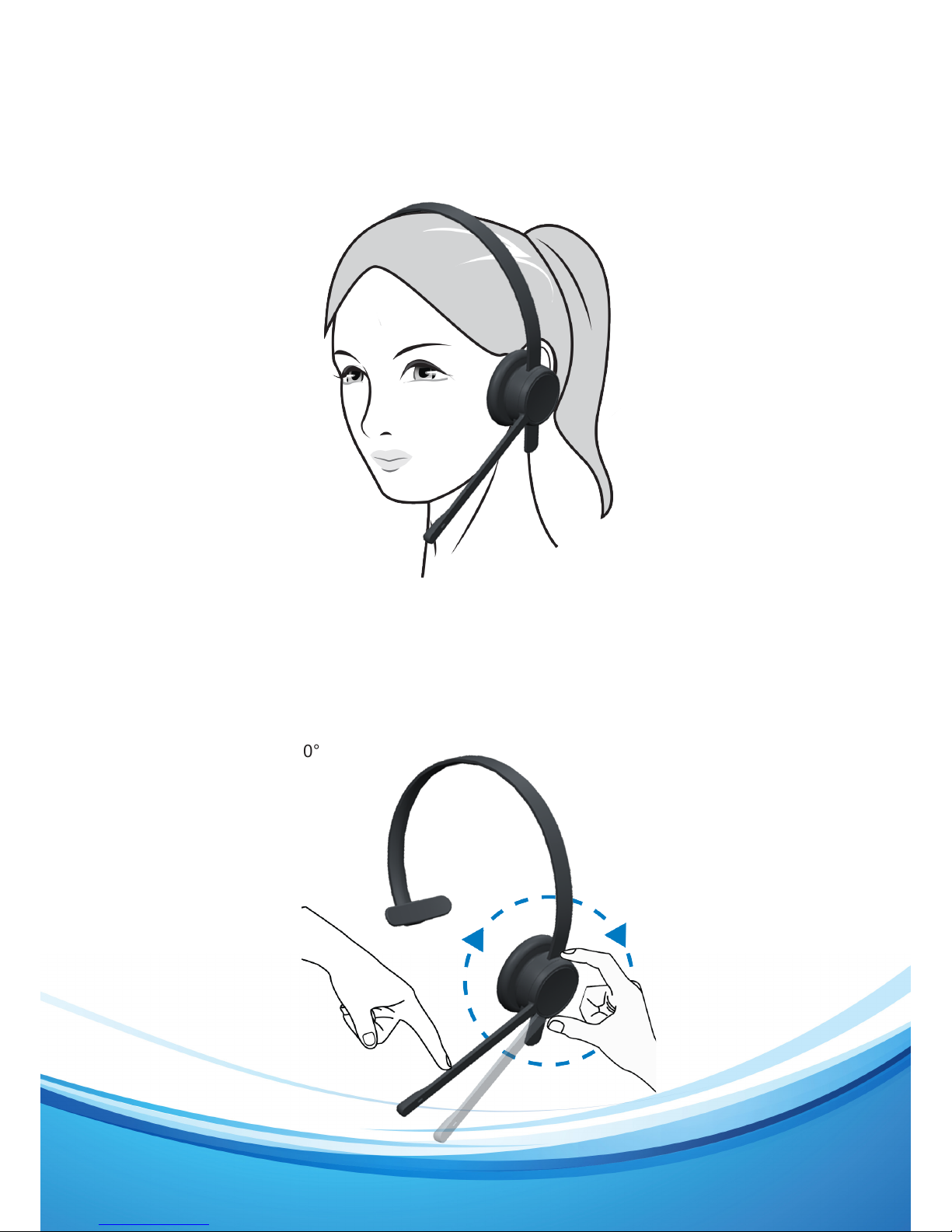
For best audio experience the microphone must be placed on the left ear.
Adjusting the headband:
Place the headband on your head with the headset on your ear, and adjust the headband for
a comfortable t.
Positioning the microphone:
For optimal sound quality, adjust the bendable boom arm until its right in front of your mouth and less
than 3-4 cm (1,25-1,5”) away.
Rotating the bendable boom arm:
The boom arm can rotate 360°

6
HOOK-SWITCH CONTROLER:
On the Hook-Switch controller you are able to control different functions of the headset.
The Hook-Switch has 7 touch functions.
- Volume Up Key
Increase audio volume
- Volume Down Key
Decrease audio volume
- Mute Key
Mute/unmute the microphone
- Softhook Key
Answer or end a softphone call
- Busy-LED Enable Key
Enable/disable the Busy-LED
- Play/Pause Key
Start/Continue/pause media playback
- Bluetooth, switch between PC or Mobile device.
OPERATING THE HEADSET:
When the headset is connected to a PC, and not receiving or making calls, the user can listen to
music or another audio source.
HOW TO ADJUST THE VOLUME:
There are 2 ways to adjust the volume.
1: The volume can be controlled by a swipe.
- Touch the brand name and Swipe Up to turn-up the volume.

7
- Touch the brand name and Swipe Down to turn-down the volume.
2: The Volume can also be controlled from the PC.
HOW TO MUTE THE HEADSET:
Mute the microphone by simply tapping the MUTE logo, the logo will turn red and you will hear
a short beep .
NOTE: By default, the voice prompt is enabled and the user will hear “Microphone muted”
Unmute the microphone by tapping the MUTE logo again and the logo turns off followed by a beep .
NOTE: By default, the voice prompt is enabled and the user Will hear “Microphone unmuted”
Answer/Hang-up calls:
To answer a call, press the logo, it will turn green to show a call is active. Press the again to
hang up the call.
Auto hook off:
The headset has a proximity sensor. When there is an incoming call from paired external Bluetooth
device or the PC softphone side, if the user put on the headset, the incoming call will be automatically
accepted.

8
BUSY LED:
The headset has a busy LED that will indicate if the user is ready to make/receive calls.
The Busy LED can be congured on the Hook-switch controller to Enable/disable.
Enable: Press and hold the logo for 2 sec, and the voice prompt will say “Busy enabled”.
Disable: Press and hold the logo for 2 sec, and the voice prompt will say “Busy disabled”.
Play/Pause audio:
You can listen to audio while wearing the headset, simple start the audio les from you preferred
audio player.
- To put pause the audio les press the and press it again to resume the audio playback.
If you receive a call while listening to audio les, the PC/Mobile device will turn down the music and
you will hear the incoming call.
NOTE: If listening to streamed audio, you might need to make adjustments in the Control panel, for
the PC to handle the audio/call as you prefer.

9
USING THE HEADSET WITH A MOBILE DEVICE:
Before you can use the headset with a mobile device you need to pair the two units.
PAIRING WITH MOBILE DEVICE:
1: Put the headset into pairing mode by pressing and holding the Bluetooth logo for 5 sec. the voice
prompt will say “PAIRING” and the Bluetooth symbol will blink Blue/Red.
2: Enter the Bluetooth menu on your mobile device and select RTX7143, the voice prompt will say
“CONNECTED” and the will turn solid red
Now your mobile device is connected to the headset.
SWITCHING BETWEEN PC AND MOBILE DEVICE:
To switch between Mobile device and PC press the Bluetooth symbol for 2 sec. you will hear a beep
and the Bluetooth symbol will switch from to
Blue –the headset is active on the mobile device.
Red – the headset is active on the PC.
USING THE HEADSET WITH MOBILE DEVICE:
When the headset is active on the mobile device, you are able to make and receive calls from the
mobile device on the headset.
Receiving a call on the mobile device when connected to PC:
Even if the headset is active on the PC you are able to make and receive calls on your mobile device.
Receiving a call: When receiving a call, you will hear beep’s in the headset and the Bluetooth
symbol will start blinking blue, simply press the Bluetooth symbol to switch to mobile device, the call
is automatically answered.
Making a call: The headset has to be active on the mobile device .Then you can make call as
you normally do on the mobile device.
Redial the last called number: Double press the Bluetooth symbol to redial the last called number.
If you are listening to Audio on your mobile device when you receive or make a call the audio will be
paused and the symbol will turn orange.
In case the mobile device moves out of range of the headset the will start blinking blue.

CARE AND SAFTY:
- To avoid hearing damage, do not use this product with high volume for prolonged period.
- This product must only be cleaned with a dry and soft cloth.
- To avoid damage to the product, do not expose it to moist, extreme low and high temperatures.
10
Table of contents
Other RTX Headset manuals