manuals.online logo
Brands
  1. Home
  2. •
  3. Brands
  4. •
  5. Samsung
  6. •
  7. Cell Phone
  8. •
  9. Samsung Galaxy A25 5G User manual

Samsung Galaxy A25 5G User manual

This manual suits for next models

5

Other Samsung Cell Phone manuals

Samsung SGH-P930 User manual

Samsung

Samsung SGH-P930 User manual

Samsung SCH-a790 Series User manual

Samsung

Samsung SCH-a790 Series User manual

Samsung SCH-a850 Series User manual

Samsung

Samsung SCH-a850 Series User manual
Samsung SM-G930R4 User manual

Samsung

Samsung SM-G930R4 User manual
Samsung Galaxy S6 Edge User manual

Samsung

Samsung Galaxy S6 Edge User manual
Samsung GT-S8600 User manual

Samsung

Samsung GT-S8600 User manual
Samsung sm-a800f User manual

Samsung

Samsung sm-a800f User manual
Samsung SCH-F519 User manual

Samsung

Samsung SCH-F519 User manual
Samsung SM-G3589W User manual

Samsung

Samsung SM-G3589W User manual
Samsung Galaxy S4 User manual

Samsung

Samsung Galaxy S4 User manual

Samsung galaxy S9 User manual

Samsung

Samsung galaxy S9 User manual
Samsung SM-J510MN/DS User manual

Samsung

Samsung SM-J510MN/DS User manual
Samsung SGH-E830 User manual

Samsung

Samsung SGH-E830 User manual
Samsung SM-G928W8 User manual

Samsung

Samsung SM-G928W8 User manual
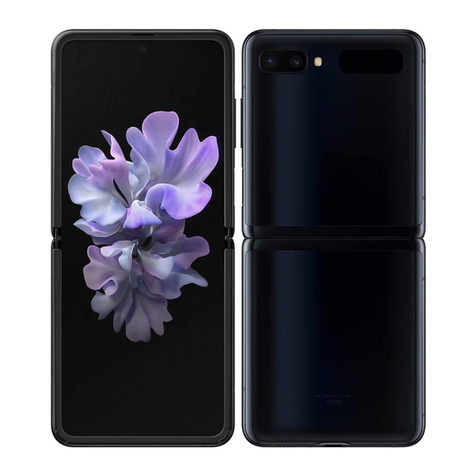
Samsung Galaxy Z Flip User manual

Samsung

Samsung Galaxy Z Flip User manual

Samsung SGH-X550 User manual

Samsung

Samsung SGH-X550 User manual
Samsung SM-S765C User manual

Samsung

Samsung SM-S765C User manual
Samsung SM-E500YZ User manual

Samsung

Samsung SM-E500YZ User manual

Samsung DENIM SGH-A207ZKAATT User manual
Samsung

Samsung DENIM SGH-A207ZKAATT User manual

Samsung One to one Galaxy Y User manual
Samsung

Samsung One to one Galaxy Y User manual

Samsung GT-N7000 User manual
Samsung

Samsung GT-N7000 User manual

Samsung SGH-T679Galaxy Exhibit 4G User manual

Samsung

Samsung SGH-T679Galaxy Exhibit 4G User manual
Samsung SCH-1530 User manual

Samsung

Samsung SCH-1530 User manual

Samsung SGH-F700V User manual

Samsung

Samsung SGH-F700V User manual

Popular Cell Phone manuals by other brands

Nokia 6700 classic user guide

Nokia

Nokia 6700 classic user guide

LG L34C user guide

LG

LG L34C user guide

Ericsson T60d manual

Ericsson

Ericsson T60d manual

Zte Score M user manual

Zte

Zte Score M user manual

Sony Xperia Z1 Compact Startup guide

Sony

Sony Xperia Z1 Compact Startup guide

AT AT-Q5 user manual

AT

AT AT-Q5 user manual

Vingtor ACM-M-A-V2 Installation/configuration

Vingtor

Vingtor ACM-M-A-V2 Installation/configuration

Olitech EasyFlip 2 Quick setup guide

Olitech

Olitech EasyFlip 2 Quick setup guide

Zte Atrium Z793C user manual

Zte

Zte Atrium Z793C user manual

Alcatel IDEAL manual

Alcatel

Alcatel IDEAL manual

Zte BLADE A520 quick start guide

Zte

Zte BLADE A520 quick start guide

switel M222 user manual

switel

switel M222 user manual

LG LG-P503 user guide

LG

LG LG-P503 user guide

LG F2410 user guide

LG

LG F2410 user guide

Argom E500 manual

Argom

Argom E500 manual

Hisense U30 user manual

Hisense

Hisense U30 user manual

Argom Tech E401 user manual

Argom Tech

Argom Tech E401 user manual

Nokia 3595 - Cell Phone - GSM Manual Del Usuario

Nokia

Nokia 3595 - Cell Phone - GSM Manual Del Usuario

manuals.online logo
manuals.online logoBrands
  • About & Mission
  • Contact us
  • Privacy Policy
  • Terms and Conditions

Copyright 2025 Manuals.Online. All Rights Reserved.

User Guide
Contents
Features
Biometric security|Dark mode
Getting started
Device layout: Galaxy A25 5G
Set up your device: Charge the battery
Start using your device: Turn on your device|Use the Setup Wizard|Bring data from an
old device|Lock or unlock your device|Side button settings|Accounts|Set up
voicemail|Navigation|Navigation bar|Customize your home screen|Modes and
Routines|Digital wellbeing and parental controls|Always On Display|Biometric
security|Memory card|Multiwindow|Edge panels|Enter text
Customize your home screen: App icons|Wallpaper|Themes|Icons|Widgets|Home
screen settings|Easy mode|Status bar|Notification panel |Quick settings
Camera and Gallery
Camera: Navigate the camera screen|Configure shooting mode|AR Zone|Record
videos|Camera settings
Gallery: Open pictures|Edit pictures|Play video|Edit video|Share pictures and videos|
Delete pictures and videos|Take a screenshot|Screen recorder
Samsung apps
ARZone|Gaming Hub|Global Goals|Members|News|SmartThings|Store|TV|
Wallet|Wearable|Calculator|Calendar|Clock|Contacts|Internet|Messages|
MyFiles|Phone|Health|Notes
2SAM_A256_EN_UG_TN_WL1_121523_FINAL
Google apps
Chrome|Drive|Gmail|Google|Google TV|Maps|Meet|Messages |Photos|Play
Store|YouTube|YT Music
Microsoft apps
Outlook|LinkedIn|Microsoft 365|OneDrive
Settings
Connections:Wi-Fi|Bluetooth|NFC and payment|Airplane mode|SIMmanager |
Mobile networks|Data usage|Mobile hotspot|Tethering|Nearby device scanning|
Connect to a printer|Virtual Private Networks|Private DNS|Ethernet|Keep system
configuration up to date |Connected devices
Customization:Display|Notifications|Sounds and vibration
Security:Lock screen and security|Face recognition|Fingerprint scanner
Accounts:Add an account|Account settings|Remove an account|Backup and
restore|Google settings
Backup:Samsung account|Google Account|External storage transfer
Accessibility:Recommended for you|Vision enhancements |TalkBack |Hearing
enhancements|Interaction and dexterity|Advanced settings|Installed apps|About
Accessibility|Contact us
Other:User manual|Dual Messenger|Smart suggestions |Medical info|Labs|About
phone
Learn more
Legal information
Contents
3
Getting started
Galaxy A25 5G
Set up your device
Start using your device
4
Galaxy A25 5G
Camera
Volume button
USB/Charger port
Camera
Side button
Speaker
Headset jack
Microphone
Getting started
5
Devices and software are constantly evolving — illustrations are for reference only.
Set up your device
Charge the battery
Your device uses a nano-SIM card. A SIM card may be preinstalled, or you may be able
to use your previous SIM card.
Learn more: SIMmanager
Network indicators for 5G service are based on your service provider’s specifications
and network availability. Contact your service provider for more details.
Charge your device
Before turning on your
device, charge it fully.
Install SIM/microSD
card tray
Place the SIM/
microSD™ card into
the tray.
SIM2
microSD
100%
Getting started
6
Devices and software are constantly evolving — illustrations are for reference only.
Charge the battery
Your device is powered by a rechargeable battery. A USB Type-C 3A cable is included.
Learn more: samsung.com/us/support/answer/ANS00078994
NOTE Wall charger sold separately. Use only Samsung-approved chargers and
cables. To avoid injury or damage to your device, do not use incompatible, worn
or damaged batteries, chargers or cables. Using other charging devices and
batteries may not be covered under warranty and may cause damage.
Learn more: samsung.com
TIPWhile charging, the device and the charger may become hot and stop
charging. Thisusually does not affect the device’s lifespan or performance and is
in the device’s normal range of operation. Disconnect the charger from the device
and wait for the device to cool down. Learn more: samsung.com/us/support/
answer/ANS00076952
Start using your device
Turn on your device|Use the Setup Wizard|Bring data from an old device|Lock or
unlock your device|Side button settings|Accounts|Set up voicemail|Navigation|
Navigation bar|Customize your home screen|Modes and Routines|Digital wellbeing
and parental controls|Always On Display|Biometric security|Memory card|
Multiwindow|Edge panels|Enter text
Turn on your device
Use Side button to turn your device on. Do not use the device if the body is cracked or
broken. Use the device only after it has been repaired.
◌Press and hold Side button to turn the device on.
•To turn the device off, press and hold Side button, and tap Power off.
Confirm when prompted.
•To restart your device, press and hold Side button, and tap Restart.
Confirm when prompted.
7
Getting started
NOTEBest 5G performance requires optimal 5G connection and unobstructed
antennas (rear of device); contact your service provider for network availability;
5G performance may be impacted by a case or cover.
Use the Setup Wizard
The first time you turn your device on, the Setup Wizard guides you through the basics
of setting up your device.
Follow the prompts to choose a default language, connect to a Wi-Fi®network, set up
accounts, choose location services, learn about your device’s features, and more.
Bring data from an old device
Download Smart Switch™to transfer contacts, photos, music, videos, messages, notes,
calendars, and more from your old device. Smart Switch can transfer your data using
a USBcable, Wi-Fi, or computer. Learn more: samsung.com/smartswitch
1. From Settings, tap Accounts and backup >Bring data from old device.
2. Follow the prompts and select the content to transfer.
8
Getting started
Lock or unlock your device
Use your device’s screen lock features to secure your device. By default, the device
locks automatically when the screen times out. Learn more: Lock screen and security
Side button
Press to lock.
Press to turn on the
screen, and then
swipe the screen to
unlock it.
Getting started
9
Devices and software are constantly evolving — illustrations are for reference only.
Side button settings
You can customize the shortcuts assigned to Side button.
Double press
Choose which feature is launched when Side button is pressed twice.
1. From Settings, tap Advanced features >Side button.
2. Tap Double press to enable this feature, and tap an option:
lQuick launch camera (default)
lOpen app
Accounts
Set up and manage your accounts.
TIPAccounts may support email, calendars, contacts, and other features.
Contact your service provider for more information.
Add a Google Account
Sign in to your Google Account to access your Google Cloud Storage, apps installed
from your account, and make full use of your device’s Android™features.
When you sign in to a Google Account and set a Lock screen, Google Device
Protection is activated. This service requires your Google Account information when
resetting to factory settings. Learn more: Google Play Protect
1. From Settings, tap Accounts and backup >Manage accounts.
2. Tap Add account >Google.
Add a Samsung account
Sign in to your Samsung account to access exclusive Samsung content and make full
use of Samsung apps.
◌From Settings, tap Samsung account.
10
Getting started