Samsung SDH-C75080 User manual
Other Samsung DVR manuals
Samsung
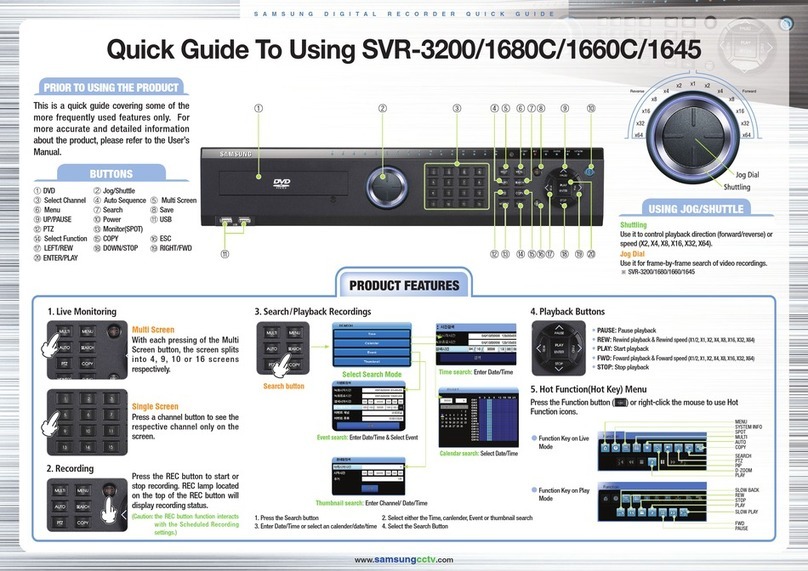
Samsung SVR-1680C User manual

Samsung
Samsung DVD-R2000 User manual

Samsung
Samsung SDH-P4080 User manual
Samsung
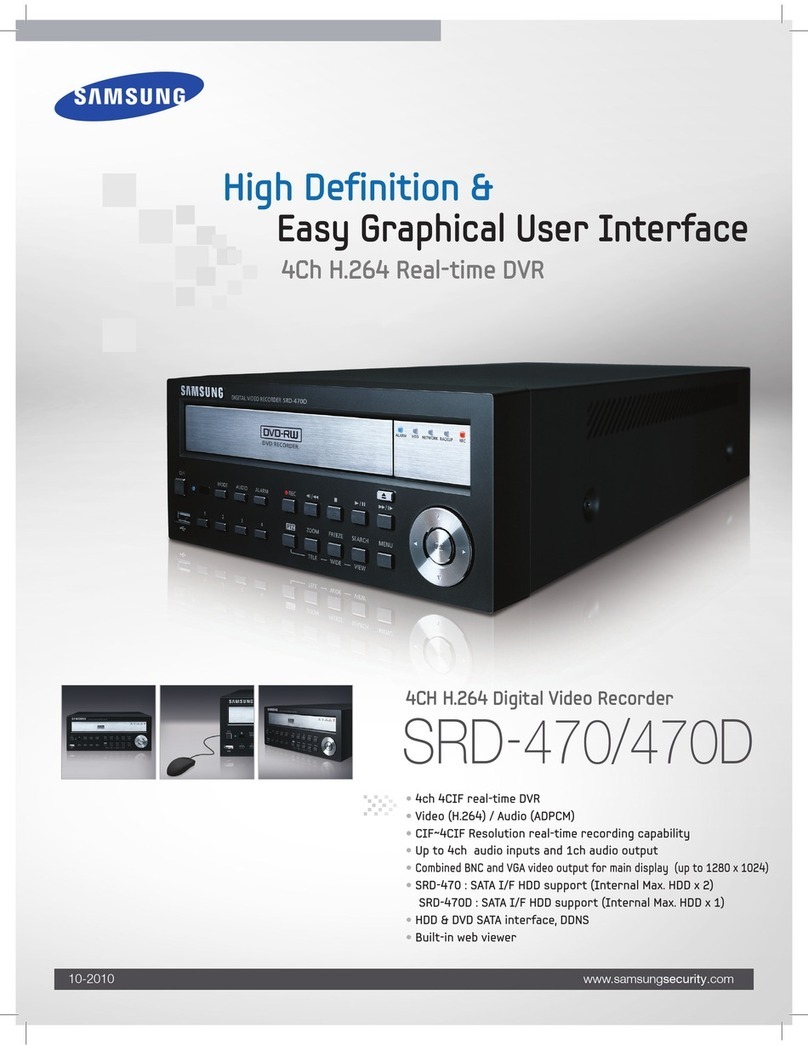
Samsung SRD-470 User manual
Samsung
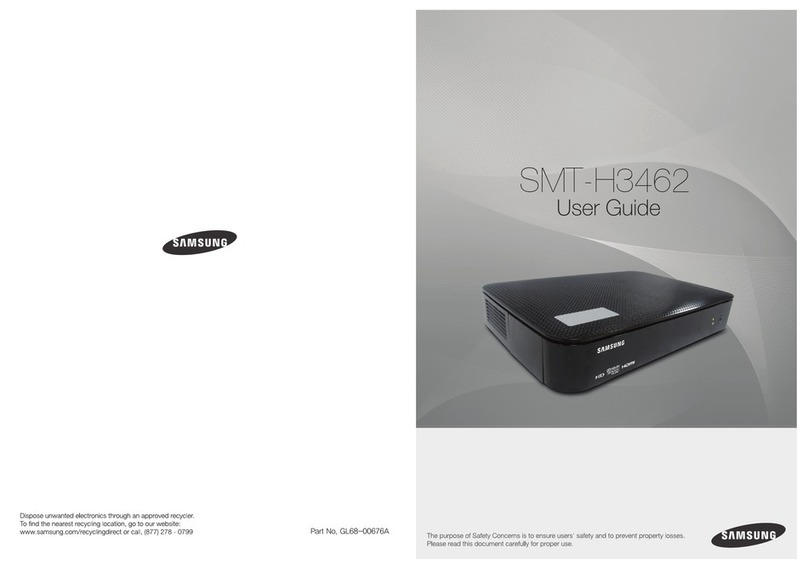
Samsung SMT-H3462 User manual
Samsung
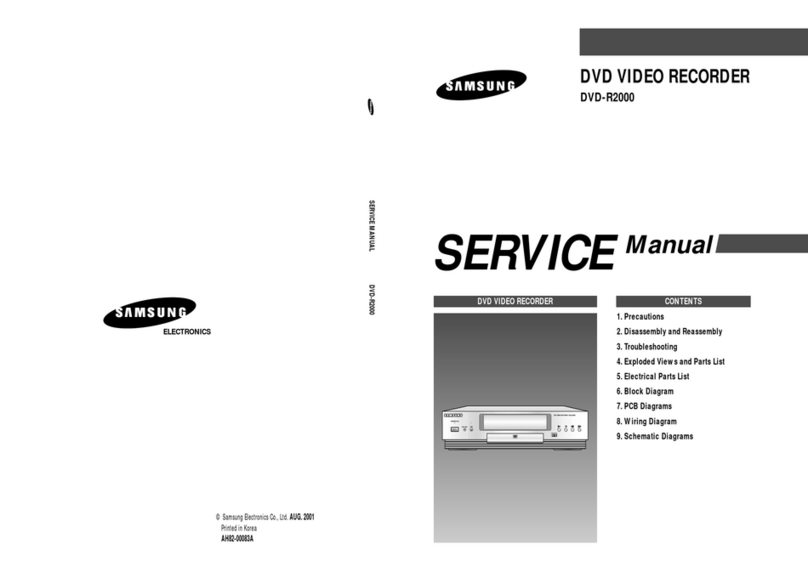
Samsung DVD-R2000 User manual

Samsung
Samsung 8340 User manual
Samsung
Samsung Real Time SHR-2041 User manual

Samsung
Samsung SVR-1630 User manual

Samsung
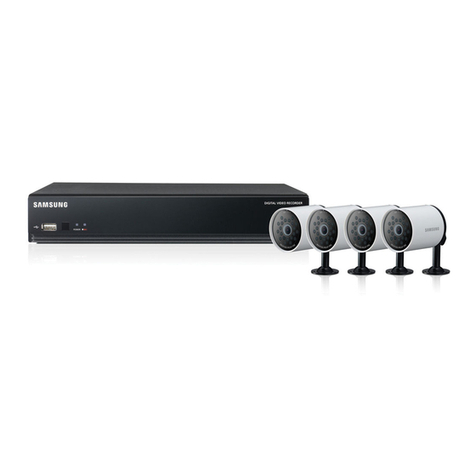
Samsung Horizon HD Recorder User manual
Samsung
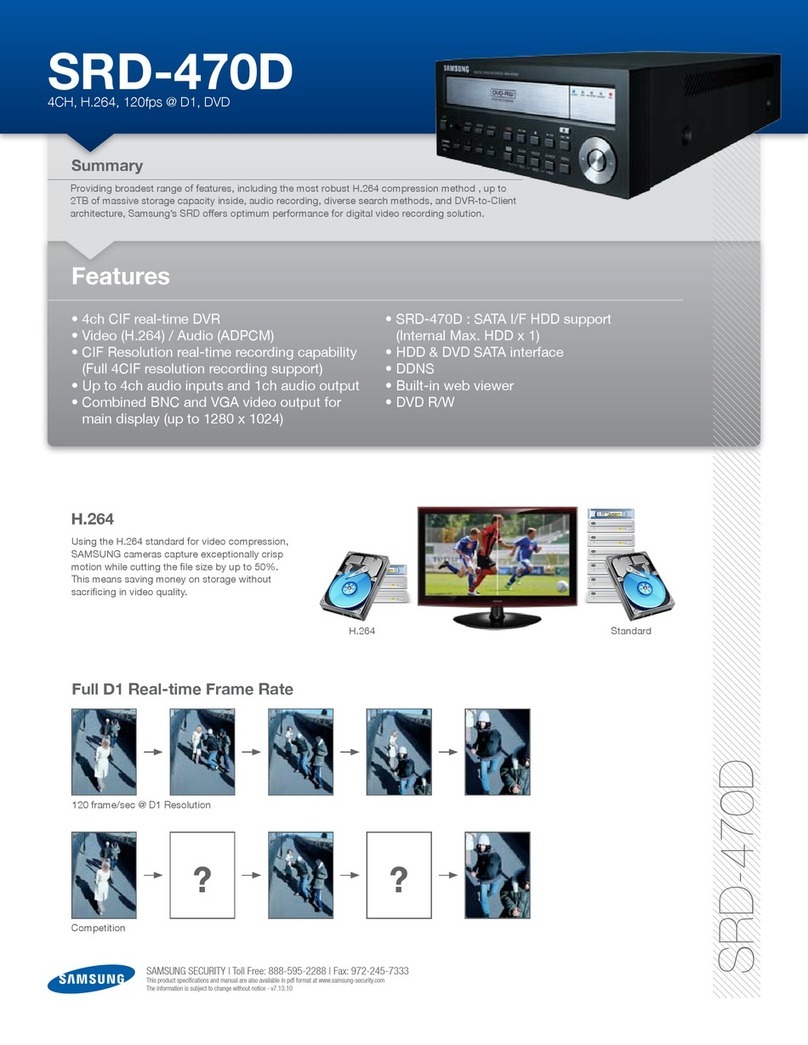
Samsung 4 channel DVR User manual
Samsung
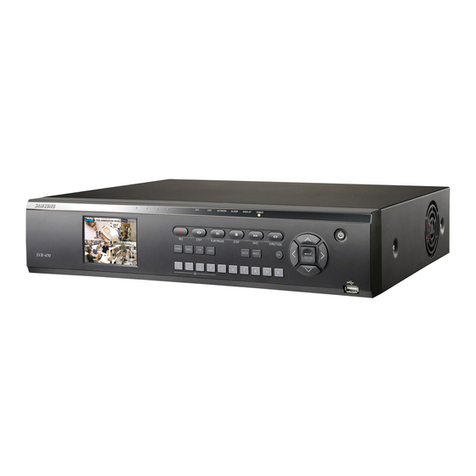
Samsung SRD-470D User manual
Samsung
Samsung SVR-470 User manual
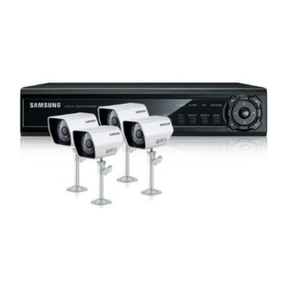
Samsung
Samsung SDE-120N User manual
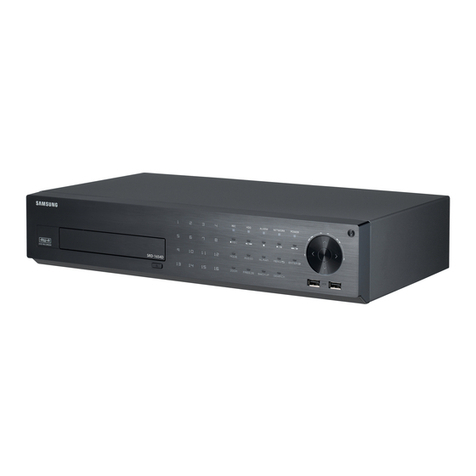
Samsung
Samsung SRD-1654D User manual
Samsung
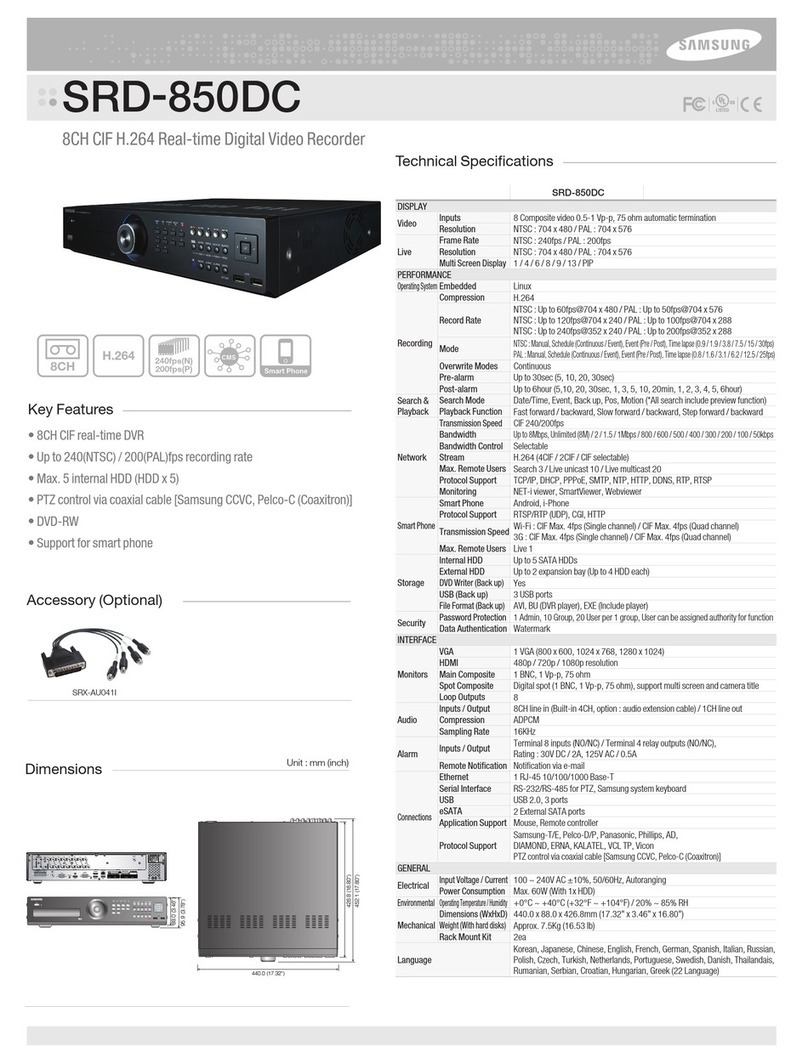
Samsung SRD-850DC User manual
Samsung
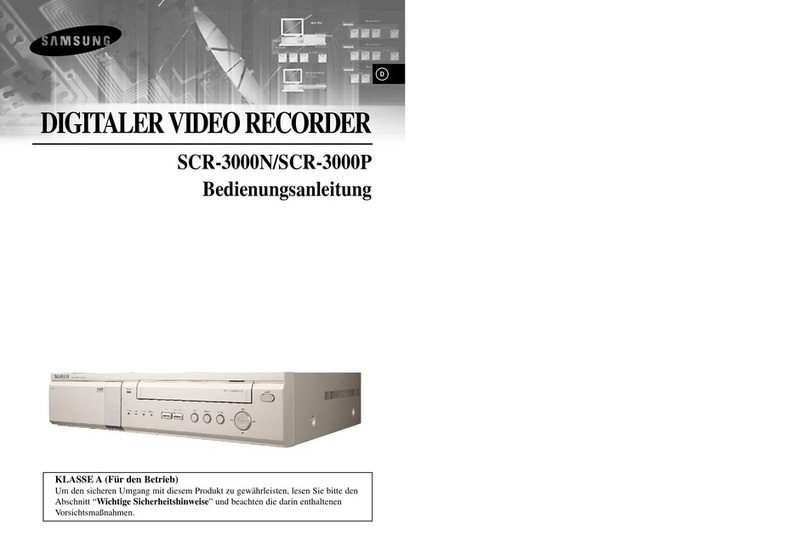
Samsung SCR-3000N User manual
Samsung
Samsung SRD-830 User manual
Samsung
Samsung SHR-2040 User manual

Samsung
Samsung SHR-3010 User manual