manuals.online logo
Brands
  1. Home
  2. •
  3. Brands
  4. •
  5. SMART-AVI
  6. •
  7. Switch
  8. •
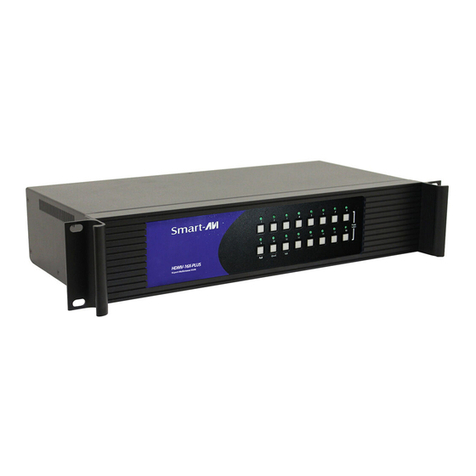
  9. SMART-AVI HDR32X32 Plus User manual

SMART-AVI HDR32X32 Plus User manual

Other SMART-AVI Switch manuals

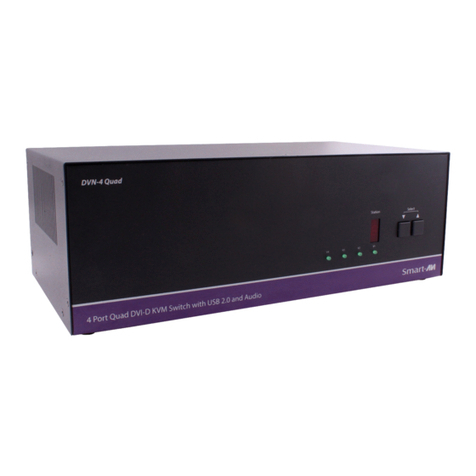
SMART-AVI SM-MST-4Q User manual

SMART-AVI

SMART-AVI SM-MST-4Q User manual

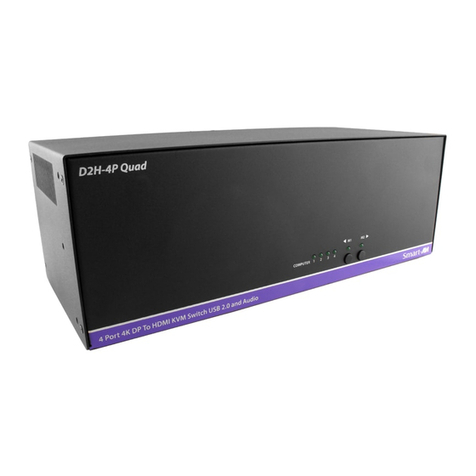
SMART-AVI D2H-4P-Quad User manual

SMART-AVI

SMART-AVI D2H-4P-Quad User manual

SMART-AVI HDR-4X4-PLUS-V2 User manual

SMART-AVI

SMART-AVI HDR-4X4-PLUS-V2 User manual

SMART-AVI SM-D2H-4S User manual

SMART-AVI

SMART-AVI SM-D2H-4S User manual

SMART-AVI HDN-4DUO-S User manual

SMART-AVI

SMART-AVI HDN-4DUO-S User manual

SMART-AVI QKVMDP User manual

SMART-AVI

SMART-AVI QKVMDP User manual

SMART-AVI D2H-4P Quad User manual

SMART-AVI

SMART-AVI D2H-4P Quad User manual

SMART-AVI HDMV-8X User manual

SMART-AVI

SMART-AVI HDMV-8X User manual

SMART-AVI SM-DVN-44X User manual

SMART-AVI

SMART-AVI SM-DVN-44X User manual

SMART-AVI SM-HDN-8S User manual

SMART-AVI

SMART-AVI SM-HDN-8S User manual

SMART-AVI SM-UHO Series User manual

SMART-AVI

SMART-AVI SM-UHO Series User manual

SMART-AVI HKM-04 User manual

SMART-AVI

SMART-AVI HKM-04 User manual

SMART-AVI DVN-8PRO User manual

SMART-AVI

SMART-AVI DVN-8PRO User manual

SMART-AVI HKM-04 User manual

SMART-AVI

SMART-AVI HKM-04 User manual

SMART-AVI SM-MST-4D User manual

SMART-AVI

SMART-AVI SM-MST-4D User manual

SMART-AVI DSK-2D User manual

SMART-AVI

SMART-AVI DSK-2D User manual

SMART-AVI DVN-16Pro User manual

SMART-AVI

SMART-AVI DVN-16Pro User manual

SMART-AVI DVN-16Pro User manual

SMART-AVI

SMART-AVI DVN-16Pro User manual

SMART-AVI HDNET-4P User manual

SMART-AVI

SMART-AVI HDNET-4P User manual

SMART-AVI UHDN-4P Duo User manual

SMART-AVI

SMART-AVI UHDN-4P Duo User manual

SMART-AVI SM-HDN-4Q User manual

SMART-AVI

SMART-AVI SM-HDN-4Q User manual

SMART-AVI HKM-02 User manual

SMART-AVI

SMART-AVI HKM-02 User manual

SMART-AVI DVN-4DUO User manual

SMART-AVI

SMART-AVI DVN-4DUO User manual

SMART-AVI DPN-4P User manual

SMART-AVI

SMART-AVI DPN-4P User manual

Popular Switch manuals by other brands

TRENDnet TK-401R null

TRENDnet

TRENDnet TK-401R null

TRENDnet TK-200K null

TRENDnet

TRENDnet TK-200K null

TRENDnet TE100-S8 null

TRENDnet

TRENDnet TE100-S8 null

URC Total Control MFS-8 installation manual

URC

URC Total Control MFS-8 installation manual

Azbil HPQ-D11 user manual

Azbil

Azbil HPQ-D11 user manual

Sony DFS-900M operating instructions

Sony

Sony DFS-900M operating instructions

SICK i17S operating instructions

SICK

SICK i17S operating instructions

F&F SZR-277 quick start guide

F&F

F&F SZR-277 quick start guide

Shure UAMS/BK user guide

Shure

Shure UAMS/BK user guide

Dräger X-zone Switch Off Instructions for use

Dräger

Dräger X-zone Switch Off Instructions for use

Asco Joucomatic 349 Series manual

Asco

Asco Joucomatic 349 Series manual

BT Mini Hub user guide

BT

BT Mini Hub user guide

D-Link DES-1226G manual

D-Link

D-Link DES-1226G manual

Johnson Controls FS80-C installation instructions

Johnson Controls

Johnson Controls FS80-C installation instructions

MicroNet SP1200A user manual

MicroNet

MicroNet SP1200A user manual

Ruijie RG-PF2920 Series Hardware  installation and reference guide

Ruijie

Ruijie RG-PF2920 Series Hardware installation and reference guide

Altinex DA1914SX user guide

Altinex

Altinex DA1914SX user guide

RJM MASTERMIND PBC/6X user manual

RJM

RJM MASTERMIND PBC/6X user manual

manuals.online logo
manuals.online logoBrands
  • About & Mission
  • Contact us
  • Privacy Policy
  • Terms and Conditions

Copyright 2025 Manuals.Online. All Rights Reserved.

1
Made in U.S.A. www.SmartAVI.com 1-800-AVI-2131
HDR32X32 Plus
User Manual
32-Port 4K 30Hz HDMI Matrix Switch with Front Panel,
RS-232 & Optional TCP/IP Control
32 Port 4K 30Hz HDMI Matrix Switch
2
TABLE OF CONTENTS
WHAT'S IN THE BOX? 2
INTRODUCTION 3
FEATURES 3
APPLICATIONS 3
TECHNICAL SPECIFICATIONS 4
HARDWARE INSTALLATION 5
FRONT PANEL CONTROL 6-8
ESTABLISHING AN RS-232 CONNECTION 9
USING THE SmartControl SOFTWARE 10-12
USING A TERMINAL APPLICATION FOR REMOTE CONTROL VIA RS-232 13-15
COMMAND MODE 16-17
Using TCP/IP Control (Optional) 17
LIMITED WARRANTY STATEMENT 18
PART NO. QTY DESCRIPTION
HDR32X32 Plus S 1 32 Port HDMI Matrix Switch
CCPWR06 1 Power Supply Cord
1 Quick Start Guide
WHAT’S IN THE BOX?
Figure 2-1

3
INTRODUCTION
The HDR32X32 Plus conforms to the 4K HDMI (High Definition Media Interface) 30Hz standard with
HDCP compliance and provides a connection to view any of sixteen HDMI video sources on any combina-
tion of sixteen video displays. The HDR32X32 provides HDMI output up to 40 feet away at resolutions up
to 1080p. The system works with Blu-ray players, PCs, and satellite set-top boxes that connect to an
HDMI display. Users can switch to any source locally using the Front Panel or remotely via RS-232 with
Windows®-based software that is easy to understand and simple to use, a cornerstone of all SmartAVI
products. It can be optionally controlled via TCP/IP using the NET-IP-PRO from SmartAVI.
FEATURES
 4K 30Hz HDMI 32X32 router switches 32 HDMI inputs with 32 HDMI outputs
 Sources can be routed independently to displays
 Switching controlled via the front panel, RS-232 and TCP/IP with optional NET-IP-PRO
 Supports high definition video resolutions of 720p, 1080i and 1080p
 Supports 7.1 Digital Surround Sound Audio

 HDCP and HDMI 1.4 compliant
 Supports EDID for total control of compliant displays
 Learn EDID from any display
 Delivers uncompressed digital video with zero signal loss
 Outputs HDMI up to 40 feet (with high quality active cables)
 Rack-mountable
APPLICATIONS
 Wall Displays
 Digital Signage
 Airports
 Dealer Rooms
 Control Rooms
 Audio/Visual Presentations
 Shopping Centers
 Security
 Point-of-Sale
 Hotels/Resorts
4
TECHNICAL SPECIFICATIONS
VIDEO
HDTV Resolutions 480p, 720p, 1080i, 1080p, Supports all DVI-D Resolutions
TV Resolution 480i
Input Interface (32) HDMI Type A 19-pin Female TMDS
Output Interface (32) HDMI Type A 19-pin Female TMDS
Input Cable Length Up to 40 ft.
Output Cable Length Up to 40 ft.
CONTROL
Front Panel Buttons & LCD Display
RS-232 DB9 Female, 9600 bps, N, 8 1, No flow control
TCP/IP Optional with NET-IP-PRO
OTHER
Warranty Limited 1 Year Parts and Labor
Power 100-240 VAC
Dimensions 17.125”W x 12”H x 12” D
Front Panel is 19” wide to fit a 19” rack
Weight 24.45 lbs. (Unit only)
ENVIRONMENTAL
Operating Temperature 0 to +40° C (+32° to 104° F)
Operating Humidity 10% to 85% (Non-condensing)
Storage Temperature -20° to +60° (+20° to +140° F)
Storage Humidity 10% to 85% (Non-condensing)
5
HARDWARE INSTALLATION
1. Turn off all input devices and displays.
2. Connect male to male HDMI cables to the input devices or sources and the “IN” ports on the
HDR32X32 Plus.
3. Connect the displays to the “OUT” ports on the HDR32X32.
4. Power on the input devices and the displays.
5. Connect the power cord and power-on the HDR32X32.
IMPORTANT:
Each input and output can support up to 10mA/5VDC.
Do not connect extenders that are powered by HDMI.
Figure 5-1
6
FRONT PANEL CONTROL
There are multiple ways to control the HDR32X32 Plus: via the front panel, via RS-232 using the
SmartControl software, via RS-232 commands (with AMX, Crestron), and with an optional TCP-IP module.
Input and output are relative to the HDR32X32 Plus. Output refers to displays or monitors. Input refers to
video sources such as DVD players or computers.
During normal operation, you will see a list of ports on the front panel display. See Figure 6-2.
Default Display HDR32X32 Plus
Figure 6-1
Figure 6-2
7
RS-232 Acknowledge: Sets the HDR32X32 Plus to send a confirmation that an RS-232 command has
been received. The enter key toggles this on and off.
Display Input Status: This displays the status of the inputs. If no input is present, the display will read
NONE. See figure 7-2.
Restore Factory Settings: This sets the HDR32X32 Plus to factory defaults and reboots. See figure 7-3.
Manage EDID: “3) Learn EDID from monitor” only learns from the monitor connected to output port 1.
See figure 7-4.
Test Mode: Sets all outputs to Input 1. Pressing the up button will change all outputs to input 2, etc.
Figure 7-1
FRONT PANEL CONTROL (Continued)
Main Menu
To view the menu, press MENU. There are 6 menu options available: Use the UP and DOWN keys to posi-
tion the cursor next to the desired item and press the ENTER key to open the items display or toggle the
item on or off. Press ESC to return to the Main Menu display.
Figure 7-4
Figure 7-2
Figure 7-3a
Figure 7-3b
Figure 7-5
8
To assign a display (output) to a video source (input) using the front panel controls perform
the following:
Press the SWITCH key, The “Select OUTPUT” screen will display. See figure 8-2.
Press the number key for the display (output) and press the ENTER key.
The “Set INPUT” screen will now display. See figure 8-3.
Press the number key for the source (input) and press the ENTER key.
An alternative way to assign an output to an input is:
Press SWITCH. A blinking block cursor will appear. Use the UP and DOWN keys to select the output/
display that you would like to assign. Once the cursor is over the desired output port, press ENTER.
Press the UP and DOWN keys to select the input/source port. Once you have selected an input, press EN-
TER to save the configuration. To return to the default screen, press ESC.
IMPORTANT: Because HDCP takes time to negotiate, when switching ports, wait 2 seconds for the pro-
cess to complete. Failure to do so may cause an error with the HDCP and the HDR32X32 may lock up.
Figure 8-2
Figure 8-3
Figure 8-1
FRONT PANEL CONTROL (Continued)
9
ESTABLISHING AN RS-232 CONNECTION
Before you start:
Controlling a Smart-AVI device via RS-232 requires an RS-232 card installed on your computer or a USB
to RS-232 adapter. Below are instructions on how to create an RS-232 connection between a PC and the
Smart-AVI device.
Use terminal client software such as the PuTTY to connect to the Smart-AVI device. Make sure to use
communication settings 9600 bps, N, 8, 1, No flow control.
Check the device and your PC to determine if you need a male to male or a male to female cable and how
long it needs to be. The Smart-AVI device requires a straight through cable. You can use a Null Modem
Adapter to convert a crossed cable to a straight through cable. Examples of crossed and straight thorough
cable pin-outs are shown below. The standard maximum length for an RS-232 cable is 50 feet. Call our
Smart-AVI Support Engineer if you require more information.
Figure 9-1
Examples of 9 pin RS-232 Straight Through and Crossed Cables
Establish a connection to the Smart-AVI device:
1. Connect an RS-232 cable to the RS-232 connector on the PC.
2. Connect the other end of the cable to the RS-232 port of the Smart-AVI device.
3. Use Windows Control Panel / Device Manager to identify the Com port number. See instructions and
Figure 9-2 below.
4. Power on the device.
If you are using a USB to COM port adapter on a Win-
dows PC and need to identify the COM port used, do
the following:
1. Click on the start button.
2. Click on Control Panel.
3. Click on Device Manager.
4. Click on the arrow next to Ports (COM & LPT).
You should see the name of your adapter and the
COM port number in use.
Figure 9-2
10
USING THE SmartControl SOFTWARE
RS-232: Controlling the HDR32X32 Plus has never been simpler with SmartControl software. With
SmartControl, you can assign a unique name to each port on the HDR32X32, as well as each display,
customizing projects to meet your needs. Although all the functions of the matrix are available locally on
the front panel of the HDR32X32 Plus, using SmartControl allows for customization of all the matrix func-
tions.
 Download the Smart Control Pro software from the Smart-AVI website. www.smartavi.com
 Double click SmartControlPro-v5-0-03_Installer.exe in order to initiate software installation.
 Click Install. After installation has completed, click CLOSE.
 In order to use the software, click on the START button>Programs>SmartControl Pro.
 There you should see a help file, the SmartControl Pro launcher as well as a shortcut to uninstall
SmartControl Pro.
Click on SmartControl
Pro in order to launch the
software. When the soft-
ware starts you will see a
screen like this:
Advanced Configuration:
If you have more than one
Router installed you will
want to check this box.
Router Type:
Select HDR32X32 Plus
Inputs/Outputs:
Enter the number of Inputs/Outputs your HDR32X32 Plus has.
The HDR32X32 Plus can have up to 32 inputs and 32 outputs.
Com Port:
Select the appropriate com port that your computer is using to access the router.
To find the com port number that your computer is using click on the Start Menu. Right click on computer.
Click on Properties. Click on Device Manager. Click on the symbol next to Ports (COM & LPT). Your com
port number should be listed here.
Router Time out:
This field is set to 0 by default, meaning the computer acknowledges commands almost instantly. Some-
times a computer takes longer to respond. This setting should be left at 0. If you need to change it, it
should be no higher than 0.2.
After you have entered in the necessary information click OK. This will now take you to the Main Routing
Window where you can route the different video/audio connections.
Figure 10-1