manuals.online logo
Brands
  1. Home
  2. •
  3. Brands
  4. •
  5. Sony
  6. •
  7. CCTV Camera
  8. •
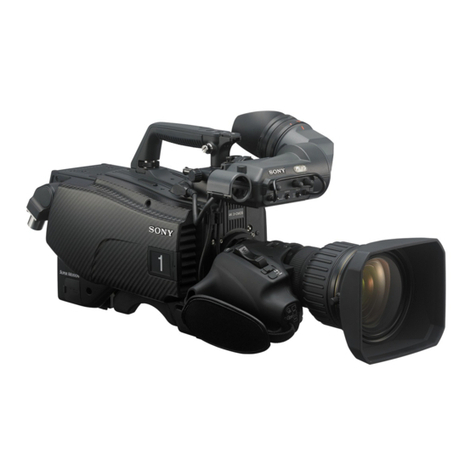
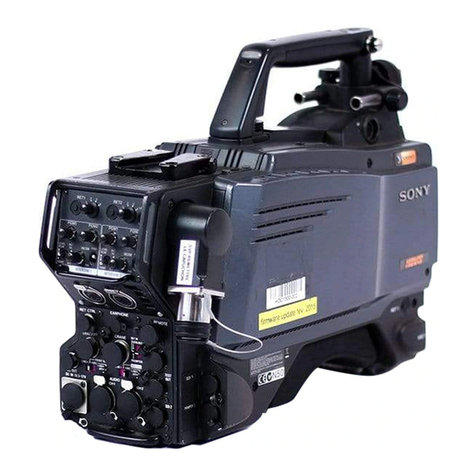
  9. Sony HDC3100 User manual

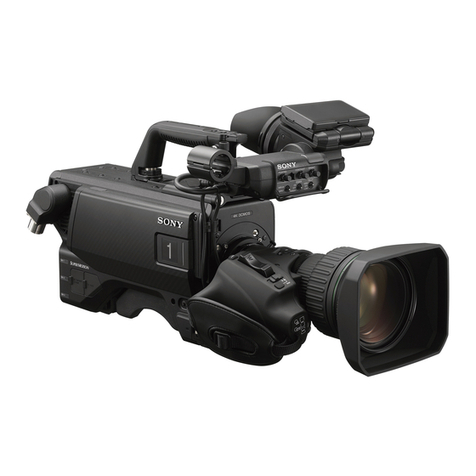
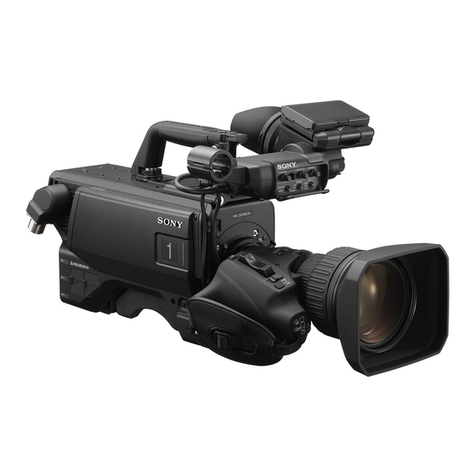
Sony HDC3100 User manual

This manual suits for next models

1

Other Sony CCTV Camera manuals

Sony FCBEH6300 User manual

Sony

Sony FCBEH6300 User manual

Sony Super HAD CCD SSC-DC314 User manual

Sony

Sony Super HAD CCD SSC-DC314 User manual

Sony HDC-900 Series User manual

Sony

Sony HDC-900 Series User manual

Sony super motion hdc4300 User manual

Sony

Sony super motion hdc4300 User manual

Sony FCB-CX12E User manual

Sony

Sony FCB-CX12E User manual

Sony FCB-EV7520 User manual

Sony

Sony FCB-EV7520 User manual

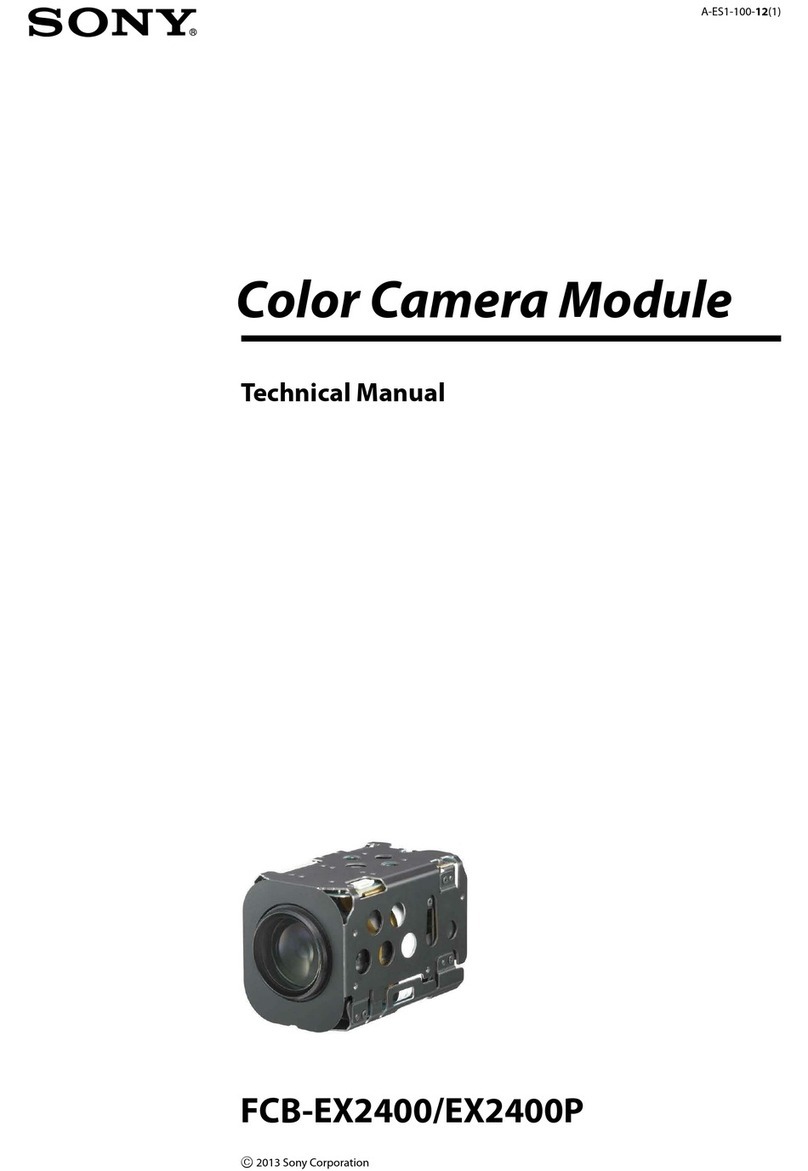
Sony FCB-EX2400 User manual

Sony

Sony FCB-EX2400 User manual

Sony FCB-EV7320 User manual

Sony

Sony FCB-EV7320 User manual

Sony HDC5500 User manual

Sony

Sony HDC5500 User manual

Sony HDC5500 User manual

Sony

Sony HDC5500 User manual

Sony HDC1000 series User manual

Sony

Sony HDC1000 series User manual

Sony KDP-673SH20 User manual

Sony

Sony KDP-673SH20 User manual

Sony HDC-750A User manual

Sony

Sony HDC-750A User manual

Popular CCTV Camera manuals by other brands

Uniq UP-1800CL-12B user manual

Uniq

Uniq UP-1800CL-12B user manual

Hitachi Kokusai Electric SK-HD1200 operating instructions

Hitachi Kokusai Electric

Hitachi Kokusai Electric SK-HD1200 operating instructions

Channel Vision 6404 Instructions for use

Channel Vision

Channel Vision 6404 Instructions for use

Rausch minCam Operation manual

Rausch

Rausch minCam Operation manual

Retina RET1032 user manual

Retina

Retina RET1032 user manual

Intellisystem IT-VCHD1600JSE user manual

Intellisystem

Intellisystem IT-VCHD1600JSE user manual

Hitachi HV-F31CL Operation manual

Hitachi

Hitachi HV-F31CL Operation manual

VIDCOM KIR-R639D40 user guide

VIDCOM

VIDCOM KIR-R639D40 user guide

Zte MF68 user manual

Zte

Zte MF68 user manual

Ikegami ISD-A20 instruction manual

Ikegami

Ikegami ISD-A20 instruction manual

Basler Vision Technologies Sprint user manual

Basler Vision Technologies

Basler Vision Technologies Sprint user manual

FLIR Ax5 series user manual

FLIR

FLIR Ax5 series user manual

MISUMI CCIQ II MP-CB300T quick start guide

MISUMI

MISUMI CCIQ II MP-CB300T quick start guide

INTELART I3-C202 user manual

INTELART

INTELART I3-C202 user manual

WOOSHIN WS-50C owner's manual

WOOSHIN

WOOSHIN WS-50C owner's manual

Vicom VDM-126BL-CVI Series quick start guide

Vicom

Vicom VDM-126BL-CVI Series quick start guide

CIS DCC-HD3 Product specification & operational manual

CIS

CIS DCC-HD3 Product specification & operational manual

Omron STC-MBS881U3V Product specifications and user's guide

Omron

Omron STC-MBS881U3V Product specifications and user's guide

manuals.online logo
manuals.online logoBrands
  • About & Mission
  • Contact us
  • Privacy Policy
  • Terms and Conditions

Copyright 2025 Manuals.Online. All Rights Reserved.

Operating Instructions
Before operating the unit, please read this manual thoroughly
and retain it for future reference.
© 2018 Sony Corporation
4-745-633-11 (1)
Fiber Color Camera
HDC3100
Triax Color Camera
HDC3170
2
Table of Contents
Overview..................................................................... 3
Supported Formats ..........................................................3
System Configuration.......................................................4
Locations and Functions of Parts............................ 6
Accessory Attachments....................................................6
Controls and Connectors .................................................7
Preparations............................................................. 11
Attaching a Lens ............................................................11
Adjusting the Flange Focal Length.................................11
Attaching a Viewfinder ...................................................11
Attaching the Cable Clamp Belt (Supplied) ....................12
Adjusting the Shoulder Pad Position..............................13
Mounting the Camera to a Tripod ..................................13
Adjustments and Settings for Shooting ................ 14
Adjusting the Black Balance and White Balance ...........14
Setting the Electronic Shutter.........................................16
Setting the Focus Assist Functions ................................16
Setting the Focus Position Meter Function ....................18
Setting the Camera Outputs ................................... 19
Viewfinder Screen Status Display.......................... 20
Menu Operations ..................................................... 21
Starting Menu Operations ..............................................21
Selecting Pages .............................................................22
Setting the Menu Items ..................................................23
Editing the USER Menu .................................................23
Menu List.................................................................. 27
Menu Tree......................................................................27
OPERATION Menu ........................................................32
PAINT Menu...................................................................40
MAINTENANCE Menu ...................................................43
FILE Menu......................................................................46
DIAGNOSIS Menu .........................................................48
Appendix .................................................................. 50
Precautions ....................................................................50
Digital Triax Transmission (HDC3170)...........................50
Error Messages..............................................................51
Using a USB Drive ................................................... 52
Specifications .......................................................... 53
HDC3100/3170 ..............................................................53
Optional Accessories/Related Equipment......................53
Dimensions ....................................................................55
3
Overview
The HDC3100/3170 are color cameras equipped with a newly developed 2/3 inch CMOS sensor with global shutter for F12 (1080/
59.94i)/F13 (1080/50i) high sensitivity and 62 dB high signal-to-noise ratio.
The HDC3100 supports operation as a studio camera when connected with an HDCU3100 a), HDCU3170 b), or
HDCU2000-series c) Camera Control Unit (CCU) using a fiber cable.
The HDC3170 supports operation as a studio camera when connected with an HDCU3170 using a triax cable.
a) Use HDCU3100 software version 2.00 or later.
b) Install the HKCU-FB30 Optical Fiber Connector Kit (option).
c) Use HDCU2000-series software version 3.30 or later.
Note
Before starting system operation, check that the software version and ROM version of the unit and system devices meet the
version requirements.
Supported Formats
The unit supports 1080-59.94i, 1080-50i, 720-59.94P, and 720-50P formats as standard.
(The HDC3170 supports 1080-59.94P and 1080-50P formats as standard.)
You can extend the formats that are supported by installing the following camera operating software (option).
For details, contact a Sony service or sales representative.
Notes
• HZC-PRV50M/PSF50M are 30-day software licenses.
• HZC-PRV50W/PSF50W are 7-day software licenses.
• HZC-PSF50/PSF50M/PSF50W cannot be installed on the HDC3170.
Camera operating software Extended formats
HZC-PRV50/PRV50M/PRV50W 1080-59.94P
1080-50P
HZC-PSF50/PSF50M/PSF50W 1080-24PsF
1080-23.98PsF
1080-25PsF
1080-29.97PsF
4
System Configuration
Note
Production of some of the peripherals and related devices shown in the figures has been discontinued. For advice on choosing
devices, please contact your Sony dealer or a Sony sales representative.
Connection example (optical fiber transmission)
Lens
(for ENG/EFP)
VCT-14 Tripod
Attachment
Tripod
HDVF-EL75/L750/L770
Viewfinder
HDC3100
Optical fiber cable a)
CAC-6
Return Video Selector
Intercom headset
CAC-12
Microphone
Holder
Microphone
HDVF-EL20
HDVF-EL30
Viewfinder
HDCU3100, HDCU3170 c)
Camera Control Unit b)
a) Signal transfer up to a maximum of 2 km is possible.
However, the actual transfer distance may vary
depending on the system configuration of the
cameras and the type of optical fiber cables used.
b) Set the signal transmission rate for the camera to
connect using the following menu item on the
camera control unit.
SYSTEM CONFIG t<CAMERA I/F> t
FIBER TRANSMIT RATE
For details, refer to the operation manual of the
camera control unit.
c) To use the HDCU3170, install the HKCU-FB30
Optical Fiber Connector Kit.
USB drive
RCP-1500/1000 series
Remote Control Panel
MSU-1000 series
Master Setup Unit
Sync signal input
Return video input
Intercom
microphone
input
Video
monitor
Waveform
monitor
Video router
2K video
monitor
BNC
CCA-5
LAN cable
LAN
cable
Hub
Hub
HKCU1001/1003/
2007/2040
HDCU2000
Camera Control Unit
HDCU2500
Camera Control Unit
RCP-1500/1000 series
Remote Control Panel
Video
monitor
Waveform
monitor
Video router
CCA-5
LAN cable
RCP-1500/1000
series
Remote Control
Panel
CCA-5
BNC
HKCU1001/1003/
2007/2040
LAN cable
MSU-1000 series
Master Setup Unit
5
Connection example (digital triax)
a) Signal transfer up to a maximum of 1.8 km is possible. However, the actual transfer distance may vary depending on the system
configuration of the cameras and the type of triax cables used.
For details, see page 50.
b) Set the signal protocol using the following menu item on the camera control unit.
SYSTEM CONFIG t<CAMERA I/F> tTRIAX TRANSMIT
For details, refer to the operation manual of the camera control unit.
Lens
(for ENG/EFP)
VCT-14 Tripod
Attachment
Tripod
HDVF-EL75/L750/L770
Viewfinder
HDC3170
Triax cable a)
CAC-6
Return Video Selector
Intercom headset
CAC-12
Microphone
Holder
Microphone
HDVF-EL20
HDVF-EL30
Viewfinder
HDCU3170 b)
Camera Control Unit
USB drive
RCP-1500/1000 series
Remote Control Panel
MSU-1000 series
Master Setup Unit
Sync signal input
Return video input
Intercom
microphone
input
Video
monitor
Waveform
monitor
Video router
2K video
monitor
BNC
CCA-5
LAN cable
LAN
cable
Hub
6
Locations and Functions of Parts
Accessory Attachments
aVF (viewfinder) connector (20-pin)
Connect the cable of the viewfinder (not supplied).
bShoulder strap fitting post
Attach one end of a shoulder strap (not supplied) to this fitting
post, and the other end to the fitting post on the other side of
the camera.
cAccessory shoe
To attach an accessory using a 1/4-inch screw.
dViewfinder left-right positioning ring
Loosen this ring to adjust the viewfinder position towards the
left or right.
eViewfinder front-rear positioning lever
Unlock the front-rear positioning lever to adjust the viewfinder
position towards the front or rear, then lock in the desired
position.
For details on adjusting the viewfinder position, see “Attaching
a Viewfinder” on page 11.
fLens cable clamp
To secure the cable of the lens (not supplied).
gLens fixing lever
To secure the lens in the lens mount.
hLens mount cap
The cover can be removed by moving the lens fixing lever
upwards. Always keep the lens mount covered with this cap
when a lens is not attached.
iLens mount
To attach a lens.
jLENS connector (12-pin)
Connect the lens cable. The camera can control the lens
functions through this cable.
kTripod mount
Attach the VCT-14 Tripod Attachment when mounting the
camera on a tripod.
lCamera number
Insert the supplied camera number label to display the camera
number.
mShoulder pad
You can adjust the position so that you can get the best
balance for shooting with the camera on your shoulder.
For details, see “Adjusting the Shoulder Pad Position” on
page 13.
nMicrophone holder attachment
Use to attach a CAC-12 Microphone Holder.
For details, refer to the microphone holder operation manual.
oV-wedge shoe attachment points
Attach a V-wedge shoe here to mount an HDVF-EL75/L750/
L770 Viewfinder.
Note
Select either the front or rear V-wedge shoe attachment points
to attach the V-wedge shoe. If the front position is used, it may
restrict the tilt/pan angle available for the viewfinder.
For details about attachment, refer to the operation manual of
the viewfinder.
A
B
C
D
E
F
G
H
I
J
K
L
M
N
O
7
Controls and Connectors
Front right
aINCOM1 (intercom 1) button
The intercom 1 microphone is turned ON while this button is
held pressed.
You can also assign other functions to this button, using the
menu displayed on the viewfinder screen.
bRET 1 (return video 1) button
The return video 1 signal from the camera control unit is
monitored on the viewfinder screen while this button is
pressed. It function the same as the RET 1 button on the side
(page 8) and RET/ASSIGNABLE button A on the operation
panel on the rear of the camera (page 9).
You can also assign other functions to this button, using the
menu displayed on the viewfinder screen.
cASSIGN (assignable) A, B, C, D switches
You can assign a function using the menu displayed on the
viewfinder screen.
You can also display the assigned function name by attaching
the corresponding label (supplied) for the assigned function.
dFilter select control
Turn the knob to select the internal filter setting.
eAUTO W/B BAL (white and black balance automatic
adjustment) switch
To automatically adjust white and black balance when the
camera is used in standalone status without connecting to the
camera control unit.
WHT: Automatically adjust white balance.
BLK: Automatically adjust black balance.
fGAIN switch
To select the gain of the video amplifier based on lighting
conditions when the camera is used in standalone status
without connecting a camera control unit.
When shipped from the factory, the values set are L = 0 dB,
M = 6 dB, and H = 12 dB.
gOUTPUT (output signal selection)/AUTO KNEE switch
To select the signal (color bar signal or camera’s video signal)
to be used as output to the viewfinder or a video monitor when
the camera is used in standalone status without connecting a
camera control unit.
When the camera’s video signal is being used as output, the
auto knee function may be used.
The relationship between the switch setting and the output
signal and auto knee function is shown in the table below.
hWHITE BAL (white balance memory selection) switch
To select the white balance adjustment method or the memory
used to store the adjusted value when the camera is used in
standalone status without connecting a camera control unit.
PRST (preset): White balance is adjusted to a preset value
corresponding to a color temperature of 3200K.
A or B: Selects memory A or B.
iDISPLAY switch
The functions of the DISPLAY switch are as follows:
DISPLAY: Characters and messages showing the camera
settings and operating status may be displayed on the
viewfinder screen.
OFF: Status messages will not appear on the viewfinder
screen.
MENU: Menus for camera settings will be displayed on the
viewfinder screen.
jSTATUS/CANCEL switch
STATUS: When no menu is displayed on the viewfinder
screen, the status information of this camera is displayed.
CANCEL: When a menu is displayed on the viewfinder
screen, you can cancel any changed settings or return
the display to the previous menu.
kMENU SEL (menu select) knob/ENTER button (rotary
encoder)
To select settings from menus displayed on the viewfinder
screen (by rotating the knob) and to confirm settings (by
pushing the button).
You can change the ECS frequency by pushing the ENTER
button when no menu is displayed on the viewfinder screen.
Make sure that the camera is used in standalone status
without connecting a camera control unit, and the shutter
mode is set to ECS. When the camera is used in standalone
status and the shutter mode is set to other than ECS, the VF
DETAIL function can be adjusted.
Note
When a camera control unit or a remote control device, such
as an MSU or RCP-series Remote Control Panel, is
connected, the functions of 5to 8are controlled from the
external control device and the controls on the camera are
disabled.
a
b
c
e
df
g
h
i
j
k
OUTPUT AUTO KNEE Function
BARS OFF Output is a color bar signal.
CAM OFF Output is the camera’s video signal.
The auto knee circuit is disabled.
CAM ON Output is the camera’s video signal.
The auto knee circuit is enabled.

8
Front left
aDC power supply out connector (2-pin)
Supplies power to an external device up to 2.5 A.
bRET 1 (return video 1) button
The return video 1 signal from the camera control unit is
monitored on the viewfinder screen while this button is
pressed. It function the same as the RET 1 button on the
handle (page 7) and RET/ASSIGNABLE button A on the
operation panel on the rear of the camera (page 9).
You can also assign other functions to this button, using the
menu displayed on the viewfinder screen.
cMIC 1 IN (microphone 1 input) connector (XLR 3-pin)
Connect a microphone.
This connector and the AUDIO IN CH-1 connector (page 10)
on the operation panel on the rear of the camera are
alternately activated with the CH1 audio input select switch
(page 10).
dMIC (microphone) power switch
+48V: To supply a power of +48 V to the connected
microphone.
OFF: Not to supply a power to the connected microphone.
eSHUTTER switch
For setting the electronic shutter functions when the camera is
used in standalone status without connecting a camera control
unit.
OFF: The electronic shutter does not function.
ON: The electronic shutter is activated.
SEL: The shutter speed and shutter mode change each time
the switch is set to this position.
For details, see “Setting the Electronic Shutter” on page 16.
fINTERCOM LEVEL control
To adjust the intercom/earphone volume level.
The intercom level adjustment is enabled when the
INTERCOM LEVEL switch (page 9) on the rear of the camera
is set to “FNT.”
gRET 2 (return video 2) button
When this button is pressed, the picture on the viewfinder
screen changes to the return video signal selected using RET/
ASSIGNABLE button A, B, or C on the operation panel on the
rear of the camera or using the menu.
You can also assign other functions to this button, using the
menu displayed on the viewfinder screen.
Rear
aCAMERA POWER switch
CCU: Power is supplied from the camera control unit.
EXT: Power is supplied through the DC IN connector.
bTally lamp and switch
ON: The tally lamp lights when a tally signal is input to the
connected camera control unit or a call signal is
generated in response to pressing of a CALL button.
OFF: The tally lamp is prevented from lighting.
cRET 1/2 (return video 1/2) buttons
When pressed, the picture on the viewfinder screen changes
to the return video signal selected using the operation panel
on the rear of the camera or using the menu.
dCCU (camera control unit) connector
HDC3100: Connect a camera control unit using an optical
electrical multi cable.
HDC3170: Connect a camera control unit using a triax cable.
eSDI 1 (serial digital interface 1) connector (BNC-type)
For 3G SDI, HD SDI or HD PROMPTER signal output.
On the HDC3100, in addition to the above signals, HD TRUNK
signal input is supported.
For details on the output signals, see “Setting the Camera
Outputs” (page 19).
fCALL button
When this button is pressed, the red tally lamp of the
RCP-1500/1000 series Remote Control Panel or the
MSU-1000-series Master Setup Unit will light. Use to call the
operator of the RCP or MSU.
ab
c
df
e
g
b
c
d
e
f
a
Operation panel
(page 9)
Shoulder strap fitting
post (page 6)
Connector panel
(page 9)
9
Operation panel
aINTERCOM controls and switches
ENG control, PROD control, PGM1 control, PGM2 control,
MIC LINE switch, TRACKER control, and LEVEL switch for
the intercom.
ENG (engineer line) control
Adjust the intercom audio listening level of the engineer line.
PROD (producer line) control
Adjust the intercom audio listening level of the producer line.
PGM1 (program 1) control
Adjust the audio listening level of program 1.
PGM2 (program 2) control
Adjust the audio listening level of program 2.
MIC LINE (intercom microphone line) switch
Select the intercom line.
PROD: Use the producer line.
ENG: Use the engineer line.
OFF: Turn the intercom headset microphone off.
TRACKER control
Adjust the intercom audio listening level of an intercom
connected to the TRACKER connector (page 10).
LEVEL switch
REAR: The intercom audio listening level is adjusted with
the controls on the operation panel.
FNT: The intercom audio listening level is adjusted with
the INTERCOM LEVEL control (page 8) on the front
of the camera.
bLIGHT switch
Set to ON to illuminate the operation panel.
cRET/ASSIGNABLE button A, B
Press the button to switch the function assigned to the button
on the <REAR FUNCTION ASSIGN> page on/off. When the
return function is assigned, press the button to display the
return video signal on the viewfinder screen while the button is
pressed.
Turn the button to change the assigned function setting. When
the return function is assigned, you can change the return
signal channel.
dRET/ASSIGNABLE button C / DISP/MENU switch
Press the button to switch the function assigned to the button
on the <REAR FUNCTION ASSIGN> page on/off. When the
return function is assigned, press the button to display the
return video signal on the viewfinder screen while the button is
pressed.
Turn the button to change the assigned function setting. When
the return function is assigned, you can change the return
signal channel.
When the DISP/MENU switch is set to the MENU position to
display the MENU screen, you can perform menu operations
using RET/ASSIGNABLE button C.
Connector panel
aEARPHONE jack (4-pole mini jack)
Connect to a headset, or earphones with microphone (3-pole/
4-pole earphones), to input/output the intercom audio signal.
For 4-pole earphones, the intercom line is linked to the
INTERCOM setting.
Turn the microphone function on/off using HEADSET MIC
(page 38) in the OPERATION menu. When set to ON, the
microphone can be turned on/off in conjunction with the
INTERCOM setting using the MIC LINE switch on the
operation panel. The default setting is OFF.
ABC
RET/ASSIGNABLE
DISP
MENU
LIGHT
ON
OFF
OFF
PGM1 PGM2
MIC
LINE
TRACKER
INTERCOM
LEVEL
REAR
FNT
ENG PROD
PROD
ENG
a
bc d
FNT
OFF ENG
PGM1 PGM2
MIC
LINE
TRACKER
ENG PROD
PROD LEVEL
REAR
MIC LINE switch
ENG
control
PROD
control
PGM1
control
PGM2
control
TRACKER control
LEVEL switch
PROMPTER
TEST
OUT
LINE +48V
OFF
MIC
SDI
MONI
AUDIO IN
CH1 CH2
/GEN
LOCK
LINE +48V
OFF
FRONT MIC
MIC
EARPHONE
RET CTRL
DC IN 10.5-17V
DC OUT
TRACKER
REMOTE
AES/EBU
a
b
c
d
e
g
h
i
j
k
l
f
10
bUSB connector (for connecting a USB drive)
Connect a USB drive to save or load the settings data file.
For details, see “Using a USB drive” (page 52).
cTRACKER connector (12-pin)
For external interface, such as intercom and tally.
dRET CTRL (return control) connector (6-pin)
For connection to a CAC-6 Return Video Selector.
eDC IN (DC power supply input) connector (XLR 4-pin)
Used for connection to the AC-DN10 AC Adaptor to supply
power to the camera.
fINTERCOM connector (XLR 5-pin)
Used for input and output of intercom audio signals if an XLR
5-pin headset is connected.
The INTERCOM connector can be used for communication
over the engineer line even when the power is off, as long as
the power LED is lit in red.
gDC OUT (DC power supply output) connector (4-pin)
To supply power to devices such as a wireless receiver
(optional) (max. 0.5 A).
hREMOTE connector (8-pin)
For connection to an RCP-1500/1000 series Remote Control
Panel, or MSU-1000/1500 Master Setup Unit.
Note
When the camera is connected to a CCU, do not connect any
remote control device, such as RCP and MSU, to this
connector.
iPROMPTER/GENLOCK (prompter 1 signal output/
external gen-lock signal input) connector (BNC-type)
The PROMPTER function is enabled when a camera control
unit is connected. The GENLOCK IN function is enabled when
a camera control unit is not connected.
GENLOCK IN: For input of an external gen-lock signal (VBS
or 3-level sync) during stand-alone operation.
PROMPTER: For output of the prompter 1 signal (valid only
when a camera control unit is connected). When a
camera control unit having two prompter inputs is
connected, the signal of input 1 is output from this
connector.
jTEST OUT connector (BNC-type)
To output the analog signal.
This can also output a VBS signal, HD-SYNC signal, or
SD-SYNC signal, whichever is selected in the menu.
For details on the output signals, see “Setting the Camera
Outputs” (page 19).
kSDI MONI (serial digital interface) connector (BNC-
type)
For HD-SDI or SD-SDI signal output.
For details on the output signals, see “Setting the Camera
Outputs” (page 19).
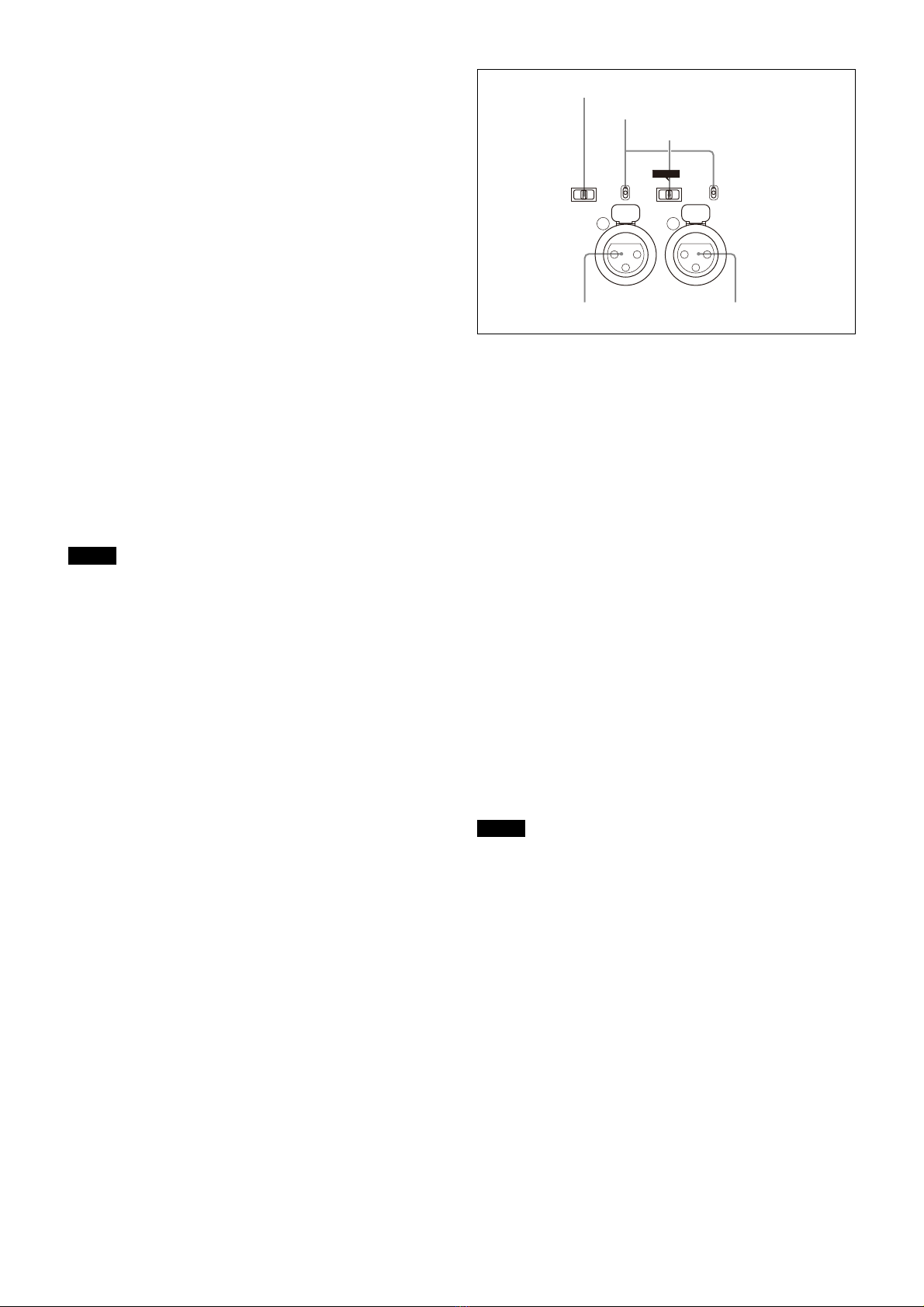
lAUDIO IN CH1 and CH2 connectors (XLR 3-pin) and
switches
Connect audio signals. An input select switch and microphone
power switch are provided for each channel.
CH1 audio input select switch
Set to the appropriate position according to the equipment
connected to the AUDIO IN CH1 connector.
LINE: When a line-level (0 dBu) signal source is
connected
FRONT MIC: When using the microphone connected to
the MIC 1 IN connector
MIC: When an external microphone is connected
CH2 audio input select switch
Set to the appropriate position according to the equipment
connected to the AUDIO IN CH2 connector.
LINE: When a line-level (0 dBu) signal source is
connected
AES/EBU: When a digital audio signal is connected (The
signal must be in synchronization with the camera
output).
MIC: When an external microphone is connected
Microphone power switches
When a microphone is connected to the corresponding AUDIO
IN connector, set whether or not to supply a power to the
microphone.
+48V: To supply a power of +48 V
OFF: Not to supply a power
(No function has been assigned to the lowermost
position. No power is supplied to the microphone.)
Note
To supply +12 V power, contact a Sony sales representative
or Sony service representative.
LINE +48V
OFF
MIC
AUDIO IN
CH1 CH2
LINE +48V
OFF
FRONT MIC
MIC
AES/EBU
CH2 audio input select switch
CH1 audio input select switch
Microphone power switches
AUDIO IN CH1 connector AUDIO IN CH2 connector