manuals.online logo
Brands
  1. Home
  2. •
  3. Brands
  4. •
  5. Star
  6. •
  7. Printer
  8. •
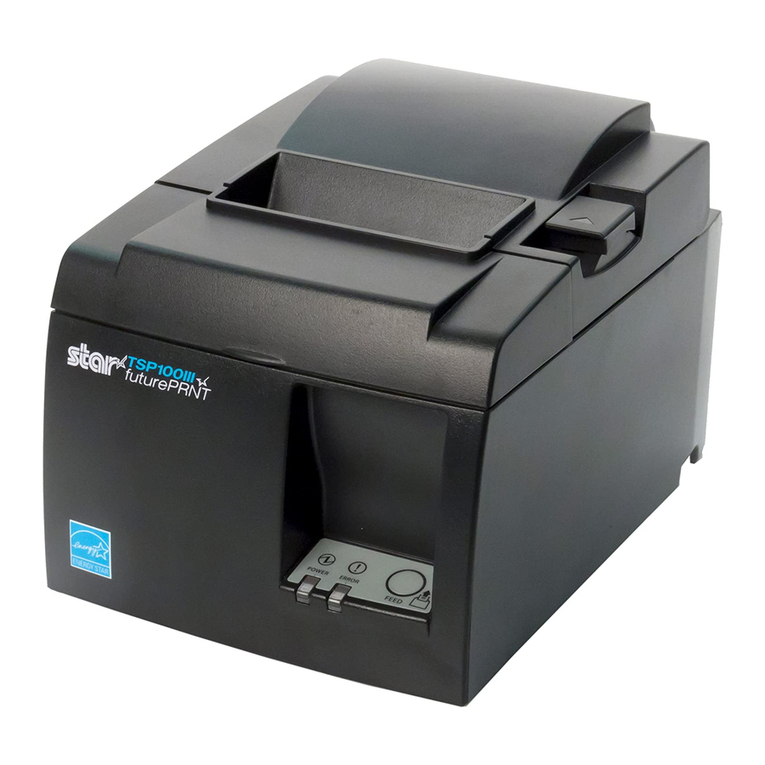
  9. Star TSP100IIIU Quick start guide

Star TSP100IIIU Quick start guide

Other Star Printer manuals

Star SP742 Series User manual

Star

Star SP742 Series User manual

Star mC-Print3 MCP31L Quick start guide

Star

Star mC-Print3 MCP31L Quick start guide

Star LC-8521 User manual

Star

Star LC-8521 User manual

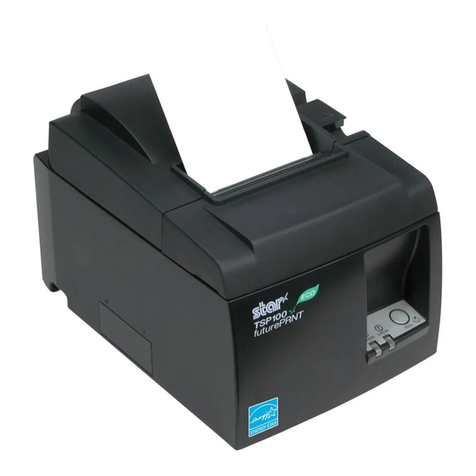
Star TSP100 futurePRNT User manual

Star

Star TSP100 futurePRNT User manual

Star SM-S201 User manual

Star

Star SM-S201 User manual

Star TSP847II User manual

Star

Star TSP847II User manual

Star StarPRNT mC-Print3 Series Quick start guide

Star

Star StarPRNT mC-Print3 Series Quick start guide

Star TSP564II User manual

Star

Star TSP564II User manual

Star SM-L304 Series User manual

Star

Star SM-L304 Series User manual

Star TSP650II series User manual

Star

Star TSP650II series User manual

Star SM-S400 Quick start guide

Star

Star SM-S400 Quick start guide

Star AR-1000 User manual

Star

Star AR-1000 User manual

Star Star NX-2430 User manual

Star

Star Star NX-2430 User manual

Star SM-S201 User manual

Star

Star SM-S201 User manual

Star LC-1511 User manual

Star

Star LC-1511 User manual

Star SM-T300 User manual

Star

Star SM-T300 User manual

Star SP747R Series User manual

Star

Star SP747R Series User manual

Star LC-7211 User manual

Star

Star LC-7211 User manual

Star futurePRNT ECO TSP100 User manual

Star

Star futurePRNT ECO TSP100 User manual

Star LC-90 User manual

Star

Star LC-90 User manual

Star TSP400 SERIES User manual

Star

Star TSP400 SERIES User manual

Star Dot Impact Printer User manual

Star

Star Dot Impact Printer User manual

Star Multi-Font ZA-200 User manual

Star

Star Multi-Font ZA-200 User manual

Star TSP700II User manual

Star

Star TSP700II User manual

Popular Printer manuals by other brands

Evolis Elypso user guide

Evolis

Evolis Elypso user guide

Lexmark 522n - C Color Laser Printer Service manual

Lexmark

Lexmark 522n - C Color Laser Printer Service manual

Panduit COUGAR LS9Q Operator's manual

Panduit

Panduit COUGAR LS9Q Operator's manual

Olivetti PG L2140 Operation guide

Olivetti

Olivetti PG L2140 Operation guide

Samsung SL-M2820DW user manual

Samsung

Samsung SL-M2820DW user manual

Kyocera FS-9530DN specification

Kyocera

Kyocera FS-9530DN specification

Canon LASER SHOT LBP-1210 Specifications

Canon

Canon LASER SHOT LBP-1210 Specifications

Canon PIXMA PRO-1 Series Getting started

Canon

Canon PIXMA PRO-1 Series Getting started

Canon LBP113w Getting started

Canon

Canon LBP113w Getting started

Lexmark Infoprint 1332 user manual

Lexmark

Lexmark Infoprint 1332 user manual

Epson M1120 user guide

Epson

Epson M1120 user guide

TransAct POSJET 1500 Spare parts

TransAct

TransAct POSJET 1500 Spare parts

Telpar MTP-1500 user manual

Telpar

Telpar MTP-1500 user manual

MGI JETVARNISH 3DS user manual

MGI

MGI JETVARNISH 3DS user manual

Kyocera TASKalfa PA4500ci Operation guide

Kyocera

Kyocera TASKalfa PA4500ci Operation guide

Emaar EP-360 user manual

Emaar

Emaar EP-360 user manual

Fujitsu DL7400 user manual

Fujitsu

Fujitsu DL7400 user manual

Centronics 101A Technical manual

Centronics

Centronics 101A Technical manual

manuals.online logo
manuals.online logoBrands
  • About & Mission
  • Contact us
  • Privacy Policy
  • Terms and Conditions

Copyright 2025 Manuals.Online. All Rights Reserved.

Set Up the Printer
For customers using Windows Tablet・PC <What to Do First >
For customers using iPad / iPhone / iPod touch・Android <Optional>
What's Included If contents are missing or damaged, please contact the reseller that sold you
the printer.
*accessories vary depending on the region where the printer was purchased.
iPad, iPhone, iPod touch are trademarks of Apple Inc., registered in the U.S. and other countries. Lightning are trademarks of Apple Inc. IOS is a trademark or registered trademark of Cisco in the U.S.
and other countries and is used under license. Android is a trademark of Google Inc. Windows is a registered trademark of Microsoft Corporation.
For more information please visit our FAQ site at: http://www.starmicronics.com/support/faq.aspx
Download the TSP100 Windows Driver“futurePRNT”
Extract the futurePRNT software and run“Autorun.
exe”
Follow the wizard and install the software.
The connection will be completed by simply
connecting the USB cable.
A TSP100III utility is available from the following link which will
allow you to check printer operation or change settings.
iPad / iPhone / iPod touch
Windows
Android
Using the lighting cable provided with your apple product, connect it to the port on
the left (type A)and secure it with the cable lock. Connect the opposite end to
your Apple product .
Using the supplied USB cable, connect it to the port in the middle (type B)and
secure it with the cable lock . Connect the opposite end to the PC.
Using your USB to type B cable, connect it to the port in the middle (type B) and
secure it with the cable lock. Connect the opposite end to your Android device .
Easy Setup Guide
Copyright © 2017 Star Micronics Co., Ltd. 80877840
TSP100IIIU
Install it before connecting a USB cable.
3
Turn ON the Main Unit
Power
Connect the included power cable to the inlet
on the back side of the TSP100III. Connect the
plug of the power cable to the outlet.
Turn on the power to the TSP100III , and check
the blue LED lights up .
2Inserting a Paper Roll
Push the cover opening lever and then
open the rear cover .
1Connect a USB cable
When using a paper roll with 58 mm
width, install the supplied paper
guide into the printer.
To change the paper width, the
memory switch must be set. Refer to
the online manual for details.
Insert a paper roll in the direction shown
in the illustration.
Pull the end of the paper out straight ,
and push down both sides of the printer
cover to close .
Installing the Windows driver
This completes printer setup.
On Windows, the device driver software will
be installed automatically. Shortly thereafter,
your device will be ready to use.
There are various plugs
for Android devices
www.star-m.jp/
tsp100iiiu-oml.html
TSP100IIIU online manual
This document explains the setup procedure for the TSP100IIIU.
For further instructions, please refer to the TSP100IIIU online manual.
Please read the instructions before using the printer.
Introduction
The drivers can be downloaded using the link below:
www.star-m.jp/tsp100iii-wsw.html
Download the TSP100 futurePRNT Driver
The Windows drivers are included in futurePRNT.
When futurePRNT is used, the printer settings can be
configured and an operation test can be performed.
You will need:
USB cable included with the
printer
You will need:
Lightning cable included with
your apple product
You will need:
USB cable (sold commercially or
one that comes with a tablet)
A specific USB On-the-Go adapter
may be required for your Android
product, please contact your
tablet manufacturer.
3
3
3
DK
5V
5V DK
1
2
DK
5V
5V DK
1
2
DK
5V
5V DK
1
2
www.star-m.jp/tsp100iii-app.html
※ Access if from your iOS or Android device.
TSP100III Utility Download
3
4
OFF ON
I
O
FEED
ERROR
4
3
1
2
RST
2
1
TSP100III
Paper Roll Guide
Paper RollUSB Cable
Easy Setup Guide
This Sheet
Safety InstructionsPower Cable* Holder Plate
Rubber Feet Screws(2)Switch Cover
Plugfortheprinter
(TypeB)
Plugfortheprinter
(TypeA)
Plugfortheprinter
(TypeB)
Windows タブレット・PC をお使いの方 < はじめに行ってください>
iPad / iPhone / iPod touch・ Android をお使いの方
プリンターを設置する
同梱品を確認する 同梱品が不足しているまたは破損している場合は、ご購入先へご連絡ください。
1
USB ケーブルをつなぐ
かんたんセットアップ
◦iPad、iPhone、iPod touchは、米国および他の国々で登録されたApple Inc.の商標です。Lightning は、Apple Inc. の商標です。“iPhone”の商標は、アイホン株式会社のライセンスにもとづき使用されています。IOS は、
米国およびその他の国における Cisco 社の商標または登録商標であり、ライセンスに基づき使用されています。 ◦Android は、Google Inc. の商標です。◦Windows は、米国 Microsoft Corporation の、米国、日
本およびその他の国における登録商標です。 ◦ さらに細かな内容については、弊社 FAQ サイト( http://www.star-m.jp/faq/index.html )をご参照ください。
Copyright © 2017 Star Micronics Co., Ltd.
Windows ドライバーをインストールする
Lightning ケーブルをプリンターの USB(TypeA)コネクタに接続して 、ケー
ブルフックで固定します 。もう一方のプラグをスマートフォン/タブレットに
接続します 。
USB ケーブルをプリンターの USB(TypeB) コネクタに接続して 、ケーブルフッ
クで固定します 。もう一方のプラグを Windows タブレット/ PC に接続します 。
USB ケーブルをプリンターの USB(TypeB)コネクタに接続して 、ケーブルフッ
クで固定します 。もう一方のプラグをスマートフォン/タブレットに接続しま
す。
iPad / iPhone / iPod touch
Windows
Android
TSP100IIIU
USB ケーブルを接続する前に行ってください。
 接続準備は完了です。ホストデバイスからのプ
リンターの検索が可能となります。
 Windows では、プラグアンドプレイによって自
動でプリンターキューが作成されます。
プリンターソフトウェア [ futurePRNT ] をダウンロード
します。
ダウンロードしたソフトウェアを解凍して「Autorun.
exe」を実行します。
ウィザードに沿ってインストールを完了してください。
3本体の電源をいれる
本体付属の電源ケーブルをインレットに接続し
て、プラグをコンセントに差します 。
アース線はアース端子に接続してください。
2ロール紙をセットする
 58mm 幅ロール紙を使用する場合は、
ロール紙ガイドを取り付けてください。
ロール紙をイラストの向きでセットし
ます。
用紙の端をまっすぐ引き出し 、
両サイドを押してリヤカバーを閉めま
す。
電源を入れ 、LED(青色)が点灯したことを
確認します 。
用紙幅の変更にはメモリスイッチの設
定が必要です。詳しくはオンラインマ
ニュアルをご参照ください。
カバーオープンレバーを押して 、リヤ
カバーを開けます 。
USB ケーブルをつなぐ前に、必ず Windows ドライバーのインストールを行ってください。
本書は TSP100IIIU を利用するまでの手順を記載しています。
さらに詳しい使用説明、安全のご注意等につきましては、TSP100IIIU オンライン
マニュアルに記載されています。ご使用の前に必ずお読みください。
はじめに
www.star-m.jp/
tsp100iiiu-oml.html
TSP100IIIU
オンラインマニュアル
Windows ドライバー・ユーティリティは、こちらから
ダウンロードしてください。
USB ケーブルをつなぐだけで接続準備が完了します
動作確認などができる TSP100III ユーティリティは、こちらからダウンロード
いただけます。
www.star-m.jp/tsp100iii-wsw.html
futurePRNT
Windows
ドライバー
ダウンロード
準備するもの
プリンターに付属の USB ケーブル
準備するもの
市販またはスマートフォン/
タブレットに付属の Lightning
ケーブル
準備するもの
市販またはスマートフォン/タブ
レットに付属の USB ケーブル
USB 変換アダプターなど
(必要に応じて)
Windows ドライバーは futurePRNT に含まれます。
futurePRNT を使用すると、プリンター本体の設定や動作
テストを行えます。
3
3
3
DK
5V
5V DK
1
2
DK
5V
5V DK
1
2
DK
5V
5V DK
1
2
www.star-m.jp/tsp100iii-app.html
※ お使いのスマートフォン/タブレットより
アクセスしてください。
TSP100III ユーティリティダウンロード
2
1
3
4
OFF ON
I
O
FEED
ERROR
4
3
1
2
TSP100III 本体
ロール紙ガイド
ロール紙USB ケーブル
かんたん
セットアップシート 安全のしおり
本書
電源ケーブル 取り付け金具
ゴム足 ネジ2ヶスイッチメカクシ
プリンター側プラグ
(TypeB)

プリンター側プラグ
(TypeA)

プリンター側プラグ
(TypeB)