9
QUICK START
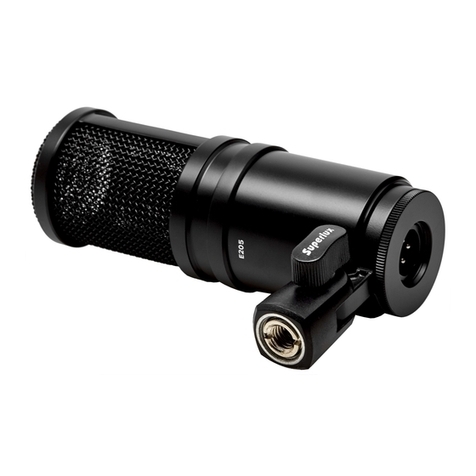
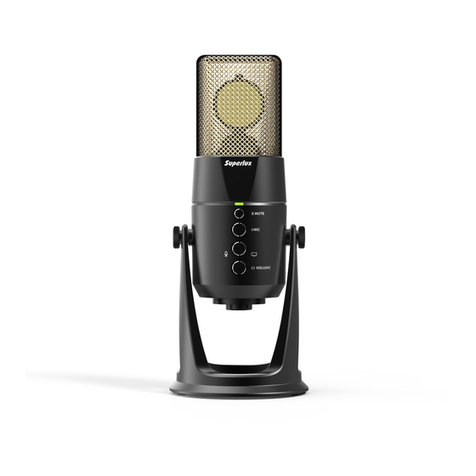
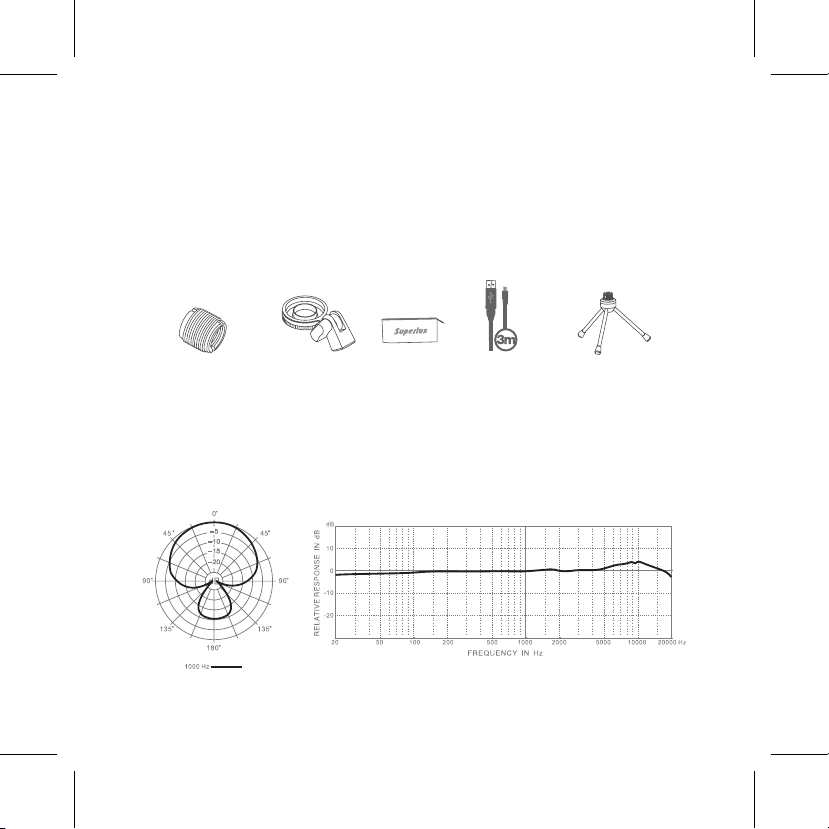
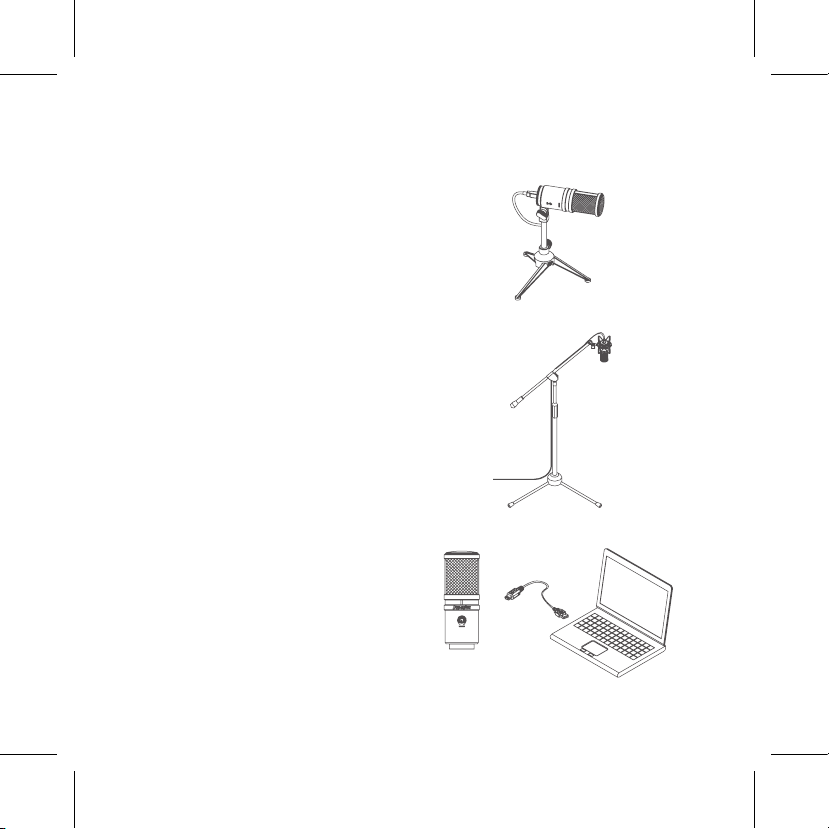
1. You can position the E205UMKII on an optional stand by using included accessories.
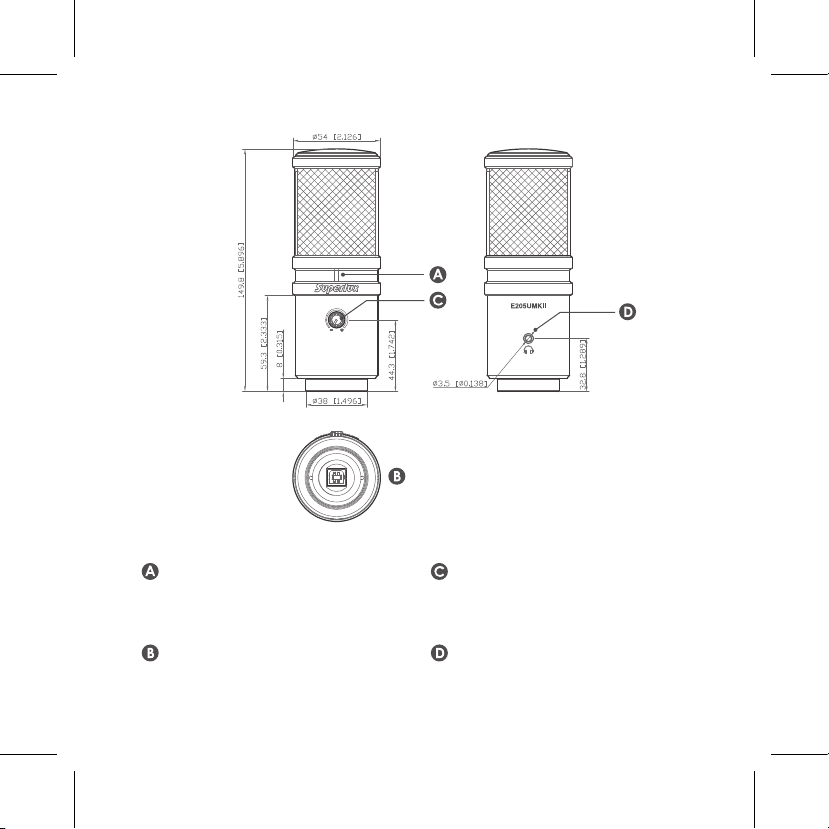
2. Be sure to position the side of grille net to the sound source and keep the Superlux
logo and LED indicator face the direction of sound source.
3. Plug the B type connector of the included USB cable into the USB socket on the
bottom of the E205UMKII.
4. Now, plug the other end of the USB cable into an available powered USB port on
your computer.
*Note: Be sure to check the USB audio device driver setup for Windows and Mac OS to
conrm your computer has recognized the E205UMKII.
5. Next, launch your DAW, turn down the main output level and select the E205UMKII
for the input.
6. Set up a mono record track in your DAW.
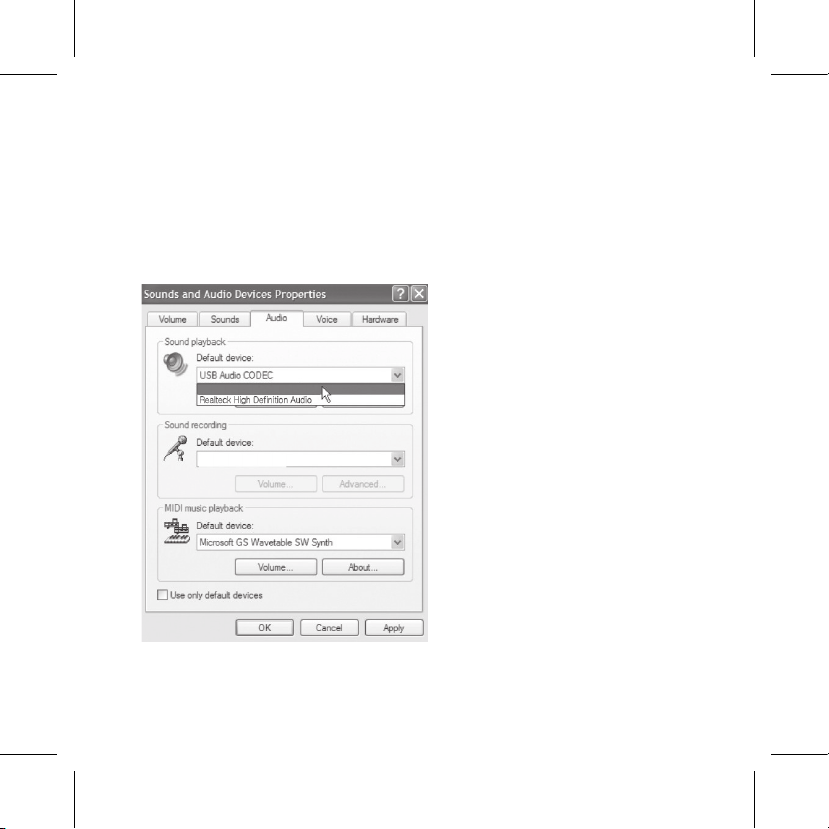
7. Now, setup the level of the E205UMKII and there are few ways to do this depending
on your computer system. You can set the microphone's input level in the Sound
playback in Windows or in the Sound dialog box in the System Preferences if you are
using the MAC OS.
8. Set level of the microphone by raising the Input level control in your DAW or system
to about half way up.
9. Next, put on your headphones that is connected to the headphone output of E205U-
MKII, position the E205UMKII to the sound source then adjust the volume control
until you reach a comfortable listening level.
Now, follow the instructions of your DAW software to enable the track for recording and
you're ready to record.
*Note: if the microphone level of E205UMKII are too loud or not enough, please check your
DAW software or refer to Troubleshooting page in this manual to adjust the level in Windows
and Mac computer system.