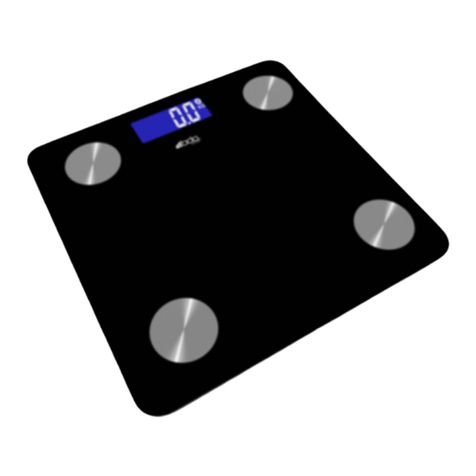
Taylor Cal-Max3847BL User manual

Cal-Max
Kitchen Scale
Instruction Manual
3847BL
CUSTOMER SERVICE INFORMATION
PLEASE READ!
For your questions regarding this product,
please contact us at:
Taylor Precision Products
2220 Entrada Del Sol, Suite A
Las Cruces, New Mexico 88001 USA
1-866-843-3905
www.taylorusa.com
Please contact us before returning to retailer.
by
For more information on NBC’s “The Biggest Loser” or to join
“The Biggest Loser Club”, please visit the official “Biggest Loser” website at:
www.nbc.com/The_Biggest_Loser.com
or www.biggestloserclub.com.
Get a free diet profile at www.biggestloserclub.com.
™

2
When following “The Biggest Loser®” lifestyle, it is important to know the
real caloric count of the food that you eat. Whether you follow “The Biggest
Loser” diet plan to reduce weight or are simply aiming to eat more healthily,
knowing the exact calories by your portion sizes will arm you with accurate
information. “The Biggest Loser” Cal-Max™ Kitchen Scale by Taylor® contains
a comprehensive built-in data base of 1,000 analyzed foods.
This Taylor Cal-Max Kitchen™ Scale requires no separate reference book,
table or numerical food codes, so it is very easy and quick to use. It has a
feature that allows you to keep a cumulative record of your total caloric intake
throughout the day or week, up to 30 meals. Apart from the extensive 1,000
plus foods in the data base, this scale enables you to input data for up to fifty
additional foods or recipes.
This scale can also be used as a conventional scale for everyday weighing and
measuring. This integrated kitchen scale is simple to use and fully equipped
with the “Add & Weigh” (to weigh multiple ingredients) and also to weigh both
dry and liquid ingredients.
This Taylor Cal-Max Kitchen Scale also has the following key features:
zUser memory, which allows user to record nutritional intakes for up to
thirty (30) meals
zPlastic platform for easy cleaning
z3 AAA alkaline batteries, which are included with the scale for instant use
zMaximum capacity of 11 lb x 1/8 oz. / 5000 g x 1 g / 175 fl. oz x 1/8 fl. oz

3
OPERATING INSTRUCTIONS
CONTENTS PAGE
1. GETTING STARTED 4
2. GENERAL WEIGHING OPERATION 5
3. KEYPAD 6
4. ANALYZING YOUR FOODS 6
5. ADDING NEW FOODS 9
6. EDITING USER - ADDED FOOD ENTRIES 11
7. DELETING USER - ADDED FOOD ENTRIES 13
8. MEMORY FUNCTIONS 14
a) Saving Nutritional Values into Memory 14
b) To see Calorie Value Save in Memory 15
c) Adding Foods to Memory at a Later Time 15
d) Clearing Foods from Memory 16
9. POWER SAVE FEATURE 18
10. BATTERY REPLACEMENT 18
11. CARE, PRECAUTIONS AND WARNINGS 19

4
Diagram 1
KEY TO DIAGRAM 1:
1. Interactive LCD readout
2. ON/OFF power key
3. Multi-function keys and alpha numeric keypad (see Diagram 3)
4. Plastic weighing platform
NOTE: THE INFORMATION PROVIDED BY THIS PRODUCT SHOULD BE
USED IN CONJUNCTION WITH PROFESSIONAL DIETARY ADVICE.
ALWAYS CONSULT YOUR DOCTOR BEFORE STARTING A WEIGHT
LOSS AND/OR EXERCISE PROGRAM.
1. GETTING STARTED
a) Insert the 3 AAA alkaline batteries into battery compartment according to
the polarity symbols (+ and -) marked in the compartment.
b) Place the scale on a firm, level surface. Uneven surfaces may affect
accuracy.
c) If using a bowl or other container (not included), choose a container that
will safely balance on the platform without tipping or falling. DO NOT use
a heavy container, as this might reduce the maximum capacity of the scale.
KEY TO DIAGRAM 2: 3 AAA alkaline battery compartment
Diagram 2
1
23
4
1

5
2. GENERAL WEIGHING OPERATION
a) Press the ON/OFF key to turn the scale on. If using a bowl or other
container (not included), place the bowl on the scale before turning it on
to “Zero Out” the weight of the bowl. You may press the ZERO key to reset
the scale to zero.
b) Your scale is set at the factory to weigh in pounds/ounces (lb/oz). To
switch to grams (g), fluid ounces (fl. oz), or milliliters (ml) press the
“MODE” key. The current units of measurement are indicated above the
weight reading. For your convenience, the scale has a “weight mode”
memory, so when the scale is next switched on, it will continue to use the
weight units last selected.
c) Place the item to be weighed onto the platform (or in the bowl); the weight
will display. As you add weight, the weight displayed increases.
d) “Add & Weigh” feature: To weigh several ingredients together in the same
bowl, press the ZERO key to reset the display to zero out the scale between
each ingredient. For example, if a recipe calls for 1/2 lb. rice and 1/2 lb
beans, place the rice into the bowl. Once the correct amount of rice is
weighed, press the ZERO key until the display resets to zero; add 1/2 lb. of
beans. Both ingredients have been accurately weighed in the same bowl.
e) When weights have been zeroed out, the display will show dashes (“-----”)
when the items are removed from the scale. To reset the scale back to
zero for a new measurement, press the ZERO key until the display resets to
zero.
f) The scale will turn off automatically after one (1) minute of non-use when
nothing is on the platform, two (2) minutes when weight is on the platform.
To conserve battery power, press and hold the “ON/OFF” key for two (2)
seconds to turn the scale off manually.
TIP: The liquid measure feature is suitable for all water based liquids,
(e.g. wine, milk, stock, cream, etc.). Please be advised that oils have
a significantly lower specific gravity and would give a reading of
approximately +10%. Please adjust your recipe by this proportion when
measuring oils on this scale.

6
3. KEYPAD
Diagram 3
MODE - Changes weighing units of measurement
ZERO - Resets scale display to zero between weighing of ingredients
or to remove the weight of the bowl
ON/OFF - Turns scale ON and OFF
ALPHANUMERIC KEYS - Use to search for foods, enter data
DELETE/MC - Delete a letter, clear user-added foods from memory
MR - View nutritional values in memory
M+ - Save nutritional values in memory
CANCEL - Cancels current operation
MENU - Access user-added food menus
FOOD - Access food data base
ENTER - Confirms displayed selection
ARROW KEYS - Scroll through foods/options
MODE
ON/OFF
ZERO
ALPHANUMERIC KEYS
DELETE/MC
CANCEL
MENU
M+/•
FOOD
ENTER
ARROW KEYS
MR
4. ANALYZING YOUR FOODS
This scale uses an alphanumeric keypad to search for foods, eliminating
the need to refer to a separate food code list. The alphanumeric keypad
operates in a similar way to the keypad on a mobile phone. The majority of the
alphanumeric keys have three or four letters and one number assigned.

7
To Analyze a Food:
a) Turn the scale on.
b) Press the “FOOD” key. “ENTER FOOD NAME” appears.
c) Press the key with the first letter of the desired food (each key controls
3 or 4 letters-it will repeat the 3-4 letters as you keep pressing that key).
Continue to press that key until the letter you want appears on the screen.
Release the (NOTE: If you make an error or wish to search for another
letter, press “DELETE”, then select another letter).
d) The first alphabetical food appears on the screen. For example, the first
item in the “G” data base is “Gelatine Dry Mix”.
e) Press the key with the second letter of the desired food. The display will
scroll to the first food with those two letters. For example “GR” displays
“GRANOLA, CEREAL OATS AND HONEY”.
f) Continue to press the keys in this manner until the desired food appears or
you can simply press the (▲) or (▼) key to scroll through the foods after you
press the first letter.
g) Press “ENTER” to select a displayed food. Wait for the “O” to appear on the
screen in “WEIGHING” mode.
h) Press “MODE” to change weight measurements if desired (lb., oz., ml.,
fl. Oz., g).
i) Place the food to be weighed on the scale; the weight will display. Please
allow a few seconds for the scale to calculate the calorie count.
j) The scale beeps; user can now view the calorie value.
k) Press “CANCEL” once to return to the “ENTER FOOD NAME” screen. Press
a second time to return to the basic weighing screen.
TIPS:
1. If while using the keypad to search for a food and a curser line ( _ ) appears
next to the letter, the scale is prompting for the next letter of the food
name. Press the “DELETE” key to back-up to the first letter if it needs to be
changed.
2. A space can be entered between words by using the “ZERO” key.
3. If you cannot locate a food, refer to data reference page. You may have to
enter the food type first. (i.e. “CHEESE”)
4. If a typed food is not in the data base, (i.e. there is no food that starts with
“PW”) the scale will beep and back up to a cursor; continue to type in a
correct letter.
5. Pressing “CANCEL” will take you back one step (i.e. return to basic
weighing mode rather than food analyzing mode). Continue to press
“CANCEL” until the scale returns to the screen you wish to view.
6. When you need to enter numerical data (such as nutritional values) the
keypad will automatically switch to “NUMBERS ONLY”.
7. Once the scale beeps and the calories are locked in, you need to back out
by hitting “cancel” and start again.

8
BEEP!
Press ON/OFF Press FOOD Press 1st letter of food
Press 2nd letter of food Repeat for other letters
or scroll with ARROWS
When food displays,
press ENTER. Wait for
weighing screen
Place food on scale.
Weight displays
Scale beeps
1st Press 2nd Press 3rd Press
Press CANCEL to return
to previous screens

9
5. ADDING NEW FOODS
This Cal-Max scale allows you to add up to fifty (50) additional foods to suit
your personal needs. For example, if you have a favorite breakfast cereal that
is not listed, you can use the calorie value printed on the cereal box to add this
food to the data base.
To add a new food:
a) Turn the scale “ON”. Be sure the scale is in weighing mode
(“WEIGHT” shows on the display).
b) Press “MENU”.
c) Use the arrow keys or “MENU” key to scroll to “ADD FOOD ITEM TO
MEMORY” and then press “ENTER”. “ENTER FOOD NAME” appears.
d) Using the keypad, enter a name for the new food (limit of 15 characters)
then press “ENTER”.
e) You will be prompted to type in the value for “CALORIES”;
press “ENTER”. (see important note below)
f) The screen shows: “ITEM ADDED”, then returns to “ADD FOOD ITEM TO
MEMORY” screen. The new food item has been added.
g) To exit the “ADD SCREEN” press (▲) or (▼) until “EXIT MENU” appears,
then press “ENTER”. The scale returns to the weighing screen.
IMPORTANT: The nutritional values must be entered as per 100g of food or
product. All nutritional labels include the corresponding grams to the serving
size. You may need to calculate the calorie value of the 100g portion manually
first before entering into the scale.

10
Press ON/OFF Press MENU Press “▲” or “▼” for Add screen, then ENTER
Use keypad to
name food
Use keypad to enter
values then press
Press ENTER
Repeat with to add other foods,
or press arrows to scroll to exit
menu, then press ENTER.
New food added
to memory
This manual suits for next models
1
Table of contents
Other Taylor Scale manuals
Taylor
Taylor 7009 User manual

Taylor
Taylor TE11FT User manual
Taylor
Taylor The Biggest Loser User manual
Taylor
Taylor 7527 User manual

Taylor
Taylor 7562 User manual
Taylor
Taylor THE BIGGEST LOSER 7334 User manual
Taylor
Taylor TS10 User manual
Taylor
Taylor 3875 User manual

Taylor
Taylor 7562 User manual
Taylor
Taylor 5297042 Instruction Manual
Taylor
Taylor 3701-44 User manual

Taylor
Taylor 7602 User manual
Taylor
Taylor 7356 User manual
Taylor
Taylor 7323 User manual
Taylor
Taylor The Biggest Loser 3840BL User manual

Taylor
Taylor TE10FT User manual

Taylor
Taylor TR250 User manual
Taylor
Taylor 7042EF User manual
Taylor
Taylor The Biggest Loser 3865BL User manual
Taylor
Taylor TE400 User manual