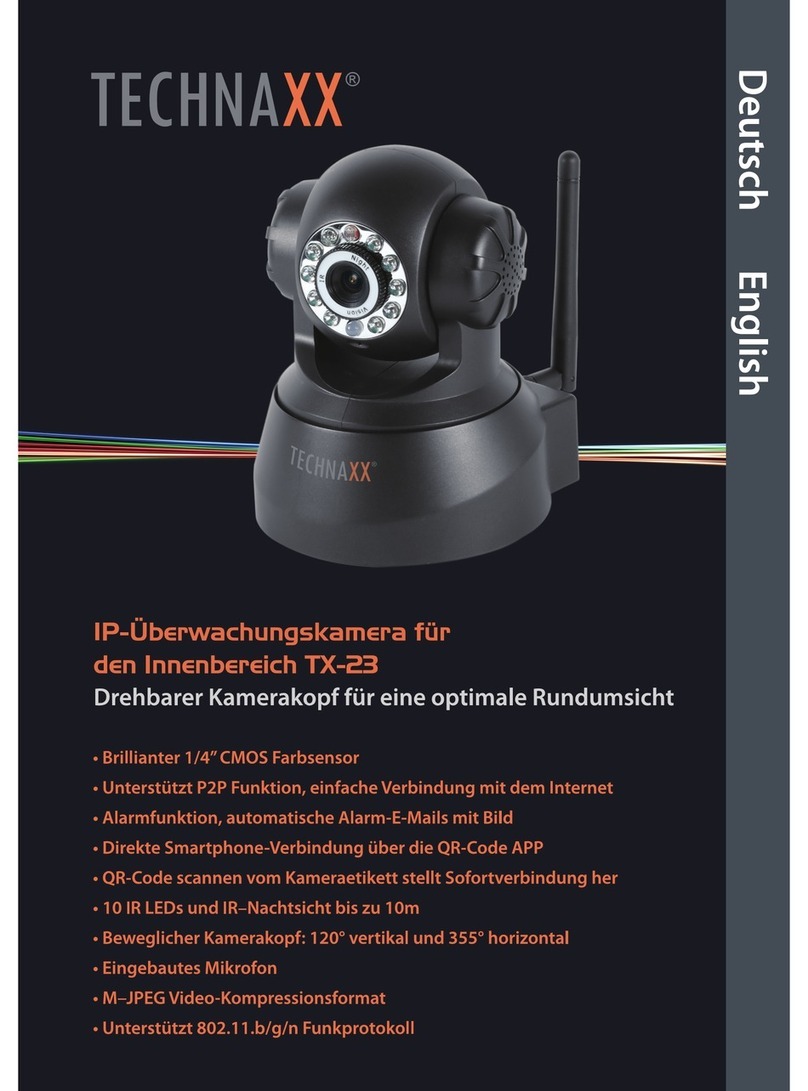
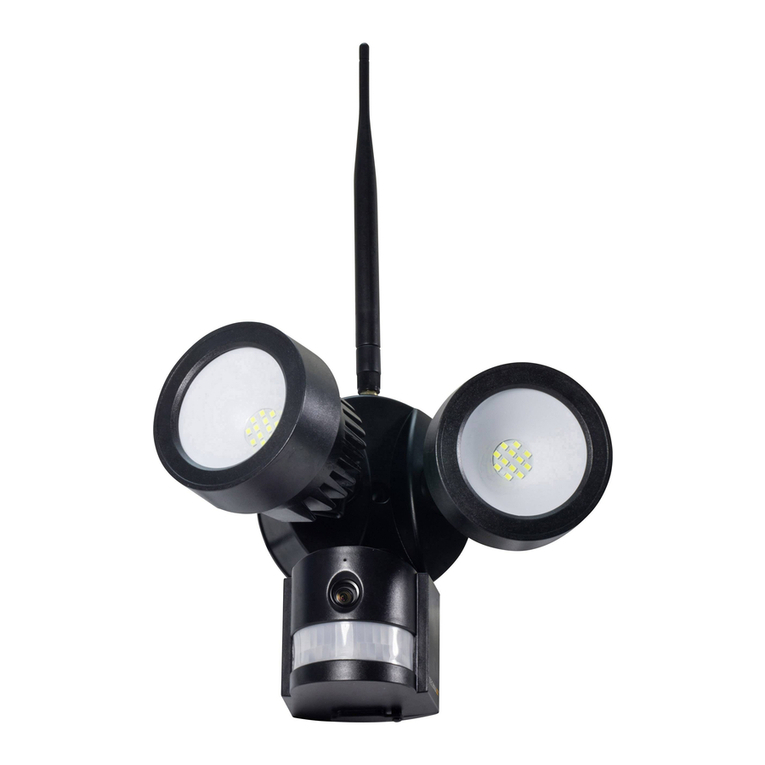
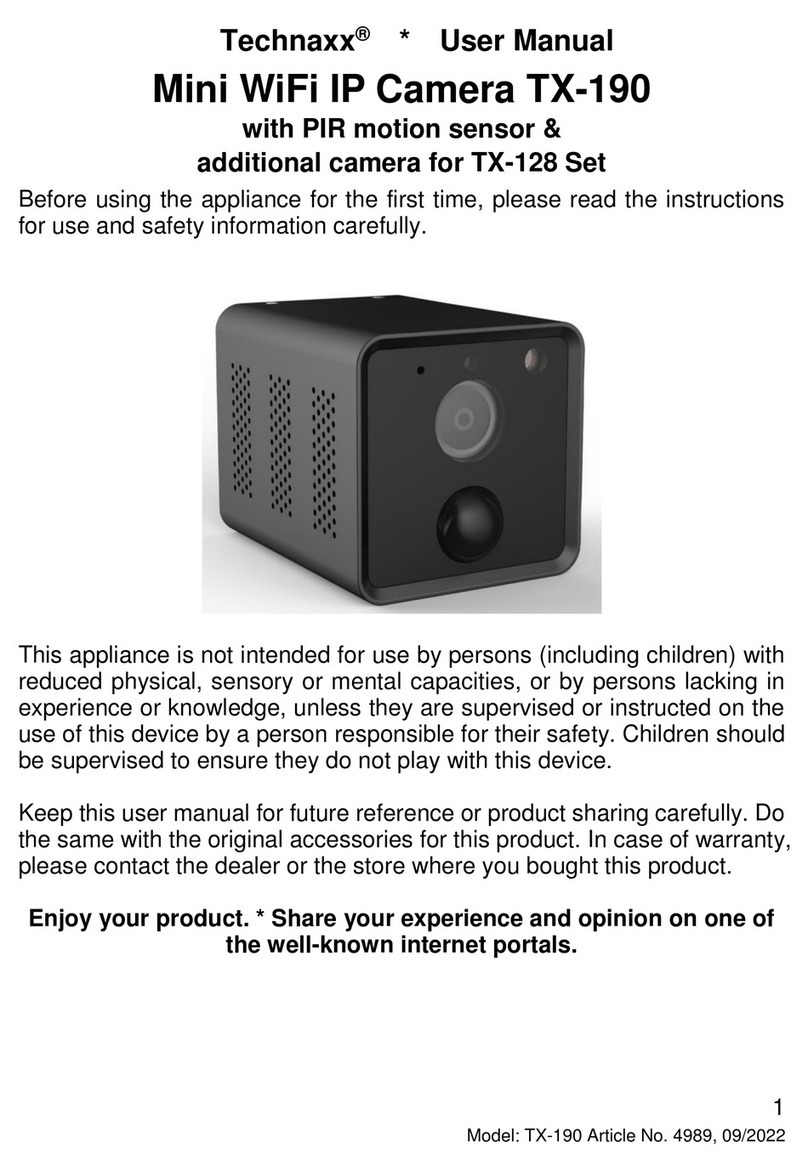
Technaxx TX-146 User manual

1
Technaxx®* User Manual
FullHD WiFi IP PT Indoor Camera TX-146
Additional camera for TX-128 Set
Introduction
The manufacturer Technaxx Deutschland GmbH & Co.KG hereby declares
that this device, to which this user manual belongs, complies with the essential
requirements of the standards referred to the Directive RED 2014/53/EU. The
Declaration of Conformity you find here: www.technaxx.de/ (in bar at the
bottom “Konformitätserklärung”). Before using the device the first time, read
the user manual carefully.
Service phone No. for technical support: 01805 012643 (14 cent/minute from
German fixed-line and 42 cent/minute from mobile networks).
Free Email: support@technaxx.de
The support hotline is available Mon-Fri from 9 am to 1 pm & 2 pm to 5 pm
If you drill a hole in the wall, please make sure that power cables, electrical
cords and/or pipelines are not damaged. When using the supplied mounting
material, we do not take the liability for a professional installation. You are
entirely responsible to ensure that the mounting material is suitable for the
particular masonry, and that the installation is done properly. When working at
higher altitudes, there is danger of falling! Therefore, use suitable safeguards.
Keep this user manual for future reference or product sharing carefully. Do the
same with the original accessories for this product. In case of warranty, please
contact the dealer or the store where you bought this product.
Warranty 2 years
Enjoy your product * Share your experience and opinion on one of the
well-known internet portals.
Hints for Environment Protection: Packages
materials are raw materials and can be recycled. Do
not disposal old devices or batteries into the domestic
waste. Cleaning: Protect the device from
contamination and pollution (use a clean drapery).
Avoid using rough, coarse-grained materials or
solvents/aggressive cleaner. Wipe the cleaned device
accurately. Distributor: Technaxx Deutschland
GmbH & Co.KG, Kruppstr. 105, 60388 Frankfurt a.M.,
Germany

2
Contents
Introduction.................................................................................................... 1
1. Features .................................................................................................... 3
2. Product overview....................................................................................... 3
3. Quick operation guide................................................................................ 5
3.1 For STANDALONE USE................................................................... 5
3.2 Use as ADDITIONAL CAMERA for TX-128 Set................................ 6
4. How to start (Login/Registration)................................................................ 7
4.1 Local mode & Users mode................................................................ 7
4.2 Registration ...................................................................................... 7
4.3 Forget Password............................................................................... 8
5. How to add a device .................................................................................. 9
5.1 Add Device....................................................................................... 9
5.2 Add device when already connected to network............................. 12
5.3 Adding device from the same network............................................ 13
5.4 IP/DDNS adding ............................................................................. 14
6. How to navigate through the App............................................................. 16
6.1 My device ....................................................................................... 16
6.1.1 Live view.................................................................................. 16
6.1.2 Playback.................................................................................. 20
6.2 My center (personal area)............................................................... 22
7. How to use PC Software Windows (& MAC)............................................ 24
7.1 Installation ...................................................................................... 24
7.2 Login and add device...................................................................... 25
7.3 Open live view ................................................................................ 27
7.4 Playback recordings ....................................................................... 27
8. FAQs....................................................................................................... 28
9. Technical Specifications .......................................................................... 29

3
1. Features
⚫Use as additional camera for TX-128 or stand-alone camera
⚫Rotation (355° horizontal & 130° vertical)
⚫FullHD video resolution 1920 x 1080 with max. 15fps
⚫Brilliant 1/ 2.9" CMOS colour sensor (2MP)
⚫Motion detection up to ~8m with automatically recording
⚫Detection and tracking of moving objects (motion tracking)
⚫6x IR LED up to ~8m for optimal night vision
⚫Rapid installation, only via Android & iOS APP
⚫Free “Security Premium” APP for worldwide access [available on
Google Play & APP Store]
⚫Alarm function (push message) on your Smartphone
⚫Built-in microphone & speaker for 2-way communication
⚫Supports MicroSD(HC/XC) cards up to 128GB (Class 10)
⚫H.264/H.265 video compression (for space-saving recordings of
high quality)
⚫Supports 2.4GHz wireless network (WiFi / IEEE 802.11/b/g/n) up
to 10m
2. Product overview
IR LED:
The device activates the infrared light automatically as soon as low
illumination prevails.
MicroSD card slot:
Support MicroSD card for local storage (max. 128GB). To guarantee the
normal use of MicroSD card, before insert the MicroSD card, make sure its file
system is FAT32 and there is more than 256MB space available.
When you use a size 64-128GB MicroSD card. Format the MicroSD card after
inserting and configuration via the App. To work properly, the App must show
the following status under device memory: Normal.
RESET Button:
Using a paper clip to press the reset button for 5 seconds to reset the device.

4
Front
Rear
1
Microphone
4
Infrared LED
2
Light Sensor
5
Speaker
3
Camera Lens
6
DC power Port (Micro USB)
Top
Bottom
7
Reset button
9
Inverted Fixing Point
8
MicroSD card Slot
10
Bracket Hole

5
3. Quick operation guide
3.1 For STANDALONE USE
In this mode TX-146 camera can only be configured by
iOS or Android APP!
Start TX-146
→Connect the device with the MicroUSB power adapter to a socket, TX-146
starts automatically. The prompt voice will tell you when ready to start with the
configuration via App.
→To download the App Security Premium from the Appstore or the Playstore
search for “Technaxx Security Premium” or scan the QR-code below.
[iOS 9.0 or above; Android 7.0 or above (06-2020)]
APP icon
iOS
Android
→Open the Security Premium App on your device.
→Register for user mode your data will be saved and can be restored. For
testing the App you can simply press App testing.
→After entering the App press the plus + symbol on the top right corner and
choose Add device
→Select the typ of camera for TX-146 it is WiFi camera.
→For the WiFi configuration of the TX-146 follow the shown steps in the App.
Important: this device does not have an indicator light to show the current
status. Please answer the question in the app while configuration mode with
Yes when you are asked for a flashing indicator light.
→After finishing the configuration the device is connected to your WiFi router
and is ready to use.
Note: For Android phone users, in order to facilitate the configuration, App will
obtain the WIFI information surrounding. So the Smartphone will ask whether
to allow the application to obtain relevant permission. Click “Allow”.

6
3.2 Use as ADDITIONAL CAMERA for TX-128 Set
The first camera has been matched with monitor in the factory already. The
image shows up when the kit is powered on. If users need to pair the camera
again or add an additional camera, operate as below:
Step one: Power on the monitor and camera.
Step two: Reset the camera to enter the pairing mode.
Step three: Enter the Match code interface on the monitor and click on the
match code.
Tips:
1) The camera can only perform the pairing in the reset state; the camera
needs a reset to perform the pairing mode.
2) If the camera does not pair with the monitor, click “Match Code” again to
try again.
3) If you need to replace a new camera, please click "X" on the monitor to
delete the channel and then click on match code.

7
App pictures of chapter 4, 5 and 6 are based on Security Premium for iOS and
Android in version 3.3.6 and 3.3.7.
4. How to start (Login/Registration)
4.1 Local mode & Users mode
There are Local mode and User mode on the App. Users without a
registered account can click “Local” and try this App.
→Data in Local mode will be stored at local only and cannot be restored.
→User mode: Data added or grouped by user (e.g. the device), is managed
by server, which won’t be lost even to delete all data on the Smartphone. As
long as users re-install the App and log in the old account, all data will be
restored for some auxiliary functions such as device status notification and
alarm notification.
4.1 Register or Local
4.2 Enter Email
4.2 Enter verification
code and password
4.2 Registration
Users without accounts have to take several seconds to register. Click
“Register”, enter the email address, and bind the email address (system will
send an email to this email address). Login to your email account, copy the
verification code and enter a password to complete registration (follow this
step, otherwise users cannot use forget password function).

8
4.3 Forget Password
If you forget the password and needs to get it back, click „Forget password”.
Enter the Email address into the user interface and press Confirm. The system
sends a confirmation Email, which the user can check via his Email account).

9
5. How to add a device
5.1 Add Device
Login to the App if not already done and go to “My device” interface.
Note: Due to the limitation of iOS system, some functions on Android version
cannot be reached on iOS version. For WiFi configuration this camera uses
the Access Point (Hotspot) method.
iOS and Android:
1
2
3
Click “+” on top right
corner to add the
TX-146.
Choose WiFi camera
from the four device
groups.
The TX-146 does not
have any indicator light.
Press Yes to continue.
Make sure the camera
is in configuration
mode. Otherwise do a
reset.

10
iOS WiFi configuration:
4
5
6
Go to your WiFi settings
of your Smartphone and
open it.
Connect with the WLAN
beginning IPC…. The
WiFi password/key is
11111111 (8x1), wait
until IPC…. WiFi is
connected and go back
to Security Premium.
Choose the WiFi you
want to connect with
and enter the WiFi
password /key.
This manual suits for next models
1
Table of contents
Other Technaxx Security Camera manuals
Technaxx
Technaxx TX-44+ Wild Cam Camouflage User manual
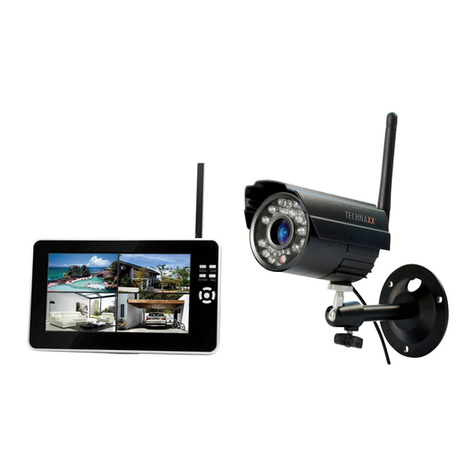
Technaxx
Technaxx TX-28 User manual
Technaxx
Technaxx TX-28 User manual
Technaxx
Technaxx 4461 User manual
Technaxx
Technaxx TX-108 User manual
Technaxx
Technaxx TX-28 User manual
Technaxx
Technaxx TX-44 Wild Cam User manual
Technaxx
Technaxx TX-49 User manual
Technaxx
Technaxx TX-128 User manual
Technaxx
Technaxx TX-75 User manual