Frontline Technical Support:email frontline-techsupport@teledyne.com or psgsupport@teledyne.com
9. Record Begin Capture
When starting a capture session all of these actions occur::
lThe active status of all devices is cleared in the Wireless Devices pane and the Wired Devices pane.
lThe Security pane is emptied.
lThe Event Log pane retains all prior logged events.
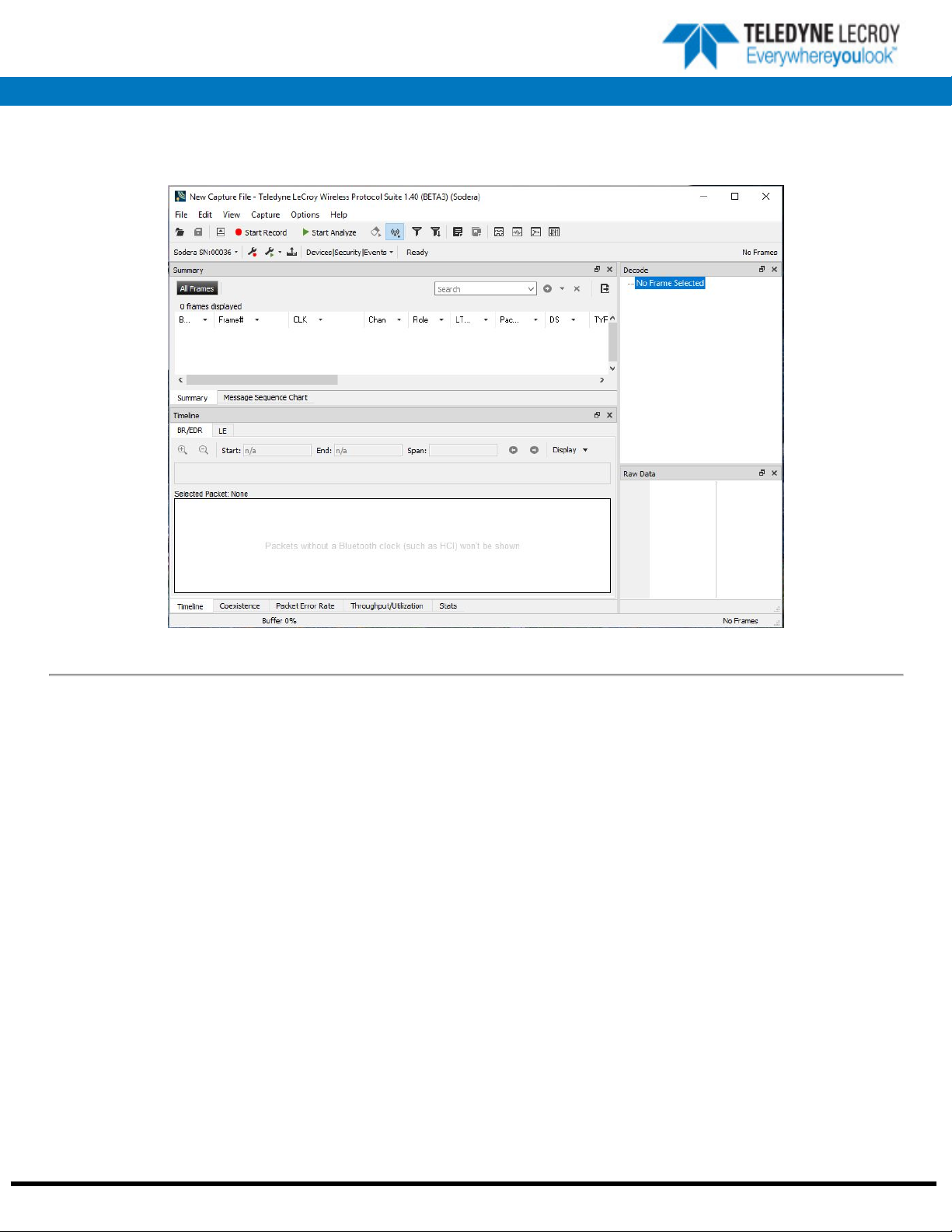
On the Wireless Protocol Suite Toolbar, click on the Start Record button or select Start Record from the
Capture menu option. The Start Record button is also available in the Wireless Protocol Suite main window. In
the Main window you can also select Start Recoloring from the Capture menu option. When the Start Record
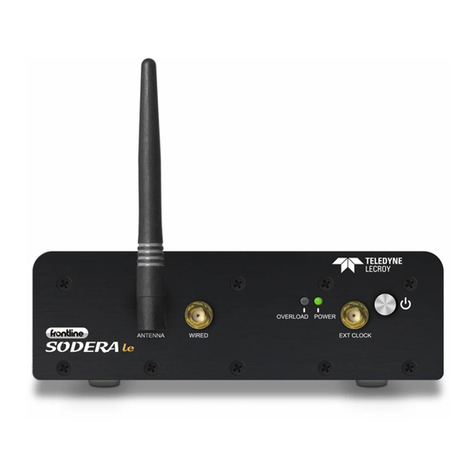
button changes to Stop Record, the Sodera hardware is capturing data from all active Bluetooth devices within range and is recording
data on the PC.
On the Wireless Protocol Suite Toolbar, clicking on the Stop Record button, or selecting Stop Recording
from the Capture menu options will halt live capture. From the Main window you can click the Stop Record
button or select Stop Recording from the Capture menu list to stop recording as well.
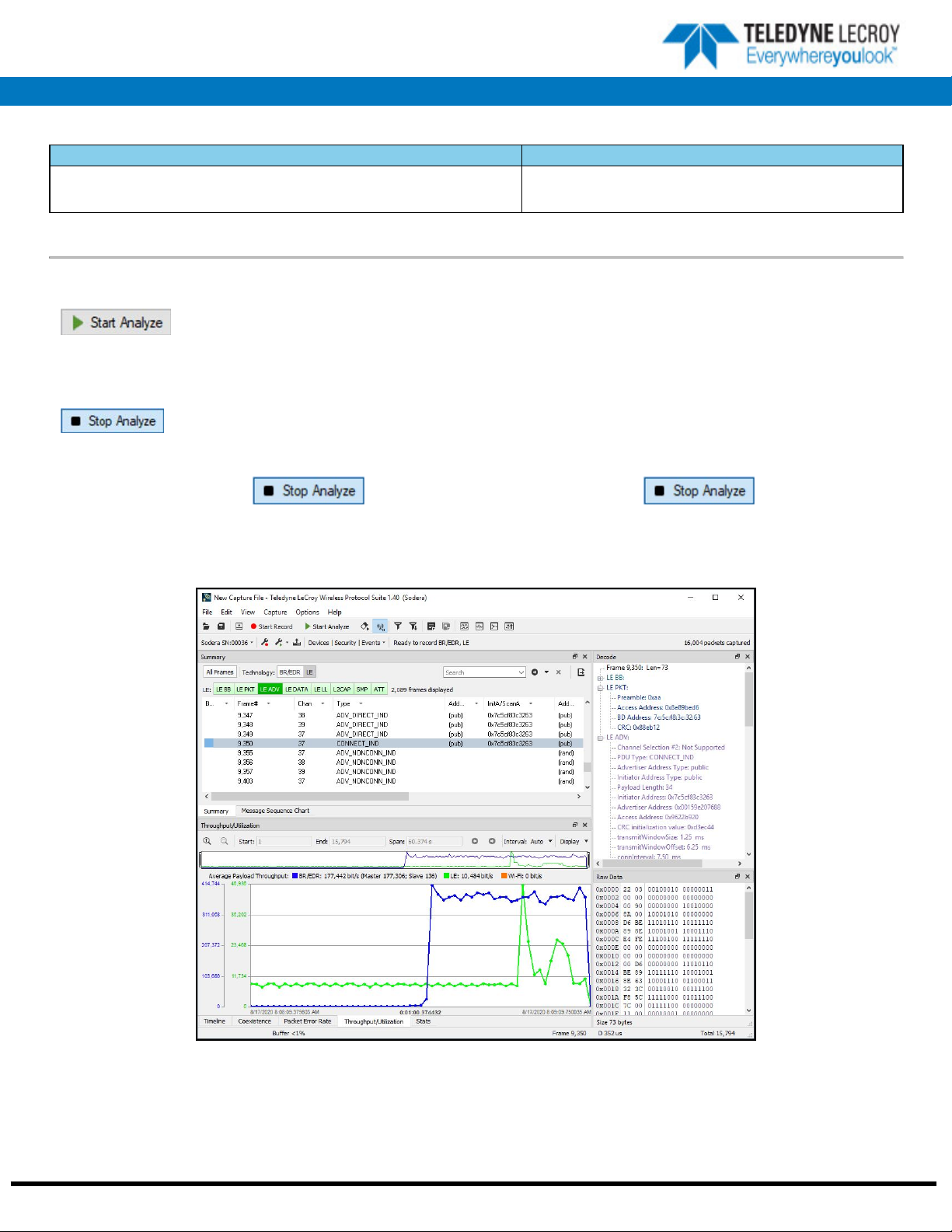
The Wireless Devices and Wired Devises View populates with any newly discovered devices. Selecting devices for analysis can be
done while recording.
The Security View will show all encrypted Bluetooth links.
The Event Log View will begin to populate with information, warnings, and error messages.
The Status Bar will show a running total of captured packets.
Note: Starting a new capture session will clear all unsaved data from both the Sodera hardware and the Wireless
Protocol Suite. If it has not been saved, then a pop-up warning message will appear.
10. Selecting Devices for Analysis
Once a capture session starts by clicking on Start Record on the Main Window Toolbar, data from all active devices within range or
data from wireless or wired connections is being captured. To analyze the data using the Wireless Protocol Suite, select specific
devices of interest to include in the analysis.
In the Wireless Devices pane and Wired Devices pane, , place a check in the row of each active device to be analyzed. Active
devices can also be selected while the recording is in process.
Note: Data filtered by the device selection is an “OR” function, not an “AND” function. When selecting device1,
device2, device3,... the recorded data filtered into the analyzer is data involving device1 OR device2 OR device3
OR .... However, if in the Options menu, analysis of LE Empty packets is selected, an AND function is included.
For example: (device2 AND LE Empty packets) OR (device3 AND LE Empty packets).
The following table lists some common data capture and device selection scenarios.
Scenario Wireless/Wired Devices View Selection
Analyzing traffic between a Slave Device Under Test (DUT) and its
Master.
Select only the Slave DUT for analysis
Table 3 - Common Data Capture and Device Selection Scenarios